
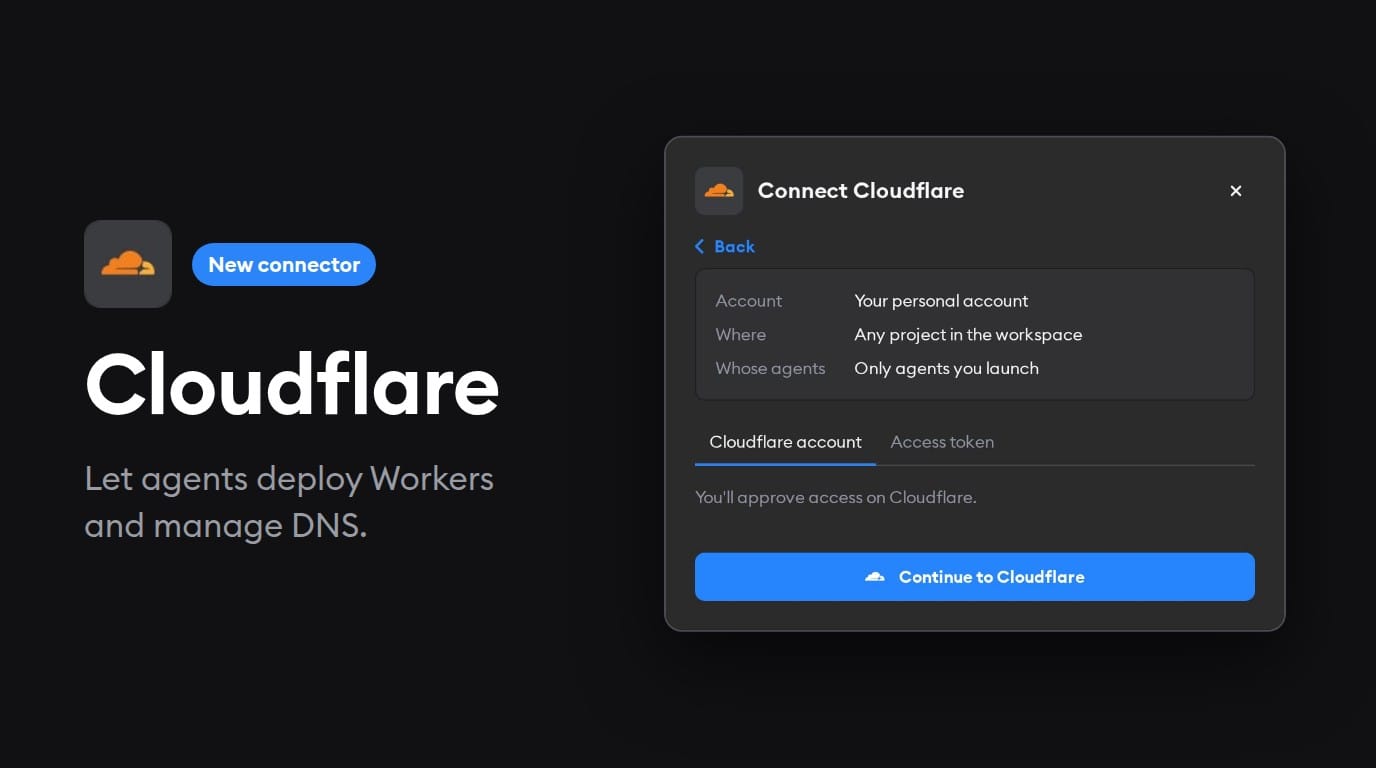
Whenever your team ships a new feature, you can end up with a few small changes in the Cloudflare dashboard: a DNS record for a new subdomain, a storage bucket for uploads, a route that points your domain at a Worker. Each one takes a minute, but the agent that wrote the code can’t make them, so someone on your team often has to stop what they’re doing and finish the job by hand.
With Superconductor’s new Cloudflare connector, agents in Superconductor can make those changes themselves. It’s built on Cloudflare’s official MCP server, which covers the whole Cloudflare API.
Things your agents can do with Cloudflare
- Deploy Workers. Agents deploy a Worker from your repo and route it to your domain.
- Set up storage. Agents can create D1 databases, R2 buckets, and KV namespaces and connect them to a Worker.
- Manage DNS. Agents add or fix DNS records, so nobody has to open the dashboard.
- Check traffic. Agents can pull analytics for your sites, like total requests over the last week and the top countries they came from.

Using Cloudflare + Superconductor
Here are some examples of prompts you can try with your team in Superconductor once you’ve connected your Cloudflare account:
Deploy the Worker in this repo to Cloudflare and add a route for api.example.com. Send me the URL once it’s live.
Point blog.example.com at our new blogging platform. Check the DNS records it needs and add them in Cloudflare.
Summarize the last 7 days of traffic to example.com from Cloudflare: total requests, the busiest day, and top countries.
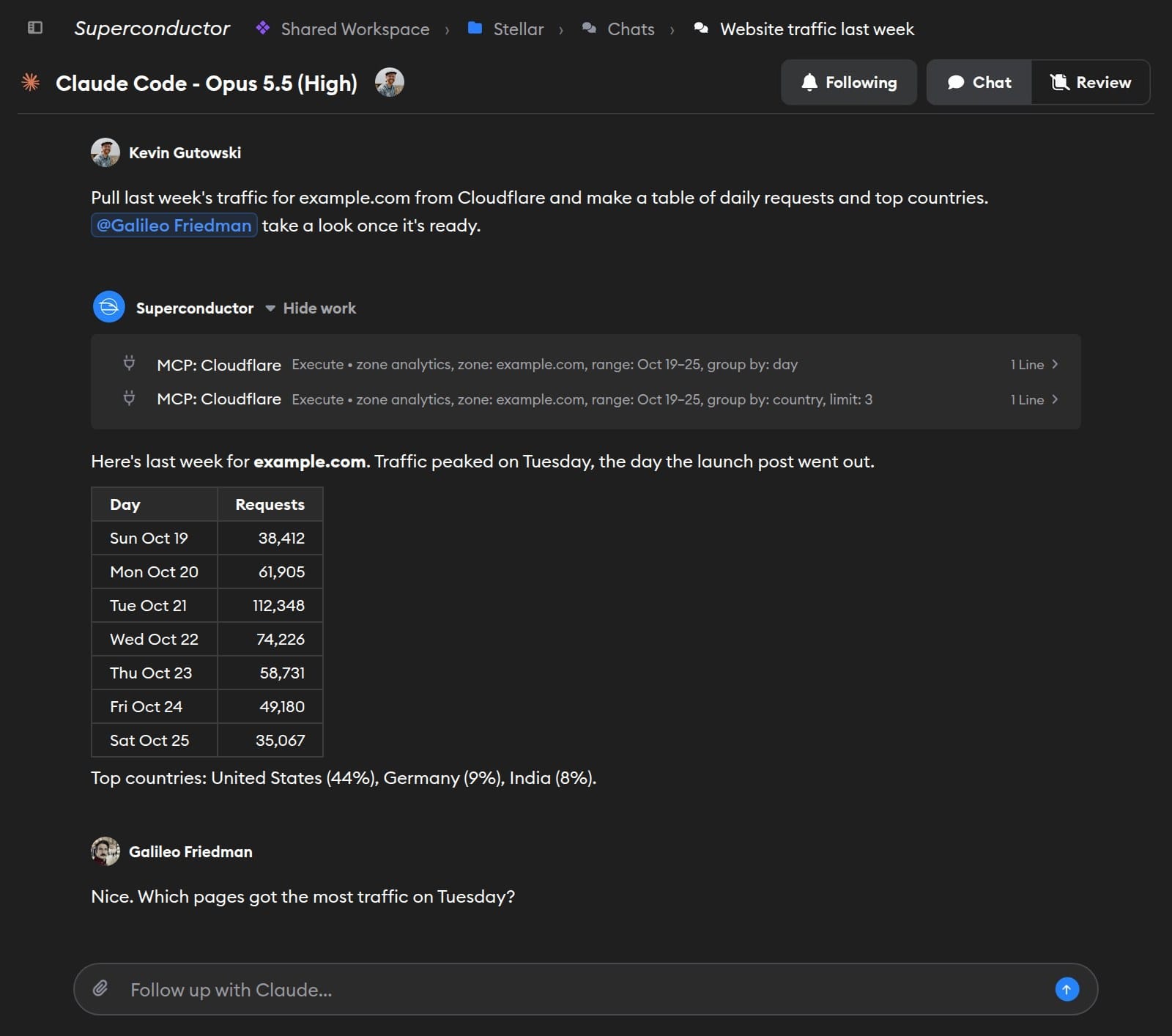
Pro tip: Ask the agent to create an artifact like an image or a table from your website traffic stats and loop the team that runs your marketing website into the same agent chat by @ mentioning them. They can then follow up with the same agent and ask more questions about the data or have the agent pull additional data.
Changes agents make in Cloudflare take effect right away, so give them only the permissions they need. When you sign in, Cloudflare starts on Minimal access. You can switch to Read only or Full access, or pick permissions one by one.
To connect, sign in with your Cloudflare account from Workspace Settings → Connectors, or paste a Cloudflare API token instead. Cloudflare ends account connections after 30 days, so you’ll need to reconnect once a month. API tokens don’t expire this way. See the Cloudflare integration page for what agents can do once you’re connected.
Is there anything else in your infrastructure that you’d like agents to take care of? Let us know!