
Turn Missive conversations into finished work with Superconductor agents
Connect Missive to Superconductor and your agents can now search your team inbox, reply to conversations, and organize them with labels, notes, and tasks. Your whole team can see what an agent found and changed in a shared session.
Superconductor lets you and your team chat with coding agents such as Claude Code, Codex, Pi, and more in shared, secure cloud sessions.
With our Missive integration, you can
- Find out what a customer or partner asked for, and when, without digging through the inbox
- Turn a customer's email into a ticket, then fix what they reported
- Triage a shared inbox with replies, labels, internal notes, and tasks
Try asking
- Read this week's Missive conversations labeled Bug, check Sentry for matching errors, and leave an internal note on each conversation with what you found.
- Look up the customer in this ticket in Missive and summarize what they've asked us for in their last three conversations.
- Find every Missive conversation from this week that mentions an invoice error and summarize them. Don't change anything.
Technical details
- Agents can
- Search and read conversations, draft and send messages, and manage labels, tasks, and calendar events
- Access
- The Missive permissions you approve
- Needs
- Sign in with Missive; API tokens aren't supported; a Missive admin enables MCP
- Server
- Missive's hosted MCP server
Example
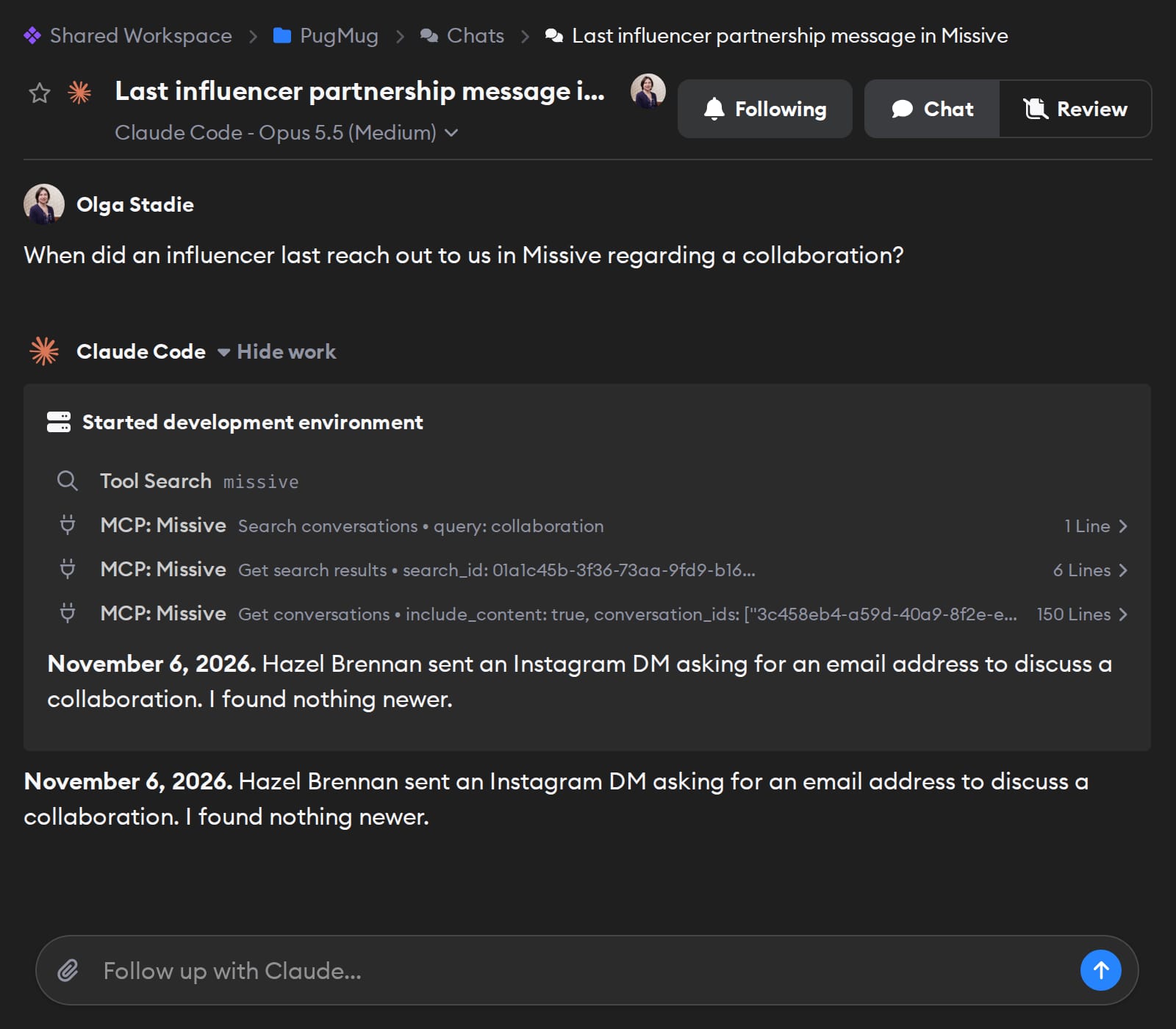
Questions
- Can Claude Code use the Missive MCP server?
- Yes. Connect Missive once in Superconductor, and coding agents like Claude Code can use its tools in your chats and tickets. There's nothing to install locally.
- How do I connect Missive?
- Click Connect on the Missive card in Workspace Settings → Connectors and sign in with Missive. A Missive admin first has to turn on MCP access.
- Can agents send email from Missive?
- Only if you approve Send messages when you connect. Without it, agents can still write drafts for you to review, but they can't send them.