
Earlier this month, we announced our new personal assistant feature. Personal assistants in Superconductor give each person on your team a private agent chat that works across every project in your workspace.
However, a lot of what a team wants to ask an assistant isn't private. For example, a bug report comes in through support, someone on the team digs into it, and someone else decides what to do next. Everyone benefits from seeing the same answer in the same place.
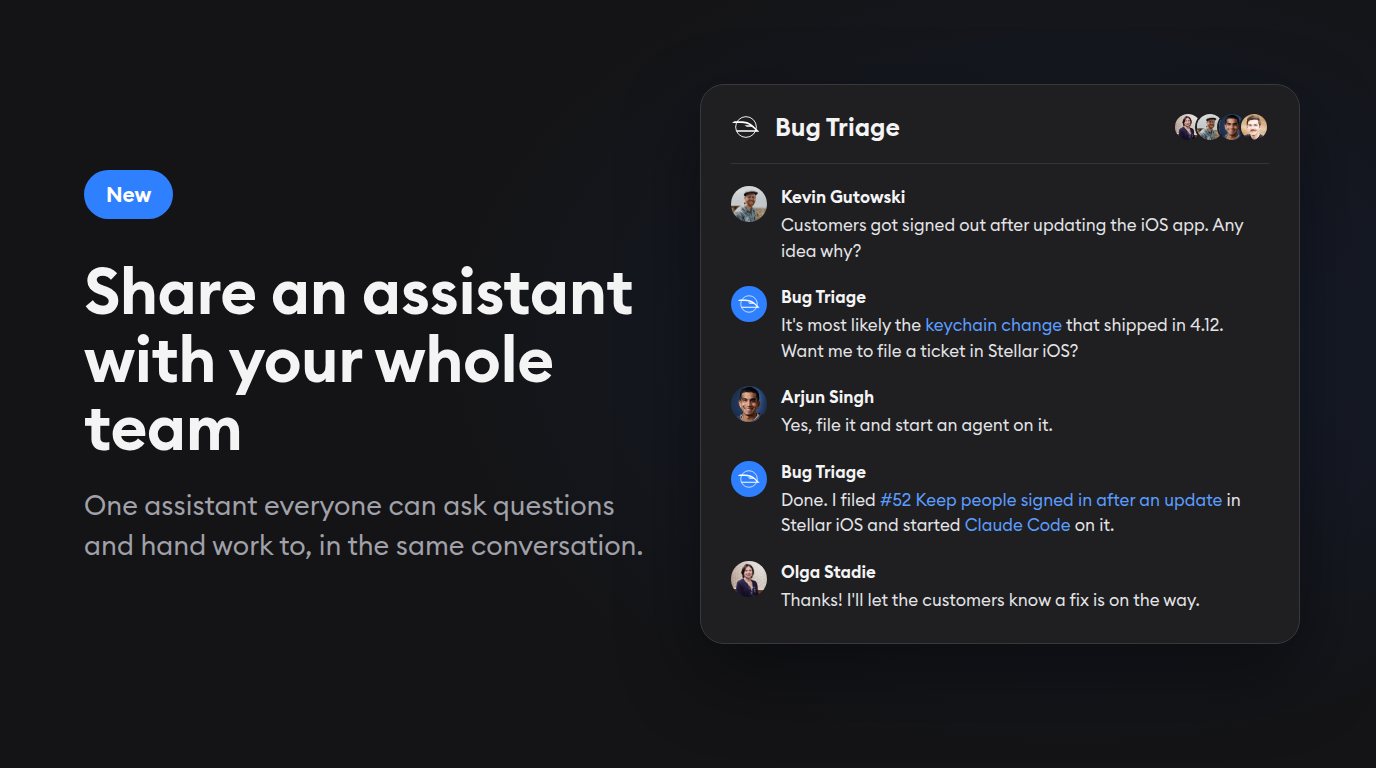
That’s why we’re excited to introduce team assistants: assistants everyone in your workspace shares. Create a team assistant, and your teammates can open it, read the whole conversation, and send it messages. Just like your personal assistant, your team assistant works across every project in your workspace, so it can look up all of your team's work in Superconductor and file tickets wherever they belong.
Create a team assistant
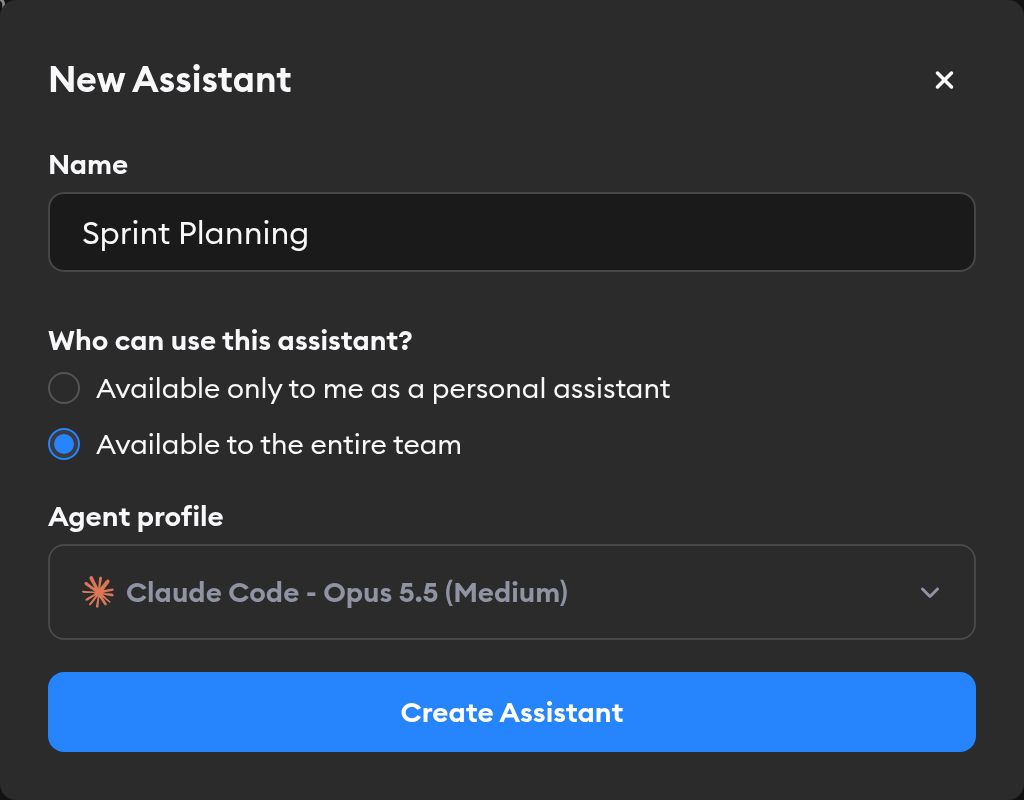
Click + next to Assistants in your sidebar and give the assistant a name. Under Who can use this assistant?, choose Available to the entire team, pick the agent profile it should run on, and click Create Assistant. It opens right away and introduces itself to the team.
Team assistants work in the web app, the desktop app, and the iOS app.
One conversation for the whole team
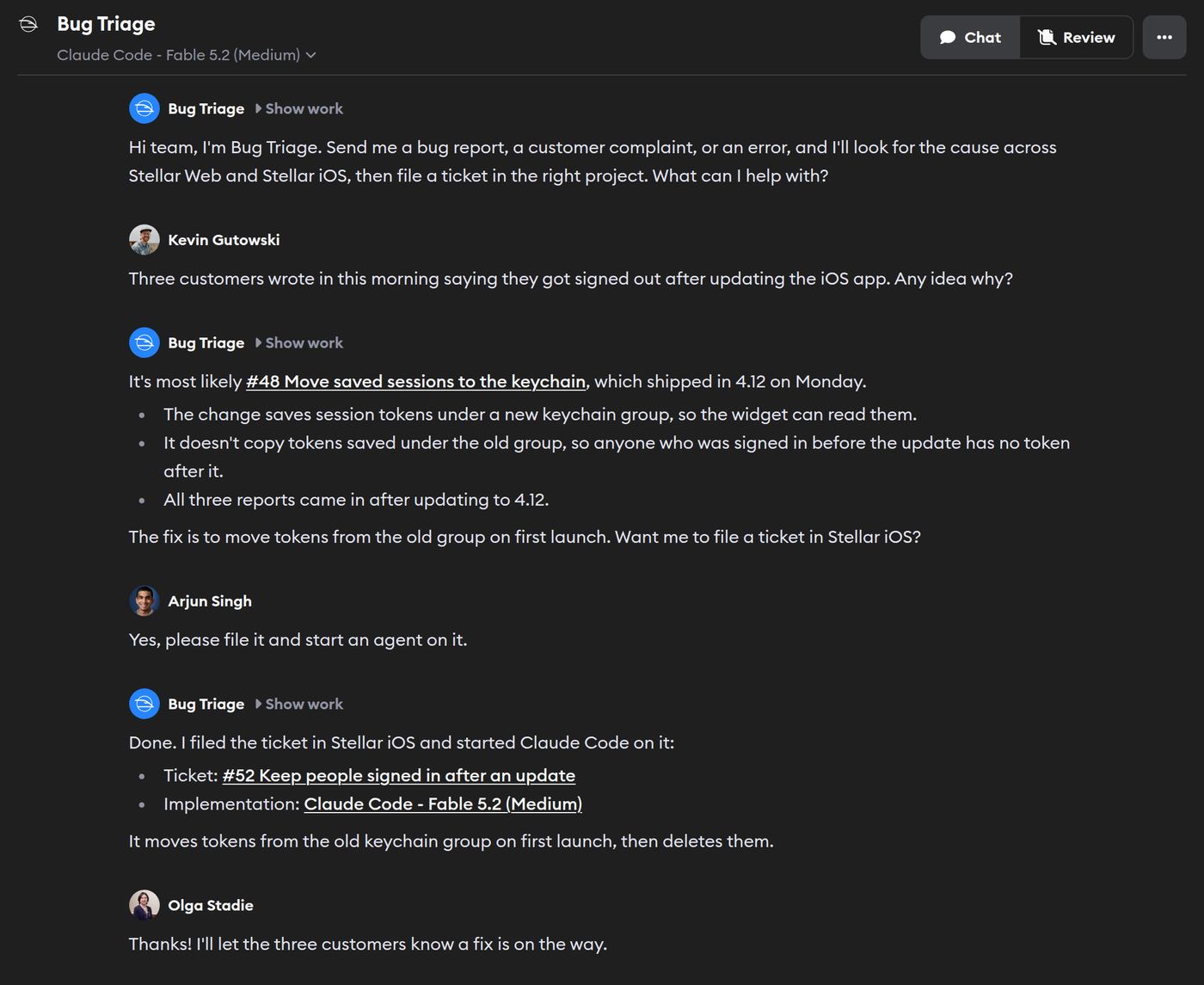
Once you create a team assistant, everyone in your workspace sees the same conversation. When Kevin asks the Bug Triage assistant why customers are getting signed out, Arjun can read the answer and ask it to file a ticket, and Olga can follow up with customers, without anyone repeating the question.
- Several people can talk to it. The assistant knows more than one person is in the conversation, knows who each person is, and you can see when a teammate is typing.
- Bring a teammate in. @-mention someone to pull them into the conversation, the same way you would in a project chat.
- It does what your personal assistant does. It finds and reads tickets, implementations, and chats in any project, creates tickets and starts agents on them, messages other agents, and saves artifacts.
- You can connect all the tools your team uses to it. A team assistant only uses the connections you share with it, so nobody's personal accounts are used automatically. Share a connector with all your team assistants or only the specific team assistants you pick, like Sentry for a Bug Triage assistant. Here's how to share a connection with team assistants.
- It hands code work to a coding agent. A team assistant doesn't have your repos. When something needs a code change, it files a ticket so an agent can make the change.
Ways to use a team assistant
-
Triage bugs. Hand it bug reports and errors, and let it find the cause and file the ticket in the right project.
Sentry shows a spike in checkout errors on Stellar Web since this morning's deploy. Find the change that caused it and file a ticket.
-
Write release notes. Keep one assistant for releases that the whole team adds to.
Draft release notes for iOS 4.13 from the pull requests merged in Stellar iOS since 4.12 shipped.
-
Collect customer feedback. Share call notes with it, and it sorts them into tickets your whole team can see.
Here are my notes from today's three customer calls. Pull out the feature requests, link the ones that match existing tickets, and file the rest in the Stellar Web project.
-
Plan the week. Ask one shared assistant what's going on, so everyone starts from the same summary.
What did we ship this week across Stellar Web and Stellar iOS, what's still in review, and what's blocked?
Pro tip: @-mention a teammate in a team assistant's conversation when you need their input. They start following it and get notified when it replies, so they can pick up where you left off.
How has your team been using team assistants? Let us know!