Team assistants
Shared assistants that everyone in your workspace can find, follow, and talk to.
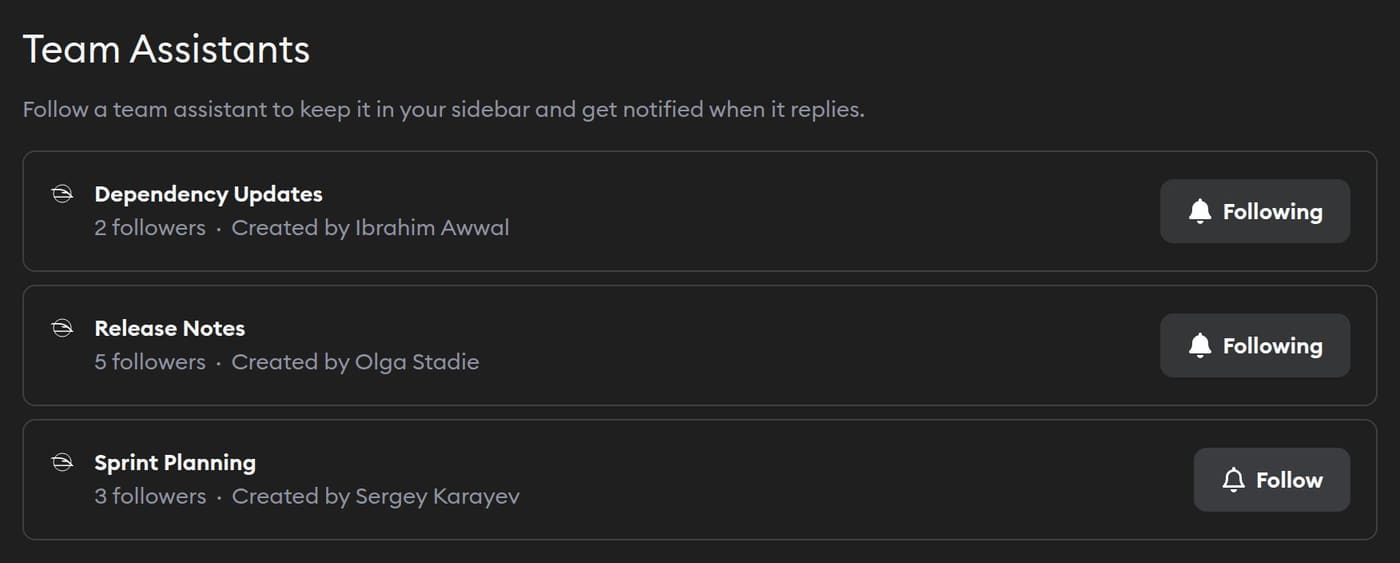
A team assistant is an assistant that everyone in your workspace shares. Like a personal assistant, it works across every project in your workspace. The difference is that your teammates can open it too, read its conversation, and send it messages.
Use one for work several people share, like a release notes assistant the whole team adds to, or a sprint planning assistant everyone can ask what's in progress and what's next.
What a team assistant can do
A team assistant can do everything a personal assistant can do: find and read work across your projects, create tickets, message other agents, and save artifacts. It also works like a shared conversation:
- Everyone sees the same conversation. Any workspace member can open it and read every message, including Viewers.
- Several people can talk to it. Owners, Admins, and Collaborators can send it messages. The agent knows more than one person may be in the conversation.
- You can @-mention teammates. Mention someone to bring them into the conversation, the same as in a project chat.
- It only uses connections you share with it. See Connectors.
Everyone in your workspace can read a team assistant's conversation. Use a personal assistant for anything you want to keep to yourself.
Creating a team assistant
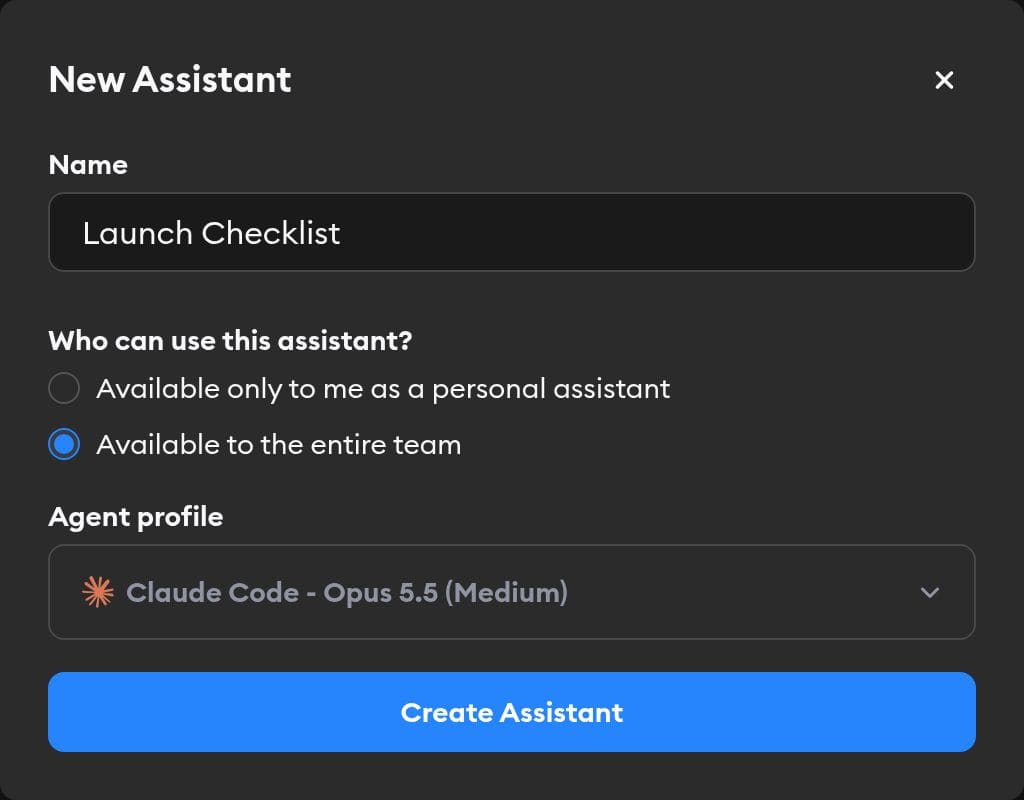
- Click + next to the Assistants heading in the Recent Activity sidebar. In the mobile app, tap + next to Assistants on the Home tab.
- Give the assistant a name.
- Under Who can use this assistant?, choose Available to the entire team.
- Pick its Agent profile.
- Click Create Assistant.
The assistant opens right away and introduces itself. Everyone in your workspace can now find it on the Team Assistants page. You follow it automatically, so it appears in your sidebar.
You can create team assistants if you're a workspace Owner, Admin, or Collaborator.
Finding and following team assistants
Your sidebar only shows the team assistants you follow, so it stays focused on the ones you use. To see every team assistant in your workspace, open the Team Assistants page:
- Click Team Assistants at the top of your workspace's Projects page.
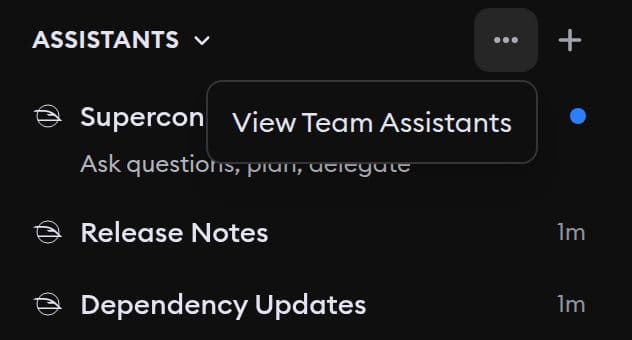
- Or hover over the Assistants heading in the sidebar, click ⋯, then click View Team Assistants. In the mobile app, tap ⋯ next to Assistants on the Home tab.
The page lists each team assistant with its follower count and who created it. Click an assistant to open it, or click Follow to add it to your sidebar.
When you follow a team assistant:
- It appears under Assistants in your Recent Activity sidebar, below your personal assistants, and on the Home tab of the mobile app.
- You get notifications when it replies.
You follow a team assistant automatically when you create it, send it a message, or someone @-mentions you in it.
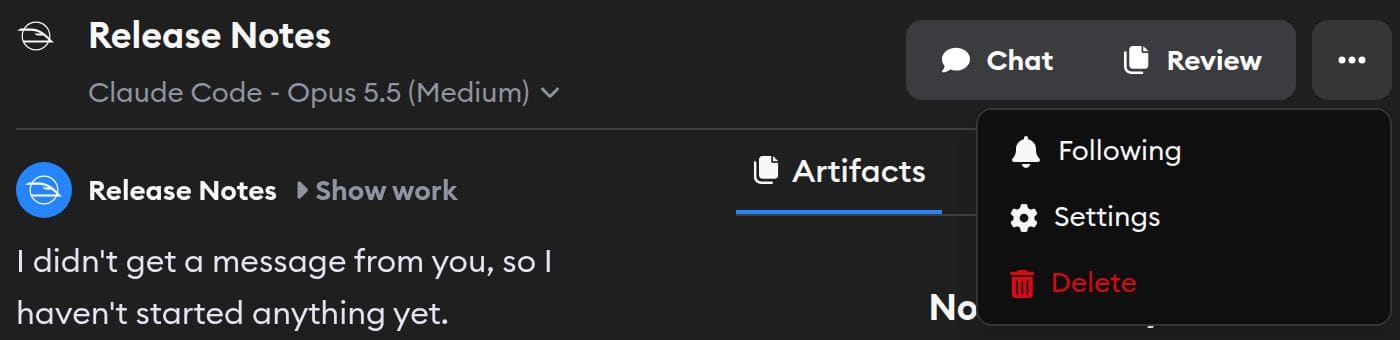
To unfollow, open the assistant, click ⋯ in its header, and click Following. You can also click Following on the Team Assistants page. In the iOS app, tap the header's actions menu to follow or unfollow. Unfollowing removes it from your sidebar, but you can still open it from the Team Assistants page anytime.
Who can do what
| Action | Owner, Admin, Collaborator | Viewer |
|---|---|---|
| Open, read, and follow team assistants | Yes | Yes |
| Send messages and @-mention teammates | Yes | No |
| Create team assistants | Yes | No |
| Rename, change settings, switch the model, or delete a team assistant | Yes | No |
Any Owner, Admin, or Collaborator can rename a team assistant, change its settings, including its network access, or delete it, even one someone else created. See Deleting an assistant.
Agents and credentials
A team assistant uses the same skills, repos, and network access as a personal assistant. You pick its agent when you create it, and anyone who can send messages can switch the model later.
It runs on its creator's credentials, in the same order as a personal assistant: the creator's connected plan, then the workspace API key, then workspace credits. This applies no matter which teammate sends the message.
Connectors
Team assistants can only use connections that are explicitly shared with them. Nobody's personal connections are used automatically, including the creator's, and connections enabled for personal assistants or projects aren't shared with team assistants until you turn that on.
To share a connection, open it from Workspace Settings → Connectors, turn on Team assistants, and choose In all team assistants, including future ones or In some team assistants. See Fill in the connection details.
Anyone in your workspace can use a connection through the team assistants it's shared with. If you share a personal connection, like your Gmail account, teammates can ask those assistants to use it.