Chat
Continue the conversation with your AI agent to refine implementations, ask questions, and iterate on code.
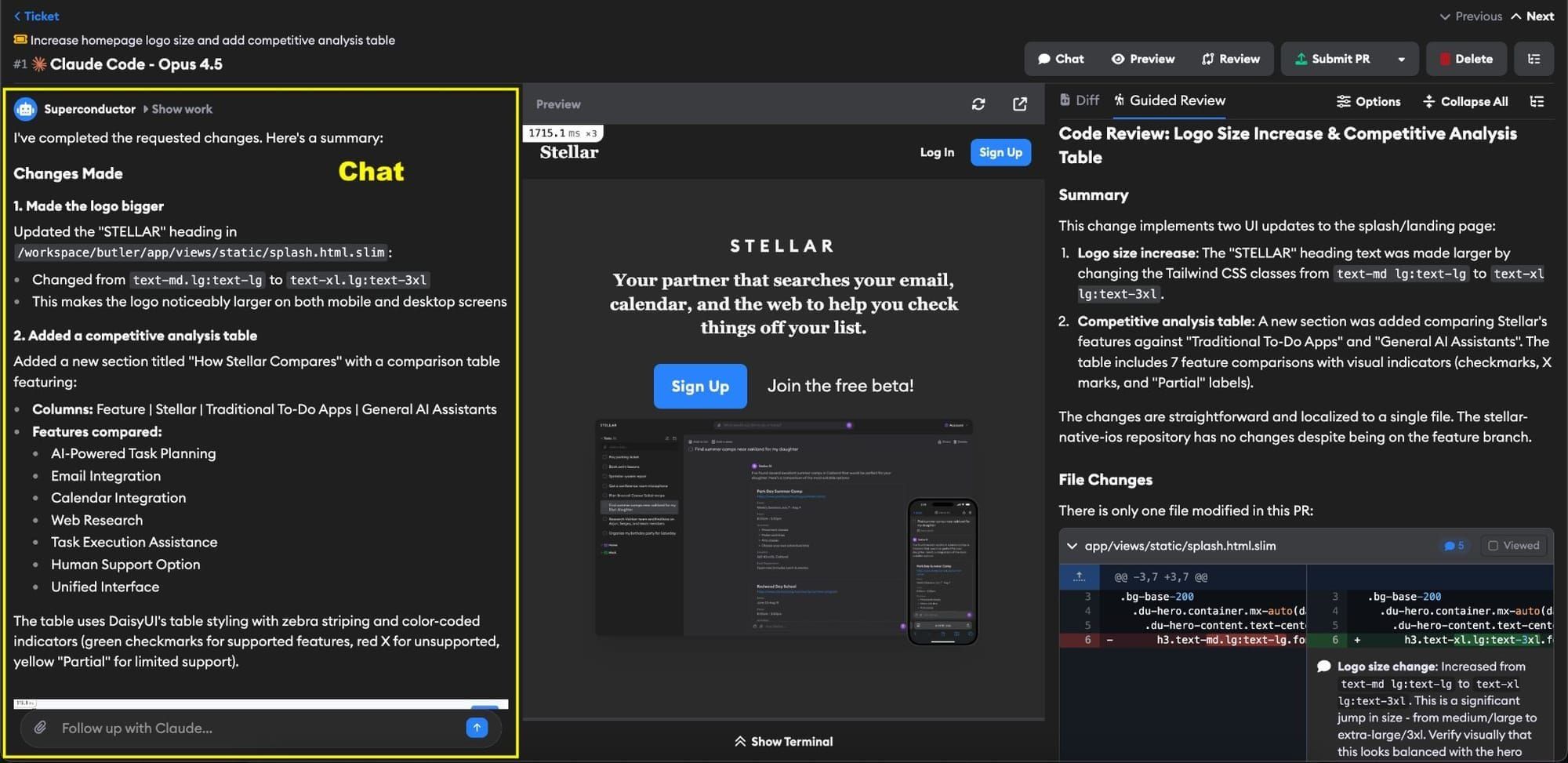
The chat interface is where you collaborate with your AI agent. Everyone in your workspace can participate in any implementation's chat, making it easy for your team to review progress, ask questions, and provide feedback.
This page is about the chat inside a ticket implementation. To chat with an agent without creating a ticket, see Chats.
Sending messages
Type your message and click the send button to send it to the agent. You can also press Cmd/Ctrl+Enter to submit from the keyboard, along with the other keyboard shortcuts. The agent will respond and continue working based on your input.
You can send messages even while the agent is still working. When you're running Claude Code, your message reaches the agent mid-turn so it can change course right away — you'll know steering is live because the placeholder changes to Message the running agent.... See Steering a running agent for more details. For all other agents, your message is queued and picked up automatically when the agent finishes its current task.
If chat shows a warning that the agent cannot reach a domain, see how to choose what to allow and its scope. After you change network access, send a message to start the agent's next run with the new rules.
Quoting text from the chat
Select any text in the chat and an Add to Message button appears next to your selection. Click it to drop that text into the message box as a quote. This is the fastest way to point at one specific thing — a claim the agent made, a file path it mentioned, a line of its work log — instead of describing it.
You can quote from agent messages, your own messages, and the agent's work log. Quote more than once before sending and each block is appended, separated by a divider.
To point at code rather than chat text, comment on the diff instead.
Stopping the agent
If the agent is heading in the wrong direction or doing something you don't want, click the Stop button in the chat input area to halt its current work. You can then send a new message to redirect the agent.
With Claude Code, you often don't need to stop first — send your correction while it's still running and it will adjust without losing the work it has already done. Stop when you want to abandon the current attempt outright.
Viewing the agent log

To see exactly what the agent did, expand the Show Work dropdown next to the agent's name in the chat. This shows a detailed log of the agent's work, including tool calls and intermediate steps.
With Claude Code, each shell command is labeled with the agent's own plain-English description of what it does. Other agents show the raw command in the log instead.
Either way, expand the step to see the full command and everything it printed. You can expand while the command is still running, so you don't have to wait for it to finish, and collapse it again when you're done.
Running shell commands
Type ! in the chat input to toggle into shell mode. The input field switches to a dark theme with a "Shell command..." placeholder, indicating that your next message will be executed as a shell command on the cloud instance rather than sent to the agent.
This is a quick way to run commands—like checking logs, running tests, or inspecting files—without switching to the Terminal. Press Escape to exit shell mode and return to normal chat.
Uploading files
Chat supports several ways to share files with your agent:
- Drag and drop files directly onto the chat area
- Paste images from your clipboard (Cmd/Ctrl+V)
- Click the attachment button to browse and select files
You can upload any file type — all uploads are shared with your agent. Images and videos preview inline in the conversation; everything else attaches as a file you can download:
- Images (up to 10 MB): JPEG, PNG, GIF, WebP, BMP, HEIC, SVG — displayed inline
- Videos (up to 100 MB): MP4, MOV, WebM, AVI, MPEG, WMV, FLV, 3GP — playable inline
- Documents (up to 25 MB): PDF, Word (DOCX), Markdown, plain text
- Code files (up to 25 MB): JavaScript, TypeScript, Python, Ruby, Go, Rust, and many more
- Data files (up to 25 MB): JSON, YAML, CSV, XML
All other file types (up to 25 MB) are also accepted and shared with the agent.
PDFs and Word documents that agents save as artifacts do get a full in-app viewer, with page navigation and zoom.
Want your agents to create images, analyze videos, and more? Enable Superconductor Skills in Project Settings to give agents additional capabilities.
Collaborating with teammates

The avatars at the top of an implementation show everyone following it, including you, plus anyone who is currently viewing it. They update live as teammates join, so a mention or a first message adds someone to the group right away. Up to three avatars appear in the header; open the ⋯ menu to see additional teammates.
Presence indicators show who is currently in the implementation:
- A green dot means the teammate is actively viewing it.
- A gray dot means the teammate still has it open, but their tab is in the background.
- No dot means the teammate is not currently viewing it.
When a teammate starts writing a message, you'll also see their name and is typing… above the chat input.
Teammates who join the chat do not change which agent credentials the implementation uses.
To keep up with a shared implementation, follow it. Teammates' messages now notify you the same way agent messages do, labeled with the sender's name, if you've turned on push notifications. You can change the image teammates see for you under Account Settings → Profile.
Mentioning a teammate
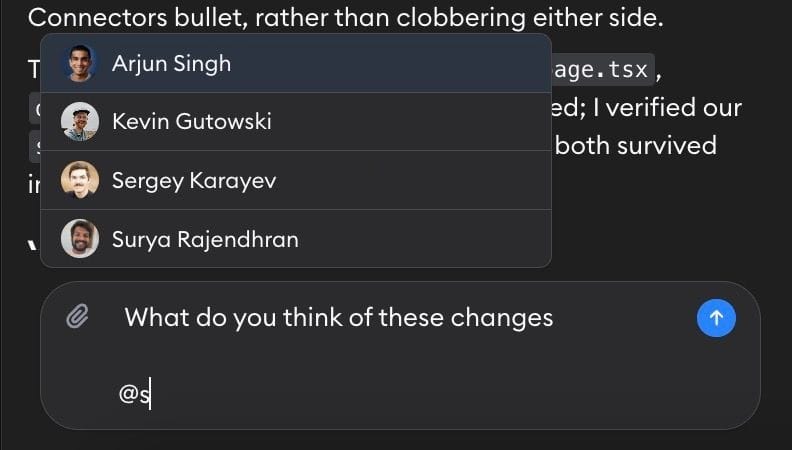
Type @ in the message box to bring up a list of teammates who can see this implementation. Keep typing to narrow it by name or email, move through the list with the arrow keys, and press Enter or Tab — or click a name — to insert the mention.
Mentioning someone does two things:
- It brings them in. They start following the implementation or chat.
- It tells them. The implementation or chat appears unread in their Recent Activity sidebar. If they've turned on push notifications, they get one of those too, with your name and your message.
Start your message with a mention when it's meant for a person rather than the agent. The agent reads the message but skips its turn, so you can ask a teammate a question mid-implementation without the agent taking off in a new direction. Put the mention anywhere else in the message — "let's do what @Kevin suggested" — and the agent replies as usual.
Mentions work the same in chats, meetings, and email messages. They're off in shell mode, where @ is just a character.
How the agent sees your team
The agent knows who it's talking to. Every message it receives is labeled with the sender's name, so in a shared chat it can tell your requests apart from a teammate's, answer each person by name, and keep track of who asked for what. That works the same whether a message comes from the chat, Slack, or GitHub.
Tips for getting the most from your agent
Ask for artifacts
Request screenshots, diagrams, or other visual outputs to document progress. Agents can share these directly in chat without committing them to the repo. See Artifacts for more details.
Iterate from Slack, GitHub, and Linear
Continue conversations from Slack by replying in the same thread, from GitHub by commenting on PRs, or from Linear by replying in Superconductor's thread on the Linear issue. Your feedback flows back to the agent automatically, and the agent will notify you once it's done.
Use Playwright MCP for in-app testing
If Playwright MCP is enabled for your project, ask the agent to test code changes directly in the browser and take screenshots. This lets the agent verify UI changes work correctly without you having to run the app yourself.
Take advantage of Sentry integration
Once you connect Sentry, agents can look up errors in your Sentry account to understand what’s happening in production. Agents can view actual production errors and their surrounding context, helping them write better fixes.
Comment on specific lines of code
When reviewing the diff, click the + on any line to add a comment. Your comment is pasted in the agent chat with full context about the code you're referencing, making it easy to request precise changes.