Slack
Mention @Superconductor in Slack to create tickets, launch agents, and receive updates — all without leaving your conversation.
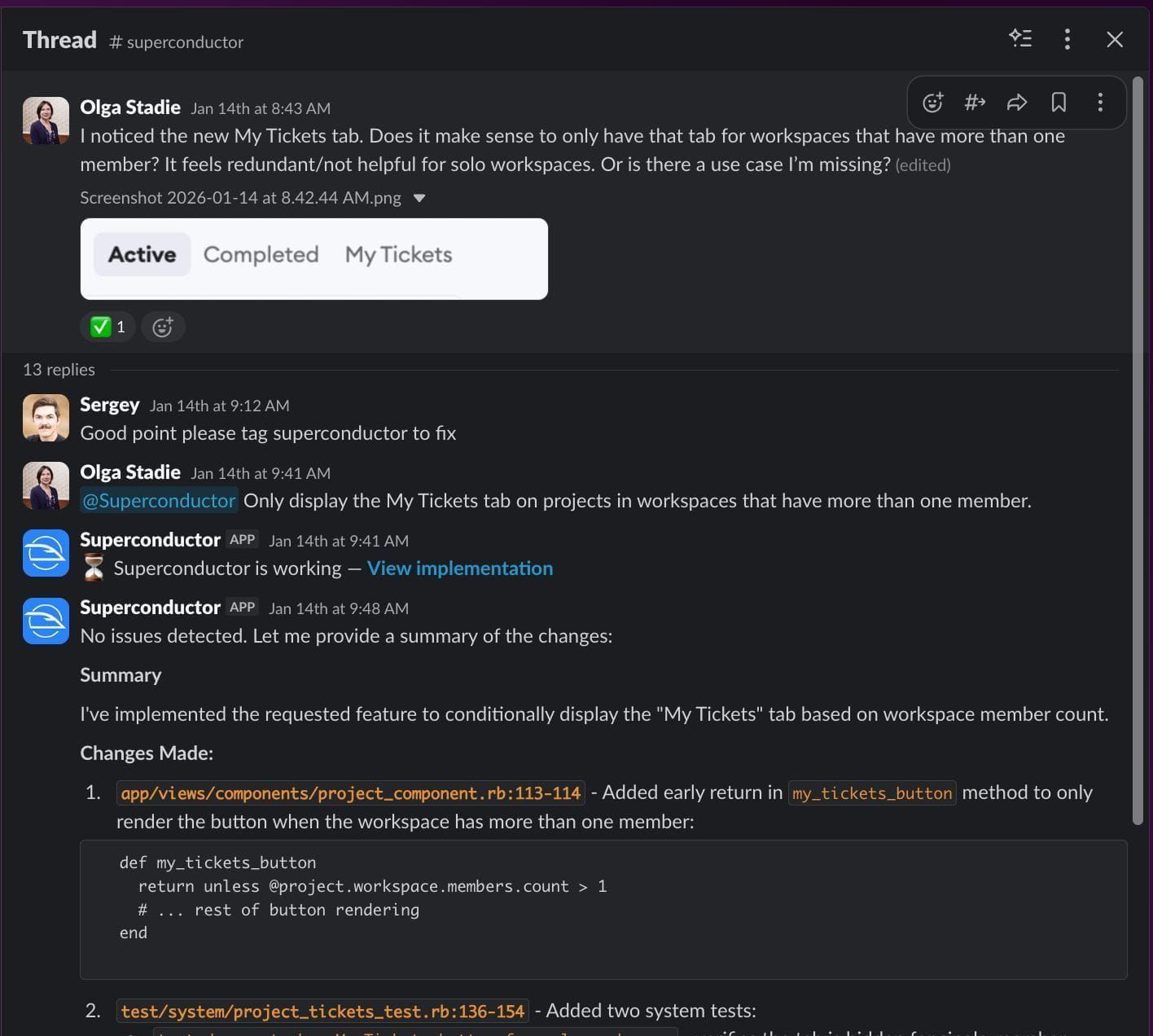
The Slack integration allows you to create tickets and implementations directly from Slack, and receive updates when agents complete their work.
Note: Superconductor uses LLM-based coding agents, which may make mistakes. Please double-check responses.
You can find our privacy policy here.
Installation
Superconductor is an approved Slack app, listed on the Slack Marketplace. It has been reviewed by Slack, so most workspaces can install it without a custom-app exception.
- Go to Workspace Settings → Slack
- Click Install App to authorize Superconductor in your Slack workspace
- Link your Slack account to your Superconductor workspace member account
If your Slack admins restrict app installs, point them at the marketplace listing when you request approval.
Creating implementations from Slack
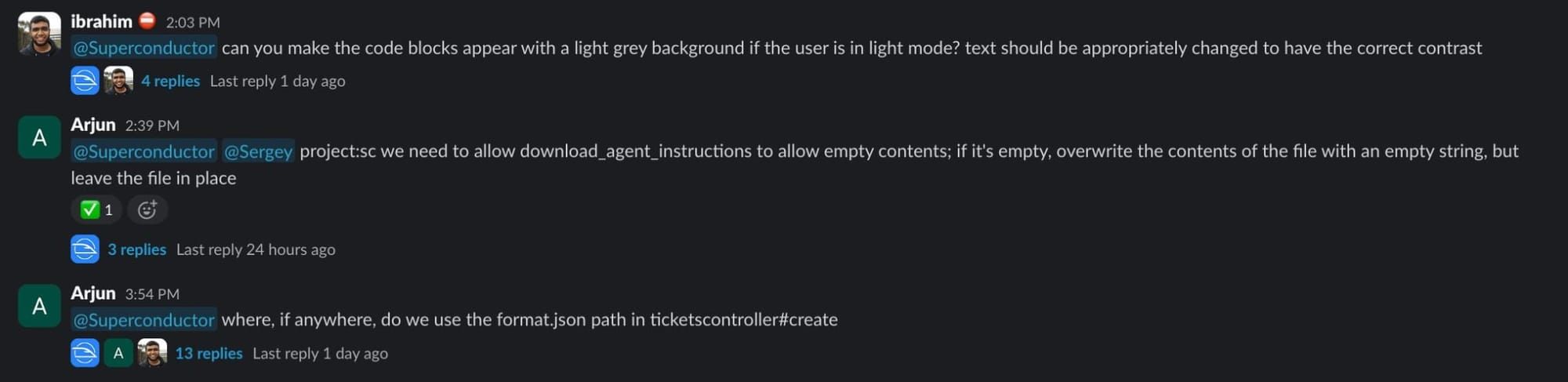
Mention the Superconductor bot in any channel with your implementation instructions:
@Superconductor Please add a dark mode toggle to the settings pageYou can also mention @Superconductor in the middle of an existing Slack thread. When you do, Superconductor agents will receive the full context of the conversation that has happened in the thread, so they can understand the background and discussion leading up to your request.
Choosing a project
Superconductor determines which project to use for your request in this order:
- Inline
project:parameter — specify the project directly in your message:@Superconductor project:"MyProject" Please add a dark mode toggle - Channel default — if the channel has a default project configured, it's used automatically.
- Single project — if your workspace has only one project, it's selected automatically.
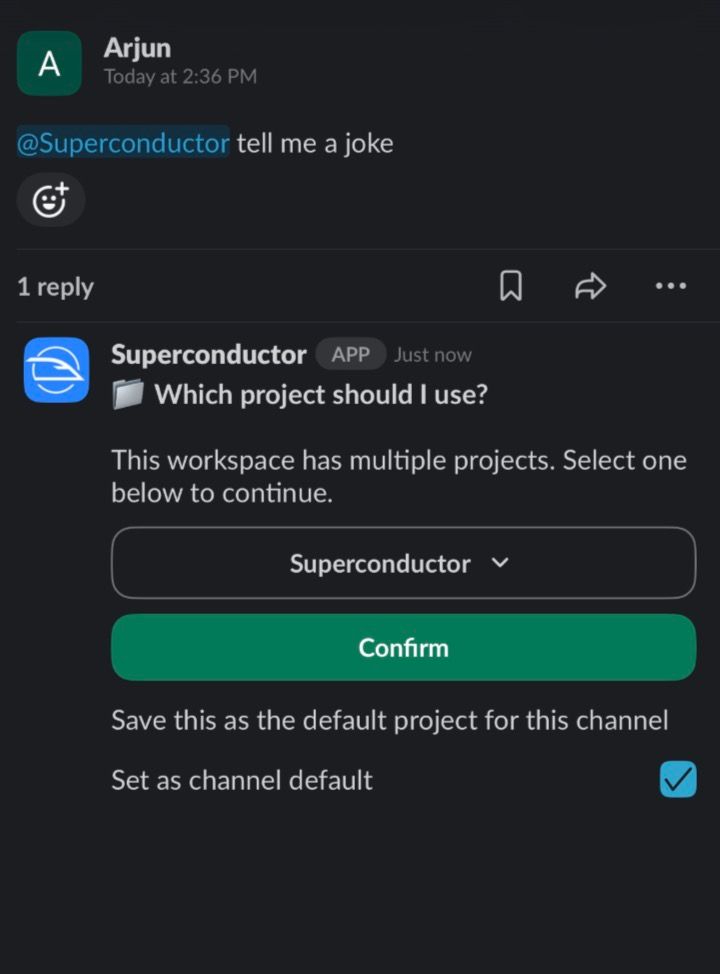
- Interactive selector — if none of the above apply, Superconductor replies with a dropdown menu listing your workspace's projects. Pick one and click Confirm to proceed. You can also check Set as channel default to save your choice for future messages in that channel.
Choosing an agent model

When you don't specify a model, Superconductor uses your Default agent profile from Account Settings — the same setting is shared by the Slack, GitHub, and Linear integrations.
If you haven't set a default, or the profile you chose isn't configured for the project the request targets, Superconductor falls back to the best available profile. It picks the first agent in that order for which your project has valid credentials configured.
To pick a specific model instead, add model:MODEL_NAME to your message:
@Superconductor model:claude_opus Please add a dark mode toggleModels are matched fuzzily, so model:opus will match claude_opus. If the model name contains spaces, wrap it in quotes: model:"gpt-6.1-sol medium".
If none of the default models have configured credentials, Superconductor will let you know and list available models. You can specify a different model using model:MODEL_NAME, or configure credentials in your Project or Account settings.
Channel default projects
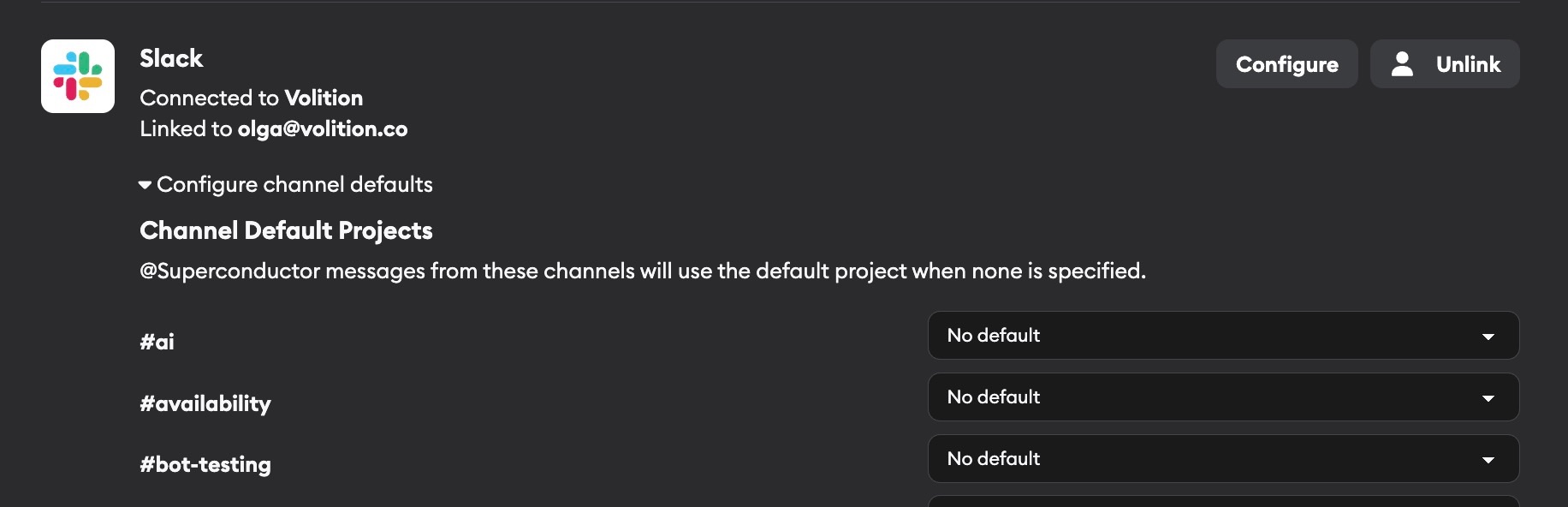
You can set a default project for a Slack channel in two ways:
- From Workspace Settings: Go to Workspace Settings → Slack and configure defaults for specific channels.
- From the project selector: When Superconductor prompts you to choose a project, check Set as channel default before confirming.
When a default is set, any @Superconductor mentions in that channel automatically use that project — no need to specify project:"name" each time.
Receiving updates
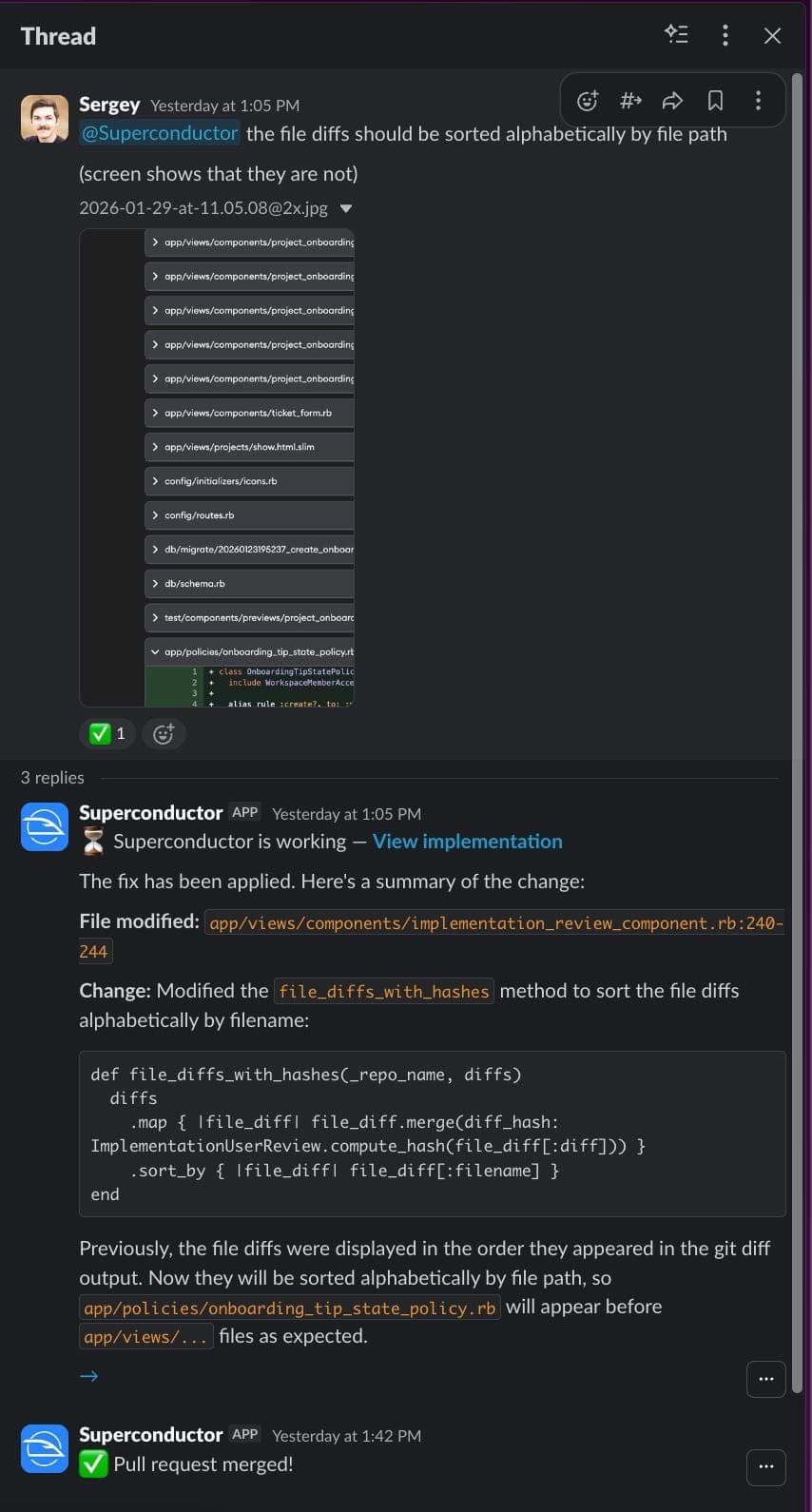
- When you send a message, the Slack thread shows a loading status while the agent is working on your request
- When an agent completes its work, results are posted back to the same Slack thread
- When a PR is submitted, you'll receive a notification in the thread with a direct link to the pull request
- When a PR is merged, you'll receive a notification in the thread and a ✅ green checkmark emoji will appear on the original Slack message
- If an implementation is deleted, you'll be notified in the thread
- If the coding agent hits an error, a 🚨 message with the error is posted to the thread and the loading status is cleared, so the thread never sits there looking stuck
Continuing conversations
Reply in the same Slack thread to continue the conversation with your agent. All subsequent messages in the thread are forwarded to the ticket implementation's chat.
To ask Superconductor to create a pull request from Slack, reply in the implementation thread with:
@Superconductor prIf a pull request already exists, Superconductor replies with the link. If not, it creates a new pull request. If you create a PR via Slack and Superconductor can match your Slack account to a GitHub identity, you'll be auto-assigned as the reviewer on that PR.
To close the ticket from Slack, reply in the implementation thread with:
@Superconductor closeSuperconductor will mark the ticket completed if you have permission to update it.
Slack response actions
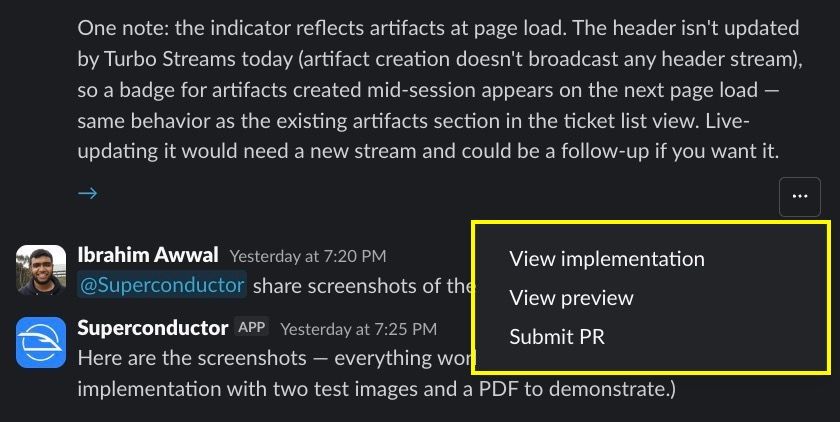
Agent replies in Slack include an overflow menu with quick actions:
- View implementation - open the implementation in Superconductor.
- View preview - open the live preview when one is available.
- Submit PR - create a pull request when the implementation does not have one yet. If Superconductor can match your Slack account to a GitHub identity, you'll be auto-assigned as the reviewer.
- Commit and push - push the implementation's latest changes to an existing pull request.
- View PR #N - open an existing pull request.
Attachments and artifacts
Sending files to the agent
You can attach files, images, and videos to your Slack messages. The bot will download and attach them to the ticket for the agent to use.
Getting files back
When an agent links or embeds an artifact in its reply — a screenshot, video, PDF, report, CSV, or any other file — Superconductor uploads that file straight into the Slack thread instead of linking out to the app. Images render inline in the reply, and everything else lands as a Slack file you can preview, download, or share without signing in to Superconductor.
Artifacts the agent saved but didn't reference in its reply aren't uploaded. Open the implementation in Superconductor to find those. If you want a specific file in the thread, ask the agent for it — replies to your follow-up work the same way.
If Slack rejects an upload, for example because the file is too large, the reply falls back to a link to the artifact in Superconductor.