Chats
Start a conversation with an agent that can access your project's repos, without creating a ticket.

A chat is a conversation with an agent that can access your project's repos. Use it when you want to talk to an agent without changing code: ask a question about the codebase, dig through your team's docs and tickets, start a research task, or create a one-off report.
This page is about chats in a project. For the chat with the coding agent inside a ticket implementation, see Chat. For your own chat that works across every project in your workspace, see Private Workspace Chats.
Chats and tickets differ in intent, and the agent behaves differently in each.
| Ticket | Chat | |
|---|---|---|
| What it's for | Work you want shipped | Questions, exploration, research |
| The agent | Writes code and opens a pull request | Reads the code and answers you |
| Branch | You pick the base branch | Always each repo's default branch |
| Result | A branch, a diff, a live preview, and a PR | Answers and artifacts |
Everything else is the same: the same agents, the same cloud sandbox, the same skills, MCP servers, and network rules from your project.
Starting a chat

Chats start in the same form you use to create tickets. Flip the toggle from Ticket to Chat, write your message, and click Start Chat. Superconductor remembers which mode you last used in each project.
You can do this in three places:
- A project's Chats page — click Chats in the project header. The chat lands in that project.
- Workspace dashboard — use the composer at the top of your Projects page and pick the project from the dropdown menu.
- Sidebar — click New in the sidebar from anywhere in the app, then pick the project. In the desktop app,
Cmd/Ctrl+Ndoes the same thing.
A few things work differently from a ticket:
- An agent is required. Tickets can be created without one; chats can't, so Start Chat stays disabled until you pick one. The form starts with one run of your Default agent profile, or the best available agent if you haven't set one.
- There's no branch selector. Agents in a chat always get each repository's default branch, so the branch controls disappear in Chat mode.
- There's no title field. Superconductor writes the title for you from your first message. You can rename the chat later.
Attachments and drafts work exactly as they do for tickets. See Attaching images, videos, and files and Drafts.
Asking several agents at once
Use the agent selector (the (1x) button in the composer) to start the same chat with up to 12 agents at once — step up the run count on a profile, or add more profiles. The picker works the same way it does for tickets; see Launching implementations. Each chat gets its own sandbox and its own conversation, and they all share the generated title.
This is the fastest way to compare agents on a real question from your codebase — ask two or three of them "how does our billing code handle refunds?" and read the answers side by side.
Your project's chats
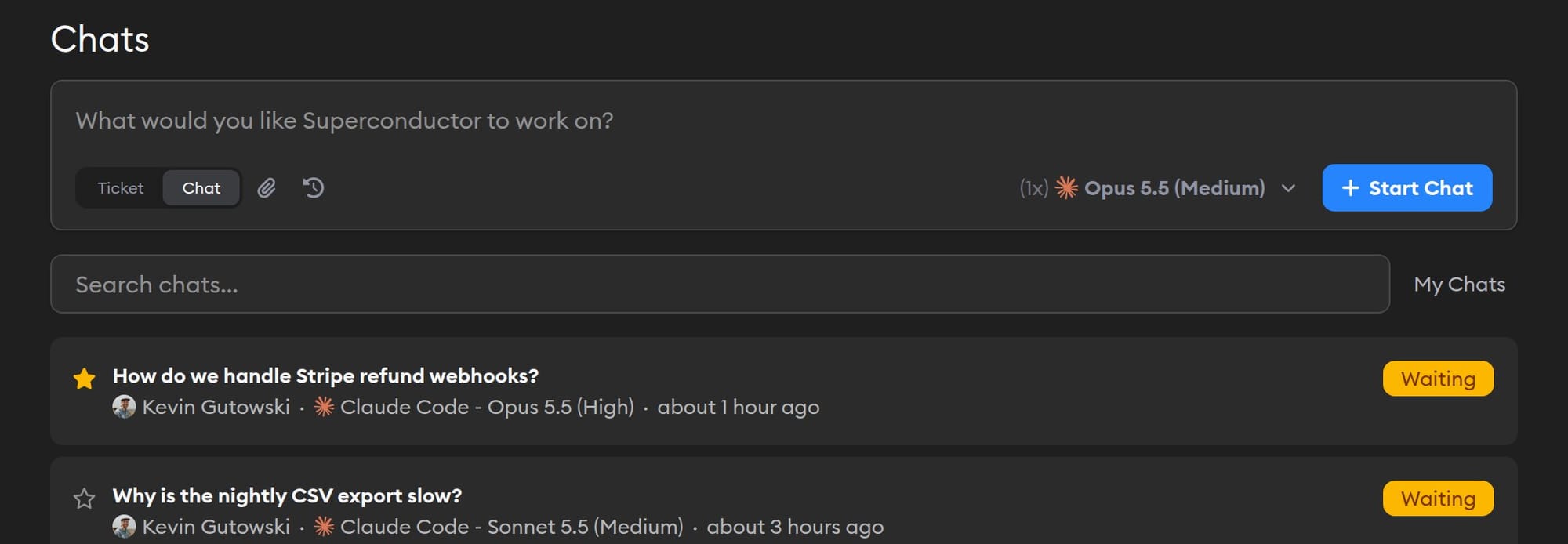
Click Chats in the project header to see every chat in the project. The list updates live as agents work.
Each card shows the chat's title, who started it, which agent and model it's running, when it was last active, and its status:
| Status | What it means |
|---|---|
| Idle | The agent isn't working. It's waiting for your next message. |
| Running | The agent is working right now. |
| Waiting | The agent needs something from you before it can continue. |
| Failed | Something went wrong during the run. |
Use the search box to find a chat by its title or by who started it, or click My Chats to narrow the list to your own.
Starring chats
Click the star on a chat card, or next to the title inside a chat, to star it. Your starred chats stay at the top of the list, so the ones you keep coming back to are always easy to find. Stars are personal: starring a chat doesn't change the list for your teammates.
Starring a chat also follows it.
Inside a chat
A chat page has two panes: the chat itself and a review pane holding your artifacts. Use the Chat and Review toggles in the header to show or hide either one. On a phone, they become tabs.
Everything you can do in an implementation's chat works here too, including:
- Sending messages while the agent is still working, and steering or stopping it
- Uploading files by dragging, pasting, or browsing
- Quoting text from the chat into your next message
- Viewing the agent log with Show Work
- Copying code blocks as plain text with one click
- Collaborating with teammates, including avatars, presence, and typing indicators
- Mentioning a teammate with
@to pull them into the chat and notify them
The Artifacts tab in the review pane collects every screenshot, diagram, document, and data file the agent saves during the chat. See Artifacts for what agents can produce and how to view it.
Some ticket features don't apply to a chat, because there's no branch to work on: no diff or Guided Review, no live preview or terminal, no pull requests, and no shell mode (typing ! in the message box).
Renaming a chat

Click the chat's title in the header to rename it. Type the new name, then press Enter or click away to save. Press Esc to cancel.
The new name shows up right away for everyone, in the chat header, the project's chat list, and the Recent Activity sidebar. If you started the same chat with several agents, renaming one doesn't rename the others.
What the agent can and can't do
Each chat gets its own cloud sandbox. Superconductor clones your project's repos into it on their default branches, and the agent gets everything else your project provides:
- Your project's development environment — the same packages and dependencies your agents use for tickets. Startup commands don't run, so there's no app server or live preview.
- Your project's skills and MCP servers, plus tools you've connected for your agents. An agent can read your code and look up information in Sentry, PostHog, Notion, Linear, or Jira in the same answer.
- Your project's tickets, implementations, and chats. Ask what a teammate is working on, or paste an implementation or chat link to discuss it.
- Your project's network sandboxing rules.
The agent is told not to modify code, run tests, or open pull requests. Nothing it does in a chat is pushed anywhere, and there's nothing to merge afterward. If the conversation turns into implementation work, the agent will say so and suggest a ticket. It can help you explore the idea first, then create the ticket for you when you ask.
Ask for artifacts when you want something you can keep — "draw me a diagram of how auth works" or "save the results as a CSV."
Following and notifications
You automatically follow a chat when you start one, send a message in it, star it, or get @mentioned in it. Followed chats appear in your Recent Activity sidebar alongside implementations, and you'll get push notifications when the agent or a teammate replies.
Use the Follow button in the chat header to follow or unfollow a chat a teammate started. On a desktop-width screen, you can also hover a chat in the sidebar to reveal a ⋯ menu with Unfollow and Delete. Deleting asks you to confirm first, and removes the chat for everyone in the workspace.
Who can see and start chats
Chats are shared with your whole workspace, the same as tickets and implementations — they aren't private to whoever started them.
| Role | Can do |
|---|---|
| Owner, Admin, Collaborator | Start, rename, and star chats, and send messages |
| Viewer | Read and star chats |
See Member roles for more on roles and permissions.
What a chat costs
A chat costs the same way an implementation does: tokens for the agent and credits for the cloud computer it runs on. See Pricing for how both are billed, and the Usage dashboard for what your workspace is spending.
Tips
Ask about the codebase, not just about code
"Where do we handle Stripe webhooks, and what happens when one fails?" is a better chat than a search. The agent can read every repo in the project and follow the trail for you.
Use it as a research agent
Chats aren't only for engineers. Once you've connected your team's tools, an agent can read your Notion pages, Linear tickets, and meeting notes and answer a question that spans all of them: "what did we promise this customer across the last three calls, and what's still open?"
Ask for a deliverable
Agents can produce diagrams, reports, and spreadsheets as artifacts. Say what you want and how you want it: "compare these three vendor quotes and give me a spreadsheet with the totals by department," or "write this up as a Markdown doc I can share."
Turn the answer into a ticket
When a chat turns into work you actually want done, ask the agent to create a ticket: "Turn the plan we agreed on into a ticket, and attach the diagram." It writes a description another agent can work from and attaches the files the implementer needs. Add "and launch it" if you want an implementation to start right away.
You can also create the ticket yourself and paste the chat's link into the description. The coding agent on the ticket can read the whole chat, so you don't have to restate what you learned. For example:
Implement the onboarding checklist we planned in this chat: <paste the chat link here>The agent can read the chat's messages, but not its artifacts, so attach any screenshots or files it needs to the ticket. Chats and tickets are separate — a chat never becomes a ticket on its own.