Migrate from Conductor
Move your Conductor repos, scripts, and agent setup to Superconductor before Conductor shuts down.
Conductor is joining Meta. On November 4, 2026 it closed new signups and app downloads, and free users can no longer upgrade to Pro. Conductor Cloud workspaces go read-only on November 13 and shut down on November 20, when Conductor starts deleting Cloud data. The local Mac app keeps getting new models and critical fixes until it winds down in early 2027. See Conductor's announcement for the details.
If you run Claude Code or Codex in parallel with Conductor, Superconductor does the same job in the cloud. Each agent gets its own cloud dev environment instead of a git worktree on your Mac, so you can run as many as you like, and your team can see and talk to them.
Before Conductor Cloud shuts down
If you use Conductor Cloud, export anything you want to keep before November 13. After that, workspaces are read-only: you can still read and export, but you can't send new messages. On November 20 the data is deleted.
Your code is already safe on GitHub. Before you switch, check for:
- Branches in Conductor workspaces you haven't pushed yet
- Chat history you want to keep for reference
- Values in
.envfiles that your setup script copies in (you'll add these as secrets)
Superconductor doesn't import Conductor chats. Push your open branches, and you can pick them up in Superconductor.
How Conductor maps to Superconductor
| Conductor | Superconductor |
|---|---|
| Repository | Project, which can hold several repos |
| Workspace (a git worktree on your Mac) | Implementation: an agent on its own branch in its own cloud dev environment |
| Several workspaces for one task | Several implementations on one ticket, with recommendations on which to ship |
| Setup script | Build commands, run once and saved in a snapshot |
Run script and $CONDUCTOR_PORT | Startup commands and HTTP services, which power the live preview |
| Archive script | Not needed. Each implementation has its own cloud environment, so nothing is left behind on your machine. |
.env copied in by the setup script | Secrets |
| Claude Code and Codex logins | Connected Claude and ChatGPT plans, or API keys |
| Diff view and comments | Diff comments and Guided Review |
| Create PR | Submit PR |
| Workspace terminal | Terminal in the agent's environment |
| Linear issues | Linear integration: assign an issue to Superconductor |
| Mac app | Web app, macOS and Linux desktop apps, and iOS and Android |
Watch out for the word "workspace." In Conductor, a workspace is one agent's copy of your repo. In Superconductor, a workspace is your team's account, which holds your projects, members, and billing.
Migration steps
1. Sign up and connect GitHub
Sign up and create a workspace. Connect GitHub and grant access to the repos you used in Conductor. The Quick start walks through each screen.
2. Connect your Claude or ChatGPT plan
Conductor ran Claude Code and Codex on your own subscriptions. Superconductor can too. In Agent credentials, click Connect your plan next to Claude Code or Codex. You can also add API keys, or use the free starting credits.
Beyond Claude Code and Codex, you can run Amp, OpenCode, Pi, Factory Droid, Grok Build, Muse Code, and Cursor.
3. Create a project
Create a project and pick your repos. If you kept several related repos in separate Conductor repositories, put them in one project so agents can change them together.
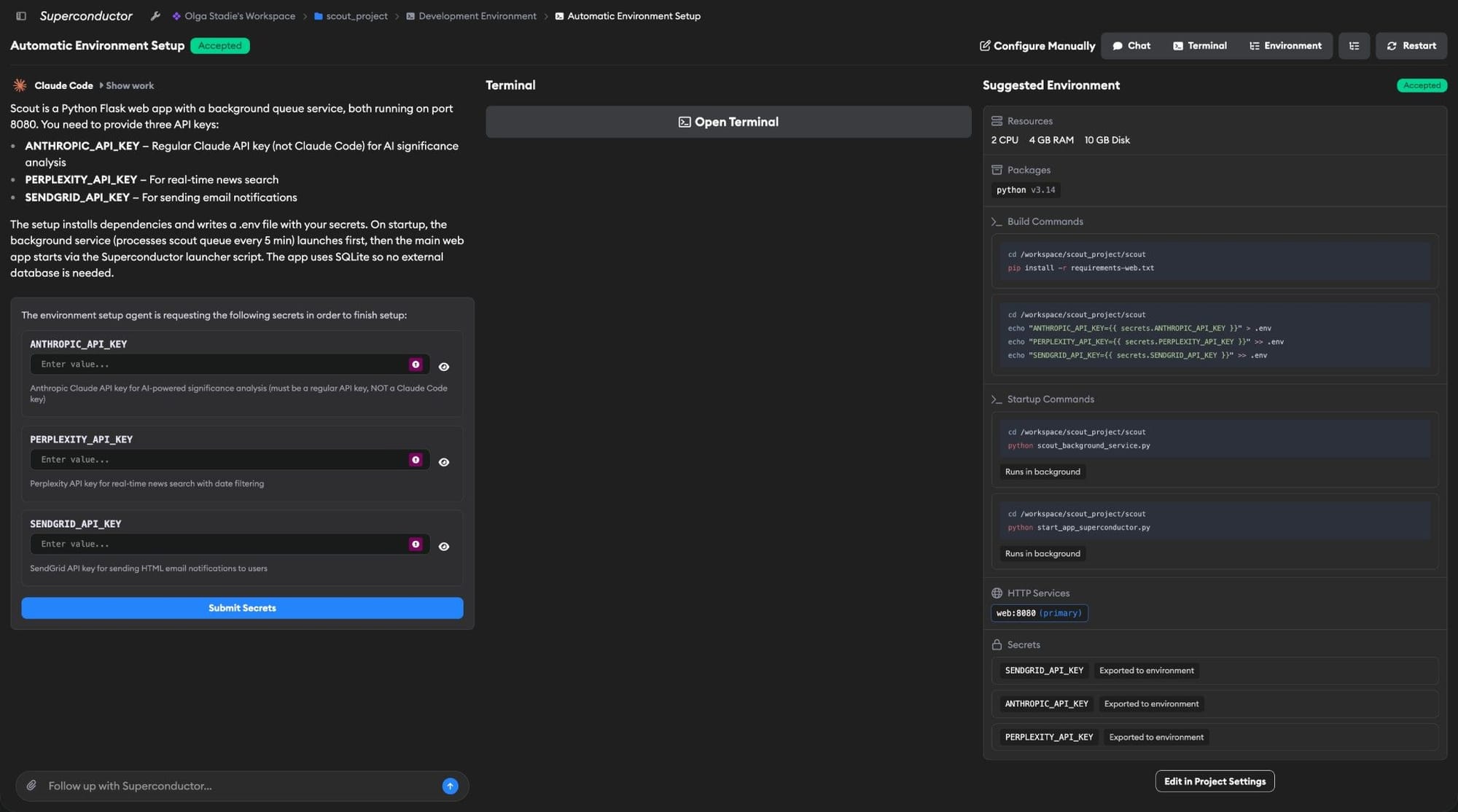
Automatic Environment Setup starts right away. An agent reads your repo, works out the packages, build commands, startup commands, and ports your app needs, and gets the live preview working. It looks for setup scripts your repo already has and prefers them over writing its own. Leave your conductor.json or .conductor/settings.toml in place so it can see how you set things up in Conductor.
If you set your scripts in Conductor's Repository Settings instead of a file in the repo, they only live on your Mac. Copy them over by hand.
Prefer to do it by hand? Here's where each Conductor script goes in manual configuration:
| Conductor | Superconductor |
|---|---|
scripts.setup | Build commands |
scripts.run | Startup commands. Make the last one your dev server; it always runs in the background. |
scripts.archive | Leave it out |
$CONDUCTOR_PORT | Add an HTTP service for each port your app listens on |
$CONDUCTOR_WORKSPACE_PATH | Your repo's folder under /workspace. Commands start in /workspace, so cd into it first. |
$CONDUCTOR_ROOT_PATH | No equivalent, since there's no main checkout. Store the files you copied from it as secrets. |
4. Add your secrets
If the setup agent finds environment variables your app needs, it asks for the values in a form. Turn on Export to Environment for any value that agents, tests, or your dev server read. These replace the .env files your Conductor setup script copied from your main checkout.
5. Keep your agent instructions
You don't need to change CLAUDE.md, AGENTS.md, or skill folders. Agents read them from the repo as they always have. See Custom skills from your repos for the supported skill paths.
MCP servers you configured on your Mac need to be added again. Add them as connectors or custom MCP servers.
6. Run your first ticket
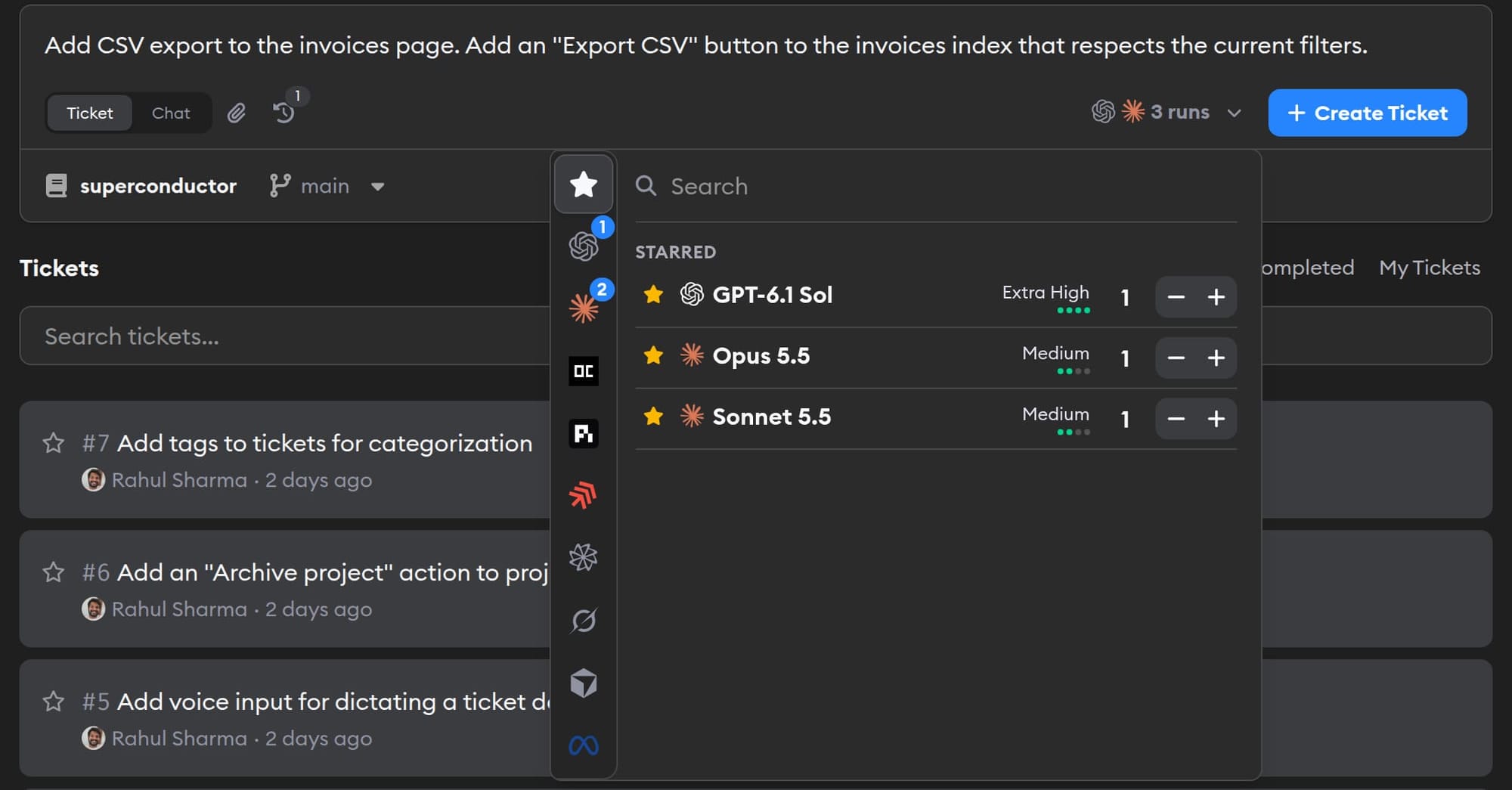
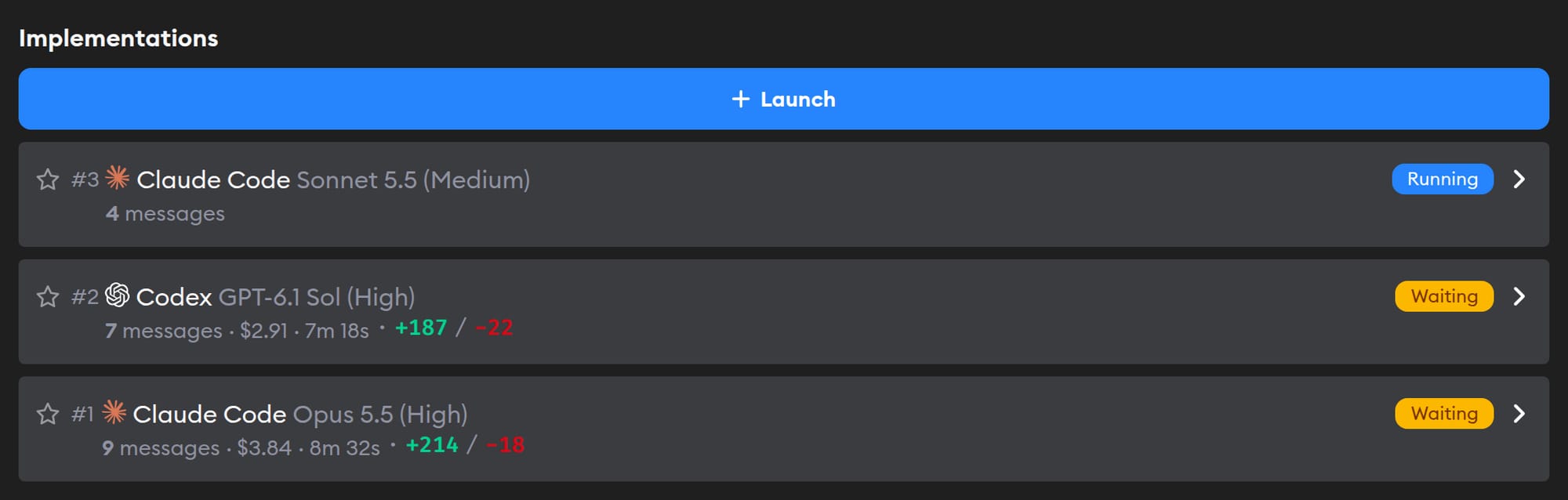
Create a ticket, open the Select Profiles picker, and pick two or three agents to run on it, the way you'd open several Conductor workspaces. Each implementation gets its own environment, branch, live preview, and terminal. When they finish, compare them, leave comments on the diff, and click Submit PR on the one you want.
7. Invite your team
Workspace owners and admins can invite teammates. Once they join, they can open any implementation, watch the live preview, and talk to the agent with you.
What works differently
- Agents don't run on your Mac. They run in cloud environments, so they keep going when your laptop is closed and don't compete for its CPU and memory.
- No port juggling. Each implementation runs your app on its own machine, so two agents never fight over port 3000.
- Environments are built once. Build commands run when the snapshot is built, not every time an agent starts, so new implementations start fast.
- Network access is controlled per project. You can restrict which domains agents reach.
- Windows isn't supported yet in the desktop app. Use the web app in your browser.
FAQ
Can I keep using Conductor locally while I try Superconductor?
Yes. Superconductor works from your GitHub repos and doesn't touch your local worktrees. Run both side by side until you're ready.
Does Superconductor read my conductor.json?
Superconductor doesn't run conductor.json directly. Automatic Environment Setup reads your repo, including that file and the scripts it calls, when it works out your build and startup commands. Check what it suggests, since Conductor scripts that use $CONDUCTOR_* variables or copy files from your main checkout need changes.
Will I pay for models twice?
Not if you connect your Claude or ChatGPT plan. Runs on a connected plan use your subscription, the same as in Conductor. See Pricing for Superconductor's own plans.
How does Superconductor compare to Conductor?
See Superconductor vs Conductor.
Need help?
We'll help you move. Email us with your repo setup, or click Get help on the environment setup page to chat with our team.