Connectors
Connect your team's tools so agents can use your docs, issues, designs, and more.
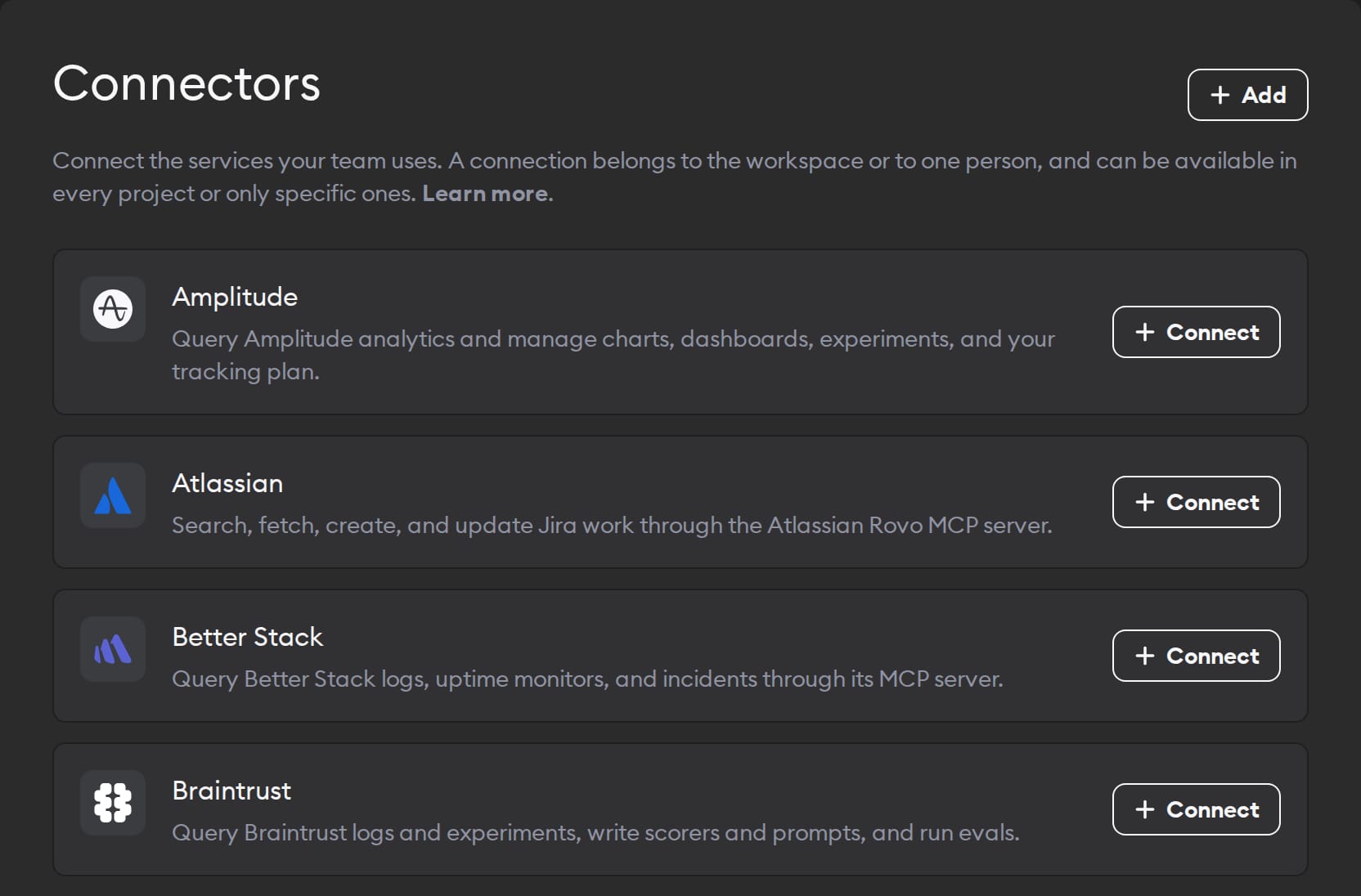
An agent that can only see your repo only knows what's in your repo. But the reason a ticket exists, the error behind a bug, and the design a page should match all live somewhere else.
Connectors let agents reach those tools and act in them. An agent can read the Jira ticket, pull the stack trace from Sentry, open the Figma file it should build from, then comment on the Linear issue when it's done—in the same run, without you pasting any of it in.
Go to Workspace Settings → Connectors to get started.
Looking for a specific tool? Browse the Superconductor integrations page to see every tool agents can work with, sorted by category. Or jump to Tools you can connect for each connector's setup guide.
Connect your tools
Under Connectors, click Connect next to the tool you want to add. If someone has already connected an account for that tool, click Connect another to add yours.
Don't see the tool you need?
- How do I add my own MCP server? Click Add at the top of the Connectors page. Any tool with an MCP server can become a connector—see Connect your own tools.
- How do I use MCP config from my repo? Superconductor picks it up automatically. See servers configured in your repos.
Your team only needs to add a shared connection once, under Workspace Settings. Workspace members with the Owner, Admin, or Collaborator role can add team or personal connections. Viewers can manage personal connections they already own, but can’t add new ones.
Fill in the connection details
You can set who the connection belongs to and where agents can use it:
- Workspace: Belongs to the workspace and stays when the person who added it leaves. Enable it in workspace members’ private chats, in projects, or both.
- Me: Belongs to you and is removed when you leave the workspace. In my private chats is selected by default. Enable In projects separately to share it with anyone who has access to those projects.
- Under In projects, choose All projects to include future projects, or Some projects and select the projects that need the tool. From Project Settings, you can choose This project.
Private chats and projects have separate access settings. Enabling a personal connection in private chats never makes it available in other members’ private chats.
Anyone with access to a selected project can use your personal connection in that project. Keep In projects unchecked if you only want to use the connection in your private chats.
Most connectors let you sign in with your account in that tool. Click Continue and the next step gives you two tabs: an account tab such as Sentry account, which signs you in at the tool so there's no key to create, and Access token, where you paste one instead. Some connectors only sign you in, so they have no Access token tab. Each connector's guide walks through the ways it connects.
Others take only an API key or token, at the top of the same form. The label tells you which kind you need—for example, Figma Personal Access Token. Follow the setup link beneath the field for help creating a key with the right permissions. When everything looks good, click Connect.
Superconductor stores your keys encrypted. Agents can only do what the account you connect has permission to do in that tool. For example, if your Notion connection can read a doc but can't edit it, agents will also have only read-only access to your Notion docs.
Once a tool is connected, just mention it to your agents in a ticket or chat. For example, connect Notion for your web project, then ask an agent: “Read our checkout spec in Notion and use it to plan this ticket.”
Review your connections
After connecting a tool, you'll see an entry for the account on Workspace Settings → Connectors. You can connect more than one account for the same tool. For example, multiple workspace members can connect their personal accounts for a tool. See Which connection agents use to learn how Superconductor chooses an account when multiple accounts are connected for the same tool.
What the icons mean
The text beside each icon tells you who added the account and where agents can use it:
| Icon | What it means |
|---|---|
 Link Link | Who added the account. Service account added by… means it belongs to the workspace. Connected by… identifies the owner of a personal connection. |
 People People | Where agents can use the connection: projects, private chats, or both. Workspace-owned connections can be available in members’ private chats. Any project means all current and future projects; private-chat access is configured separately. |
 Lock Lock | This personal connection is available only in its owner’s private chats. |
 Plus Plus | Connect adds an account. Connect another adds another account for the same tool. |
A connection can also show an orange Reconnect needed badge. That means the tool stopped accepting the connection, and agents run without it until someone reconnects. See Managing connections.
Which connection agents use
What happens when multiple accounts are connected for the same tool? If your personal connection is available in the project, your agents use it ahead of a team connection. For example, your agents can use your Figma account while your teammates' agents use the team's account.
Superconductor chooses the account for the person who starts the chat or implementation. Joining someone else's session doesn't switch the connection to yours.
If you don't have a personal connection available in the project, your agents can use any service or personal connection enabled in the project. Connections enabled only in private chats are unavailable in projects.
When several connections are available in the project for the same tool, Superconductor picks one in this order:
- Your personal connections come first.
- A connection shared with a specific project comes before one shared with the whole workspace.
- If there's still a tie, the oldest connection wins.
New implementations started by scheduled automations or automations triggered by a pull request merge can use any service or personal connection enabled in the project. If no connection is available, the agent continues without that tool. Some agents have limits on the tools they support; check the tool's guide for details.
Managing connections
Go to Workspace Settings → Connectors and click Manage next to the connection. The page shows who added the account and who can use it. You can change the projects or sharing options and click Save. To replace the key, enter the new one in the section named for it—such as Granola API Key—and click its Save button.
To stop sharing a connection with one project, choose Some projects and select only the projects that should keep it. Disconnect removes the connection from private chats and every project using it.
A connection you made by signing in instead of pasting a key works a little differently. There's no key to replace—the page shows Account connection: Connected instead of a key field. If it stops working, you'll see a Reconnect needed warning and a Reconnect button.
Any workspace member can manage their own personal connections. Workspace Owners and Admins can manage team connections, as can the person who added one as long as their workspace role is Collaborator or above. Only the owner can edit a personal connection, including when it is shared in projects. Workspace Owners and Admins can also disconnect personal connections belonging to other members.
Already working inside a project?
You can also open Project Settings → Connectors to see the connections available there, add one for This project, or click Manage to change an existing connection. The Used by your agents badge shows which account agents you launch in that project will use for each tool.
Tools you can connect
Choose a guide for help connecting each tool. Tools are grouped the same way as on the integrations page.
Issue tracking
| Tool | What you can ask agents to do |
|---|---|
| ClickUp | Find, create, and update tasks, docs, and comments |
| Jira (Atlassian) | Look up issues, create follow-up work, and update statuses |
| Linear | Find, create, and update issues and projects |
| monday.com | Find, create, and update board items, post updates, and create docs |
| Shortcut | Find, create, and update stories, epics, and iterations |
Communication
| Tool | What you can ask agents to do |
|---|---|
| AgentMail | Give agents their own inboxes to send, receive, and reply to email |
| Cal.com | Check availability and manage bookings and event types |
| ElevenLabs | Create, test, and manage voice agents and generate speech |
| Gmail, Google Calendar, and Google Contacts | Read and draft email, check calendars, and look up people |
| Happenstance | Find people in your and your teammates' networks |
| Loops | Look up contacts and manage mailing lists and emails |
| Typefully | Draft, schedule, and review social media posts |
Monitoring & analytics
| Tool | What you can ask agents to do |
|---|---|
| Amplitude | Query product analytics and manage charts, dashboards, and your tracking plan |
| Better Stack | Search logs and investigate incidents |
| Braintrust | Query AI traces, write scorers, and run evals |
| Mixpanel | Query product analytics and manage dashboards and event definitions |
| PostHog | Check analytics, feature flags, events, and logs |
| Scout APM | Find slow endpoints, N+1 queries, and error spikes |
| Sentry | Investigate errors and stack traces |
Docs & design
| Tool | What you can ask agents to do |
|---|---|
| Context7 | Look up current docs and code examples for the libraries your code uses |
| Figma | Read a design and build UI to match it |
| Google Drive | Find files and work with Docs, Sheets, and Slides |
| Granola | Find decisions and context in public meeting notes |
| Mobbin | Find real app screens and flows to use as design references |
| Notion | Read specs, search docs, and write up findings |
| Supermemory | Save and recall context across sessions |
Payments
| Tool | What you can ask agents to do |
|---|---|
| Stripe | Look up customers and payments, and manage subscriptions and invoices |
Automation
| Tool | What you can ask agents to do |
|---|---|
| Treg | Find and call tools for research, enrichment, and media generation |
| Zapier | Work with the apps and actions you choose in Zapier |
Build, test & deploy
| Tool | What you can ask agents to do |
|---|---|
| Cloudflare | Deploy Workers and manage DNS, storage, and other Cloudflare settings |
| LaunchDarkly | Manage feature flags and experiments, and check errors and logs after a release |
| Neon | Query databases, test migrations on branches, and manage Neon projects |
| Netlify | Deploy sites and manage Netlify projects and environment variables |
| Runpod | Check and manage Pods and Serverless endpoints |
| Vercel | Deploy projects and investigate failed deployments |
Your own tools
| Tool | What you can ask agents to do |
|---|---|
| Connect your own tools | Use an internal service, or any other tool with an MCP server |
Looking for something else?
Some tools need no account at all—you just switch them on in Project Settings → Skills and MCPs: browser testing with Playwright, and Superconductor skills for images, video, and audio. See Skills and MCPs.
To give agents your own instructions and workflows, add custom skills to your project's repositories.
Let us know which tools you'd like to connect next!