Neon
Connect Neon so agents can manage Postgres projects, branches, and databases, and run SQL.

The Neon MCP server lets agents query your databases and try schema changes on a branch before they touch your main data.
For use cases and example prompts, see Neon for AI coding agents.
What is Neon?
Neon is a serverless Postgres database that you can branch like code.
What agents can do
Once you connect Neon, agents can:
- Create, describe, and delete projects, branches, and databases
- Run SQL queries and transactions, and inspect tables and schemas
- Test a migration on a temporary branch before applying it
- Find slow queries and check database health
- Manage computes, snapshots, Postgres roles, and Neon Auth
Agents can only do what the connected Neon account or API key can do.
With full access, agents can run any SQL and delete projects, branches, and databases. Neon recommends its MCP server for development and testing, so connect an account that can't reach production data. To keep agents from changing anything, choose Read only when you sign in with Neon.
Setup
Go to Workspace Settings → Connectors (or a project's Connectors page) and click Connect on the Neon card (or Connect another to add another account).
Step 1: who the connection is for
Choose whether the connection belongs to you or to your team, which projects can use it, and whose agents can use it. Neon starts on Personal Account. See connection options for what each choice means.
Click Continue.
Step 2: how agents reach Neon
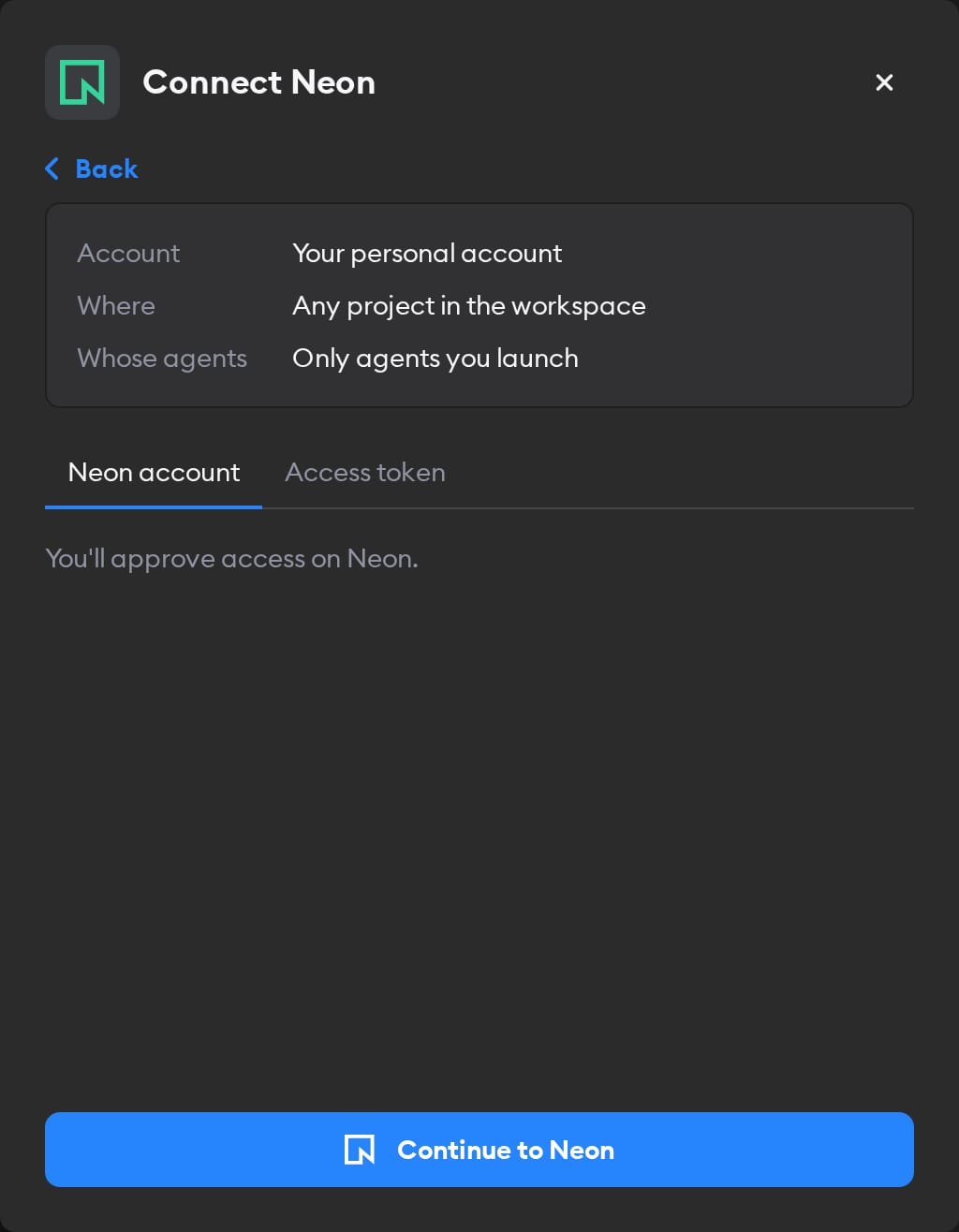
The second screen has two tabs: Neon account and Access token. Pick one.
Neon account
This tab is selected by default, and it's the easiest way in — there's no key to create.
Click Continue to Neon and sign in. On Neon's approval page, choose whether agents can reach All projects you can access or One project (enter the project's ID from the Neon Console, not its name), and pick their Permissions: Read only, or Read and write if agents should create branches, change data, or manage projects. Click Approve, and you land back on the Connectors page with Neon connected. To change these choices later, disconnect and connect again.
Agents then act in Neon as whoever signed in. If you picked Workspace Service Account in step 1, everyone's agents use that access — so sign in with an account whose permissions you're happy to share.
Access token
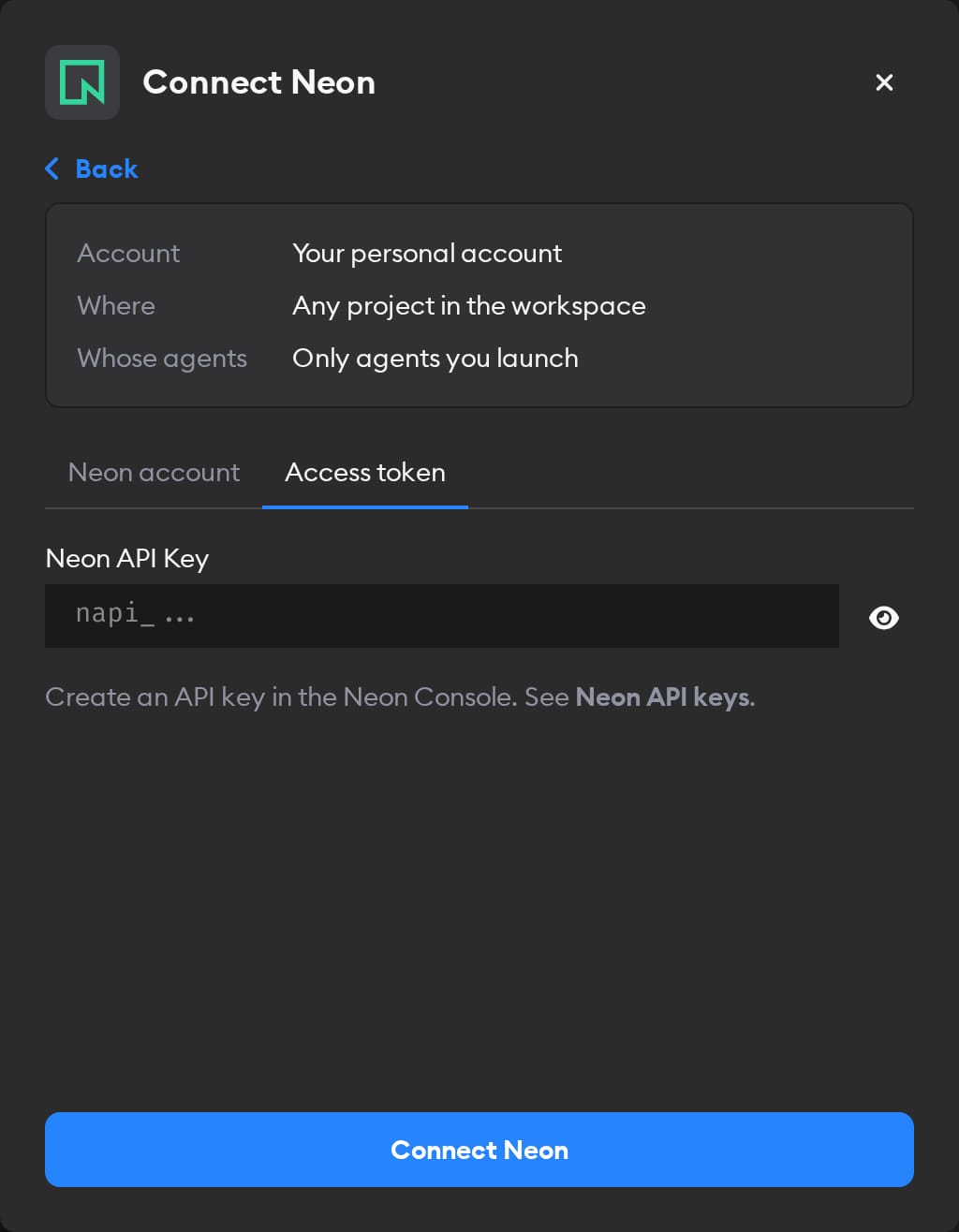
Follow Neon's API key docs to create a personal or organization API key. Paste it into the Neon API Key field and click Connect Neon.
Reconnecting and disconnecting
If Neon stops accepting a connection you made with Neon account, the Connectors page shows a Reconnect needed badge on it, and agents run without Neon.
Click Manage next to the connection to fix it. A connection you made with Neon account has no key to replace: it shows Account connection: Connected and, when something's wrong, a Reconnect Neon button. You can only reconnect a personal connection you own; for someone else's, Superconductor tells you who to ask.
Disconnect also revokes Superconductor's access at Neon. For an access token, revoke the key in the Neon Console.
When to use it
Ask agents to use Neon for a schema change, a data question, or a slow query. For example:
Create a Neon branch for this ticket, apply the migration there, and tell me if anything breaks.How many customers signed up each week this quarter? Query our analytics database in Neon and put the numbers in a table.Our dashboard got slow this week. Use Neon to find the slowest queries and suggest indexes.Compare the schema on the Neon branch for this pull request with main, and list every difference.