Superconductor skills
Superconductor skills allow agents to answer questions about Superconductor, look up project tickets, implementations, and chats, create tickets, message other agents, generate images and short videos, and analyze video and audio.
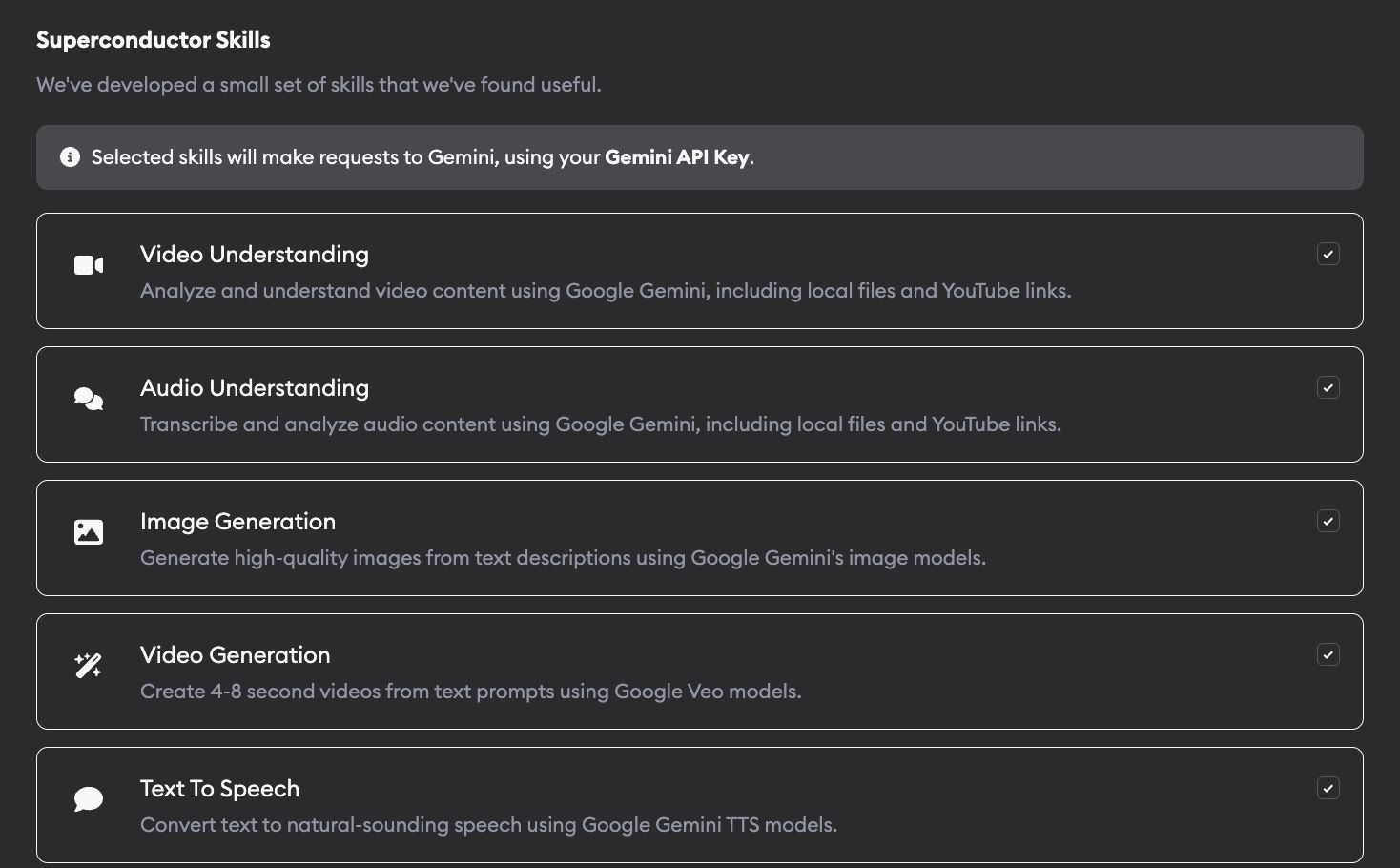
Superconductor skills give agents extra capabilities. Two are always on: one lets agents answer questions about Superconductor, and the other lets them look up your project's tickets, implementations, and chats, create new tickets, and message other agents. The rest use Gemini for media analysis and content generation, and you turn them on per project.
Agent Skills are an open standard for giving agents new capabilities and expertise. These skills work with any Superconductor agent.
Always-on skills
Every agent in every project has these skills, except benchmark runs, which can't look up or create tickets and chats. They need no API key, and they don't appear in Project Settings → Skills and MCPs.
Superconductor Knowledge
Agents can read the Superconductor docs to answer questions about how Superconductor works. This works even with strict network sandboxing, since Superconductor allows the docs site automatically.
Try asking:
- "How do I set up a live preview for this repo?"
- "How do I let agents reach our staging API?"
Tickets, implementations, and chats
You can ask agents to look at any ticket, implementation, or chat in the project, from a ticket implementation, a chat, a meeting, or an email. An agent can:
- Catch up on project activity. List recent tickets with their implementations, who started them, and pull request status, or list the project's recent chats, optionally from a date onward.
- Read an implementation in full. Open its ticket, pull requests, and the whole conversation between your team and the agent.
- Read an implementation's code changes. See the latest diff for each repo, the same changes you see in the implementation's diff.
- Run QA checks. Start a QA check on an implementation when you ask, and read the reports of earlier checks.
- Read a chat in full. Open the whole conversation between your team and the chat agent.
- Create tickets. File a new ticket in the project when you ask, with files attached. See Creating tickets.
- Message other agents. Send a message to another implementation or chat in the project, and its agent picks up the work. See Messaging other agents.
To point an agent at an implementation or chat, paste its link, or describe it and let the agent find it. Try asking:
- "Look at how the onboarding implementation handled the empty state, and do the same here."
- "Read the diff from the login timeout implementation and apply the same fix to the admin app."
- "What is Kevin currently working on?"
- "Read the chat linked below and implement the plan we agreed on there."
- "Summarize this chat so far."
- "Run a QA check on the search implementation and summarize what it found."
- "Tell the agent in the search implementation that I changed the
resultsAPI to return a cursor, so it should update its code."
Agents can read messages, but not the artifacts saved in a chat or implementation, such as screenshots and documents. They can't read email assistant or meeting assistant messages, and they can't change existing tickets. They also only see the project they're working in, so a link to an implementation or chat in another project won't work. A personal assistant is the exception: it can see every project in your workspace.
Creating tickets
Ask an agent in an implementation or chat to create a ticket, and it files one in the same project. Your personal assistant can file one in any project in your workspace. Use it to capture follow-up work without leaving the conversation, like a bug the agent noticed, a refactor that's out of scope, or the plan you just worked out in a chat.
The agent writes the description with enough context for another agent to pick it up without reading your conversation. It can also attach up to 10 files the implementer will need, such as a screenshot of the bug, an error log, or a sample input. The usual attachment size limits apply. If you ask, it can also start the ticket from a branch other than the repository's default, such as a release branch.
New tickets start with no implementations, so you decide when work begins. To start right away, ask the agent to launch it too. It starts one implementation with the Default agent profile of the person who started the conversation, or the best available agent if they haven't set one.
The agent replies with a link to the new ticket. On the project's ticket dashboard, the ticket's card reads Superconductor from an Implementation, Superconductor from a Chat, or Superconductor from an Assistant.

Open the ticket to see the description and attachments the agent added. The Signals section links back to the conversation the ticket came from.
Agents only create tickets you ask for, and they check the project's existing tickets first so they don't file a duplicate. Try asking:
- "File a follow-up ticket to add pagination to this page, and attach the screenshot you took."
- "Create tickets for the three bugs we found in this chat, one ticket each."
- "Turn the plan we agreed on into a ticket and launch it."
Messaging other agents
Ask an agent to send a message to another implementation or chat in the same project, and that agent responds as if you'd sent the message yourself. Your personal assistant can message implementations and chats in any project in your workspace.
The agent writes the message with enough context for an agent that hasn't seen your conversation. It replies with a link that opens the message where it landed.
In the receiving conversation, the message is labeled with the implementation or chat that sent it, like Chat (Plan the onboarding checklist…). Hover over the label to see the full title, or click it to open that conversation. Messages from a personal assistant show its owner's name instead, like Kevin Walsh's Assistant, with no link, since the assistant is private.
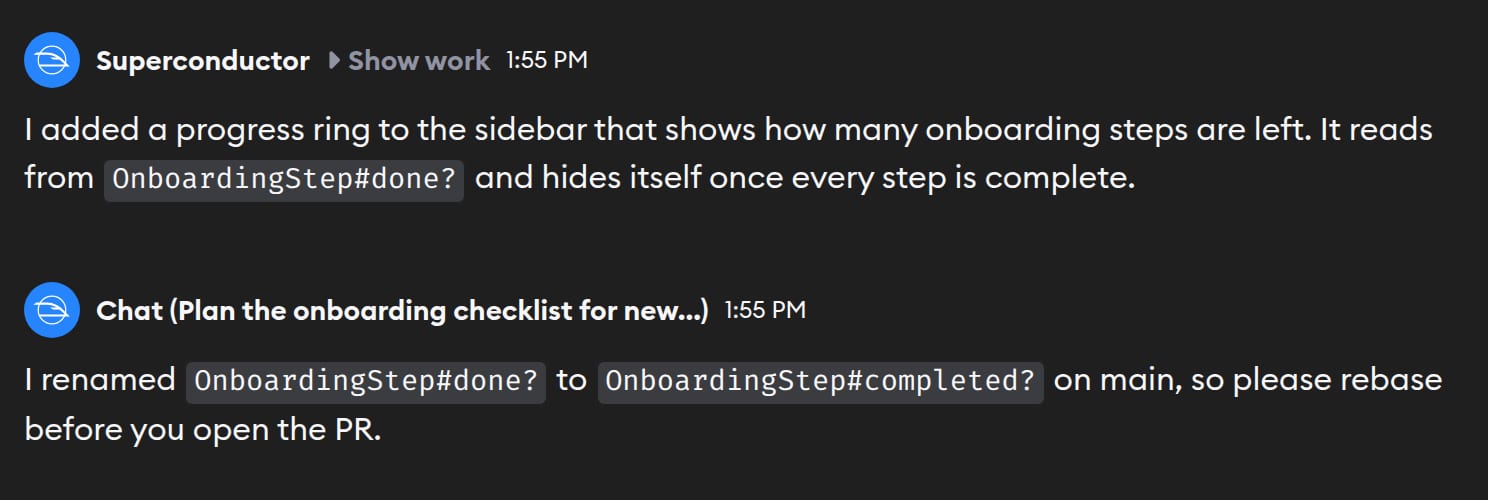
A few things to know:
- Each message starts work. The receiving agent starts a new turn as soon as the message arrives, so ask for one message with everything it needs rather than several.
- Replies stay in the receiving conversation. The sending agent doesn't get the response automatically. Ask it to check back on the other conversation later if you need to know the outcome.
- Private conversations can't receive messages. Agents can't message a personal assistant, and an agent can't message its own conversation.
Agents only send messages when you ask, or when it's clearly what you expect. Try asking:
- "Tell the checkout redesign implementation that I renamed the
PriceTagcomponent toPrice, so it should rebase." - "Send the plan we just agreed on to the onboarding implementation and ask it to start on step one."
- "Let the billing chat know the webhook fix is merged."
Media skills
All of these skills require a Google Gemini API key in your workspace agent credentials or project agent credentials.
Available skills
- Video Understanding - Analyze videos up to an hour long. Supports local files (mp4, mov, webm, avi, mkv) and YouTube links.
- Audio Understanding - Transcribe and analyze audio up to 9.5 hours long. Supports mp3, wav, m4a, ogg, flac, and YouTube links.
- Image Generation - Generate images from text descriptions. Can use existing images or videos as style references.
- Video Generation - Create 4-8 second videos from text prompts. Supports image-to-video animation with native audio.
- Text to Speech - Convert text to natural-sounding speech. 30 voices, 24 languages, automatic language detection.
Prefer ElevenLabs for audio? With the ElevenLabs connector, agents can generate speech with your ElevenLabs voices and manage your ElevenLabs voice agents. It needs no Gemini API key, and you can use it alongside these skills.
Setup
- Add a Gemini API key in your agent credentials.
- Go to Project Settings → Skills and MCPs.
- Enable the skills you want agents to use.
Once a skill is enabled, ask your agent in the chat to generate an image, analyze a video, or use another supported capability.
Example use cases
Try asking an agent to:
- Create visual database structure diagrams automatically
- Analyze competitor demo videos to produce competitive analysis reports
- Generate multiple landing page redesign mockups from text descriptions
- Identify bugs from customer call recordings
- Extract customer testimonials from YouTube videos for your website