QA Checks
Run a QA agent on your implementation to check functionality, code quality, and tests.
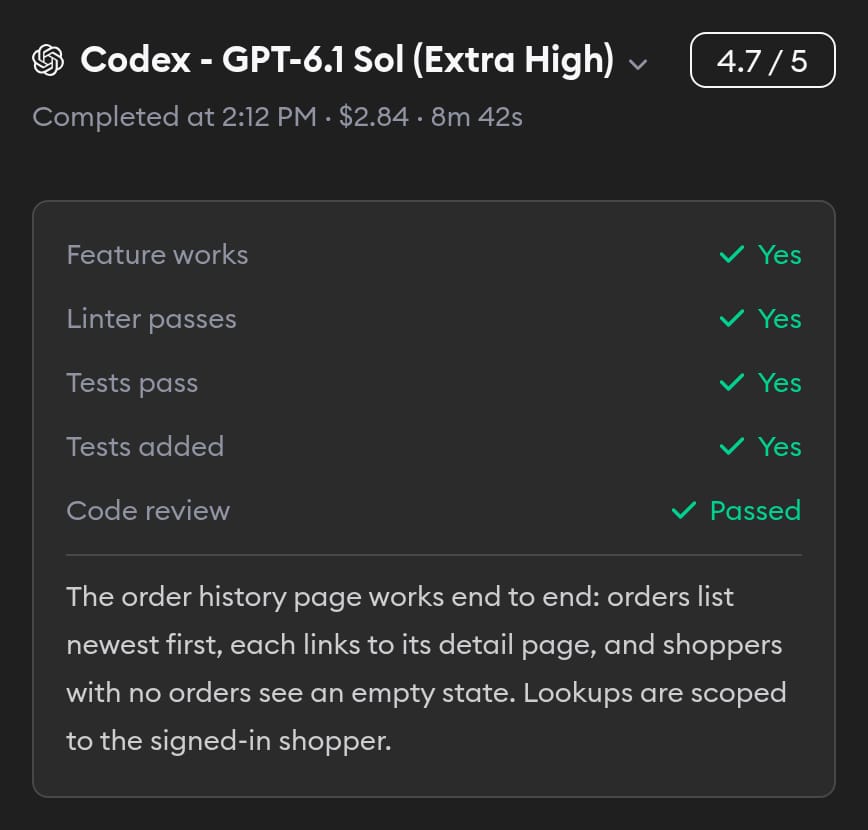
QA Checks let you run a separate QA agent against your implementation and get a short quality report. Use them when you want an independent check before you ask the coding agent for follow-up changes, open a pull request, or choose between implementations.
What is the difference between Guided Review and QA Checks? Guided Review helps you understand the diff and walks you through the code changes file-by-file in a logical order. QA Checks verify whether the agent's work satisfies the ticket requirements, passes relevant checks, and has enough test coverage to move forward. Run both when you want a readable walkthrough of the code changes and a separate quality signal for functionality, code quality, and tests.
Launching QA Checks
You'll see a QA Check tab in the implementation review panel, next to Full Diff and Guided Review.
Click the QA Check tab to open the Run QA Check dialog, then click Run QA Check. The dialog starts on your project's default QA agent, and you can pick a different one for this check under Profile. Once a check exists, the tab shows its results instead.
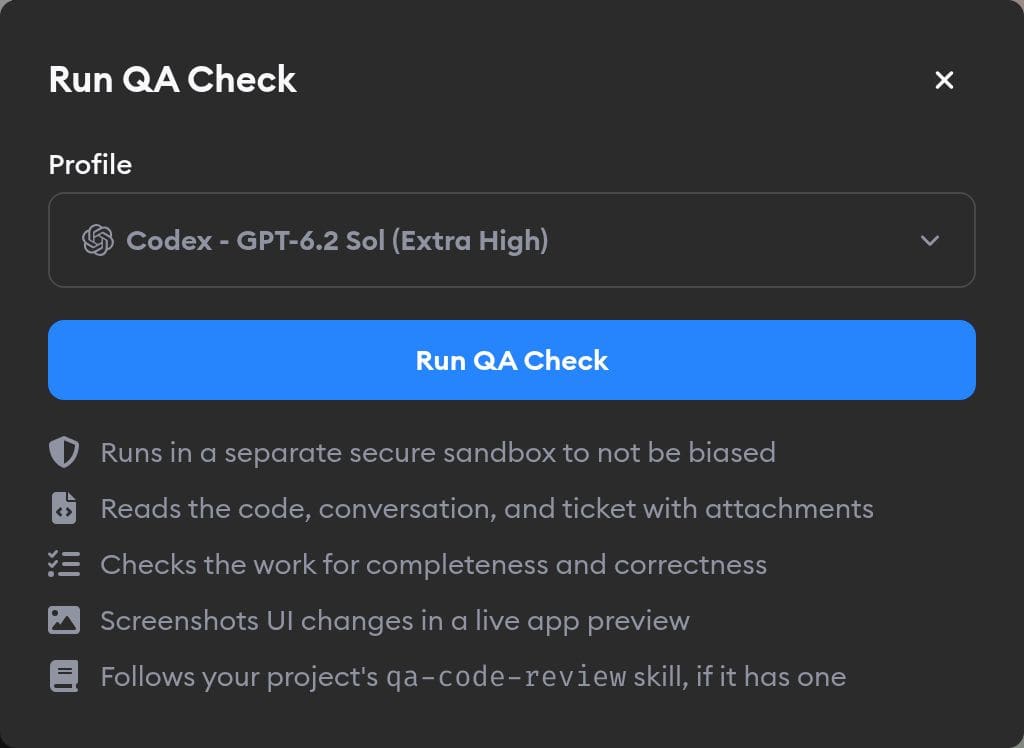
The QA Check tab is disabled until the implementation has code changes.
The QA agent starts from the latest implementation diff. It applies the implementation's patch in a fresh QA environment, reads the original ticket and implementation conversation, then checks whether the work meets the ticket requirements.
To run another check at any time, for example after the coding agent makes changes or when you want a second opinion, open the run dropdown and click Launch another. It opens the same Run QA Check dialog, so you can pick a different profile for the second opinion.
If the QA agent itself fails to run — a credential or network problem, for example — the error appears in the QA Check tab in place of the report, so you can see what went wrong. Click Retry to run the check again right away with the same profile. To try a different model, click the ⋯ button next to Retry and choose Retry with different model… to open the Run QA Check dialog.
QA checks can also run as part of a benchmark. Turn on Run QA checks in Benchmark Settings to score every benchmark implementation with a QA agent before the judges evaluate it.
From an agent or the API
You don't have to open the implementation to run a check:
- Ask an agent. Agents in your project can start a QA check on an implementation and read its report. Try "Run a QA check on the checkout implementation and tell me what it found." See Superconductor skills.
- Use the API. Your own scripts and local agents can start a check and poll for its report. See Run a QA check.
Both use the project's default QA agent, and the check shows up in the QA Check tab like any other run. Starting a check needs the Owner, Admin, or Collaborator role. Viewers can read results.
Choosing the QA agent
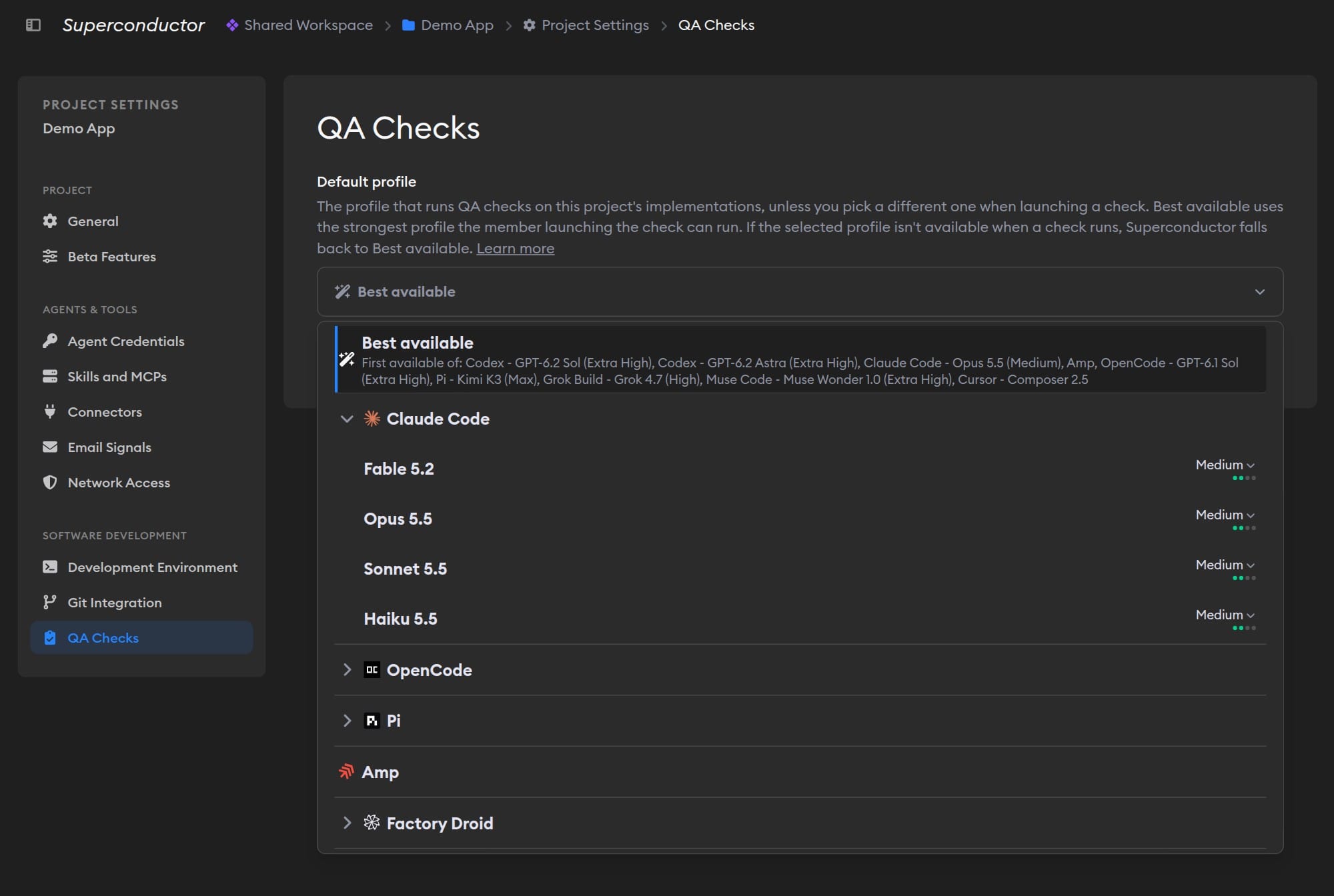
By default, QA Checks run with the best available coding agent for your project. To use a specific agent instead, go to Project Settings → QA Checks, pick a Default profile, and click Save. Each model has one row, with its effort level in a dropdown; see Choosing a model and effort.
The default profile is what the Run QA Check dialog preselects. Picking a different profile in the dialog only affects that one check.
Not sure what Best available means for your project? Open the selector. The Best available option lists the agents it tries, in order. Each check uses the first one on that list that the person who launched the check has credentials for.
If the default profile isn't available to the person launching a check — for example, the project is missing that agent's credential — the dialog preselects the Best available agent instead.
Whose credentials a check uses
A QA check runs as the person who launched it. A check an agent starts runs as the person who started that agent's implementation or chat. It uses their credentials, starting with their connected plan, and its spend counts toward them on the Usage dashboard. The Run QA Check dialog only lists the profiles you can run. QA checks that a benchmark runs use the same credentials as the benchmark's implementations.
Switching between runs
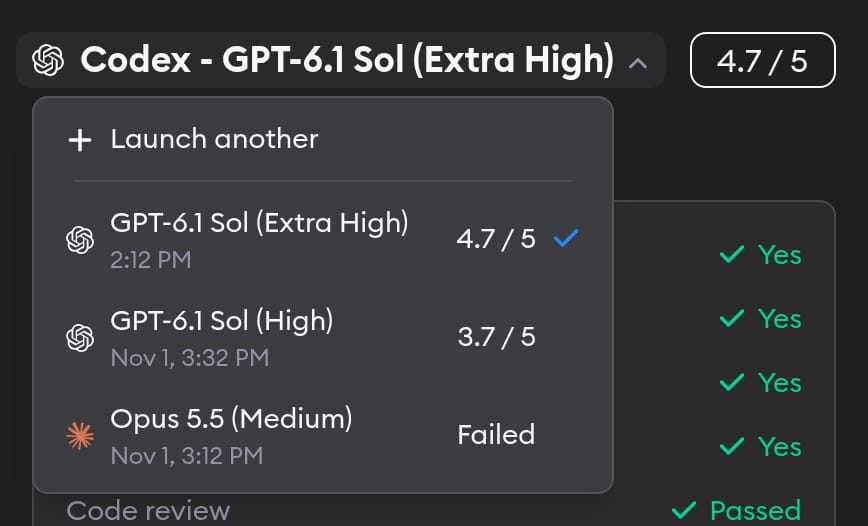
An implementation can have several QA check runs. The QA agent and model at the top of the QA Check tab is a dropdown. Click it to see every run, newest first, with the agent that ran it, when it ran, and its score. Runs that haven't finished show Running, and runs that errored show Failed. A check mark shows which run you're looking at.
Click a run to open it, or click Launch another at the top to open the Run QA Check dialog and start a new check.
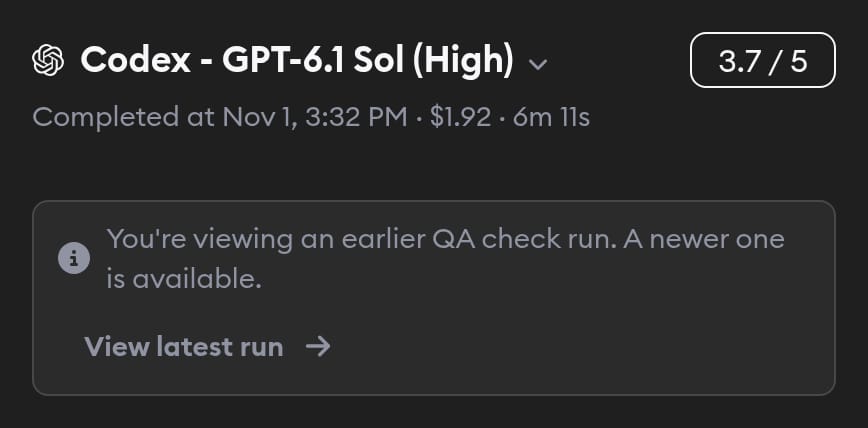
When you open an earlier run, a notice tells you a newer one is available. Click View latest run to go back to it.
QA Check cards in chat
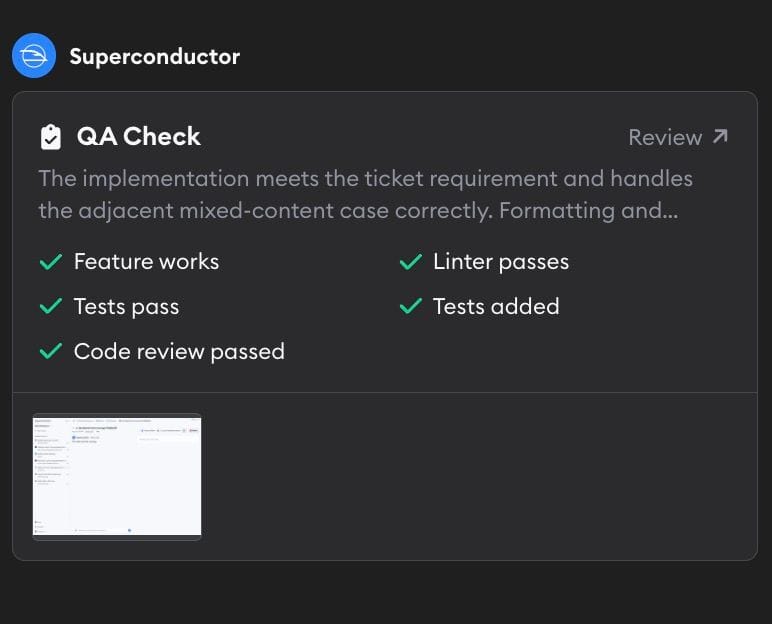
When a QA check finishes, its results appear as a card in the implementation chat. The card previews the QA agent's summary, result metrics, and any screenshots it captured. Screenshots sit in a single row; scroll sideways to see them all.
Click Review to open that specific run in the QA Check tab. You can also click a screenshot thumbnail to view it at full size. Each completed run gets its own card, so you can return to an earlier result after rerunning the check. You can also switch between runs from the QA Check tab.
A finished QA check notifies everyone following the implementation, the same as any other agent message. You'll get a push notification, and the implementation moves to the top of your Recent Activity sidebar marked unread — so you don't have to sit and watch the tab while the check runs.
What the QA report includes
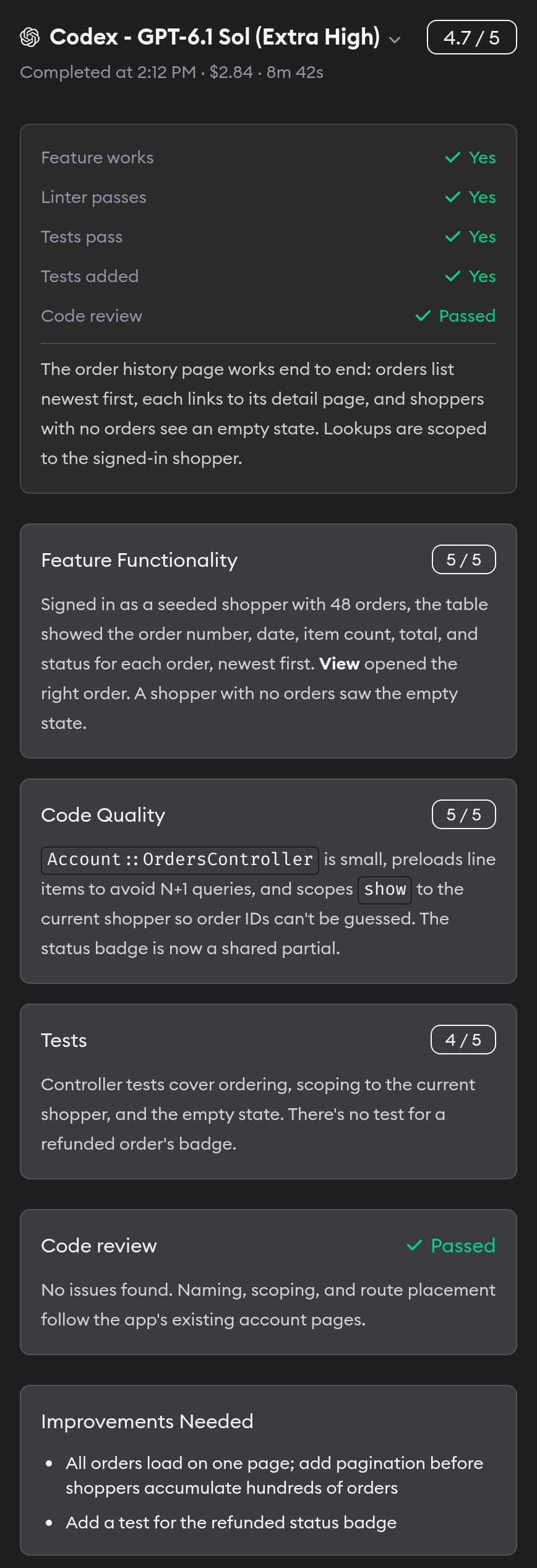
Once the run finishes, the QA Check tab shows:
-
Run details — Which QA agent ran the check (for example, Codex - GPT-6.1 Sol (Extra High)), when it completed, what it cost, and how long it took. Use this to see which agent the Best available fallback picked. The agent's name is also the run dropdown.
-
Overall score — A 0-5 score, shown next to the agent's name, calculated as the average of the feature, code quality, and tests scores.
-
Summary checks — Whether the feature works, the linter passes, tests pass, tests were added, and whether your code review skill passed.
-
Screenshots — Visual evidence captured by the QA agent when it checks UI changes in a browser.
-
Feature Functionality — Whether the implementation addresses the ticket requirements and works in the app when browser testing applies.
-
Code Quality — Whether the code follows existing patterns, is easy to understand, passes formatting/linting, and avoids obvious maintainability issues.
-
Tests — Whether tests pass, whether useful tests were added, and whether the test coverage is meaningful.
"Tests added" can come back as a gray N/A when the QA agent decides the change didn't warrant new tests — a copy tweak or a config change, for example. It explains why in the test notes, and it doesn't count against the tests score. A red X on "tests added" means tests are genuinely missing, and a red X on "tests pass" means tests actually failed.
-
Code review — The result of your project's own code review skill, if you have one. See Your own code review rubric.
-
Improvements Needed — Specific follow-up items when the QA agent finds gaps.
The QA agent is instructed to run the relevant test suite and linter when it can. It can also use browser automation to inspect the app for UI or workflow changes.
When screenshots are available, they appear directly in the QA report. Click a screenshot to open it in a gallery view, and use Paste Into Chat to include the QA report and screenshots in your next message to the coding agent.
Your own code review rubric
If one of your repos defines a custom skill named qa-code-review, the QA agent runs it as part of every check. This is how you get your team's own review standards — naming conventions, architecture rules, testing expectations — applied on top of the built-in rubric.
Add the skill at [repo]/.agents/skills/qa-code-review/ and describe what a passing review looks like. Superconductor picks it up automatically — there's nothing to turn on. The QA report then shows a Code review result:
| Result | Meaning |
|---|---|
| Passed | The implementation meets the standards in your skill |
| Failed | The QA agent found violations. They're also listed under Improvements Needed |
| N/A | No qa-code-review skill was available in the project's repos |
Failed reviews add their findings to Improvements Needed, so Paste Into Chat hands the coding agent a concrete fix list. The result also shows on the QA Check card in chat.
How scoring works
The QA agent returns separate 0-5 scores for feature functionality, code quality, and tests, then returns an overall 0-5 score.
Use the score as a quick signal:
| Score | Meaning |
|---|---|
| 5 | Complete, working, well-tested, and clean. |
| 4 | Good implementation with minor follow-up items. |
| 3 | Partially acceptable, but has meaningful gaps in behavior, quality, or tests. |
| 2 | Significant issues that should be fixed before review or merge. |
| 1 | Barely addresses the ticket. |
| 0 | No meaningful implementation or the agent could not verify it. |
Sending QA feedback back to the agent
The coding agent knows when a QA check has run and has the full report on hand, but it won't read or act on it until you ask. To have it work through the findings, mention the QA check in your next message, like "Fix the issues from the QA check."
To choose exactly what the agent sees, click Paste Into Chat to copy the QA report into the implementation chat draft. It does not send automatically, so you can edit the message before asking the coding agent to fix the issues.
If the implementation changes after the QA check was created, Superconductor marks the QA check as outdated and shows a Rerun button at the top of the QA tab. Click it to launch a fresh check against the latest diff with the same profile. To pick a different model, click the ⋯ button next to Rerun and choose Rerun with different model…, or click Launch another in the run dropdown.
If the profile the last check used isn't available to you anymore — for example, its credential was removed — Rerun and Retry open the Run QA Check dialog instead, so you can pick another one.