Personal assistants
Your own private assistant that can see across every project in your workspace.
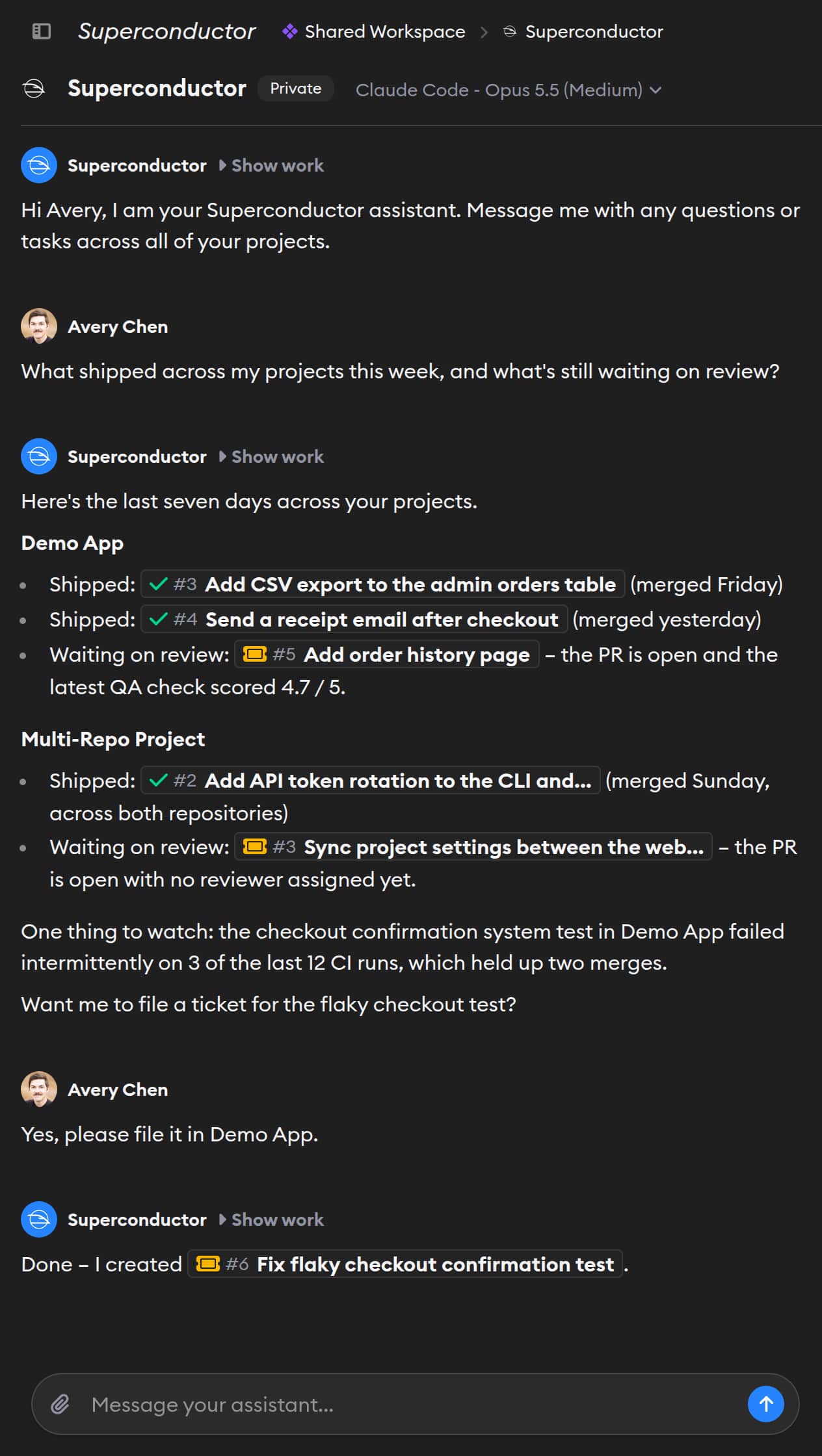
Your personal assistant is your own private conversation with an agent that works across every project in your workspace. Ask what your team shipped this week, quickly find an older ticket or chat you or a teammate started, or have it create new tickets in any project.
Your assistant is called Superconductor until you rename it. Only you can access it — other workspace members can't see it.
What your assistant can do
- Help locate anything that happened within your workspace. The agent can find and list recent tickets, implementations, pull request statuses, and chats in any project in your workspace.
- Read any implementation or chat in full. It can open an implementation's conversation and code changes, or a chat's whole conversation. Paste a link, or describe what you're looking for.
- Create tickets in any project. Ask it to create a ticket, with files attached, in the right project, and launch an implementation if you want work to start right away. See Creating tickets.
- Use your connected tools. Pull in context from tools like Linear, Notion, or Sentry. See Connectors for which connections it can use.
- Make something you can keep. Ask for a report, diagram, or spreadsheet, and the agent saves it as an artifact.
- Ask how Superconductor works. The agent can read these docs to answer questions about Superconductor.
When your assistant creates a ticket, that ticket isn't private. It's visible to everyone in your workspace, the same as any other ticket.
Finding your assistant

Your assistant is pinned under Personal Assistants at the top of your Recent Activity sidebar, above everything else. Its Private badge reminds you that only you can see it. On a phone, it's at the top of your Recent Activity list.
To jump to it from anywhere on a desktop-width screen, hold ` and press 0 in a browser, or press Cmd/Ctrl+0 in the desktop app.
Every Owner, Admin, and Collaborator gets their own assistant automatically. Teammates who join later, or Viewers who are promoted to Collaborator, get one too. Viewers don't have one. The agent introduces itself in its first message, so you can start by replying.
Your assistant appears once Superconductor has an agent it can run for you, using one of the credentials listed below. If you don't see it yet, connect your plan or ask a workspace Owner or Admin to add a workspace API key. Your assistant is created as soon as one of these is in place.
Inside, it works like a project chat: you can send messages while the agent works, upload files, stop the agent, open Show Work, switch the model, and see artifacts in the review pane. Click its name in the header to rename it, the same as renaming a project chat. Its replies, including earlier ones, show the new name. You can't currently star, unfollow, or delete your assistant, or @-mention teammates in it.
What private means
- Nobody else can open it. Your teammates can't open your assistant or read its messages, including workspace Owners and Admins.
- It stays out of shared lists. It doesn't appear in any project's Chats page or in anyone else's Recent Activity sidebar.
- Other agents can't read it. Agents in implementations and chats can't open your assistant's conversation, even if someone pastes its link.
- What it creates is shared. Tickets the agent creates are regular tickets in their project, visible to everyone who can see that project. Their cards read Superconductor from an Assistant, and the link back to your assistant only opens for you.
Agents and credentials
Your assistant isn't part of any project, so it doesn't use project settings. Here's what it uses instead.
Which agent runs
The assistant starts with your Default agent profile, or the best available agent you have credentials for if you haven't set one. The agent is chosen when your assistant is created.
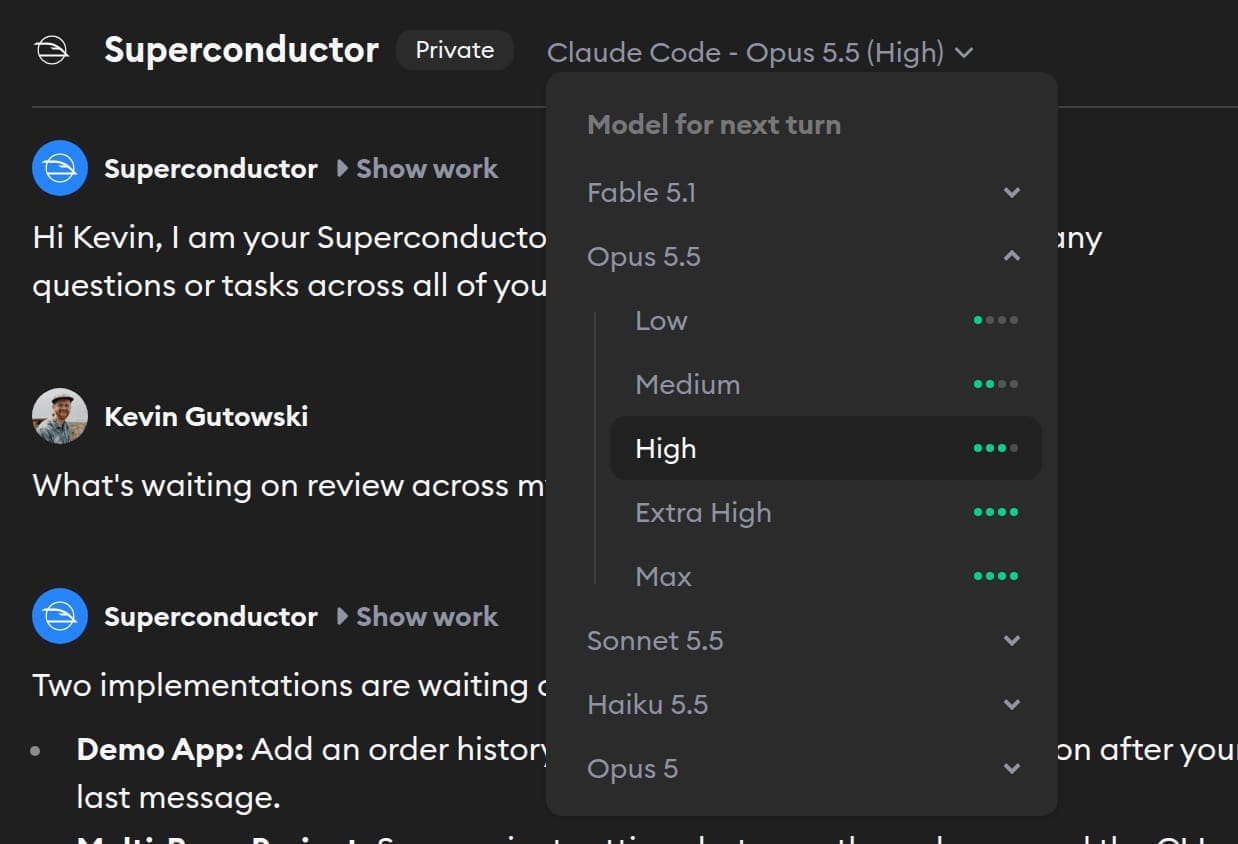
To use a different model or effort later, click the model name next to your assistant's name. You can pick another model from the same agent, and it runs from the agent's next turn. See Switching the model for which agents support it.
Which credentials it uses
The agent runs as you. Superconductor uses the first of these that works for the agent:
- Your connected plan
- The workspace API key
- Workspace credits, if available and the agent supports them
Project API keys don't apply. See Agent credentials for more on how to connect a plan or add a workspace key.
Connectors
Personal assistants have their own connection settings, separate from projects. Under Which agents can use the connection?, your assistant can use:
- Workspace connections with Workspace members’ personal assistants turned on
- Your own personal connections with My personal assistants turned on, which is the default for new personal connections
Teammates' personal connections are never available to your assistant, and a connection that's only turned on for Agents in projects isn't available either. To use one, edit the connection and turn on personal assistants.
Skills, repos, and network access
- Skills: The agent always has the default Superconductor skills for reading Superconductor docs, and reading and creating tickets across your projects. Skills and MCP servers you turn on in a project's settings, like Playwright or the media skills, aren't available.
- Repos: No repos are cloned into the assistant's sandbox. For code work, have the agent create a ticket in the right project.
- Network: The agent can reach Superconductor, its own provider's API, and your connected tools. Other sites are blocked, and you can't allow more from the assistant.
Example prompts
- "Find the chat where Kevin and I talked about the onboarding checklist a few weeks ago. Link me to it and summarize what we decided."
- "What did my team ship this week across all projects, and what's still waiting on review?"
- "Which of my implementations have open pull requests that look ready to merge?"
- "Catch me up on the Mobile App project. What's in progress, and what's stuck?"
- "Read the last three chats in the Billing project and write up the decisions we made."
- "Check Sentry for new errors since yesterday, and file a ticket in the right project for each one with the stack trace attached."
- "Create a ticket in the Website project to update the pricing page using the attached screenshot, and launch it."
- "Draft my weekly update from everything I worked on this week."
Feedback
We'd love to hear how your personal assistant is working for you — reach out to us with feedback, questions, or feature requests.