Linear
Connect agents to Linear through Linear MCP.

Linear MCP gives agents access to Linear through Linear's hosted remote MCP server. Use it when you want agents to look up issues, summarize tracked work, create follow-up issues, add comments, or update issue and project data.
You can sign in with your own Linear account, or add a Linear API key. In either case the integration stays available to cloud agents without an interactive browser login.
Want to start work by assigning a Linear issue to Superconductor? That's the Linear integration. This page covers letting agents use Linear while they work. You can set up both.
What agents can do
Once you connect Linear, agents can:
- Find Linear issues, projects, and comments
- Create issues from implementation plans or bug reports
- Add comments and status updates to existing issues
- Update issue and project data
- Summarize cycles, projects, and issue history
Setup
Go to Workspace Settings → Connectors (or a project's Connectors page) and click Connect on the Linear card (or Connect another to add another account).
Step 1: who the connection is for
Choose whether the connection belongs to you or to your team, which projects can use it, and whose agents can use it. Linear starts on Personal Account, unlike connectors that only take a key. See connection options for what each choice means.
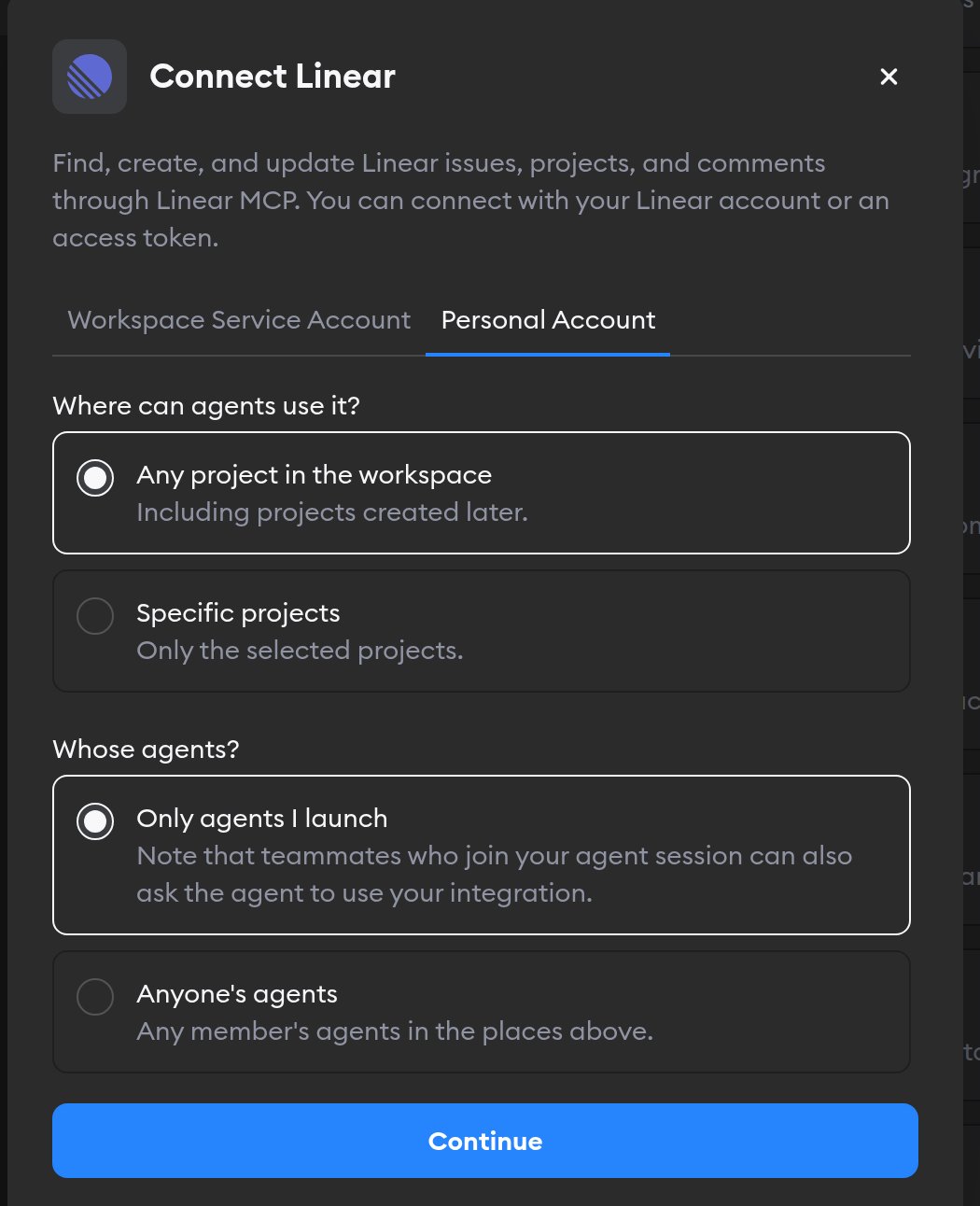
Click Continue.
Step 2: how agents reach Linear
The second screen has two tabs: Linear account and Access token. Pick one.
Linear account
This tab is selected by default, and it's the easiest way in — there's no key to create.
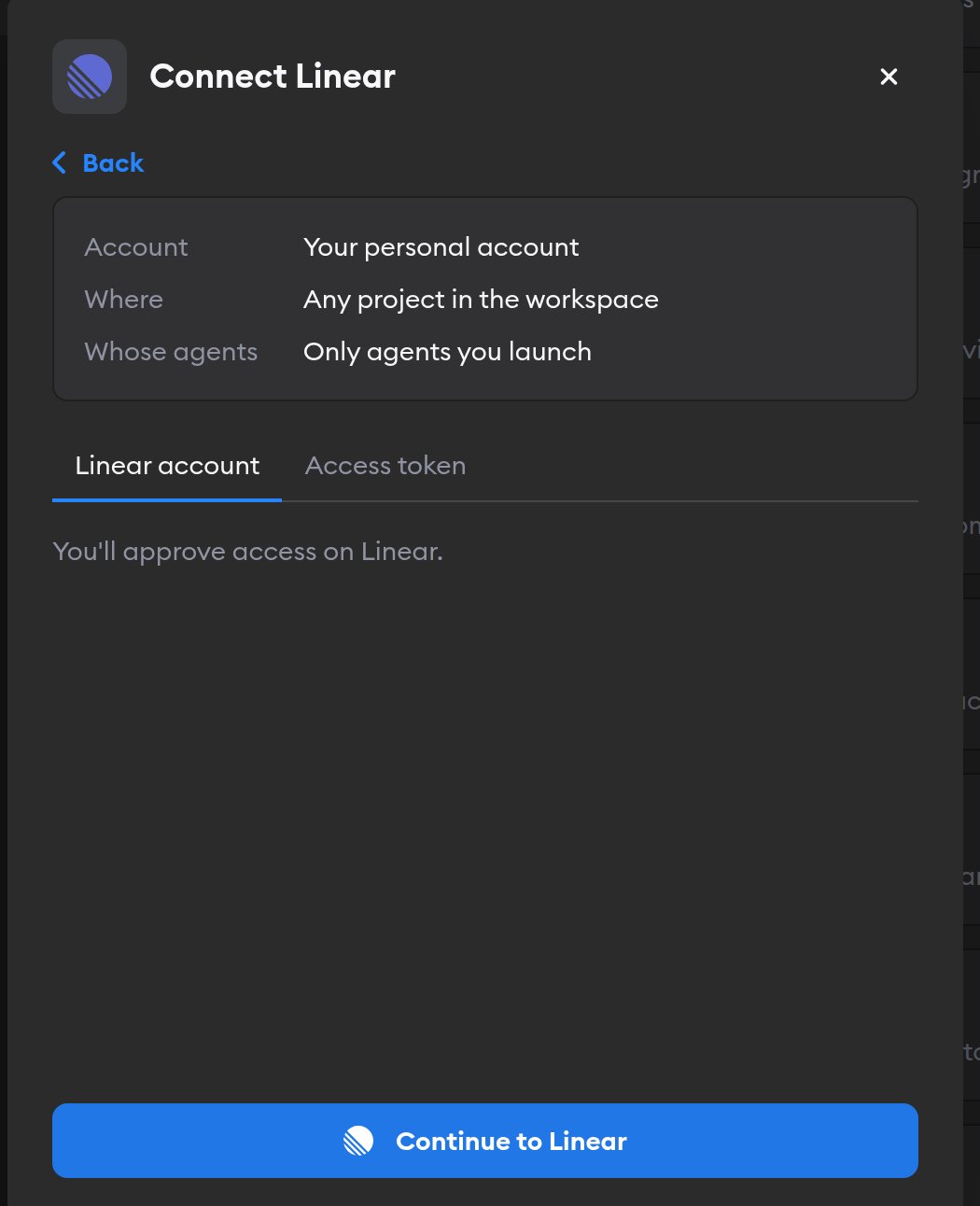
Click Continue to Linear. Linear asks you to approve access. Approve, and you land back on the Connectors page with Linear connected.
Agents then act in Linear as whoever signed in, so they see exactly the teams, projects, and issues that person can, and the issues and comments they create are attributed to that person. If you picked Workspace Service Account in step 1, everyone's agents use that access — so sign in with an account whose permissions you're happy to share.
If you change your mind on Linear's screen, you'll come back with Linear connection cancelled and nothing is saved.
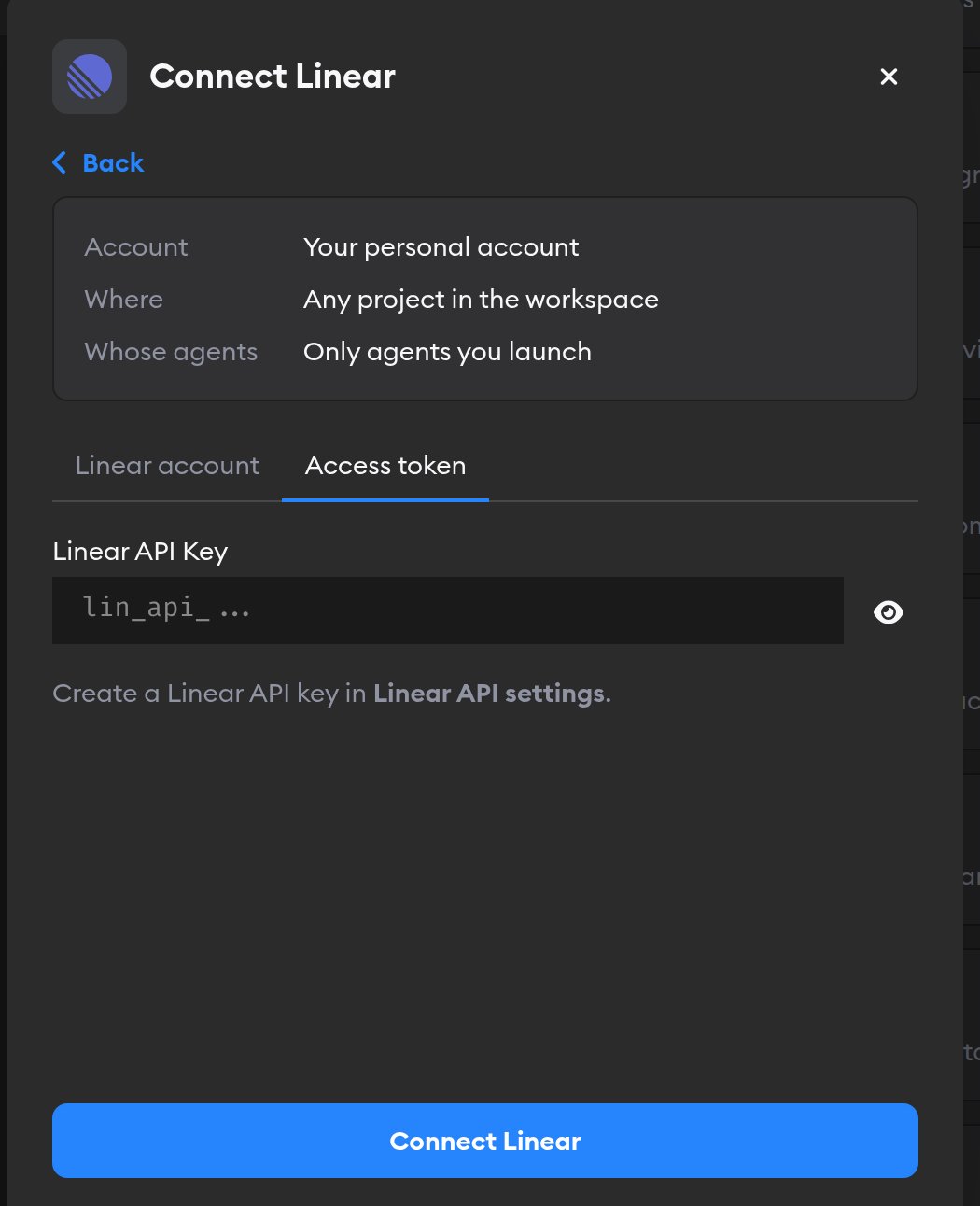
Access token
Use this tab if you'd rather not sign agents in as yourself, or you want to hand them a key with narrower permissions.
In Linear, go to Settings → API and create a Linear API key with the permissions agents need. Paste it into the Linear API Key field and click Connect Linear.
Reconnecting and disconnecting
If Linear stops accepting a connection, the Connectors page shows a Reconnect needed badge on it, and agents run without Linear.
Click Manage next to the connection to fix it. A connection you made with Linear account has no key to replace: it shows Account connection: Connected and, when something's wrong, a Reconnect Linear button. You can only reconnect a personal connection you own; for someone else's, Superconductor tells you who to ask.
Disconnect also revokes Superconductor's access at Linear. If Linear doesn't confirm the revocation, Superconductor tells you to remove Superconductor from your Linear authorized applications to finish the job.
Examples of using Linear with Superconductor
Good examples:
Look up LIN-123 in Linear and use its acceptance criteria to update the implementation plan.Create Linear issues for the follow-up work we found while implementing this ticket.Summarize the most recently completed cycle for the Core team.Security notes
Linear MCP actions use the permissions of whichever credential the run received: your own Linear access, or the API key. Create a key with only the access agents need for the project.
Learn more in Linear's MCP server docs and API settings.