Jira (Atlassian)
Connect agents to Jira through Atlassian Rovo MCP.

Atlassian Rovo MCP gives agents access to Jira work through Atlassian's remote MCP server. Use it when you want agents to look up Jira issues, summarize work, create follow-up issues, update fields, comment on issues, or move issues through workflow transitions.
You can sign in with your own Atlassian account, or add a service account API key. In either case the integration stays available to cloud agents without an interactive browser login.
What agents can do
With Jira scopes enabled, agents can:
- Search issues with JQL
- Get issues by key or ID
- List visible Jira projects and project issue types
- Read create-field metadata for issue types
- Create and edit Jira issues
- Add comments and worklogs
- Transition Jira issues through available workflow states
- Link or inspect related Jira work
This guide covers Jira. Your Atlassian token may also give agents access to Confluence, Compass, Jira Service Management, Bitbucket, and Teamwork Graph, depending on its permissions.
Setup
Go to Workspace Settings → Connectors (or a project's Connectors page) and click Connect on the Atlassian card (or Connect another to add another account).
Step 1: who the connection is for
Choose whether the connection belongs to you or to your team, which projects can use it, and whose agents can use it. Atlassian starts on Personal Account. See connection options for what each choice means.
Click Continue.
Step 2: how agents reach Atlassian
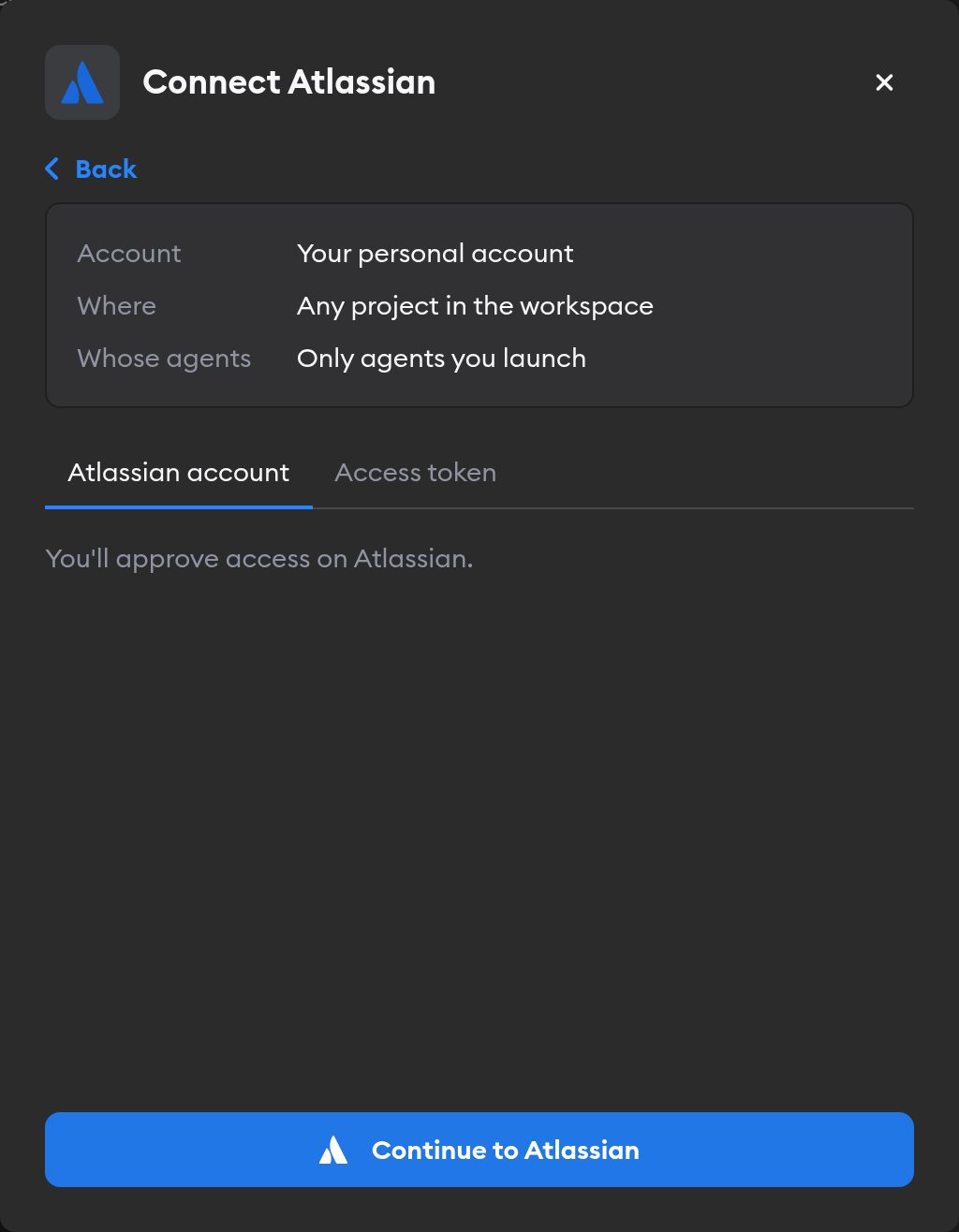
The second screen has two tabs: Atlassian account and Access token. Pick one.
Atlassian account
This tab is selected by default, and it's the easiest way in — there's no key to create.
Click Continue to Atlassian. Atlassian asks you to approve access. Approve, and you land back on the Connectors page with Atlassian connected.
Agents then act in Atlassian as whoever signed in, so they see exactly what that person can. If you picked Workspace Service Account in step 1, everyone's agents use that access — so sign in with an account whose permissions you're happy to share.
If your Atlassian organization restricts which domains can connect to the Rovo MCP server, an admin needs to allow Superconductor under Atlassian Administration → Rovo → Rovo MCP server before you can connect this way.
Access token
Use this tab for a service account instead of signing agents in as yourself.
- In Atlassian Administration, make sure API token authentication is enabled for the Atlassian Rovo MCP server.
- Create a service account API key with these Jira scopes:
read:jira-userread:jira-workwrite:jira-work
Paste it into the Atlassian Service Account API Key field and click Connect Atlassian.
Reconnecting and disconnecting
If Atlassian stops accepting a connection, the Connectors page shows a Reconnect needed badge on it, and agents run without Atlassian.
Click Manage next to the connection to fix it. A connection you made with Atlassian account has no key to replace: it shows Account connection: Connected and, when something's wrong, a Reconnect Atlassian button. You can only reconnect a personal connection you own; for someone else's, Superconductor tells you who to ask.
Disconnect also revokes Superconductor's access at Atlassian. If Atlassian doesn't confirm the revocation, Superconductor tells you to remove Superconductor from your Atlassian authorized apps to finish the job.
Examples of using Jira with Superconductor
When you ask agents to use Jira, include enough site context for Atlassian to pick the right cloud site.
Good examples:
Use Jira in the volition-co site to summarize open tasks in PROJ assigned to me.Look up PROJ-123 in Jira, inspect the acceptance criteria, and update the implementation plan.Create a Jira issue in the APP project for the regression we just found. Include repro steps and link it to PROJ-123.If your organization has multiple Atlassian sites, include the site name or cloudId.
Security notes
Atlassian Rovo MCP actions use the permissions of whichever credential the run received: your own Atlassian access, or the API key. Use a service account with only the scopes and project permissions agents need.
If your organization uses Atlassian IP allowlisting, Atlassian evaluates tool calls against the allowlist for the relevant product. Jira-related MCP calls must come from an IP allowed by your Jira allowlist.
Learn more in Atlassian's docs for signing in with an Atlassian account, API token authentication, supported tools, and Rovo MCP security controls.
Troubleshooting
The agent cannot find the right Jira site
Include the Atlassian site name or cloudId in your prompt. Atlassian API tokens are not bound to one cloudId, so the agent may need explicit site context.
Jira tools are missing
If you connected with an API key, check that API token authentication is enabled in Atlassian Administration and that the service account API key includes the Jira scopes listed above. If you connected your Atlassian account, check that the account can see the Jira projects you're asking about.
Atlassian blocks tool calls by IP
Ask your Atlassian admin to review the organization IP allowlist for Jira. If allowlisting is enabled, Superconductor agent traffic must come from an allowed IP.