Google connectors
Let agents work with your Gmail, Google Calendar, Google Contacts, and Google Drive.
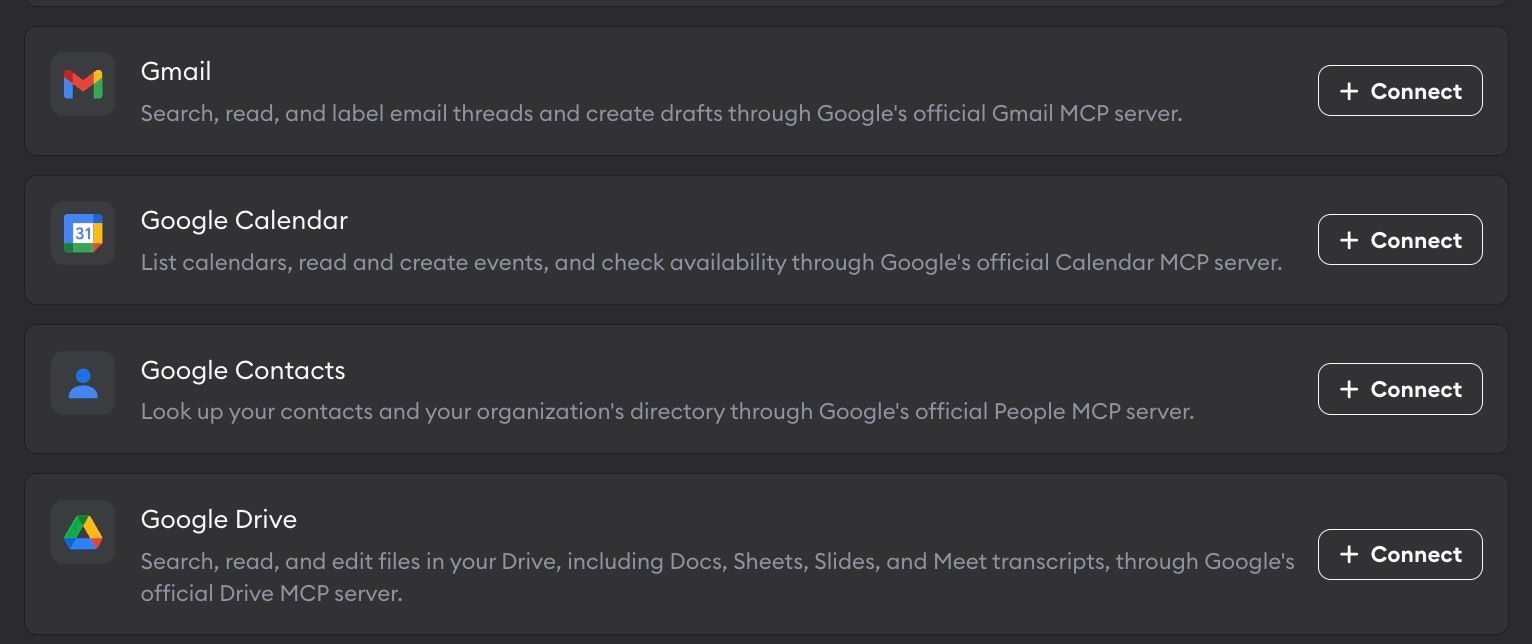
Superconductor has four Google connectors: Gmail, Google Calendar, Google Contacts, and Google Drive. Each one uses Google's official MCP server, and you connect it by signing in with your Google account. There's no API key to create.
Each connector is separate, so connect only the ones you need. Connecting Google Calendar, for example, gives agents no access to your email or files.
What agents can do
Gmail
- Search your email threads
- Read messages and threads
- Organize email with labels
- Create drafts for you to review and send
Google Calendar
- List your calendars
- Read events
- Check when you and others are free
- Create and update events
Google Contacts
- Look up your contacts
- Search your organization's directory, so they know who people are and how to reach them
Google Drive
- Search and read files in your Drive, including Google Docs, Sheets, and Slides
- Read Google Meet transcripts saved to your Drive
- Create and edit files
When the Drive tools aren't enough, agents can use the same connection to call the Google Docs, Sheets, and Slides APIs directly.
Setup
The steps are the same for all four connectors. Go to Workspace Settings → Connectors (or a project's Connectors page) and click Connect next to the one you want (or Connect another to add another account).
Step 1: who the connection is for
Choose whether the connection belongs to you or to your team, which projects can use it, and whose agents can use it. Google connectors start on Personal Account. See connection options for what each choice means.
If you pick Workspace Service Account, everyone's agents in those projects can use that Google account. Use it for a shared account, such as a support inbox, rather than your own.
Teammates who join your session can use your connection
This works the same for every connector: even with Only agents I launch, teammates who join a chat or implementation you started can ask that agent to use your connection. For Google, that means your email, calendar, and files. To keep them private, you might consider connecting Google only in private workspaces where you are the only member.
Click Continue.
Step 2: sign in with Google
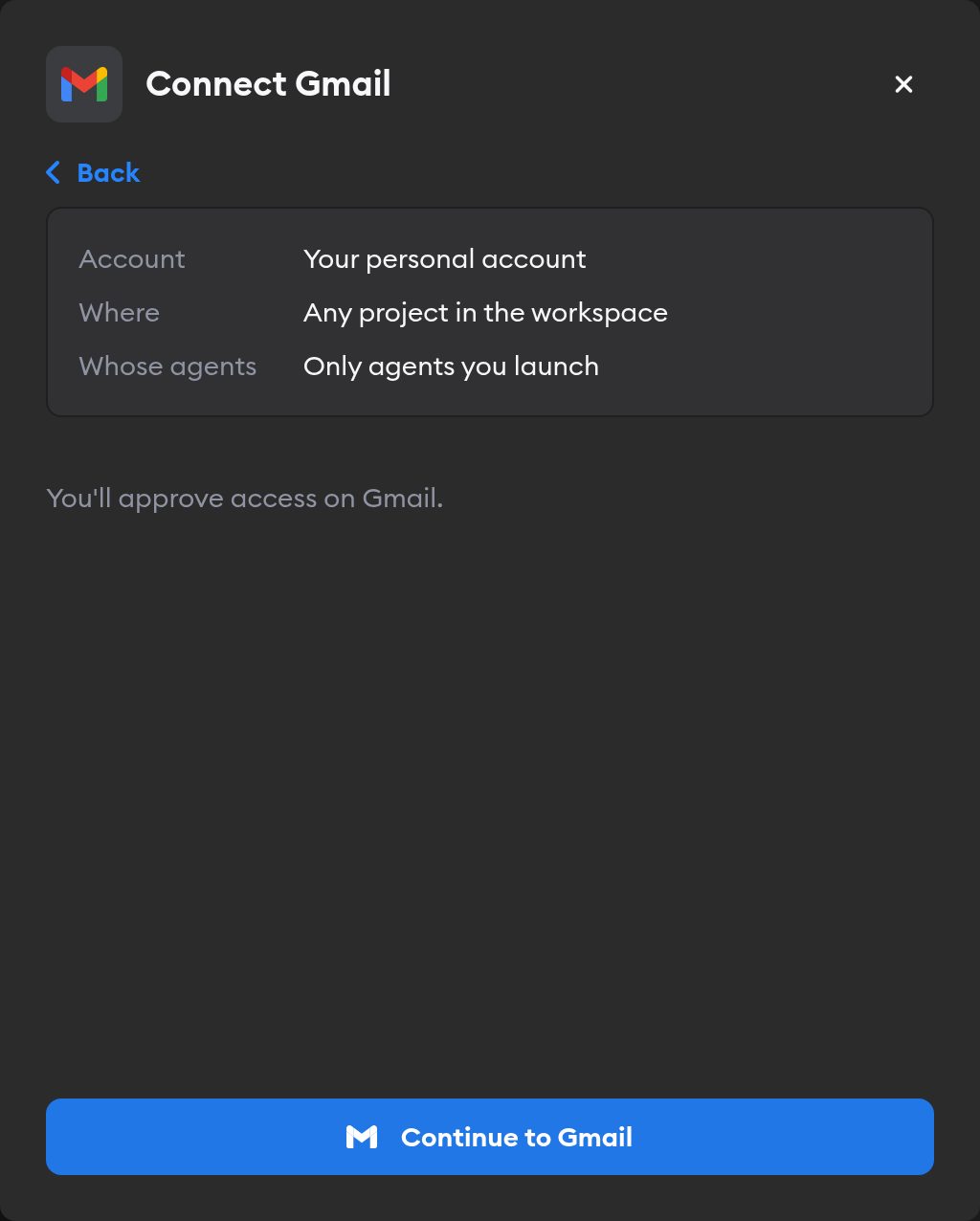
Click Continue to Gmail (or Continue to Google Calendar, and so on). Google asks you to pick an account and approve access. Approve, and you land back on the Connectors page with Gmail connected.
Google lets you uncheck individual permissions. Each connector needs a minimum set of permissions to work:
| Connector | Must allow | You can decline |
|---|---|---|
| Gmail | Reading your email | Creating drafts and managing labels |
| Google Calendar | Seeing your calendar list and events | Creating and editing events, and checking availability |
| Google Contacts | Seeing your contacts | Your organization's directory and your profile |
| Google Drive | Full Drive access | — |
Agents can only do what you allow here, and only what your Google account can do.
If you change your mind on Google's screen, you'll come back with Gmail connection cancelled, and nothing is saved.
Using more than one Google account
You can connect several Google accounts to the same connector, such as your own inbox and a shared support inbox. The Connectors page and the Manage page show each connection's Google account email.

Each agent gets one account per connector, picked by the rules in Which connection agents use. The agent's tool is named after that account's email, so you can ask the agent which mailbox or calendar it's using.
Reconnecting and disconnecting
If Google stops accepting a connection, the Connectors page shows a Reconnect needed badge on it, and agents run without it.
Click Manage next to the connection, then Reconnect Gmail (or the connector you're fixing). Google preselects the account you used before. A reconnect has to use that same account. To use a different Google account, click Connect another instead.
Disconnect removes only that connector. Your Google connectors share one approval per Google account, so Superconductor revokes its access at Google only after you disconnect every Google connector using that account. If Google doesn't confirm the revocation, Superconductor tells you to remove Superconductor from your Google Account's third-party connections to finish the job.
When to use it
Ask agents to use the Google connectors when a ticket depends on an email thread, a meeting, a teammate's details, or a doc in Drive. For example:
Find the email thread with Acme about the export bug and use it to write a repro test.Read the spec in Google Drive called "Checkout v2" and plan this ticket from it.Check my calendar and draft a reply to Dana proposing two times next week to review this PR.Your data
Superconductor uses your Google data only to carry out the tasks you give agents. Agents get a short-lived access token, never your long-lived Google credentials. See Google Workspace data in our privacy policy for the details.
Troubleshooting
"Could not connect" after approving
You approved access, but Superconductor shows Could not connect to Gmail. Please try again.
To fix:
- Click Connect again
- On Google's screen, allow the permissions the connector must have
If your organization uses Google Workspace, your admin may block third-party apps. Ask them to allow Superconductor.
Agents use the wrong Google account
If several Google accounts are connected, agents might get a different one than you expect.
To fix:
- Check which connection agents use
- On the other connection's Manage page, narrow its projects so it isn't available where you're working