Linear
Assign a Linear issue to Superconductor or @mention it to launch an agent, then follow progress and reply without leaving Linear.
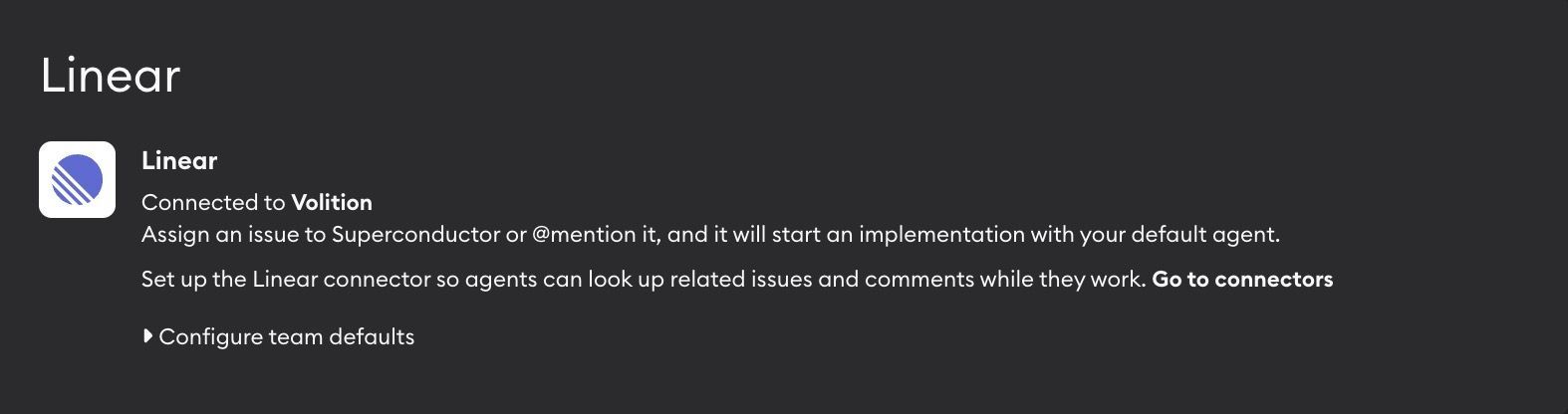
The Linear integration lets you work with agents in Superconductor right from an issue in Linear. Assign the issue to Superconductor, or @mention it in a comment, and an agent starts an implementation. Its progress, replies, and pull requests show up in the Linear issue.
Installation
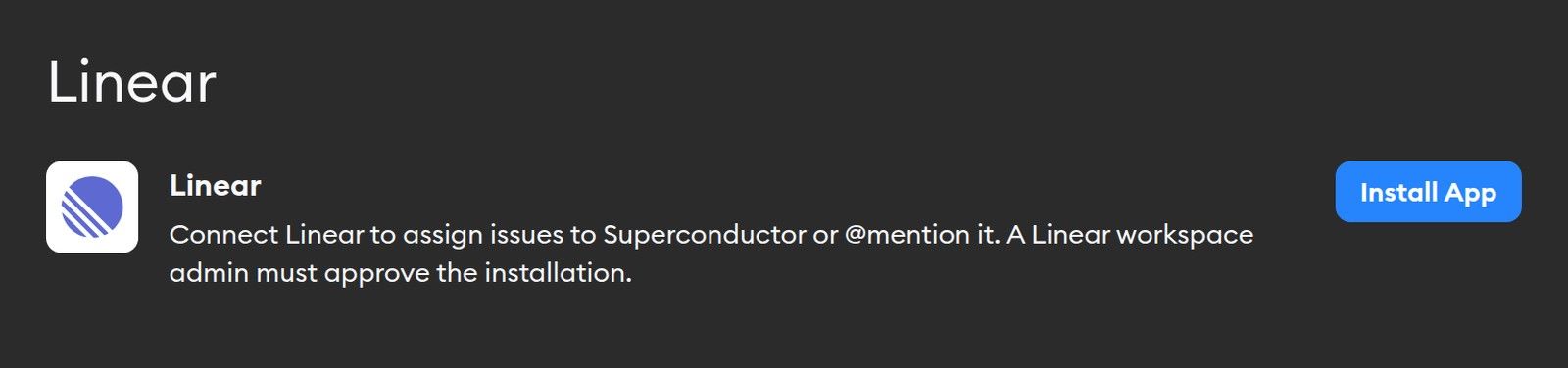
- Go to Workspace Settings → Linear. Only workspace Owners and Admins can install the app.
- Click Install App.
- Approve Superconductor in Linear. This step needs a Linear workspace admin.
You'll land back on the Linear page with Connected to your Linear workspace. Each Linear workspace can connect to only one Superconductor workspace.
Teammates don't need to set anything up. Anyone whose Linear email matches a member of your Superconductor workspace can start work from Linear.
Superconductor can only work on issues from Linear teams it has access to. A Linear admin can change which teams it's in.
Starting work from Linear
There are two ways to hand an issue to Superconductor:
-
Assign it — Pick Superconductor from the issue's assignee menu. Linear calls this delegating: you stay the assignee, and Superconductor works on your behalf from the issue itself.
-
Mention it — Write a comment with
@Superconductorand your instructions:@Superconductor The empty state looks off on mobile. Match the Figma design and add a test.
Either way, Superconductor creates a ticket linked to the issue and launches an implementation. The agent gets the issue's details, plus your comment if you mentioned it.
When you assign an issue that hasn't started yet, Superconductor moves it to your team's first in-progress status, such as In Progress.
Superconductor only takes requests from people. Issues assigned by Linear automations or rules won't start an implementation.
Choosing a project
When you assign or mention Superconductor in Linear, Superconductor chooses which of your Superconductor projects to work in, in this order:
- Single project — If your workspace has only one project, it's used automatically.
- Team default — If the issue's Linear team has a default project, it's used.
- Ask in Linear — Otherwise, Superconductor asks which project to use and lists your projects. Your pick is saved as the team's default, if you have permission to set team defaults.
Choosing an agent model
Superconductor uses your Default agent profile from Account Settings, just like Slack and GitHub.
To pick a different model, add model:MODEL_NAME to your mention:
@Superconductor model:opus Fix the flaky checkout testmodel:opus picks the newest Claude Code Opus model. To pick an exact version, add it in quotes, like model:"opus 4.7". See Slack for more on how model names are matched.
Team default projects
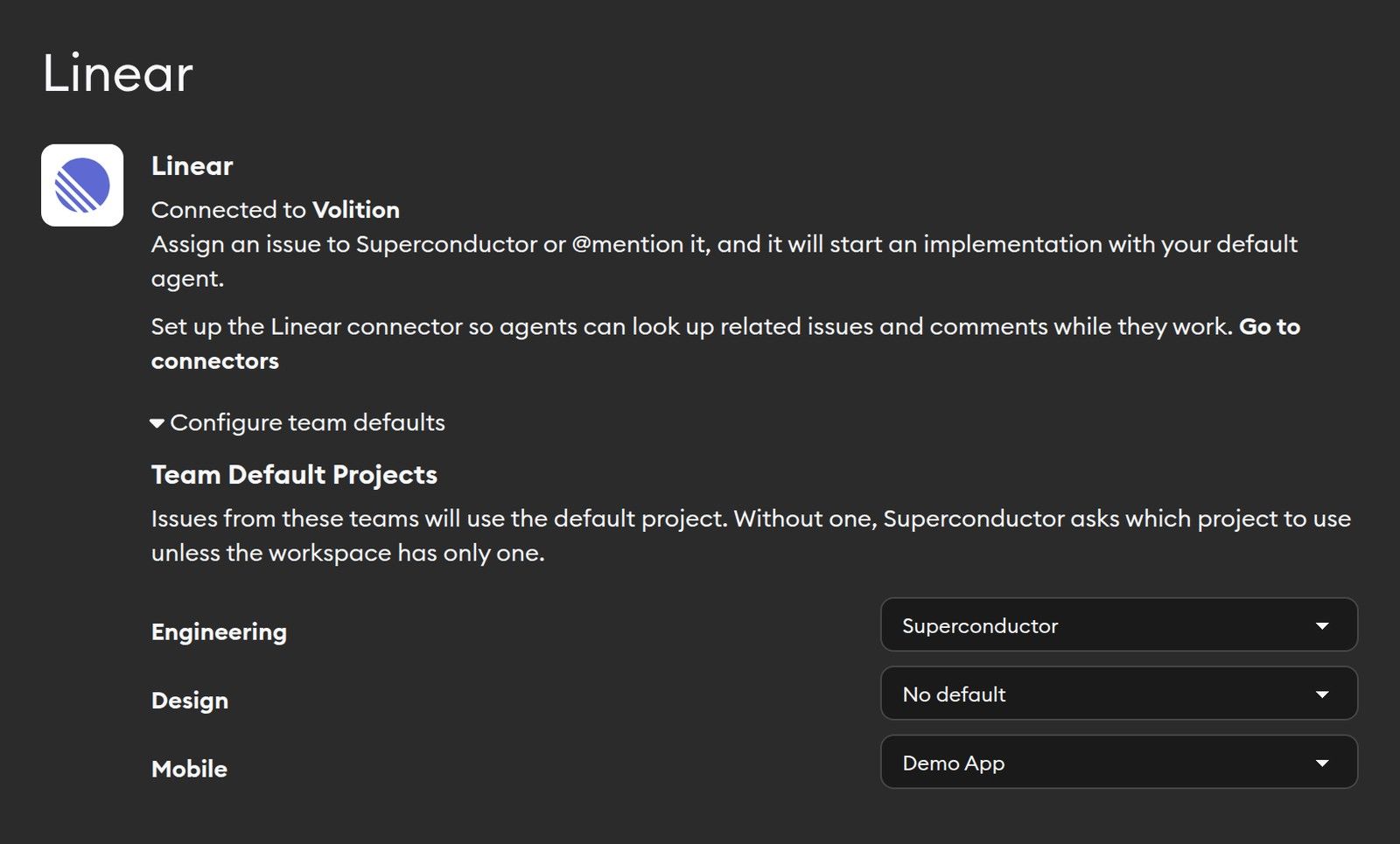
Set a default project for each Linear team so Superconductor doesn't have to ask:
- Go to Workspace Settings → Linear.
- Click Configure team defaults.
- Choose a project next to each team. Changes save automatically. Choose No default to remove one.
Workspace Owners, Admins, and Collaborators can set team defaults. Private Linear teams only appear for their members.
Following progress in Linear
The agent runs in Superconductor, as a regular implementation you can open, chat with, and review there. Superconductor keeps the Linear issue up to date in a reply thread on the issue.
What you'll see in the Linear issue:
- A first reply with the Superconductor project and agent it's using, for example Working on this in Web App with Claude Code.
- The agent's reply when it finishes. Links to artifacts, such as screenshots, open in Superconductor.
- Links to the Implementation and the Preview in Superconductor, and to the Pull request in GitHub once there is one.
- A message with a link when a pull request is submitted, and again when it's merged.
Continuing the conversation
Reply in Superconductor's thread on the Linear issue to send the agent a follow-up. Your message also shows up in the implementation's chat in Superconductor, and the agent's next reply is posted back to the Linear thread.
You can also chat with the agent in Superconductor. Those messages, and the agent's answers to them, stay in Superconductor.
To stop the agent, use the stop option on Superconductor's thread in the Linear issue.
Linear integration vs. Linear connector
These are two separate setups, and they work well together:
- Linear integration (this page) — Start and follow work from Linear issues.
- Linear connector — Let agents in Superconductor look up, create, and update Linear issues while they work, for example to read a related issue or file a follow-up.
The Linear settings page shows a reminder to set up the connector if you haven't yet.
Troubleshooting
When Superconductor can't start work, it explains why in its thread on the Linear issue. Common messages:
- "…isn't a member of the workspace" or "No Superconductor account uses…" — Your Linear email must match a Superconductor account in the workspace. Ask a Superconductor workspace admin to invite you with that email.
- "There are no projects in the workspace" — Create a project, then try again.
- "[Agent] needs … for [project]" — The selected agent has no credentials for that project. Follow the steps in the message, or see Agent credentials.
- "You don't have permission to do this" — Your Superconductor workspace role can't create tickets. A Superconductor workspace admin can change your role.
- "This Linear workspace is already connected to another workspace" — Shown during installation. Each Linear workspace can only connect to one Superconductor workspace.
- "Unable to load Linear teams" — Shown under Configure team defaults. Try again later, or reinstall the Linear app.
Running into something else? Reach out to us. Our team would be happy to help troubleshoot.