ElevenLabs
Let agents create, test, and manage your ElevenLabs voice agents.

The ElevenLabs hosted MCP server lets agents work directly in your ElevenLabs workspace, so they can set up and test the voice features your product depends on while they work on related code.
What agents can do
Once you connect ElevenLabs, agents can use the ElevenLabs tools you approve. For example, they can:
- Create and update voice agents, including their prompt, voice, language, and first message
- Review conversations and search transcripts
- Create, run, and review agent tests
- Check that the agent IDs and settings your code relies on match what's in ElevenLabs
- Generate speech from text
Agents can only do what your ElevenLabs account has permission to do. Generating speech uses your ElevenLabs credits.
Don't have an ElevenLabs account? The Gemini-based Text to Speech skill also lets agents generate speech.
Agent updates made through ElevenLabs' MCP server go live right away instead of being saved as drafts. Tell agents when they should only read your ElevenLabs setup.
Setup
ElevenLabs connects by signing in with your ElevenLabs account. There's no API key to create, and its MCP server doesn't accept ElevenLabs API keys.
Go to Workspace Settings → Connectors (or a project's Connectors page) and click Connect on the ElevenLabs card (or Connect another to add another account).
Step 1: who the connection is for
Choose whether the connection belongs to you or to your team, which projects can use it, and whose agents can use it. ElevenLabs starts on Personal Account. See connection options for what each choice means.
Click Continue.
Step 2: sign in with ElevenLabs
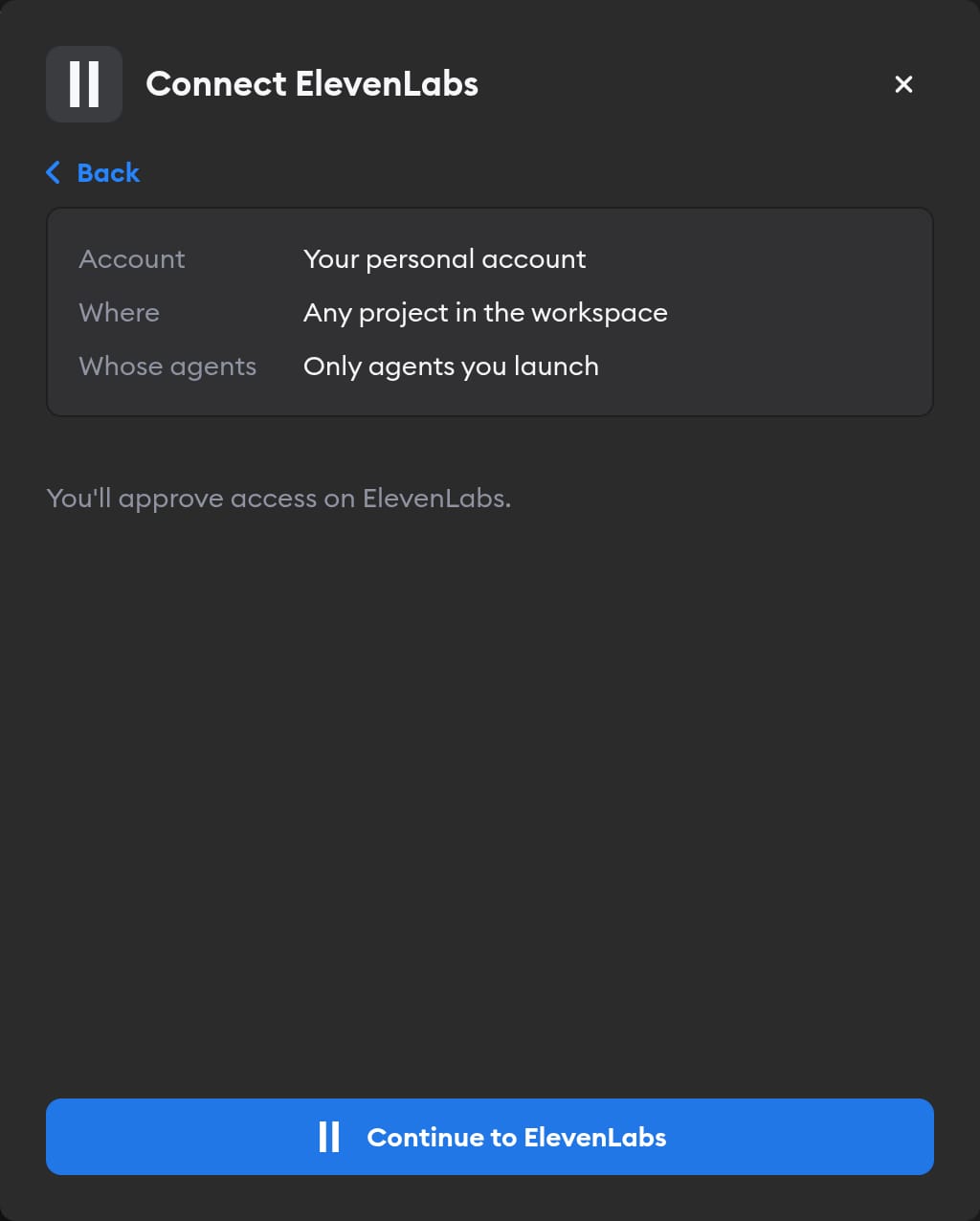
Click Continue to ElevenLabs. ElevenLabs asks you to approve access. Approve, and you land back on the Connectors page with ElevenLabs connected.
Agents then act in ElevenLabs as whoever signed in, so they see exactly what that person can. If you picked Workspace Service Account in step 1, everyone's agents use that access — so sign in with an account whose permissions you're happy to share.
Reconnecting and disconnecting
If ElevenLabs stops accepting a connection, the Connectors page shows a Reconnect needed badge on it, and agents run without ElevenLabs.
Click Manage next to the connection to fix it. There's no key to replace: the page shows Account connection: Connected and, when something's wrong, a Reconnect ElevenLabs button. You can only reconnect a personal connection you own; for someone else's, Superconductor tells you who to ask.
Disconnect also revokes Superconductor's access at ElevenLabs. If ElevenLabs doesn't confirm the revocation, Superconductor tells you to remove Superconductor from your ElevenLabs account to finish the job.
When to use it
Ask agents to use ElevenLabs when a ticket involves your product's voice agents, their tests and conversations, or text-to-speech. For example:
Review the last ten conversations with our support voice agent in ElevenLabs and list where it gave a wrong answer.Use ElevenLabs to generate a voiceover for the onboarding video script in this ticket.