Cal.com
Connect Cal.com so agents can work with your bookings, event types, and availability.

The Cal.com MCP server lets agents work directly in your Cal.com account, so they can check your schedule, book meetings, and keep your event types up to date without you leaving the chat.
For use cases and example prompts, see Cal.com for AI coding agents.
What is Cal.com?
Cal.com is a scheduling platform. People book time with you through your event types, and Cal.com checks your connected calendars so they only see times you're free.
What agents can do
Once you connect Cal.com, agents can:
- List, create, reschedule, confirm, and cancel bookings, and manage their attendees
- Find open slots and check busy times on your connected calendars
- Create, update, and delete event types
- Manage your schedules and working hours
- Look up organization memberships and routing form responses
Agents can only do what your Cal.com account has permission to do.
Setup
Cal.com connects by signing in with your Cal.com account. There's no API key to create, and its hosted MCP server doesn't accept Cal.com API keys.
Go to Workspace Settings → Connectors (or a project's Connectors page) and click Connect on the Cal.com card (or Connect another to add another account).
Step 1: who the connection is for
Choose whether the connection belongs to you or to your team, which projects can use it, and whose agents can use it. Cal.com starts on Personal Account. See connection options for what each choice means.
Click Continue.
Step 2: sign in with Cal.com
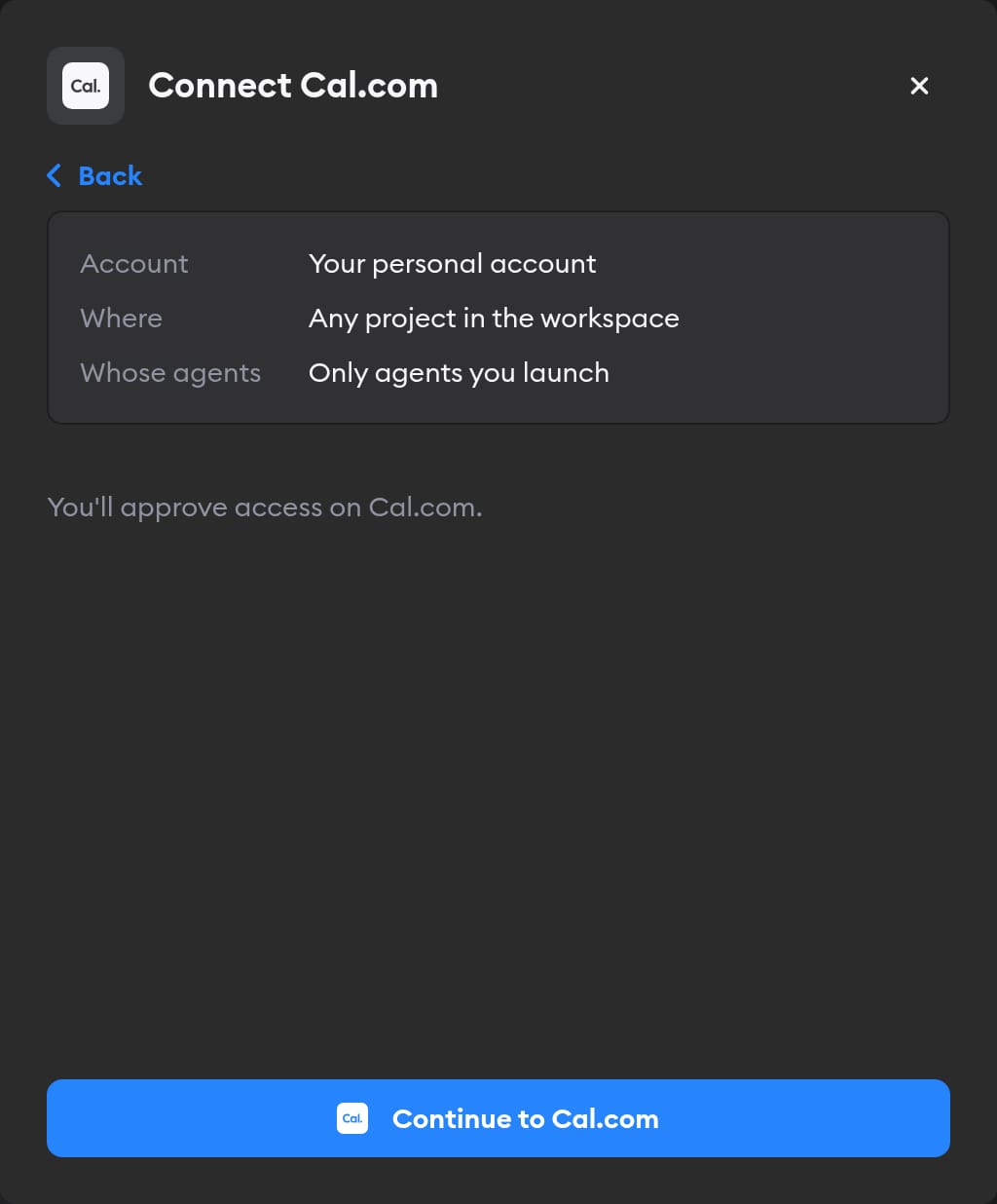
Click Continue to Cal.com. Cal.com asks you to sign in and approve access. Approve, and you land back on the Connectors page with Cal.com connected.
Agents then act in Cal.com as whoever signed in, so they see and book on that person's calendar. If you picked Workspace Service Account in step 1, everyone's agents use that access — so sign in with an account whose schedule you're happy to share.
Reconnecting and disconnecting
If Cal.com stops accepting a connection, the Connectors page shows a Reconnect needed badge on it, and agents run without Cal.com.
Click Manage next to the connection to fix it. There's no key to replace: the page shows Account connection: Connected and, when something's wrong, a Reconnect Cal.com button. You can only reconnect a personal connection you own; for someone else's, Superconductor tells you who to ask.
Disconnect also revokes Superconductor's access at Cal.com. If Cal.com doesn't confirm the revocation, Superconductor tells you to remove Superconductor from your Cal.com account to finish the job.
When to use it
Ask agents to use Cal.com when a ticket involves meetings, availability, or how people book time with you. Agents can cancel and reschedule real bookings, so tell them when they should only look. For example:
Check my Cal.com availability for next week and draft a short note to the customer offering three 30-minute slots.Create a 45-minute "Quarterly review" event type in Cal.com with a 15-minute buffer after each meeting.List the bookings I have on Friday and reschedule the ones after 3pm to the same time on Monday. Show me the list before you change anything.