Stripe
Connect Stripe so agents can look up and manage customers, payments, subscriptions, and invoices.

The Stripe MCP server lets agents read and change data in your Stripe account and search Stripe's docs, so they can answer a billing question or build a Stripe integration against real objects.
For use cases and example prompts, see Stripe for AI coding agents.
What is Stripe?
Stripe is a platform for accepting payments, running subscriptions, and sending invoices.
What agents can do
Once you connect Stripe, agents can:
- Look up customers, payments, refunds, disputes, and payouts
- Create and update products, prices, coupons, and payment links
- Create, finalize, and void invoices, and manage subscriptions
- Report on revenue and subscriptions
- Search Stripe's docs and plan a Stripe integration
Agents can only do what the connected Stripe account or key allows.
In live mode, agents work with real money and real customers. Connect a sandbox while you try things out, and give agents only the access they need.
Setup
Connect by signing in to Stripe or by pasting a Stripe agent API key.
Go to Workspace Settings → Connectors (or a project's Connectors page) and click Connect on the Stripe card (or Connect another to add another account).
Step 1: who the connection is for
Choose whether the connection belongs to you or to your team, which projects can use it, and whose agents can use it. Stripe starts on Personal Account. See connection options for what each choice means.
Click Continue.
Step 2: how agents reach Stripe
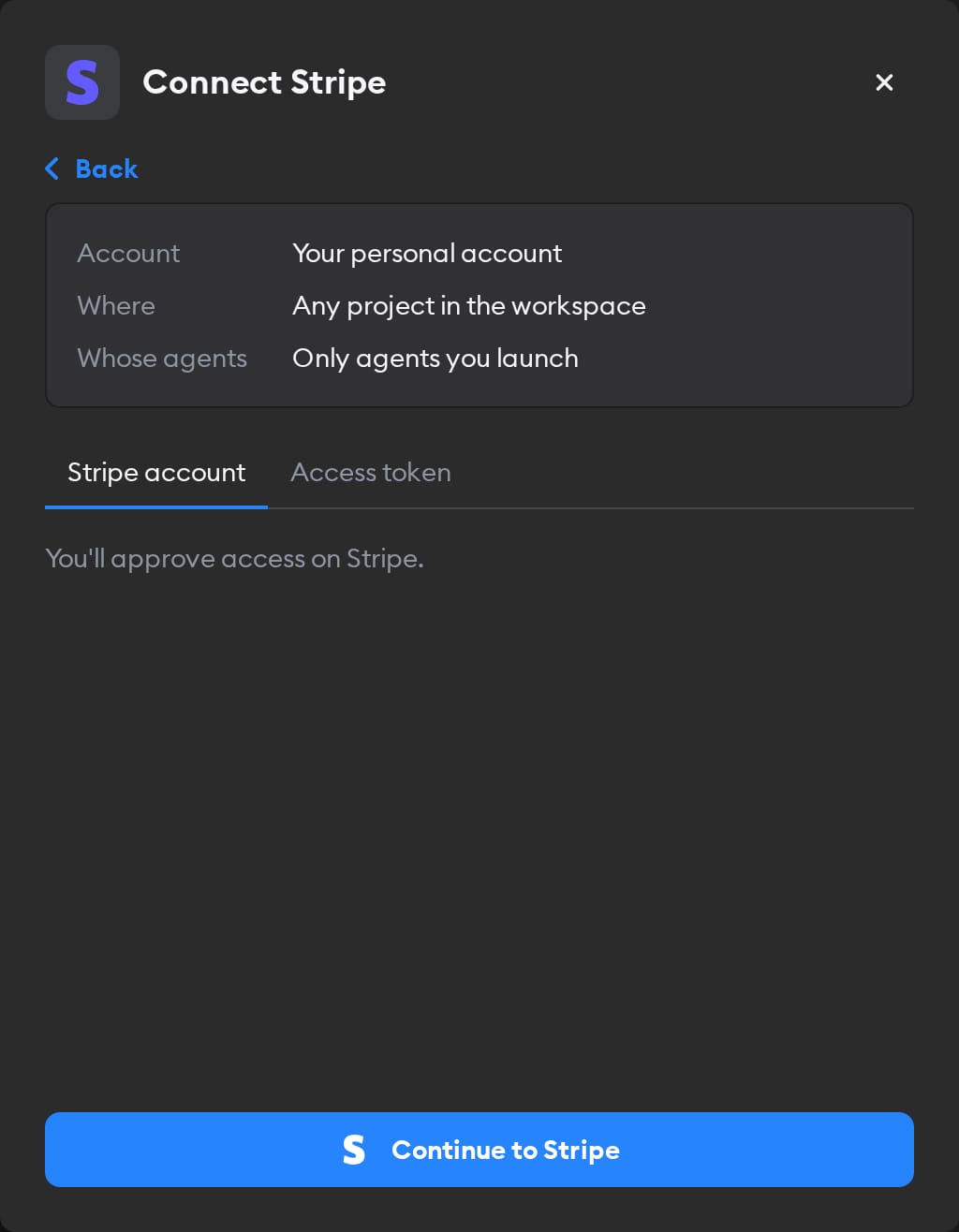
The second screen has two tabs: Stripe account and Access token. Pick one.
Stripe account
This tab is selected by default, and it's the easiest way in — there's no key to create.
Click Continue to Stripe and sign in. Choose a live account or a sandbox, then Read, Write, or Customize (Read keeps agents from changing anything). Click Review, then Authorize (or Add another account first), and you land back on the Connectors page with Stripe connected.
Agents act in Stripe as whoever signed in. If you picked Workspace Service Account in step 1, everyone's agents use that access — so sign in with an account whose permissions you're happy to share.
Access token
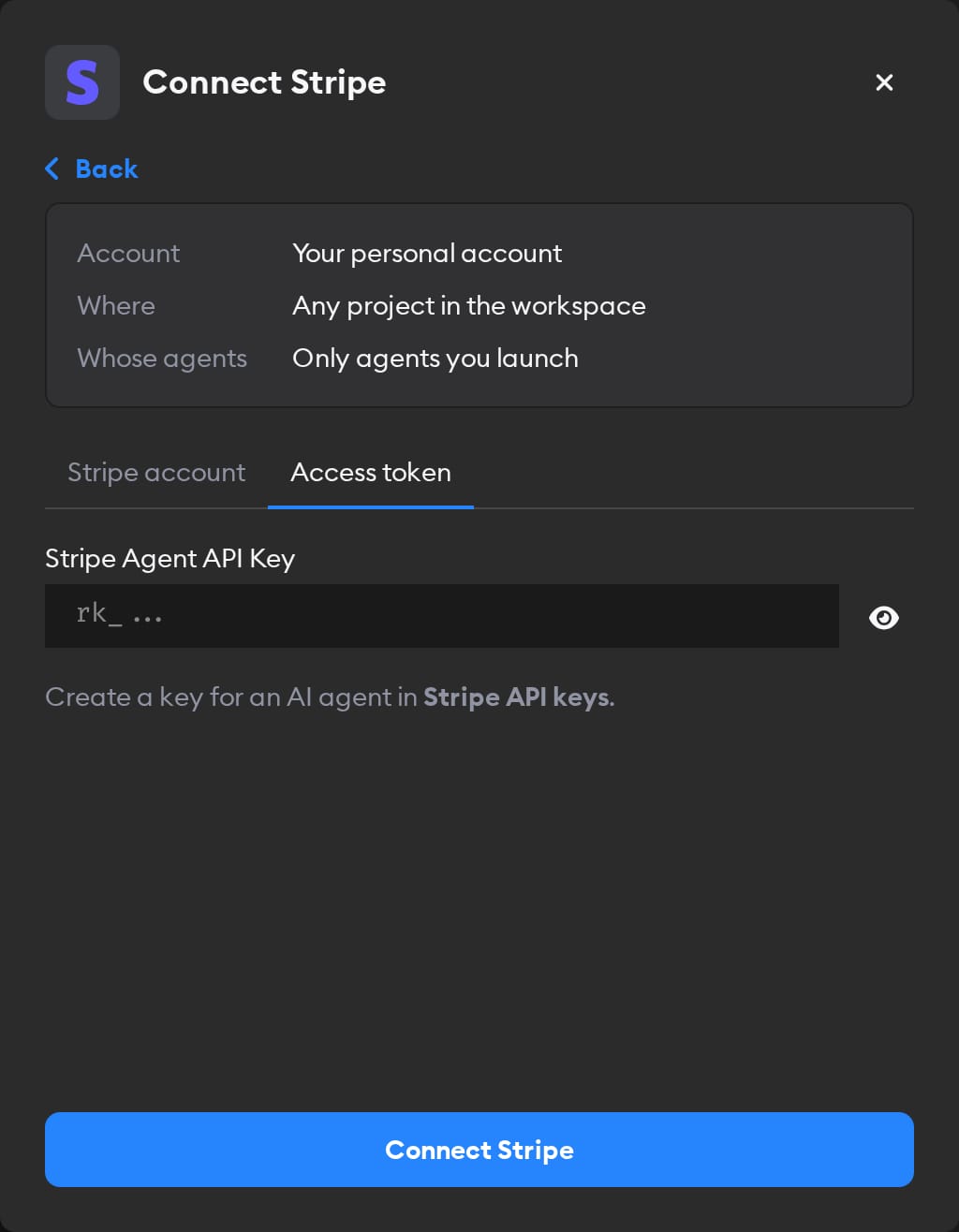
In Stripe, open API keys and click Create secret key. Choose Giving an AI agent access to operate your account, then a template, Custom permissions, or Full access—except sensitive operations. Give agents only what they need, name the key, and click Create key. Paste the rk_ key into the Stripe Agent API Key field and click Connect Stripe.
Reconnecting and disconnecting
If Stripe stops accepting a connection you made with Stripe account, the Connectors page shows a Reconnect needed badge on it, and agents run without Stripe.
Click Manage next to it, then Reconnect Stripe. You can only reconnect a personal connection you own; for someone else's, Superconductor tells you who to ask.
A key Stripe stops accepting doesn't show Reconnect needed. Agents' Stripe calls fail until you paste a new key under Manage and click Save.
Disconnect also revokes Superconductor's access at Stripe. For an access token, expire the key in Stripe too.
When to use it
Ask agents to use Stripe for billing questions, customer support, and building or testing a Stripe integration. For example:
Find the Stripe customer for ines@example.com and summarize their subscription, last three invoices, and any failed payments.How many new subscriptions did we get each week this month? Use Stripe and put the numbers in a table.Create a "Pro" product in our Stripe sandbox with a $20 monthly price and a payment link, and send me the link.Our checkout is failing for some customers. Look at the last day of failed payments in Stripe and tell me what they have in common.