Shortcut
Connect Shortcut so agents can find, file, and update stories, epics, and iterations.

The Shortcut MCP server lets agents work in your Shortcut workspace, so they can read the story behind a ticket, file follow-up work, and keep stories up to date as they go.
For use cases and example prompts, see Shortcut for AI coding agents.
What is Shortcut?
Shortcut is a project management tool where teams plan and track work as stories, epics, iterations, and objectives.
What agents can do
Once you connect Shortcut, agents can:
- Search and read stories, epics, iterations, and objectives, for example to summarize progress for a status update
- Create stories, tasks, and sub-tasks from a plan or bug report
- Comment on stories, change their state and owners, and add pull request links
- Create and update epics and iterations
- Look up teams, workflows, labels, and projects
Agents can only do what the connected Shortcut account has permission to do.
Agents can also delete epics and iterations. Tell agents when they should only read or add to your Shortcut workspace.
Setup
Go to Workspace Settings → Connectors (or a project's Connectors page) and click Connect on the Shortcut card (or Connect another to add another account).
Step 1: who the connection is for
Choose whether the connection belongs to you or to your team, which projects can use it, and whose agents can use it. Shortcut starts on Personal Account. See connection options for what each choice means.
Click Continue.
Step 2: how agents reach Shortcut
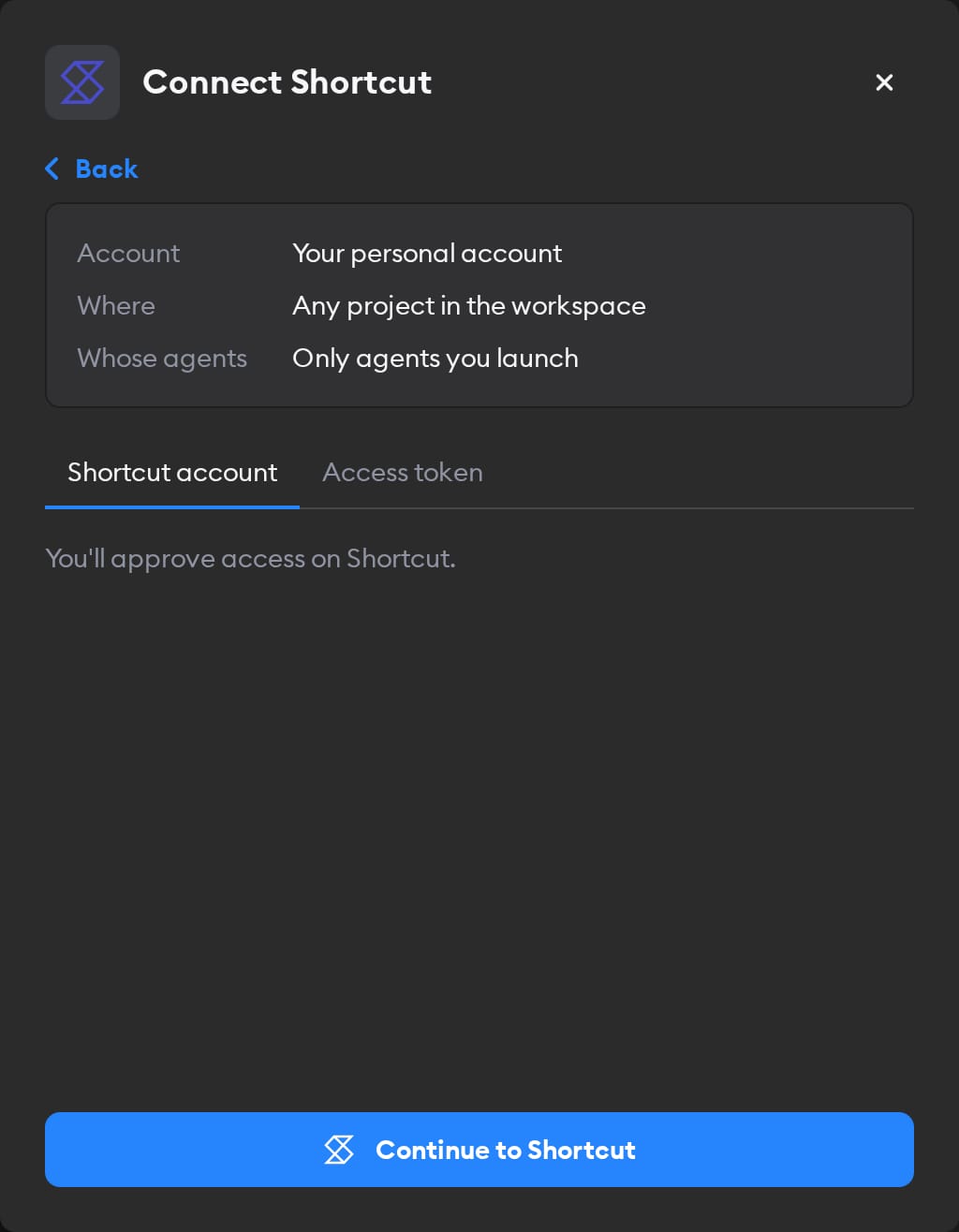
The second screen has two tabs: Shortcut account and Access token. Pick one.
Shortcut account
This tab is selected by default, and it's the easiest way in — there's no token to create.
Click Continue to Shortcut, choose your Shortcut workspace, and click Allow Access. You land back on the Connectors page with Shortcut connected.
Agents then act in Shortcut as whoever signed in, so stories and comments they create are attributed to that person. If you picked Workspace Service Account in step 1, everyone's agents use that access — so sign in with an account whose permissions you're happy to share.
Access token
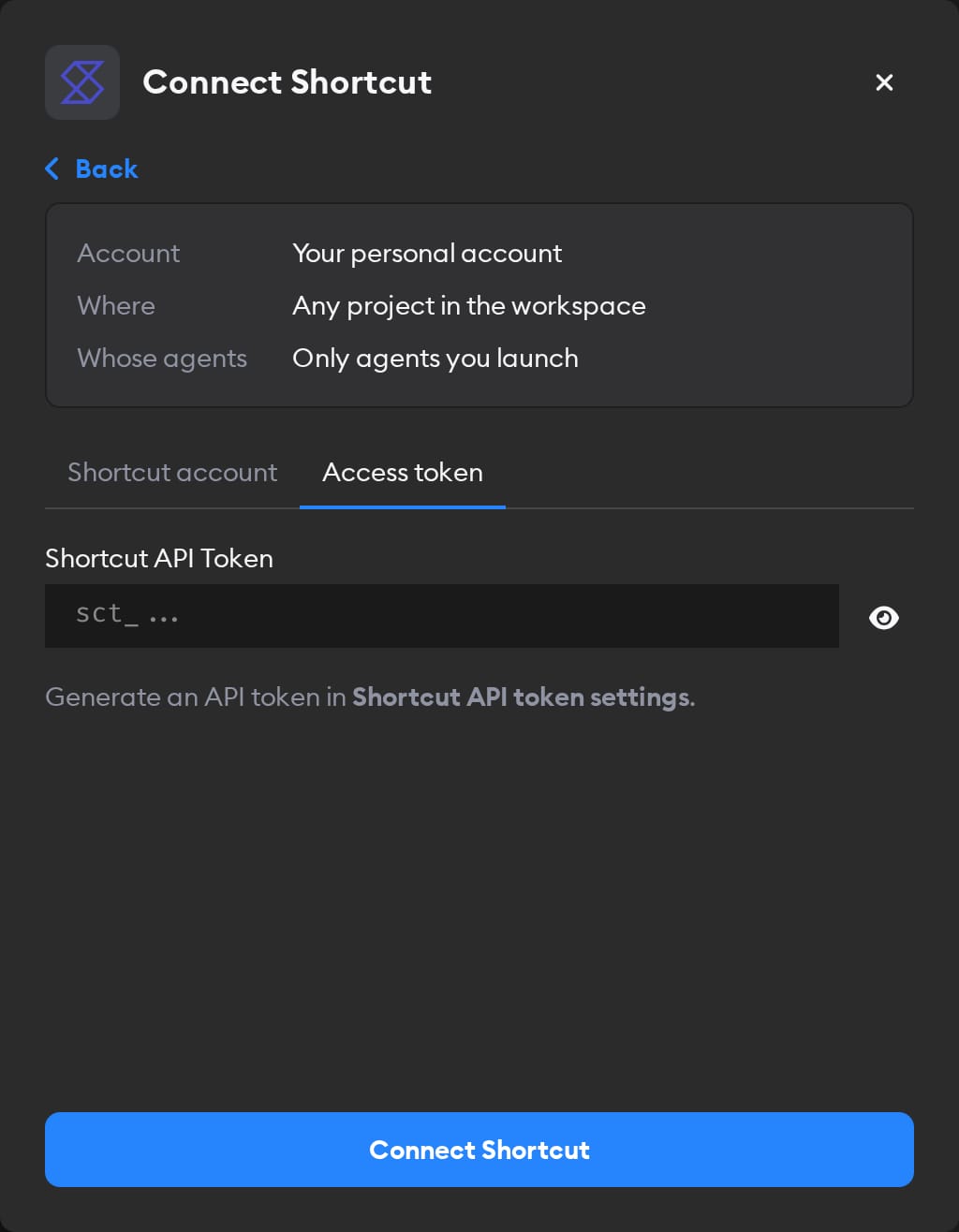
Use this tab if you'd rather paste a token than sign in. In Shortcut, open Settings → API Tokens and click Create Token. Choose Full access, or Custom permissions with only what agents need. Paste the token into the Shortcut API Token field and click Connect Shortcut. Agents act as the Shortcut user who generated the token.
Reconnecting and disconnecting
If Shortcut stops accepting a connection you made with Shortcut account, the Connectors page shows a Reconnect needed badge on it, and agents run without Shortcut.
Click Manage next to the connection to fix it. A connection you made with Shortcut account has no token to replace: it shows Account connection: Connected and, when something's wrong, a Reconnect Shortcut button. You can only reconnect a personal connection you own; for someone else's, Superconductor tells you who to ask.
Shortcut has no way for Superconductor to revoke access, so Disconnect only removes the connection from Superconductor. Shortcut keeps an account connection's access active, and an access token keeps working until you delete it in Shortcut.
Troubleshooting
- Writes fail with a 403, but reads work: the access token doesn't have write permission. Create a token with Full access, or Custom permissions that include Write, and replace the key under Manage.
- Agents don't have any Shortcut tools: check the Connectors page for a Reconnect needed badge, and reconnect it.
When to use it
Ask agents to use Shortcut when a ticket starts from a story, or when the work should be tracked in Shortcut. For example:
Read story sc-1234 in Shortcut and use its acceptance criteria to plan this ticket.File Shortcut stories in the current iteration for the follow-up work we found here.Summarize what the Mobile team finished in the last iteration, grouped by epic.When the pull request is ready, comment on the Shortcut story with its link and move the story to In Review.