Context7
Connect Context7 so agents can look up current docs and code examples for the libraries your code uses.

The Context7 MCP server lets agents fetch current, version-specific documentation for a library while they work, instead of relying on what their model remembers.
For use cases and example prompts, see Context7 for AI coding agents.
What is Context7?
Context7 indexes documentation and code examples for software libraries, frameworks, and tools, and keeps them up to date.
What agents can do
Once you connect Context7, agents can:
- Find a library in Context7's index by name
- Read that library's documentation and code examples, focused on the question they're working on
Context7's tools only look up documentation, so agents can't change anything through it.
Setup
Go to Workspace Settings → Connectors (or a project's Connectors page) and click Connect on the Context7 card (or Connect another to add another account).
Step 1: who the connection is for
Choose whether the connection belongs to you or to your team, which projects can use it, and whose agents can use it. Context7 starts on Personal Account. See connection options for what each choice means.
Click Continue.
Step 2: how agents reach Context7
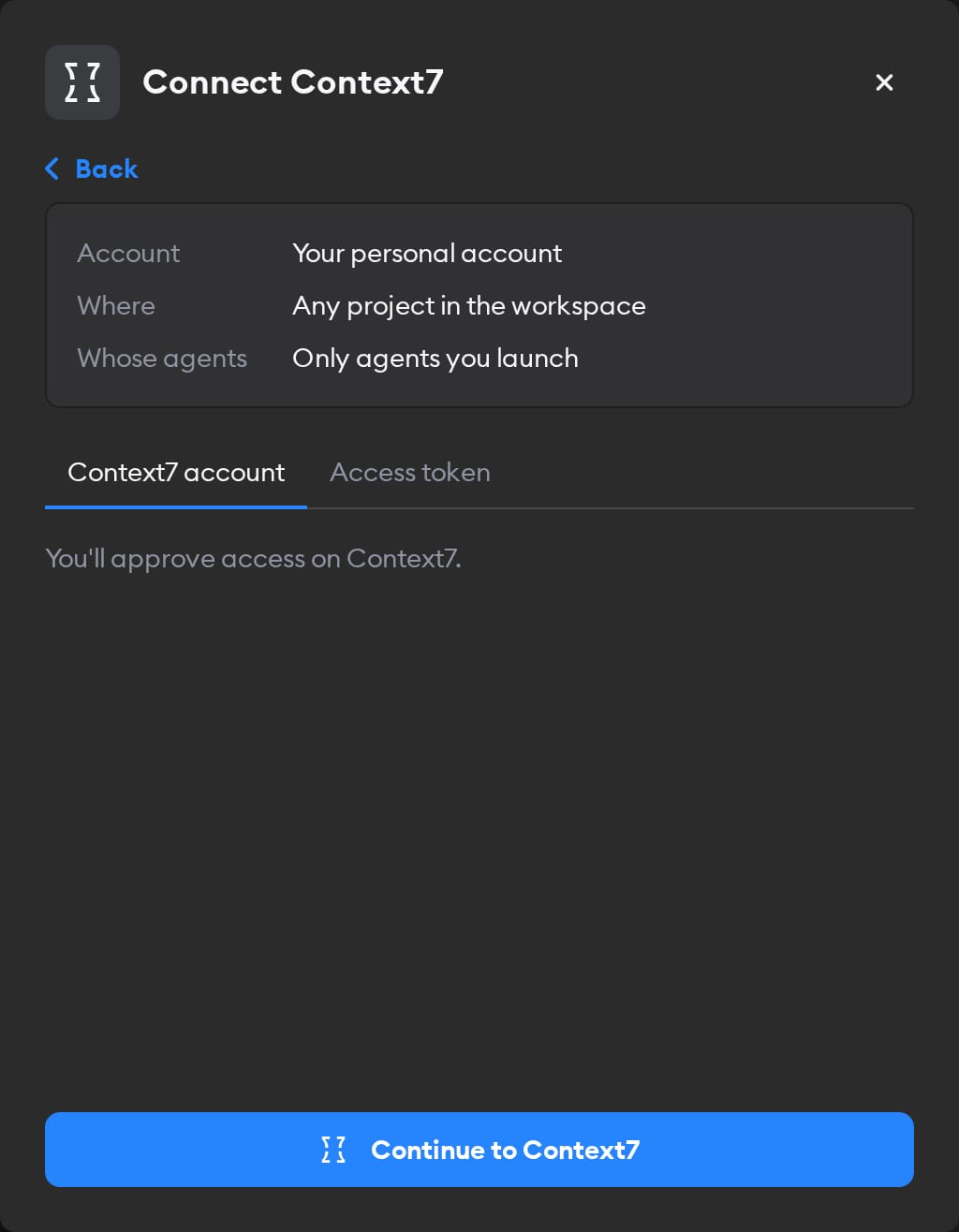
The second screen has two tabs: Context7 account and Access token. Pick one.
Context7 account
This tab is selected by default, and there's no key to create. Click Continue to Context7 and sign in. Choose the teamspace the connection can access, click Continue, then click Allow. You land back on the Connectors page with Context7 connected.
Agents then use the teamspace you chose, so their lookups count toward its usage and can read its private sources. If you picked Workspace Service Account in step 1, everyone's agents use that teamspace.
Access token
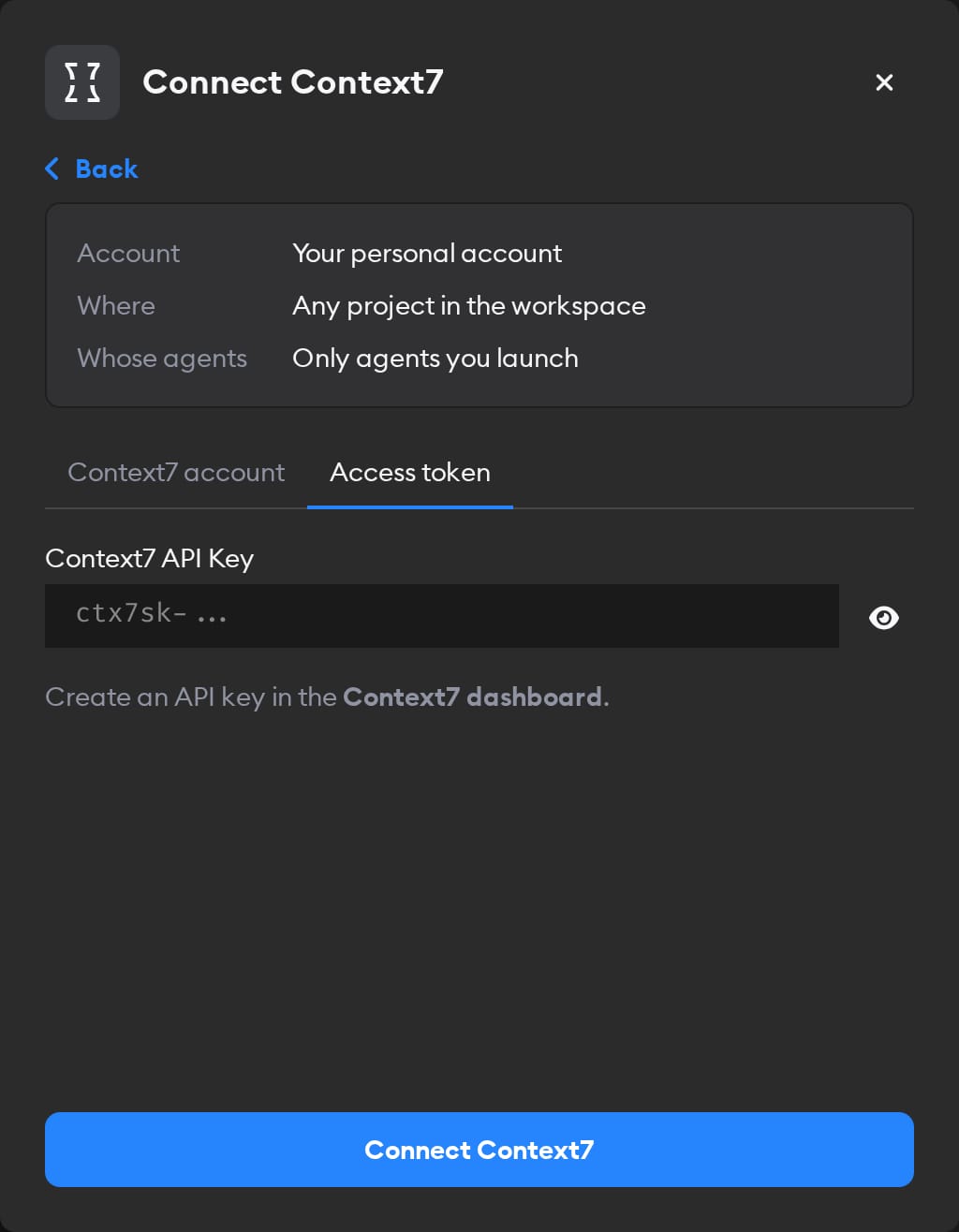
In the Context7 dashboard, click Create API Key. Paste it into the Context7 API Key field and click Connect Context7. Agents then use the teamspace the key belongs to, the same way.
Reconnecting and disconnecting
If Context7 stops accepting a Context7 account connection, the Connectors page shows a Reconnect needed badge on it, and agents run without Context7. Click Manage next to it, then Reconnect Context7. You can only reconnect a personal connection you own; for someone else's, Superconductor tells you who to ask.
A revoked Context7 API key doesn't show Reconnect needed. Agents' Context7 lookups fail with "Invalid API key" until you enter a new key in the Context7 API Key field under Manage and click Save.
For a Context7 account connection, Disconnect also revokes Superconductor's access at Context7. If Context7 doesn't confirm the revocation, Superconductor shows a warning. To cut off an API key, also revoke it in the Context7 dashboard.
When to use it
Context7 tells agents to check it for library questions, so they often use it without being asked. Mention it when a ticket involves a library that changes often, a recent major version, or an API the model may not know well. For example:
Upgrade our app to Next.js 16. Use Context7 to check the migration guide before changing anything.Add email and password sign-up with Supabase Auth. Use Context7 for the current API.Our Stripe webhook handler uses a deprecated method. Look up the replacement in Context7 and update it.Use Context7 to find out how Tailwind v4 configures custom colors, then move our theme over.