Supermemory
Connect Supermemory so agents have a memory store that persists across tickets and chats.

The Supermemory MCP server lets agents save what they learn and recall it in later tickets and chats, so context such as team conventions, past decisions, and customer preferences carries across sessions.
For use cases and example prompts, see Supermemory for AI coding agents.
What is Supermemory?
Supermemory is a memory layer for AI tools. It stores memories and documents in spaces, and makes them searchable from any AI tool connected to your account.
What agents can do
Once you connect Supermemory, agents can:
- Save facts, decisions, and preferences as memories, or forget ones that are out of date
- Search and recall memories from earlier sessions
- Browse the documents and spaces in your Supermemory account
- Share the same memories with the other AI tools you connect to Supermemory
Anyone whose agents can use the connection can read and add memories in that Supermemory account.
Setup
Go to Workspace Settings → Connectors (or a project's Connectors page) and click Connect on the Supermemory card (or Connect another to add another account).
Step 1: who the connection is for
Choose whether the connection belongs to you or to your team, which projects can use it, and whose agents can use it. Supermemory starts on Personal Account. See connection options for what each choice means.
Click Continue.
Step 2: how agents reach Supermemory
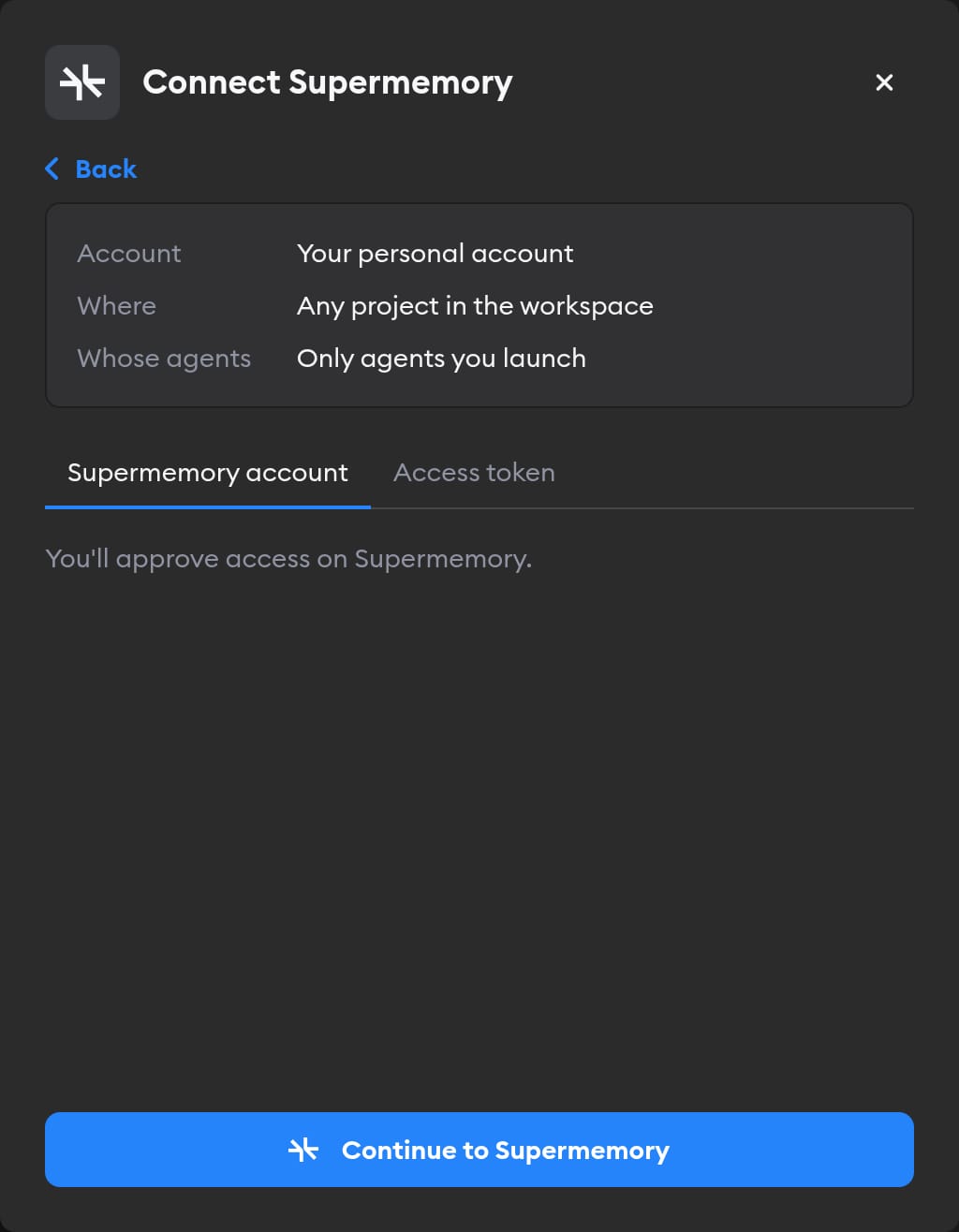
The second screen has two tabs: Supermemory account and Access token. Pick one.
Supermemory account
This tab is selected by default, and there's no key to create.
Click Continue to Supermemory. Supermemory asks you to sign in and approve access. Approve, and you land back on the Connectors page with Supermemory connected.
Agents then read and write memories as whoever signed in. If you picked Workspace Service Account in step 1, everyone's agents share that account's memories — so sign in with an account meant for team memories.
Access token
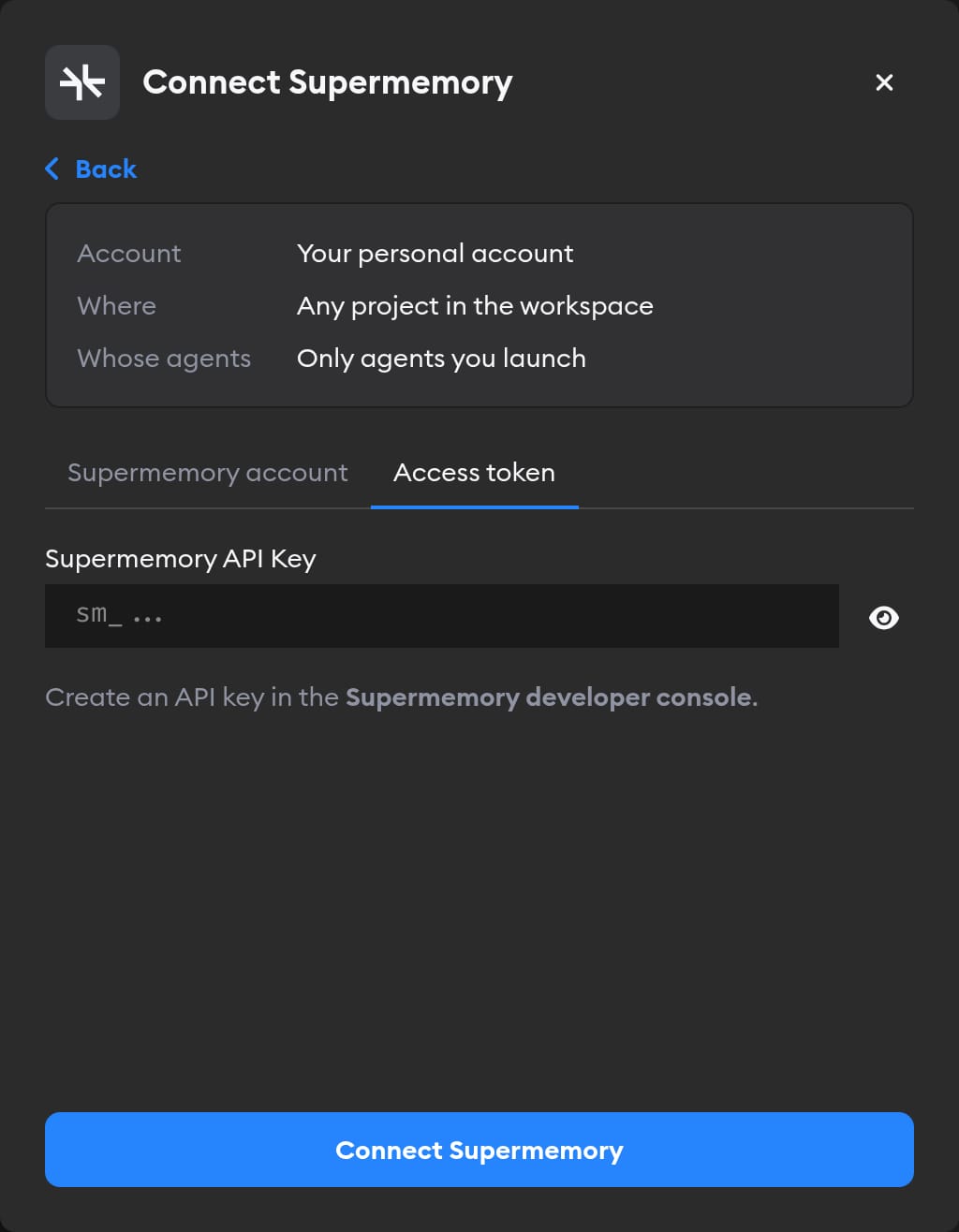
Use this tab if you'd rather paste a key than sign in. In the Supermemory developer console, go to API Keys → Create API Key. Keys start with sm_. Paste it into the Supermemory API Key field and click Connect Supermemory.
Reconnecting and disconnecting
If Supermemory stops accepting a connection, the Connectors page shows a Reconnect needed badge on it, and agents run without Supermemory.
Click Manage next to the connection to fix it. A connection you made with Supermemory account has no key to replace: it shows Account connection: Connected and, when something's wrong, a Reconnect Supermemory button.
Disconnect also revokes Superconductor's access at Supermemory. If Supermemory doesn't confirm the revocation, Superconductor tells you to remove Superconductor from your Supermemory account to finish the job.
When to use it
Ask agents to use Supermemory when context should outlive a single session. For example:
Remember that our product name is always written "Acme Cloud", never "AcmeCloud", and check Supermemory for our other style rules before writing.Search Supermemory for what we decided about pricing for the annual plan, then draft the announcement.