Braintrust
Connect Braintrust so agents can query your logs and experiments, write scorers and prompts, and run evals.

The Braintrust MCP server lets agents read and write your Braintrust data, so they can dig into production traces, find what's going wrong, and check a fix with an eval.
For use cases and example prompts, see Braintrust for AI coding agents.
What is Braintrust?
Braintrust is an observability and evaluation platform for AI products. It records traces from your LLM calls and agents, and lets you score them and run evals against datasets.
What agents can do
Once you connect Braintrust, agents can:
- Query logs, experiments, and datasets with SQL, and summarize experiment results
- Find projects, experiments, and datasets by name, and share links to them
- Find and manage recurring patterns in your traces
- Create prompts and scorers, test scorers on real traces, and set up online scoring
- Add rows to datasets and run evals
- Set up alerts and automations
Agents can only do what the connected Braintrust account, API key, or service token can do.
Superconductor connects to Braintrust's US endpoint at api.braintrust.dev. If your organization uses the EU data plane or a self-hosted deployment, add its MCP URL as a custom MCP server instead.
Setup
Go to Workspace Settings → Connectors (or a project's Connectors page) and click Connect on the Braintrust card (or Connect another to add another account).
Step 1: who the connection is for
Choose whether the connection belongs to you or to your team, which projects can use it, and whose agents can use it. Braintrust starts on Personal Account. See connection options for what each choice means.
Click Continue.
Step 2: how agents reach Braintrust
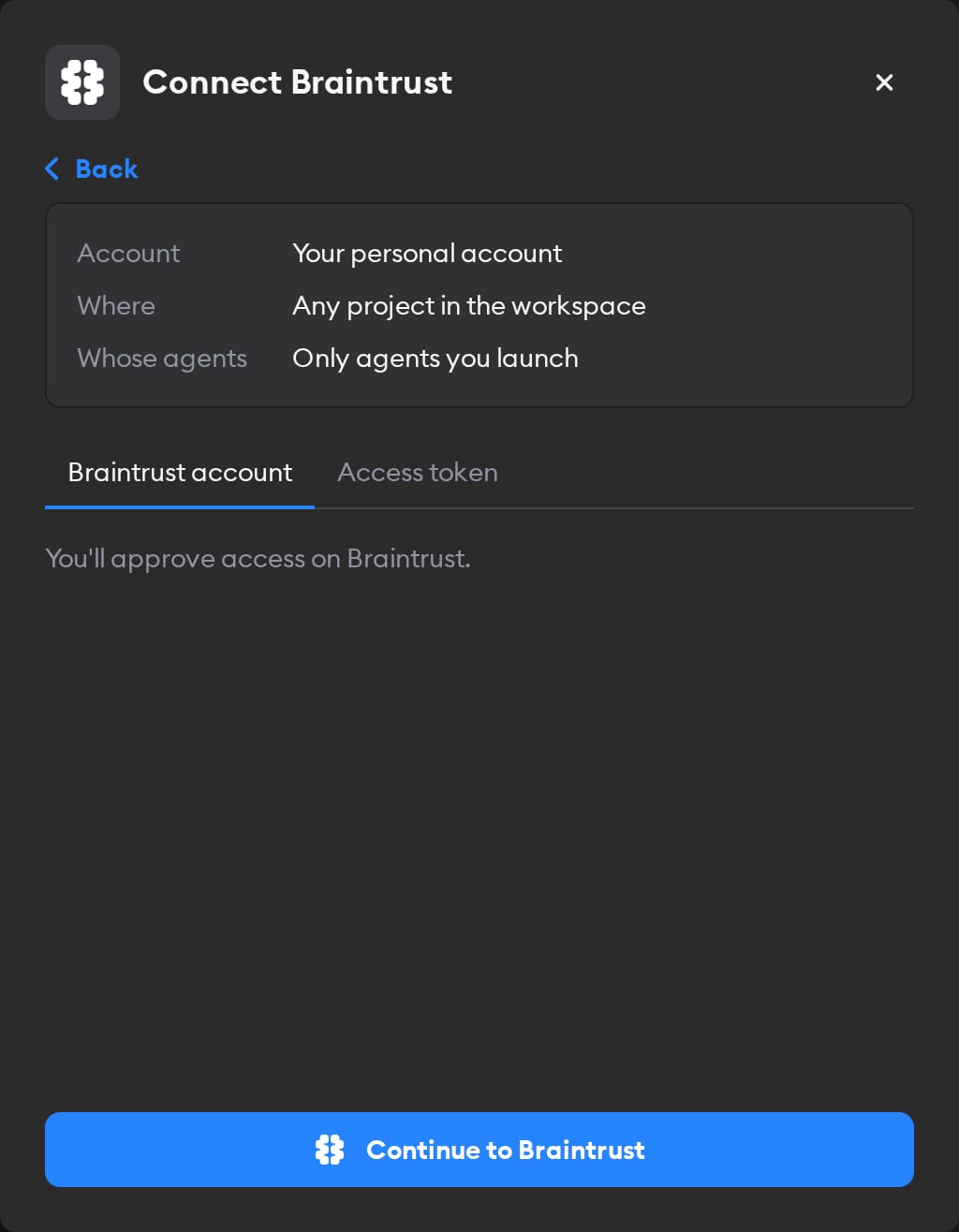
The second screen has two tabs: Braintrust account and Access token. Pick one.
Braintrust account
This tab is selected by default, and it's the easiest way in — there's no key to create.
Click Continue to Braintrust and sign in if Braintrust asks. On Braintrust's Authorization request page, check that the redirect URL is your Superconductor address, then click Yes, I trust this URL. You land back on the Connectors page with Braintrust connected.
Agents then act in Braintrust as whoever signed in. If you picked Workspace Service Account in step 1, everyone's agents use that access — so sign in with an account whose permissions you're happy to share.
Access token
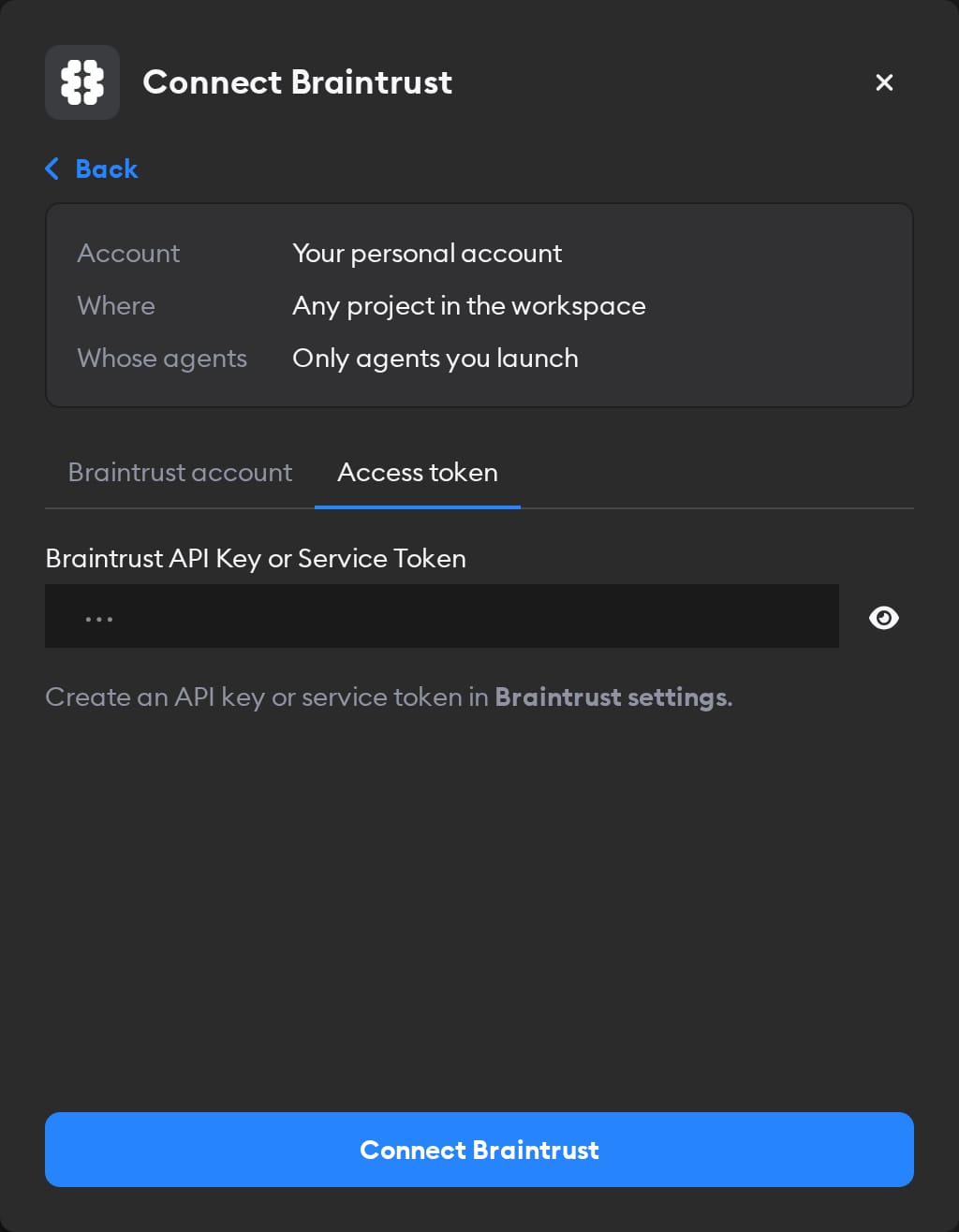
Create an API key in Braintrust under Settings → API keys, or a service token under Settings → Service tokens. Paste it into the Braintrust API Key or Service Token field and click Connect Braintrust.
Reconnecting and disconnecting
If Braintrust stops accepting a connection you made with Braintrust account, the Connectors page shows a Reconnect needed badge on it, and agents run without Braintrust.
Click Manage next to the connection to fix it. A connection you made with Braintrust account has no key to replace: it shows Account connection: Connected and, when something's wrong, a Reconnect Braintrust button. You can only reconnect a personal connection you own; for someone else's, Superconductor tells you who to ask.
Disconnect removes the connection from Superconductor. For an access token, also delete the API key or service token in Braintrust's settings.
When to use it
Ask agents to use Braintrust when a ticket involves how your AI features behave in production, or when a change to a prompt or model needs an eval. Agents can create scorers, alerts, and dataset rows, so tell them when they should only look. For example:
Our support bot started giving wrong refund answers this week. Use Braintrust to find example traces and tell me what they have in common.Write a Braintrust scorer that flags answers which mention a competitor, test it on a few recent traces, and share a link.After this prompt change, run an eval in Braintrust on our "checkout-questions" dataset with our saved scorers, and compare the results with the last experiment.Which Braintrust scorers dropped the most between last week's experiments and this week's? List the worst traces for each.