ClickUp
Connect ClickUp so agents can find, create, and update work in your Workspace.

The ClickUp MCP server lets agents work directly in your ClickUp Workspace, so they can read the task behind a ticket and keep ClickUp up to date as they work.
For use cases and example prompts, see ClickUp for AI coding agents.
What is ClickUp?
ClickUp is a work management app where teams plan projects and keep tasks, docs, and chat in one place.
What agents can do
Once you connect ClickUp, agents can use ClickUp's MCP tools. For example, they can:
- Search across your Workspace
- Create and update tasks, including assignees, priority, due dates, tags, and dependencies
- Comment on tasks and post in chat channels
- Write ClickUp Docs, such as a project brief or meeting notes
- Log time and review time entries
- Delete tasks and comments
Agents can only do what your ClickUp account has permission to do, in the ClickUp Workspaces you connect. ClickUp also limits how many MCP calls agents can make, depending on your plan. See ClickUp's rate limits.
Agents can delete tasks and comments, and the comments and chat messages they post go out right away under the signed-in person's name. Tell agents when they should only read.
Setup
ClickUp connects by signing in with your ClickUp account. There's no API key to create, and ClickUp doesn't support API keys for its MCP server.
Go to Workspace Settings → Connectors (or a project's Connectors page) and click Connect on the ClickUp card (or Connect another to add another account).
Step 1: who the connection is for
Choose whether the connection belongs to you or to your team, which projects can use it, and whose agents can use it. ClickUp starts on Personal Account. See connection options for what each choice means.
Click Continue.
Step 2: sign in with ClickUp
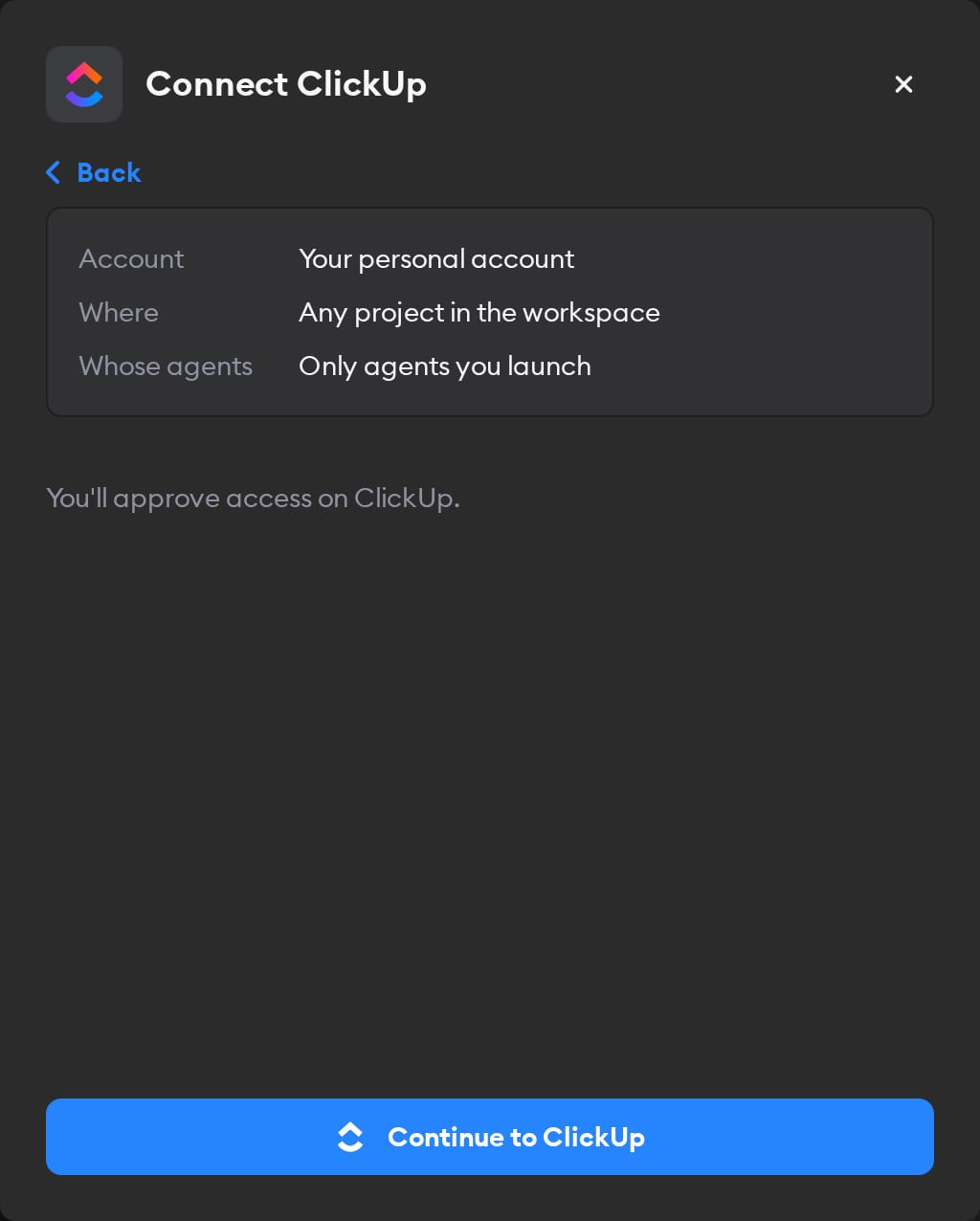
Click Continue to ClickUp. ClickUp asks which Workspaces to connect. Select the ones agents should reach and click Connect Workspace (or Connect Workspaces), and you land back on the Connectors page with ClickUp connected.
Agents then act in ClickUp as whoever signed in, so they see what that person can in the Workspaces you picked. If you picked Workspace Service Account in step 1, everyone's agents use that access — so sign in with an account whose permissions you're happy to share.
Reconnecting and disconnecting
If access is removed in ClickUp, Superconductor can't tell: the connection still shows Connected, but ClickUp refuses agents' requests. Disconnect it and connect again. To change which ClickUp Workspaces agents can reach, do the same and pick them when ClickUp asks.
ClickUp has no way for Superconductor to revoke a connection. After you click Disconnect, go to Settings → ClickUp API in ClickUp and delete ClickUp MCP Service under Custom Apps to finish the job. That also cuts off any other Superconductor connections made with the same ClickUp account.
When to use it
Ask agents to use ClickUp when a ticket starts from a ClickUp task, or when work should be tracked there. For example:
Read ClickUp task 86b2xq7mf, implement the fix it describes, and comment on the task with a summary of the change.Create a ClickUp task in the Bugs list for each failing test you find, with the error and steps to reproduce.Summarize what's still open in our Q3 Launch list in ClickUp and who each task is assigned to.Write a ClickUp Doc with this week's status update for the Website Refresh project, based on its tasks.