Mobbin
Connect Mobbin so agents can use real app screens and flows as design references.

The Mobbin MCP server lets agents look at how real products design a screen or flow before they build or write about one, without you leaving the chat.
For use cases and example prompts, see Mobbin for AI coding agents.
What is Mobbin?
Mobbin is a library of UI and UX design references for mobile apps, web apps, and websites.
What agents can do
Once you connect Mobbin, agents can:
- Search mobile and web screens for a pattern, such as a paywall or a settings page
- Find multi-step flows, such as onboarding or checkout
- Find website sections, such as pricing pages and footers
- Read the screens, flows, and sections saved to your collections
- Create collections, save items to them, and comment on items
Setup
Mobbin connects by signing in with your Mobbin account. There's no API key to create.
You need a Mobbin Pro, Team, or Enterprise plan. On the free plan you can still connect, but Mobbin turns down agents' requests and asks you to upgrade.
Go to Workspace Settings → Connectors (or a project's Connectors page) and click Connect on the Mobbin card (or Connect another to add another account).
Step 1: who the connection is for
Choose whether the connection belongs to you or to your team, which projects can use it, and whose agents can use it. Mobbin starts on Personal Account. See connection options for what each choice means.
Click Continue.
Step 2: sign in with Mobbin
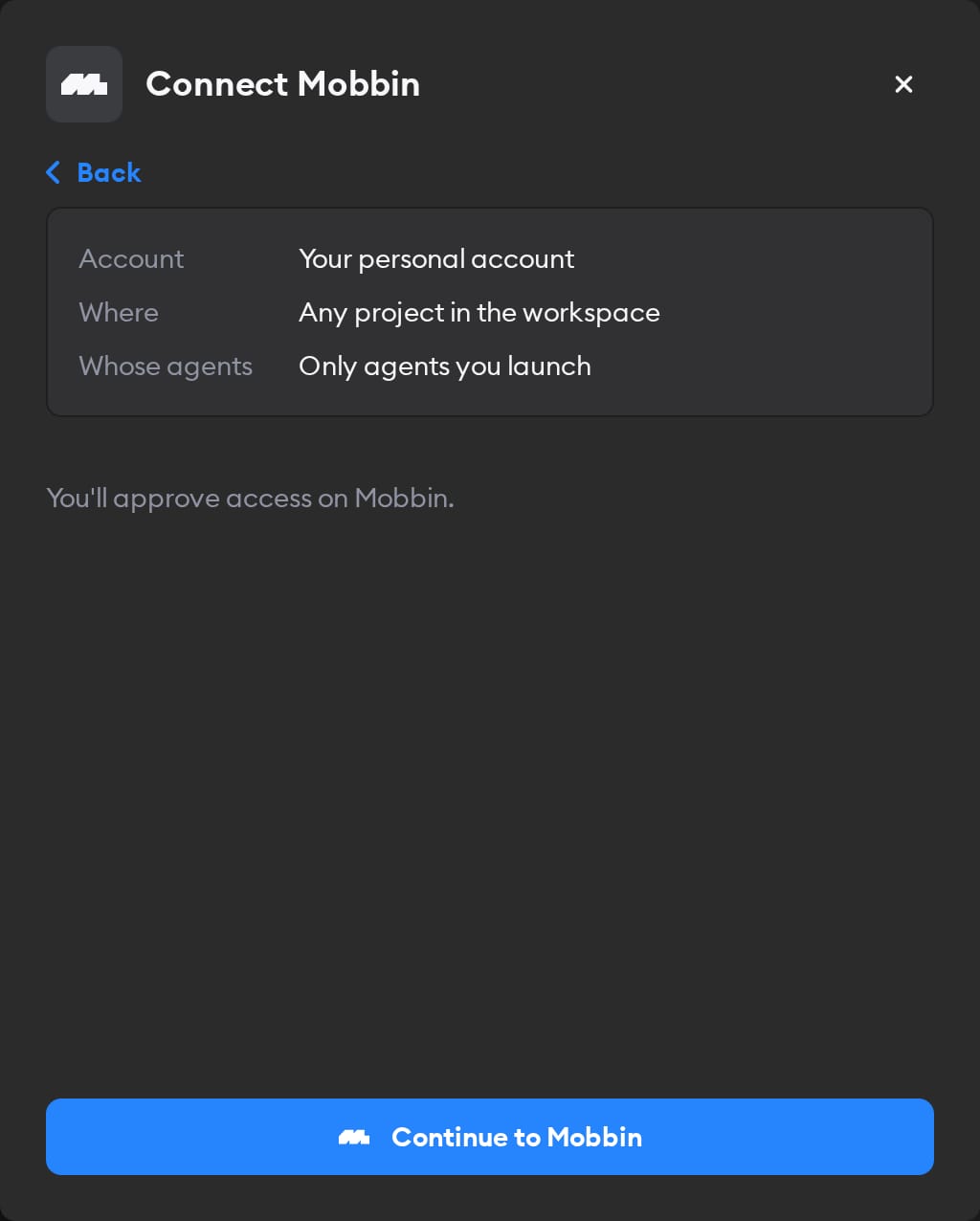
Click Continue to Mobbin. Mobbin asks you to approve access. Approve, and you land back on the Connectors page with Mobbin connected.
Agents then act in Mobbin as whoever signed in, so they see that person's collections and save to them. If you picked Workspace Service Account in step 1, everyone's agents use that access — so sign in with an account whose collections you're happy to share.
Reconnecting and disconnecting
If Mobbin stops accepting a connection, the Connectors page shows a Reconnect needed badge on it, and agents run without Mobbin.
Click Manage next to the connection to fix it. There's no key to replace: the page shows Account connection: Connected and, when something's wrong, a Reconnect Mobbin button. You can only reconnect a personal connection you own; for someone else's, Superconductor tells you who to ask.
Superconductor can't revoke its access at Mobbin, so Disconnect removes the connection from Superconductor and tells you to finish in Mobbin. Open your profile menu, choose MCP, and disconnect Superconductor under Connected.
When to use it
Ask agents to use Mobbin when a ticket involves designing or changing a screen, a flow, or a page, or writing up how other products handle one. For example:
Before building the new onboarding flow, find three onboarding flows from finance apps on Mobbin and summarize the patterns they share.Look up how popular web apps design their pricing page on Mobbin, then restyle our pricing page to follow the strongest pattern.Build our new settings page from the screens in our "Settings inspiration" collection on Mobbin.Find five checkout flows from shopping apps on Mobbin, save them to a new "Checkout research" collection, and write a one-page comparison for our design review.