
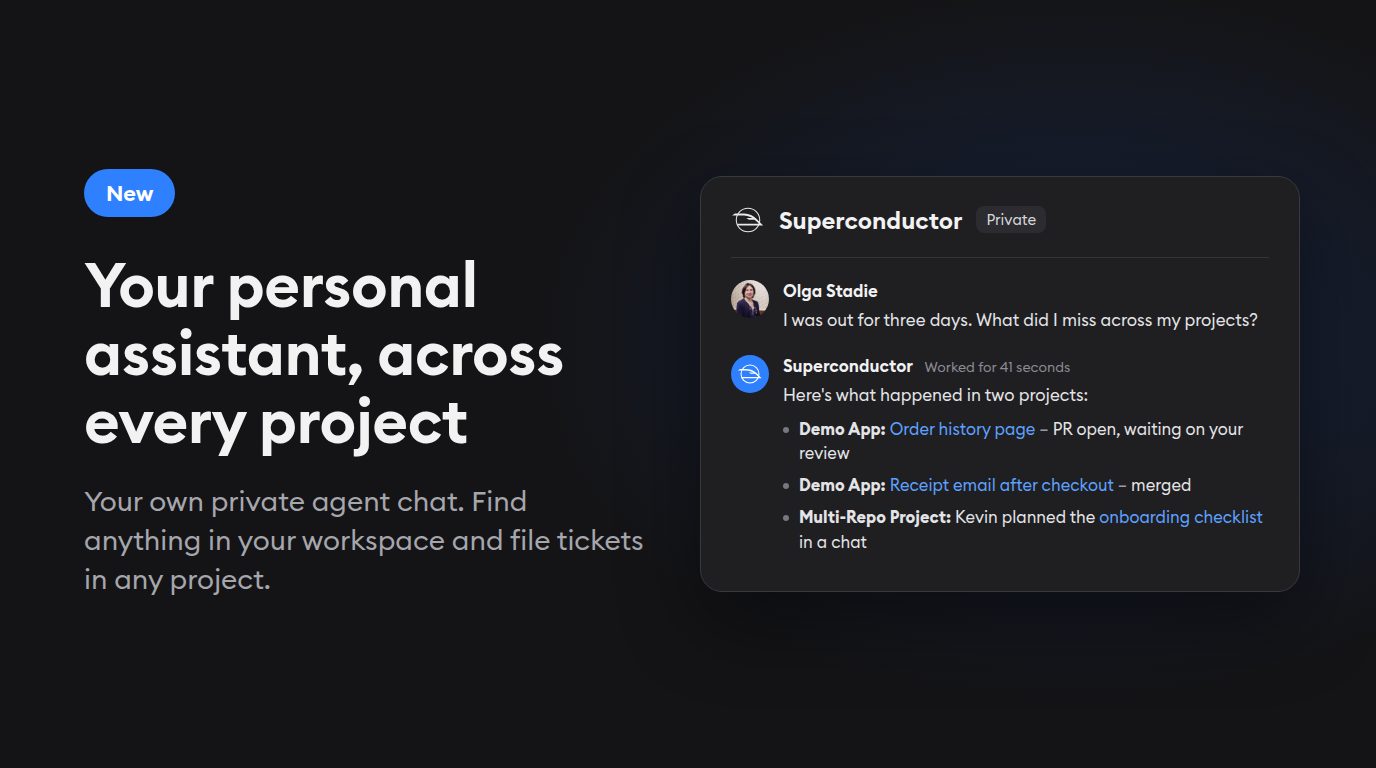
Teams that use Superconductor often spread their work across projects. You might have projects for different teams (i.e. we have separate projects for our Marketing and Customer Support work), for different versions of your app (iOS vs. web app), or for different products your team is building.
Agents can already look up their own project's work, but questions like "what did I miss while I was out?" usually span several projects, and there used to be no one place to ask them.
Now every Owner, Admin, and Collaborator in your workspace has a personal assistant: your own private chat with an agent that works across every project in your workspace. Ask it what your team shipped this week, have it find a chat a teammate started a month ago, or tell it to file tickets in whichever projects they belong to.

You'll find it pinned under Personal Assistants at the top of your Recent Activity sidebar. It's called Superconductor until you rename it, and it introduces itself in its first message, so you can start by replying.
What your assistant can do
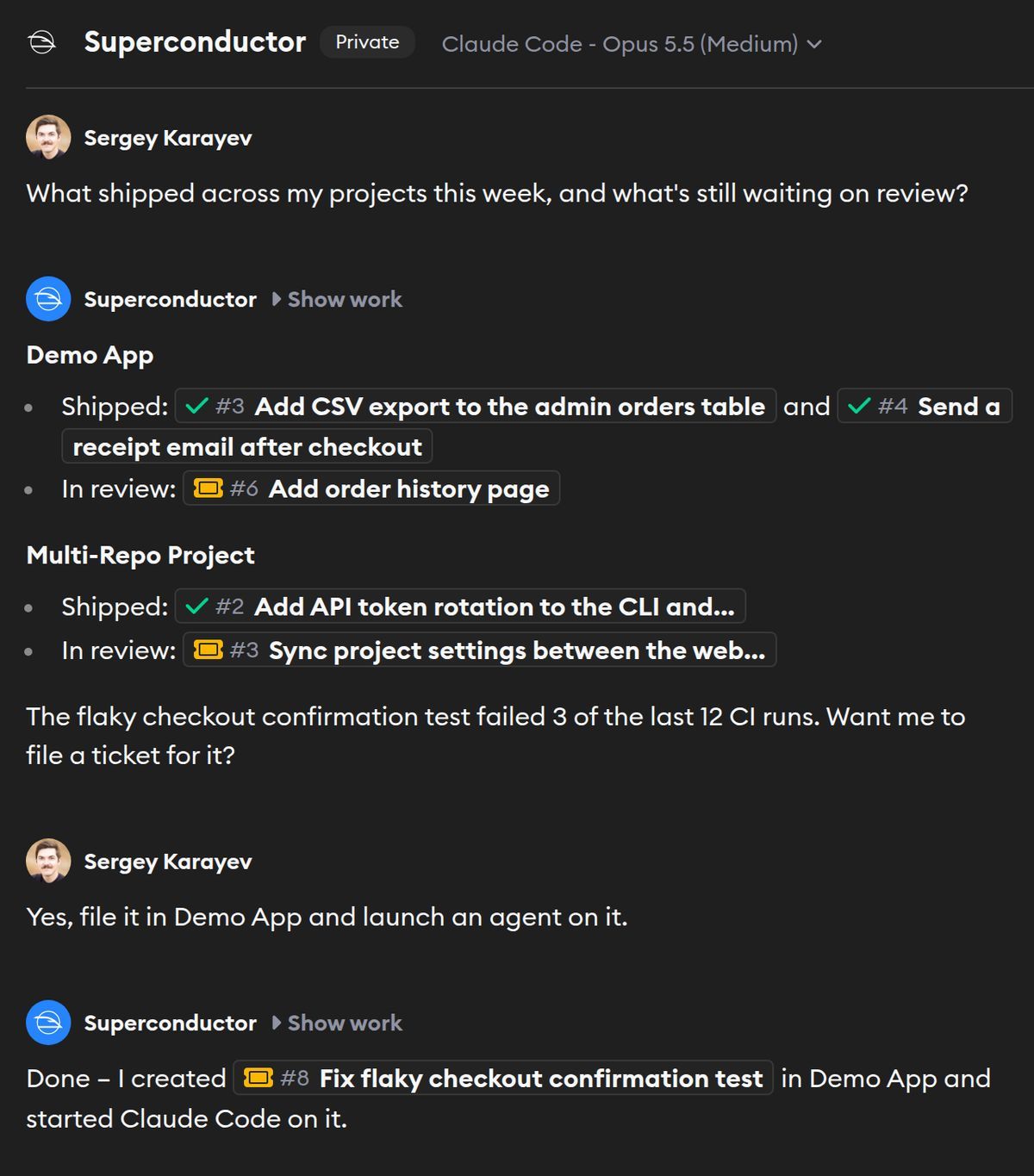
- Find anything in your workspace. It lists recent tickets, implementations, pull request statuses, and chats in any project. Paste a link, or describe what you're after ("Kevin's onboarding chat from last month") and let it search.
- Read it in full. It opens an implementation's whole conversation and code changes, or a chat's whole conversation, and tells you what matters.
- Create tickets in any project. It creates a ticket in the right project, with files attached, and can launch an implementation so an agent starts on it right away.
- Use your connected tools. It can pull in context from Linear, Notion, Sentry, Gmail, Google Drive, and 30+ other connectors you've turned on for personal assistants.
- Create files and images that you can keep. Ask for a report, diagram, or spreadsheet, and it saves the result as an artifact.
- Answer questions about Superconductor. It reads our docs, so you can ask how a feature works without leaving the app.
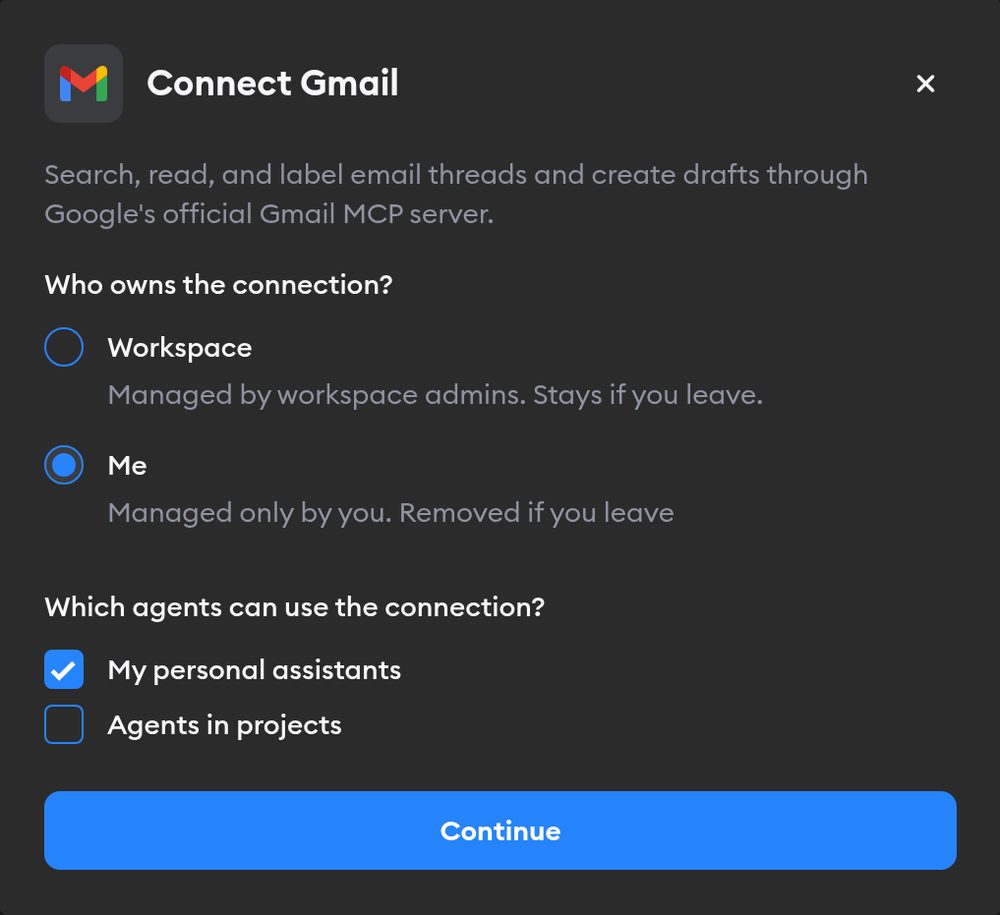
You can also connect a tool for your assistant alone. When you add a personal connection, keep My personal assistants selected and leave Agents in projects unchecked. Connect your Gmail that way, for example, and your assistant can read your inbox while your team's agents can't.
Only you can see your personal assistant chat
Your assistant chat is your space to think out loud, ask the questions you'd rather not post in a team channel, and draft work before you share it. Here's what private means:
- Nobody else can open it. Teammates can't read your assistant's messages, including workspace Owners and Admins.
- It stays out of shared lists. It doesn't appear on any project's Chats page or in anyone else's Recent Activity sidebar.
- Other agents can't read it. Agents in implementations and chats can't open your assistant's conversation, even if someone pastes its link.
- What it creates is shared. Tickets your assistant files are regular tickets in their project, visible to everyone who can see that project, so your team can follow the work and jump in.
Customize your assistant
Click its name in the header to rename it, the same way you rename a project chat. Its replies, including earlier ones, show the new name.
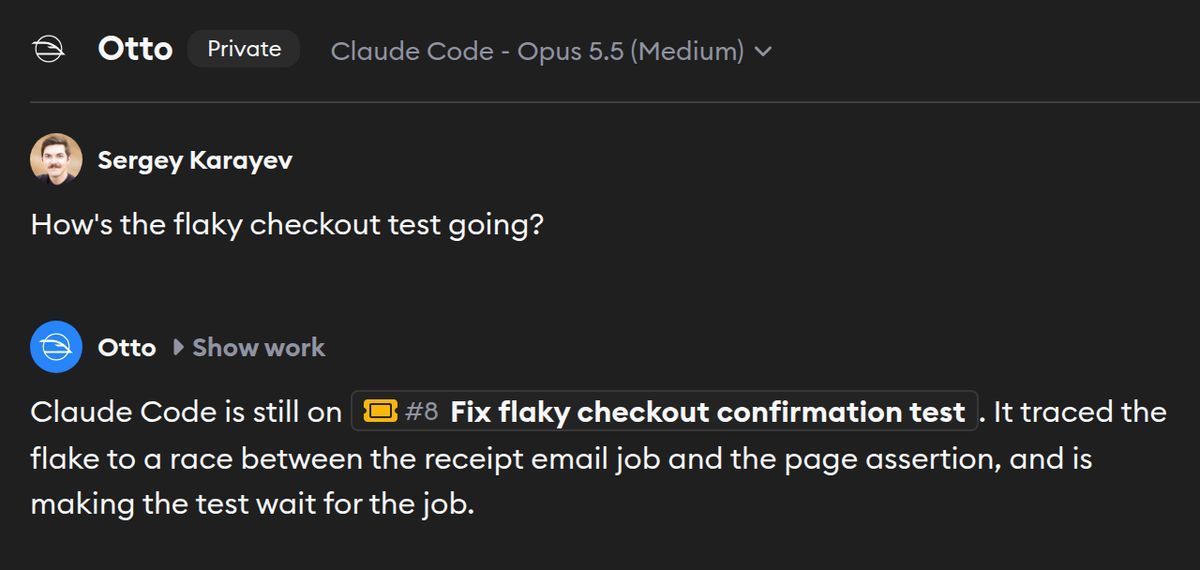
To use a different model or reasoning effort, click the model name next to your assistant's name. Your choice applies from the next turn, so you can move to a stronger model for a hard question and back to a faster one for quick lookups.
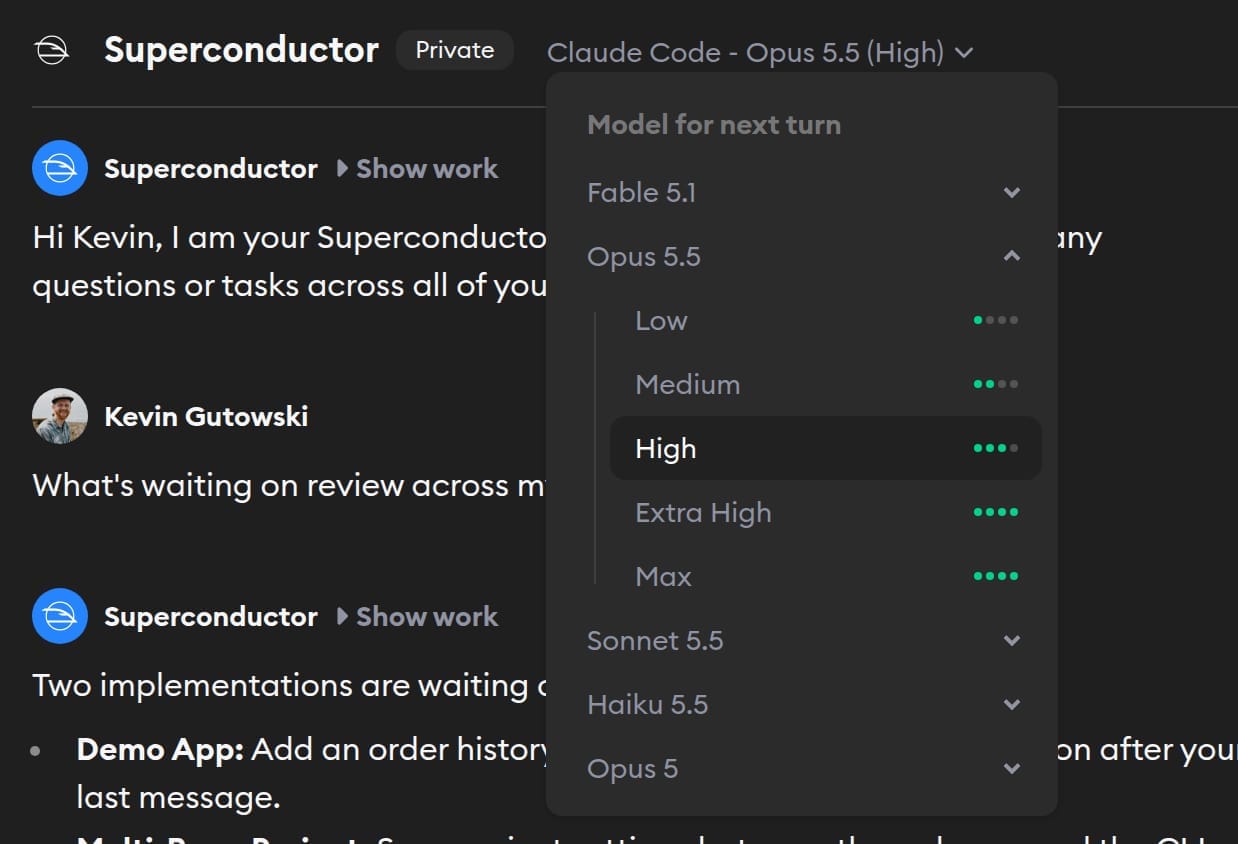
To jump to your assistant from anywhere, press Cmd/Ctrl+0 in the desktop app, or hold the backtick key and press 0 in a browser. On a phone, it's at the top of your Recent Activity list.
Examples of ways to use your assistant
-
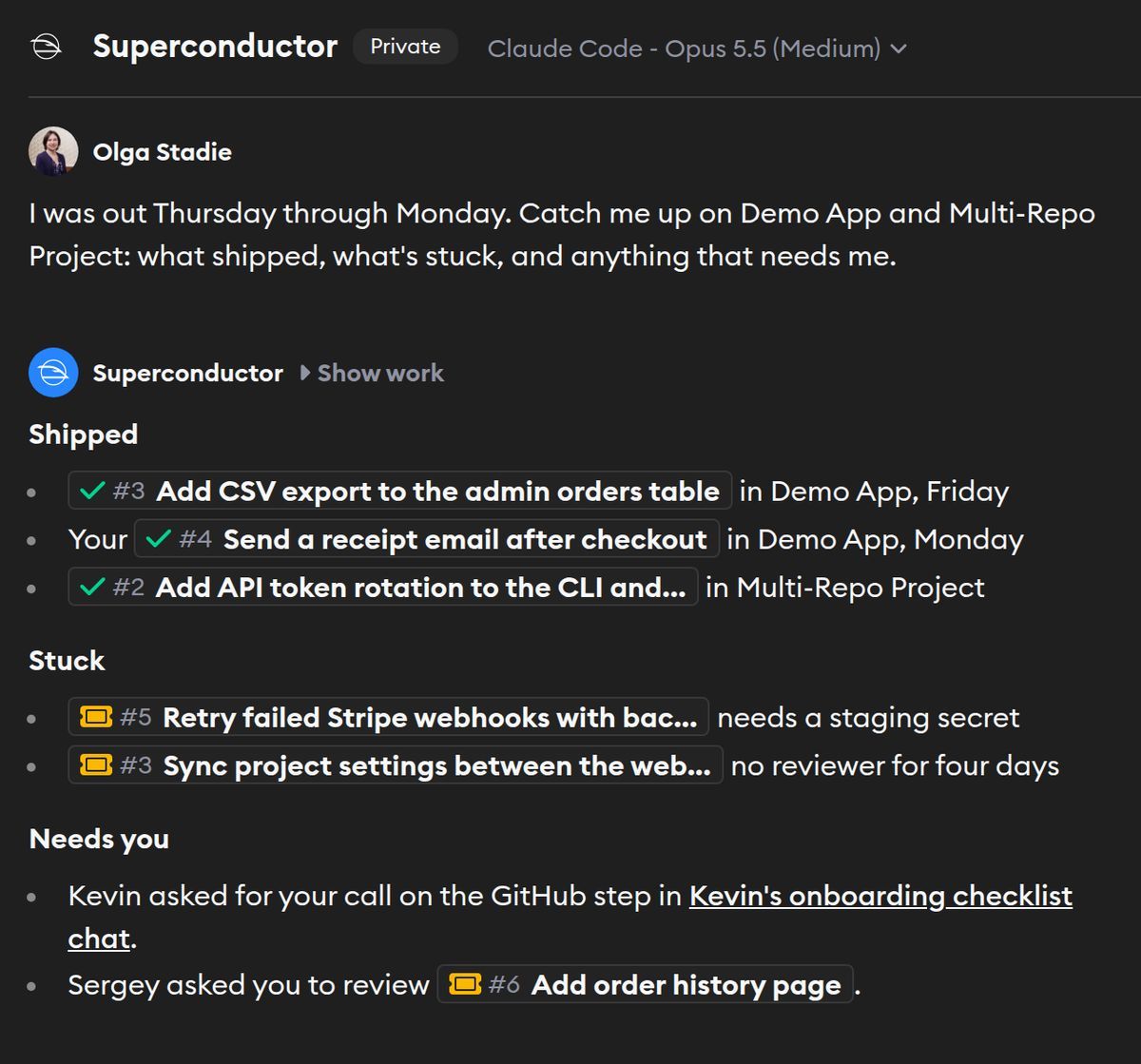
Catch up after time off. Coming back from vacation or a conference? Ask what changed everywhere you work, instead of opening every project.
I was out Thursday through Monday. Catch me up on Demo App and Multi-Repo Project: what shipped, what's stuck, and anything that needs me.
-
Find a teammate's chat. You remember the conversation, not where it happened. Describe it, and the assistant finds it and pulls out the decisions.
Find the chat where Kevin and I talked about the onboarding checklist a few weeks ago. Link me to it and summarize what we decided.
-
File tickets across projects. Turn your list of errors, feedback, or notes into tickets, each in the project where it belongs.
Check Sentry for new errors since yesterday, and file a ticket in the right project for each one with the stack trace attached.
Create a ticket in the Website project to update the pricing page using the attached screenshot, and launch it.
-
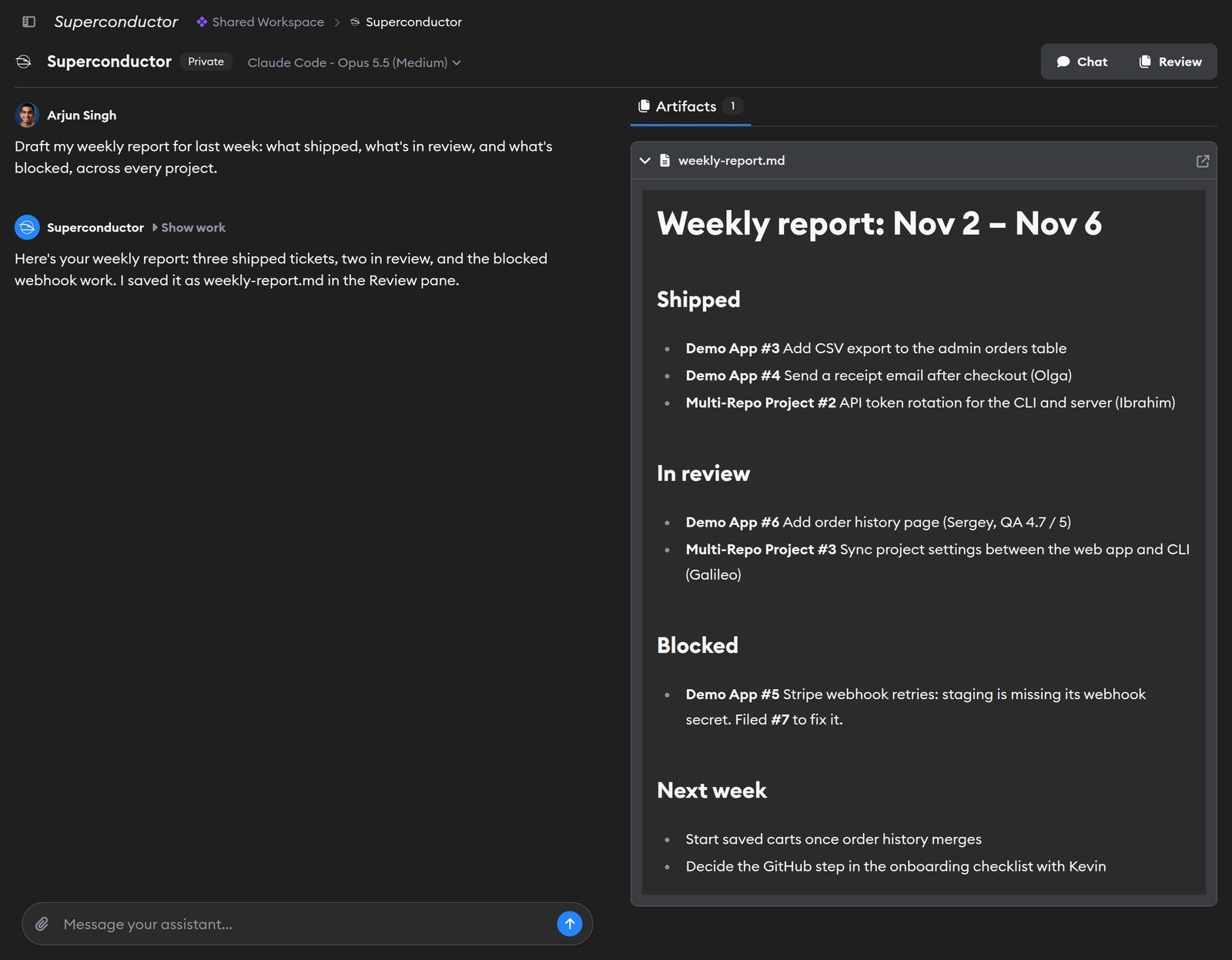
Write a weekly cross-project report. Get one summary of every project for your team update or a Monday check-in.
Draft my weekly report for last week: what shipped, what's in review, and what's blocked, across every project.
-
Clear your review queue. Ask which pull requests are ready, across all projects at once.
Which of my implementations have open pull requests that look ready to merge?
What would you like your assistant to do next? Let us know!