
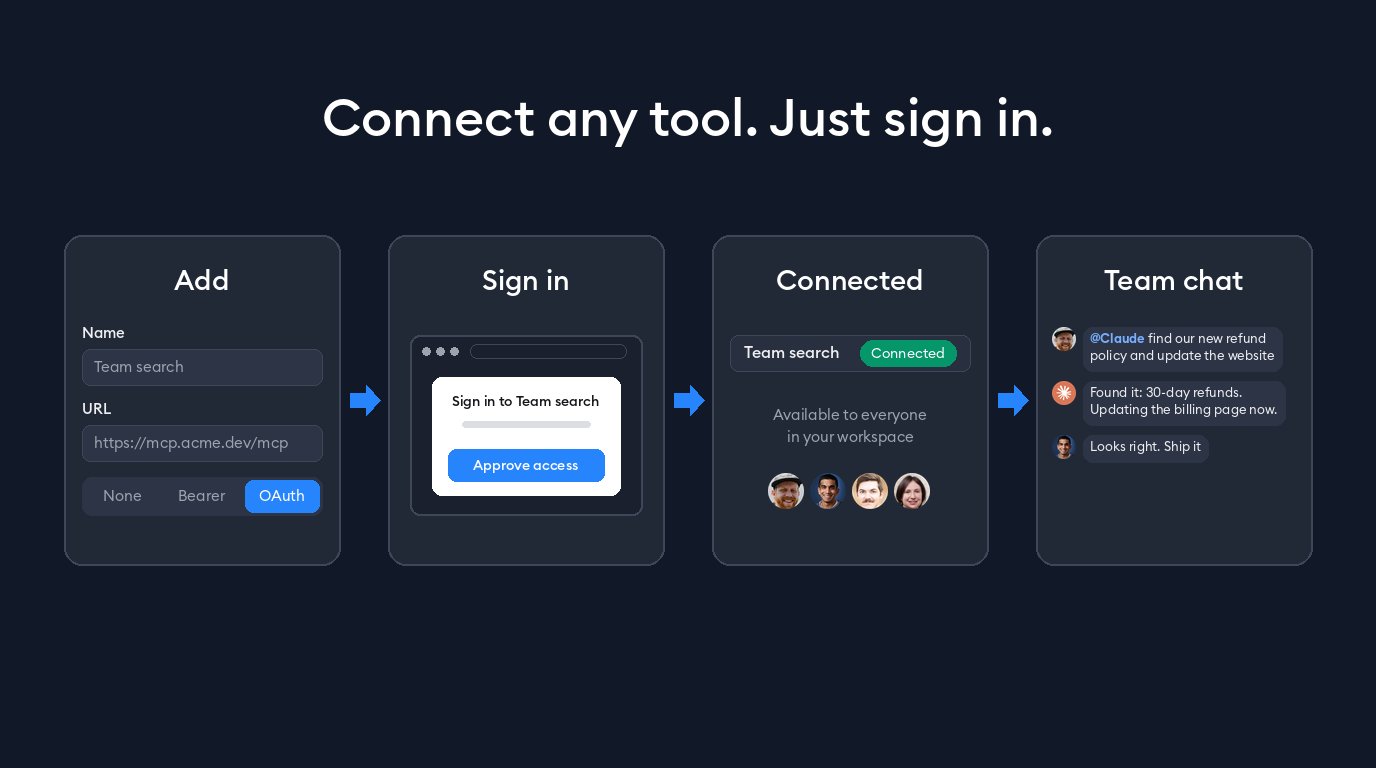
On Superconductor, you can connect your workspace to a variety of tools, from Figma to Sentry to Notion. But what about all the tools your team uses that we don’t yet have a connector for? An internal wiki, an in-house admin API, your friend’s new app that just launched an MCP server that you want to check out, etc.
Before, getting agents access to one of those meant one of two workarounds:
- Wait for us to add a built-in connector, or
- Commit MCP config to your repo (like
.mcp.json) and manage the secrets and network rules yourself.
And if the server for the tool you needed signed you in through the browser (OAuth), you were stuck. Agents run in the cloud, so there was no one there to click "Approve."
What's new
Now, if your team uses a tool, your agents can too. You can now add any remote MCP server from Workspace Settings → Connectors → Add. Give it a name and URL, and choose how it authenticates: None, Bearer token, or OAuth.
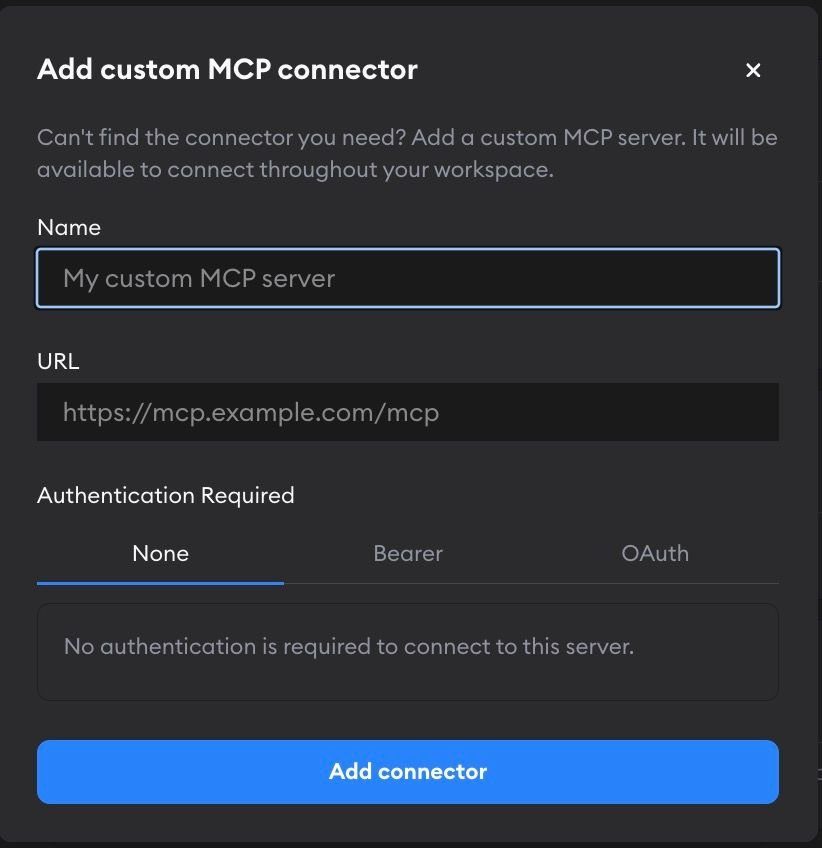
With OAuth, there's no token to create or paste. Click Connect, approve access on the server's own sign-in screen, and you're back in Superconductor with the server connected. From then on, Superconductor keeps the connection signed in and refreshes tokens in the background, so agents can use it on every run.
A custom connector you add works just like every built-in one:
- It shows up for the whole workspace, so everyone on your team can use it.
- Each teammate can connect it with their own login, or share one team account.
- Superconductor stores credentials encrypted and opens network access to the server's host for you.
Once you’ve added your custom tool, just mention it by name in any ticket or chat:
Use "Team Search" to find our refund policy, then update the copy on the billing page to match.
We're also rolling OAuth out to our built-in connectors. Linear and Sentry now let you sign in with your account instead of creating an API key, with more coming soon.
What types of tools are your team and your agents using on Superconductor? Let us know!