
Here's a summary of all user-facing changes on Superconductor from November 15-21:
Major Changes
Work together with team assistants
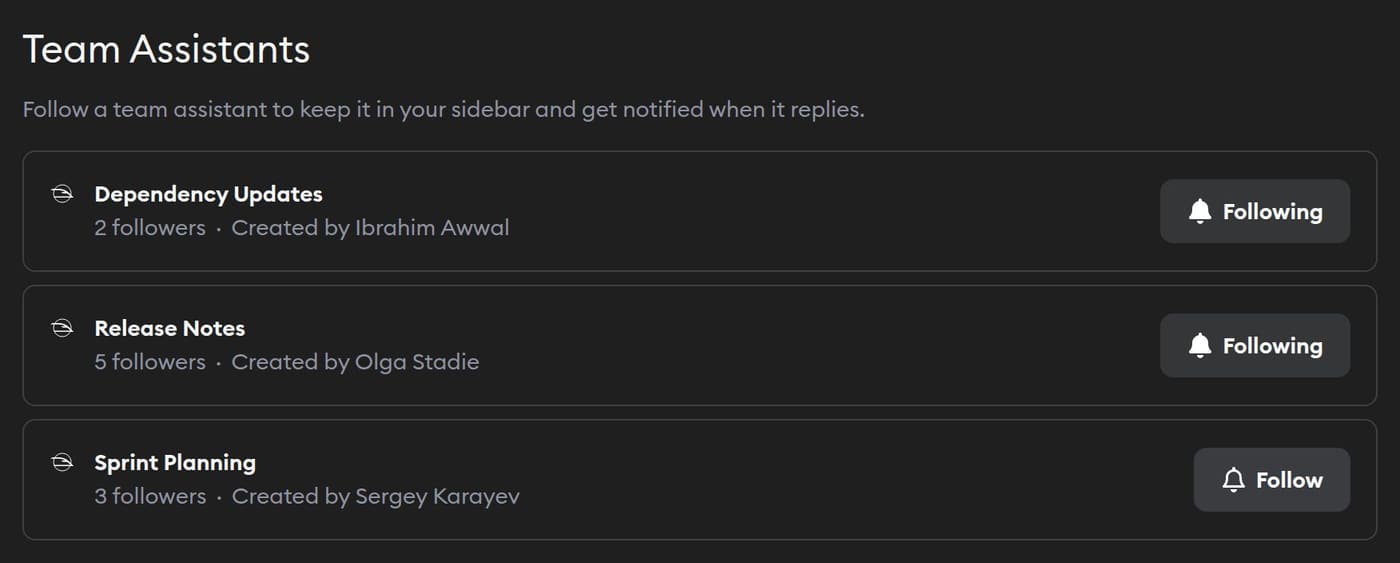
You can now create a team assistant that works across your projects in one shared conversation. Teammates can read its answers and pick up where someone else left off, without repeating the question or passing context around. For example, ask it to investigate a bug, then have a teammate follow up by asking the team assistant to file a ticket and start a coding agent.
Click + beside Assistants in the sidebar and choose Available to the entire team to create one. You can create as many as you want, each with its own connector settings.
Run Codex with GPT-6.2 Astra and Sol
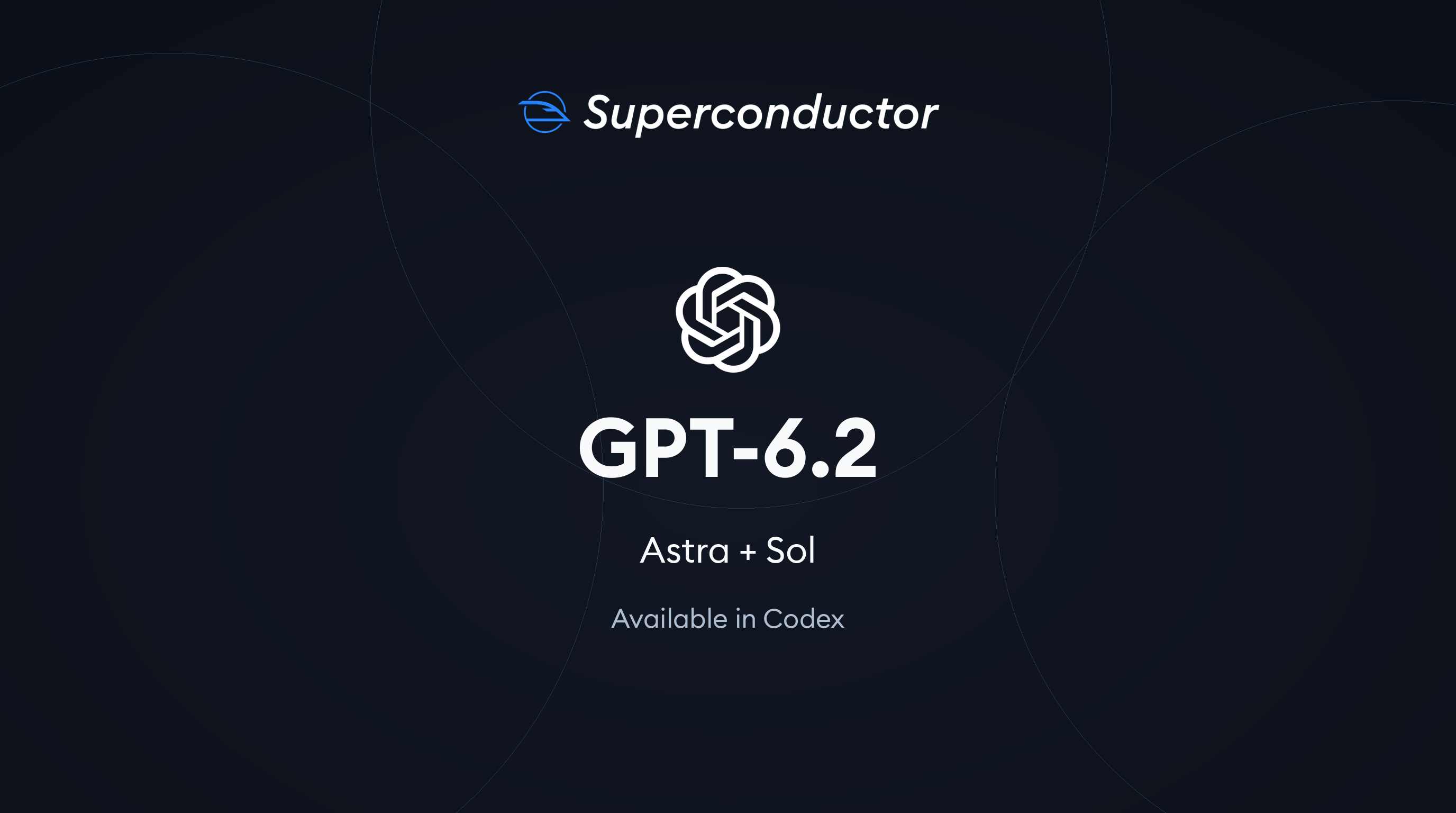
You can now choose GPT-6.2 Astra or GPT-6.2 Sol in Codex, with Low, Medium, High, Extra High, or Max reasoning effort. Medium is preselected. Use Astra for difficult tickets or Sol for everyday coding, and switch to either during an existing Codex conversation.
Choose more Gemini 4 models
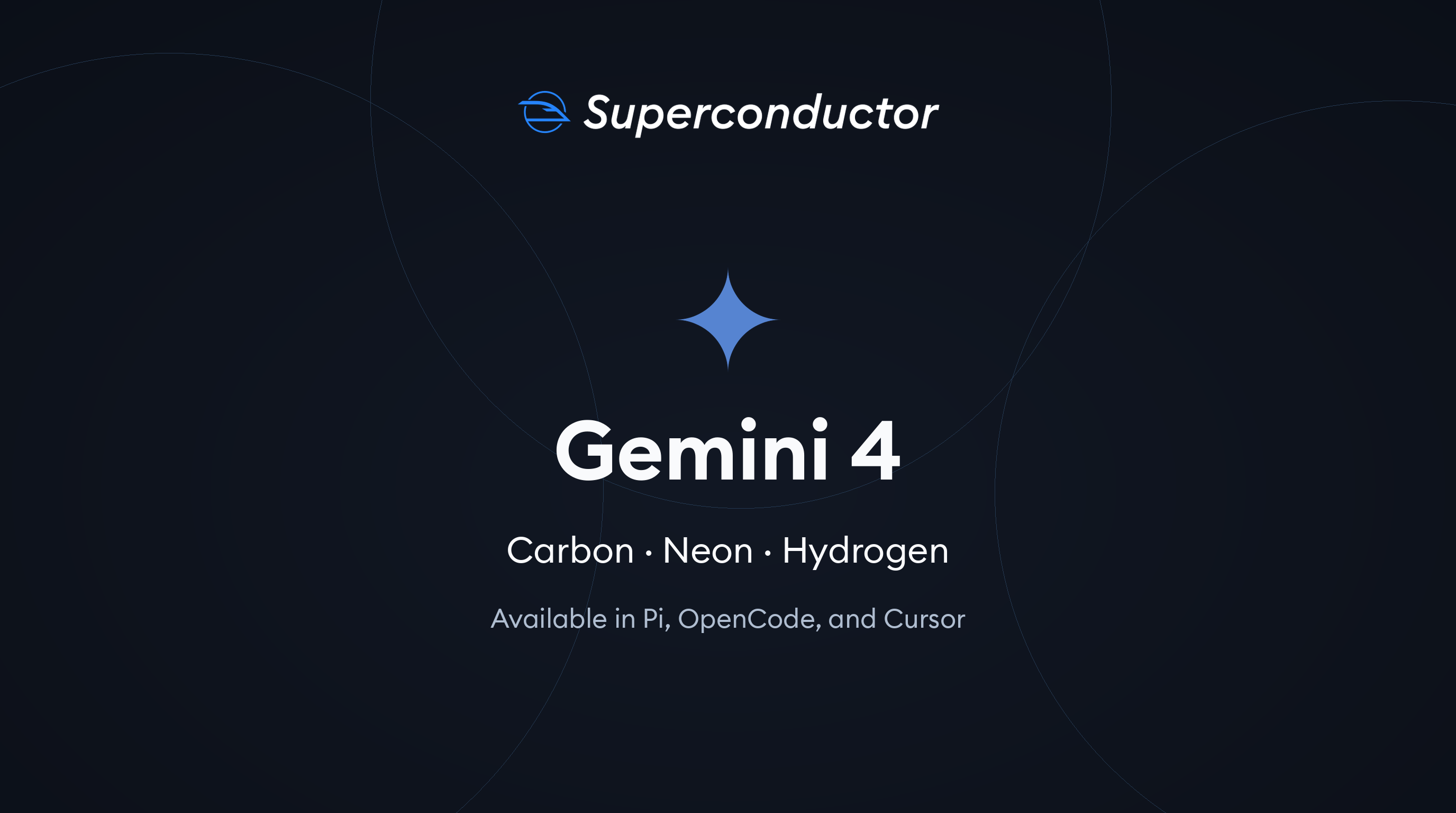
You can now choose Gemini 4 Carbon, Neon, and Hydrogen in Pi, OpenCode, and Cursor. Pick Carbon for complex engineering tasks, Neon for faster everyday work, or Hydrogen for lower-cost tasks. Pi and Cursor use High effort.
Cursor also gains Gemini 4 Argon, which remains available in Pi and OpenCode.
Other Changes
Find connectors with a searchable picker
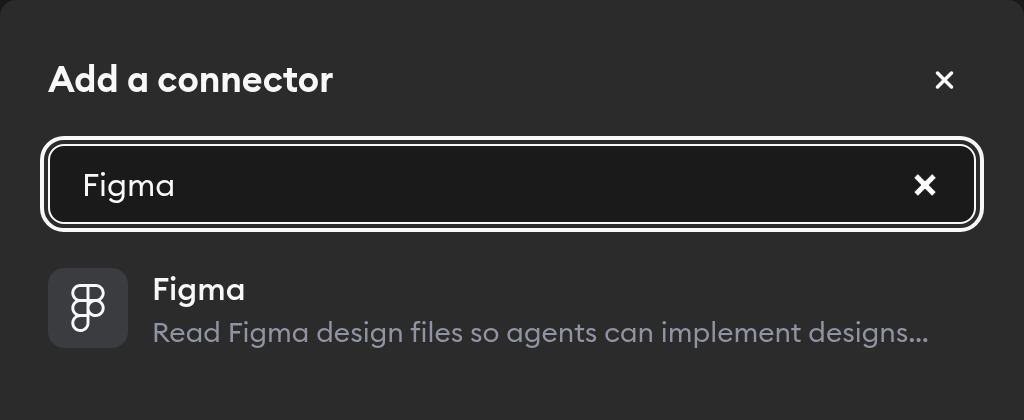
Superconductor has 50+ connectors, and we've made it easier to find the one you're looking for. You can now click Add on your workspace or project's Connectors page to search the available services. Press Enter to select the first match, or use the custom connector option to add your own MCP server if you have permission.
Inspect a connector's calls without leaving the conversation

New agent replies show icons for the connectors they used beside Show work. Click an icon to open that connection's activity, expand its tool calls, and see the results in context. You can also open the connection's settings from the dialog. See Connectors for details.
Give your agents Datadog context
You can now connect Datadog so your agents can investigate logs, metrics, traces, monitors, and incidents, and work with dashboards and notebooks where your permissions allow it. Ask an agent to find the errors behind an incident, then fix the code responsible.
The built-in connector supports Datadog US1 with a personal or service access token. API keys and application keys don't work here. For other Datadog sites, follow the custom MCP setup instructions.
Ask your agent to run a QA check
You can now ask an agent in an implementation or project chat to run an independent QA check. Try “Run a QA check on this implementation and summarize what it found,” or point it at another implementation in the same project. The agent can start the check and read its report, and the results appear in the implementation's QA Check tab.
Start QA checks from the Superconductor API
You can now start a QA Check on an implementation's latest changes through the Superconductor API, then read its status, score, and report. Use it to add an independent review to your own workflow without opening the launch dialog. Checks use the project's default QA agent.
Search just the conversation or the code changes
Implementation search now has separate Search chat and Search diff toggles. Turn either off to focus your results on the conversation or the code changes you're reviewing.
Inspect files and browse images in place
You can now preview the folder tree and file sizes inside ZIP, TAR, TAR.GZ, and TGZ artifacts without downloading and extracting them.
Clicking an image in a conversation or a ticket opens it in a lightbox. Browse conversation images from both you and the agent with the arrow keys or navigation buttons; ticket attachments have their own gallery.
Paste large logs as attachments
Pasted text longer than 10,000 characters now becomes a pasted-message.txt attachment. Your agent still receives the full content, while the conversation stays easier to read.
Share forwarded Slack messages with your agent
When you @-mention Superconductor in Slack, it now includes forwarded messages and their files as context, crediting the original authors. Message-link previews in earlier thread messages are included too, so you can bring an existing discussion into a ticket without copying it by hand. See sharing Slack messages.
More options for Opus and Daybreak users
You can now choose Opus 5.5 in Pi and Cursor. Opus 5 is retired from new selections, with existing selections pointing you toward Opus 5.5.
If your connected ChatGPT account has Daybreak Red approval, you can now choose GPT-6.1 Sol or GPT-6 Astra for Daybreak work in Codex. GPT-6-Cyber is also available with Red approval and separate model access. These extend last week's GPT-6 Sol support; the Daybreak guide explains the access requirements.
Use right-click actions in desktop previews
You can now right-click inside a live preview in the desktop app to open or copy links, save images, control media, or inspect an element. The menu adapts to what you click.
Fixed Issues
Environment setup avoids unnecessary rebuilds
When a preview works but an external service blocks part of it, such as an OAuth redirect restriction, the setup agent now explains the limitation instead of repeatedly rebuilding the environment.
Sending messages feels faster
The reply field now clears immediately when you send a message, so you can start typing your next thought. If sending fails, your unsent content is restored along with anything you typed afterward.
Sign-in returns you to the action you started
Re-authentication now returns you to your original destination, including Personal Access Token creation, instead of sending you to the home page.
Grok Build media steps appear in work logs
Image generation, image editing, and video generation in Grok Build now render as work-log steps instead of showing unknown-tool warnings.
Have feedback or ideas for things you'd like to see on Superconductor? Let us know!