Email triage [Beta]
Superconductor can triage incoming emails using a PM agent that has access to Project tickets and repos.
Your company's customer-facing email inbox is likely a rich source of bug reports, feature requests, general feedback, and questions. You can forward these emails to a special Superconductor email address, and a PM agent will analyze each one with the context of your project's repos and tickets.
For each email, the PM agent will:
- Map each bug report or feature request to an existing ticket, or create a new ticket if none exists
- Draft a response to the email
The PM agent can view images, watch videos, and read documents attached to the email.
Setting up email triage
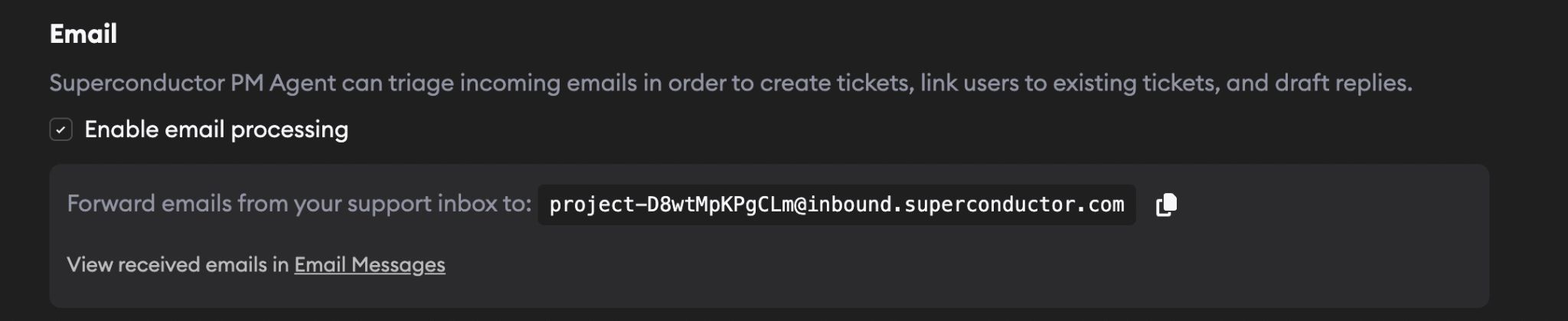
Once email triage is enabled on your project, you can find the special email address for your project in Project Settings. Let's say it's signal-xxx@inbound.superconductor.com.
We recommend setting up auto-forwarding in your email provider to this address. You can auto-forward all emails or just ones matching certain keywords, labels, or tags. For example, you could set up a Gmail filter to forward emails with "bug" or "feature request" in the subject line.
You can also forward emails manually, in which case the From and To addresses may not be quite what you expect, but the PM agent will still be able to figure out who originally sent the email.
Email Signals settings
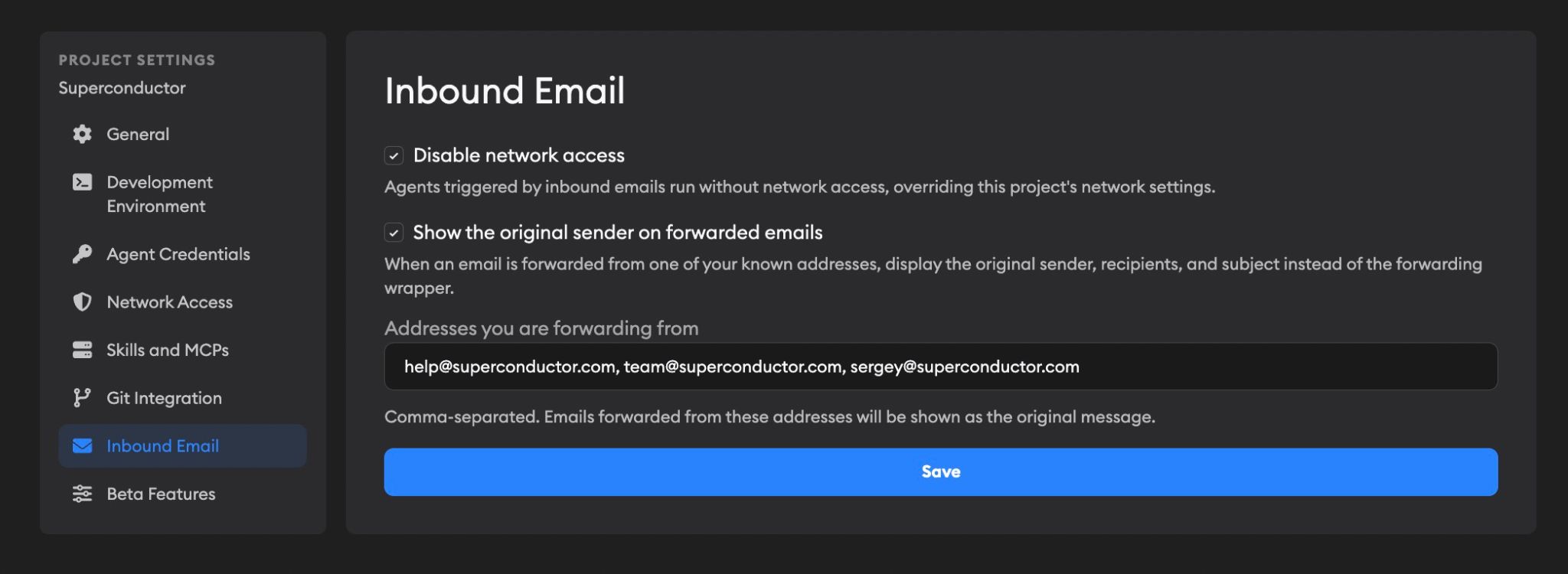
After Email triage is enabled, Project Settings includes an Email Signals tab. Use it to tell Superconductor which addresses you forward from, such as support@company.com or help@company.com.
By default, agents triggered by inbound emails run with Disable network access enabled. This overrides the project's normal network access setting for email-triggered runs, which is useful when forwarded emails may contain customer data. Turn it off only if your email triage workflow needs the agent to reach external services.
When Show the original sender on forwarded emails is enabled, emails forwarded from those known addresses are displayed using the original sender, recipients, and subject instead of the forwarding wrapper.
Email triage uses the best available coding agent based on your project's configured credentials.
Followed email messages appear in your Recent Activity sidebar, so you can track triage updates and unread assistant messages alongside your followed implementations. Sending a chat message on an email follows it automatically.
Viewing triaged emails

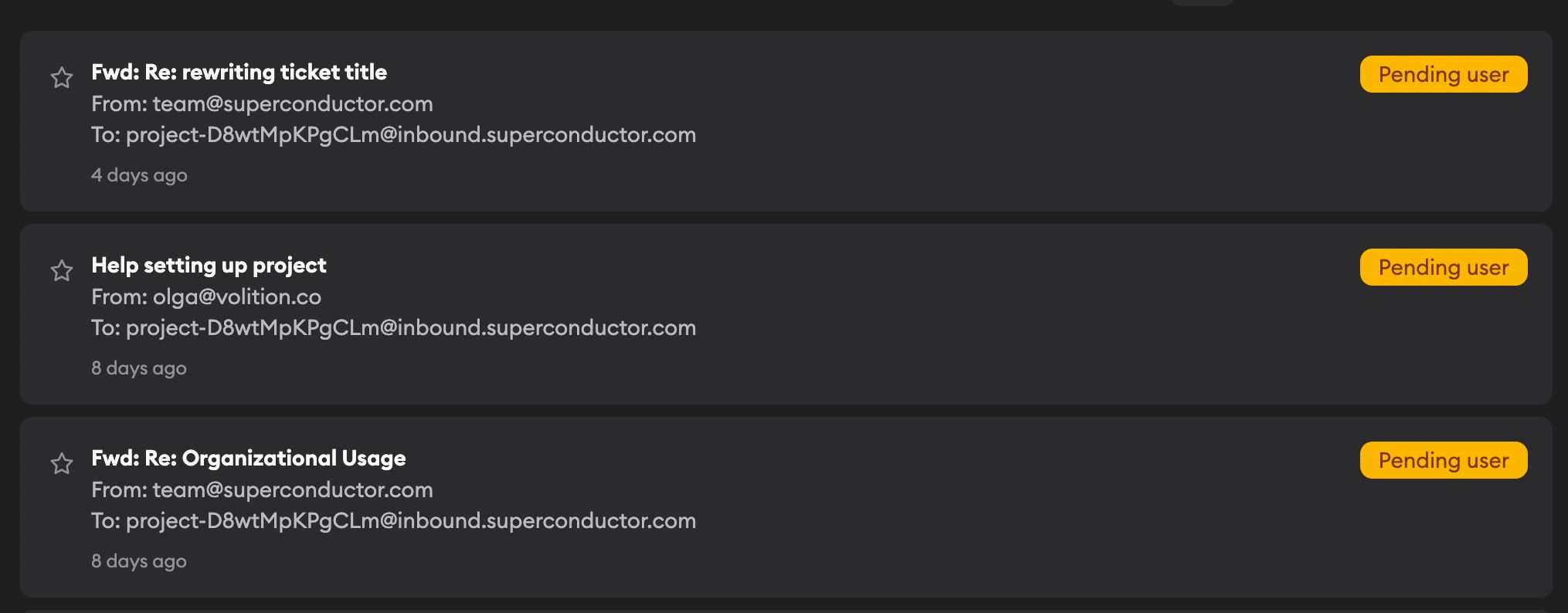
Forwarded emails show up in your project's Emails tab on the Projects dashboard. Each email shows its subject, sender, timestamp, and current status. You can star important emails by clicking the star icon to keep them at the top of the list for easy access.
Status indicators
| Status | Meaning |
|---|---|
| Idle | Email received but the triage agent hasn't started yet |
| Running | The triage agent is currently processing the email |
| Pending user | The agent has finished and is waiting for you to review |
| Failed | The triage agent encountered an error during processing — let us know if you see this |
Click any email to see the full details, including the agent's triage results, linked or created tickets, and the drafted reply.
On the email detail page, use the pane on the left to work with the PM agent and the pane on the right to review the original message, metadata, and attachments. On desktop, both panes can stay open side by side. On mobile, use the pane tabs to switch between them.
Working with triage results
After the PM agent processes an email, you'll see:
- Linked tickets — Existing tickets the agent identified as related to the email, with a reason explaining the connection
- Created tickets — New tickets the agent created based on the email content
- Drafted reply — A suggested response to the original sender. Click Copy Draft to copy the reply text to your clipboard, then paste it into your email provider to send
Email threads
New replies to existing email threads arrive as separate rows in the Email Messages table. Each reply is triaged independently, so the PM agent will analyze it with full context of your project's tickets and repos.
Feedback
This feature is in beta and under active development. We'd love to hear how it's working for you — reach out to us with feedback, questions, or feature requests.