Implementation
Each implementation represents an AI agent working on a ticket, with chat, live preview, and code review capabilities.
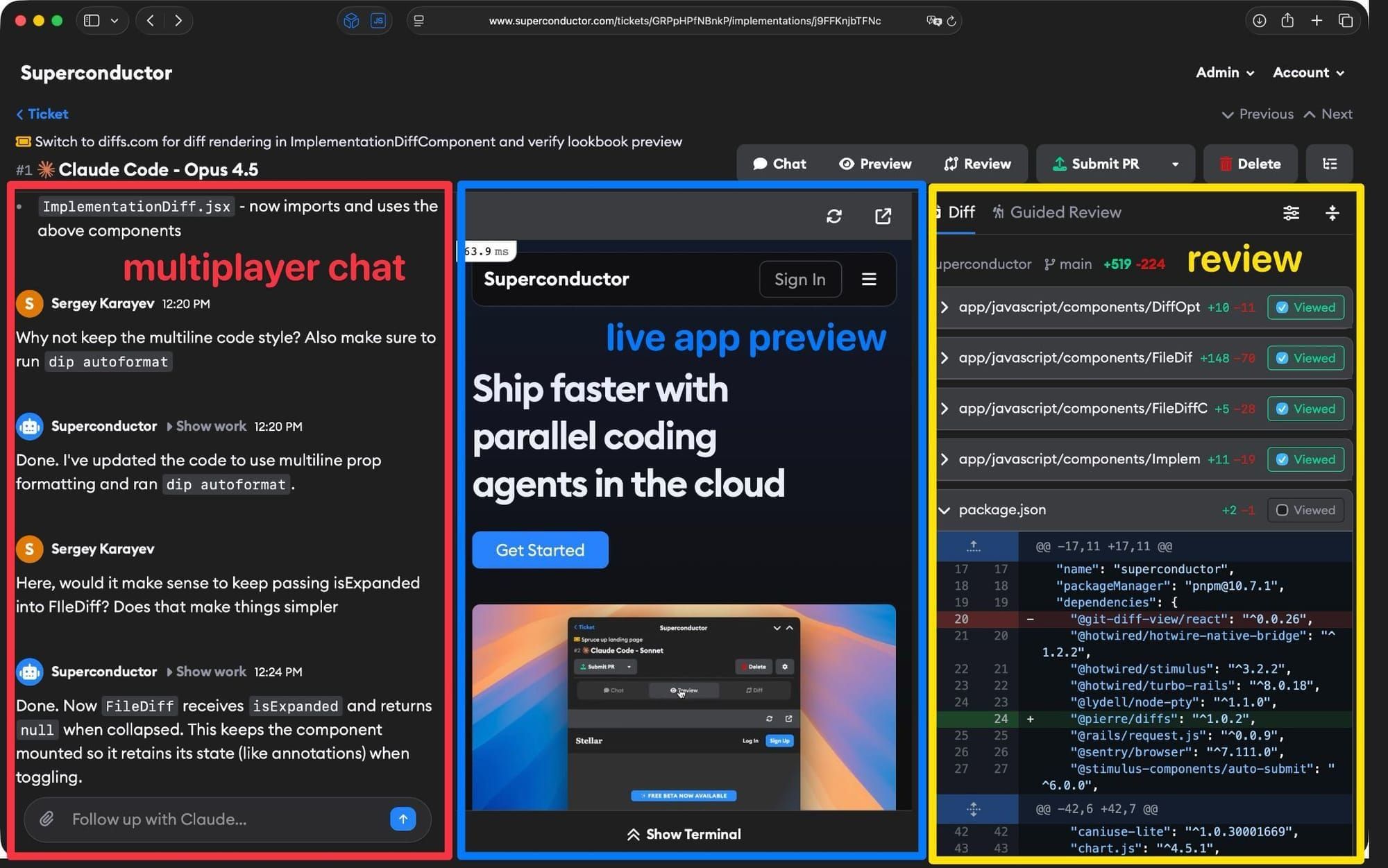
An implementation is an AI agent working on a ticket. Each ticket can have multiple implementations running in parallel, letting you compare different agents or approaches side by side.
Launching implementations
You can launch implementations in two ways:
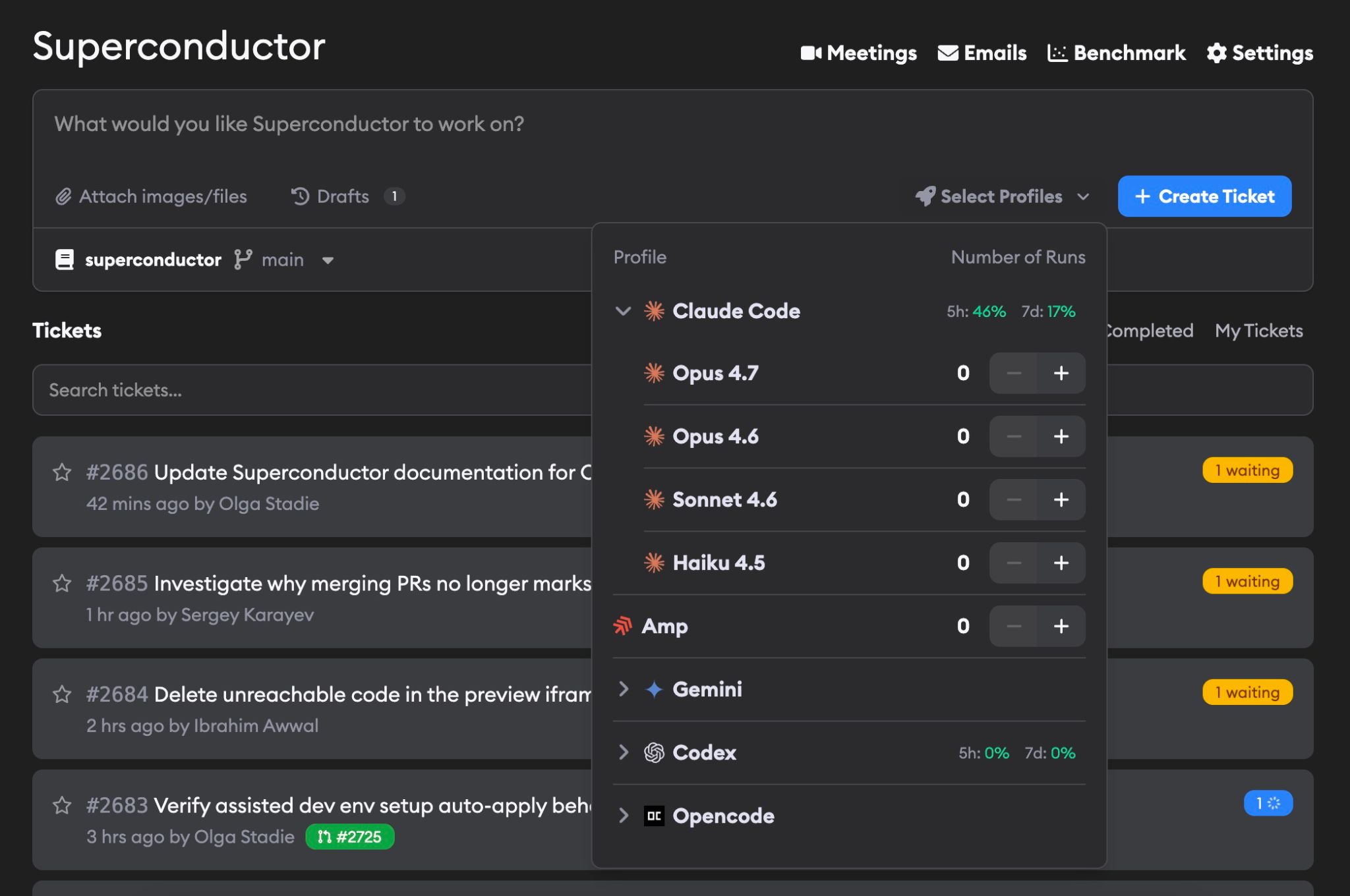
When creating a ticket: Select one or more agents from the Select Profiles dropdown before submitting your ticket. The implementations will start automatically.
The dropdown defaults to one implementation using your Default agent profile, as long as that profile is configured for the project. If it isn't set or isn't available, Superconductor falls back to the best available agent for your configured credentials.
From an existing ticket: Click the + Launch button in the ticket's Implementations section to add another agent to work on the same task.
Superconductor automatically creates a branch for each implementation, so you don't need to ask the agent to create or name one in your ticket description.
How many agents can I launch at once? You can launch up to 12 implementations in a single action. If you need more than 12, launch the first set, then use + Launch again to add more. Each implementation gets its own isolated workspace to prevent conflicts.
Not seeing an agent you want? Check that you have the required API key or connected plan configured. See Agent credentials for setup details and Agents for the full list of supported agents.
Usage stats
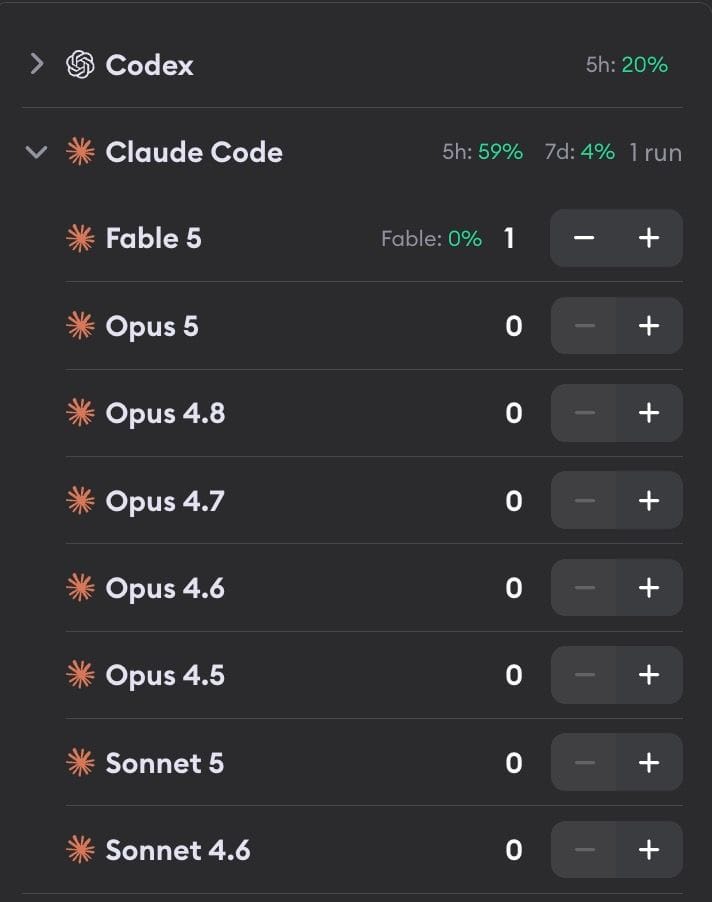
If you've connected your Claude Pro, Max, or Team plan or ChatGPT Pro plan via OAuth, Superconductor displays your rate limit utilization next to the agent name. You'll see two numbers:
- 5h — Percentage of your 5-hour rolling window rate limit consumed
- 7d — Percentage of your 7-day rolling window rate limit consumed
A rolling window means the limit tracks your usage over a continuous period ending at the current moment. For example, the 5-hour window counts all connected-plan usage from the last 5 hours — as older usage falls outside the window, your utilization drops.
The numbers are color-coded:
- Green — Under 70% utilization
- Yellow — 70–89% utilization
- Red — 90% or above, approaching the limit
When utilization reaches 70% or higher, you'll also see a countdown showing when the window resets.
If utilization exceeds 100%, your plan's rate limit is fully consumed and implementations will stop until the window resets. Superconductor does not automatically fall back to an API key. You can either wait for the reset or disconnect your plan in account settings and use an API key instead. See Agent credentials for more details.
Fable usage. Claude plans meter Fable 5 against its own weekly limit, separate from the account-wide 5h and 7d windows. So you'll see a third number — Fable — on the Fable 5 row in the profile selector, and in the header of an implementation running Fable 5. It's color-coded and counts down to its reset just like the others. Because this limit is scoped to Fable, it moves on its own: if Fable is used up but your 5h and 7d numbers still have room, you can still launch implementations on Opus 5 or Sonnet 5.
Usage stats only appear for Claude Code and Codex when using a connected plan (OAuth). They don't appear when using API keys, or for other agents.
The implementation dashboard
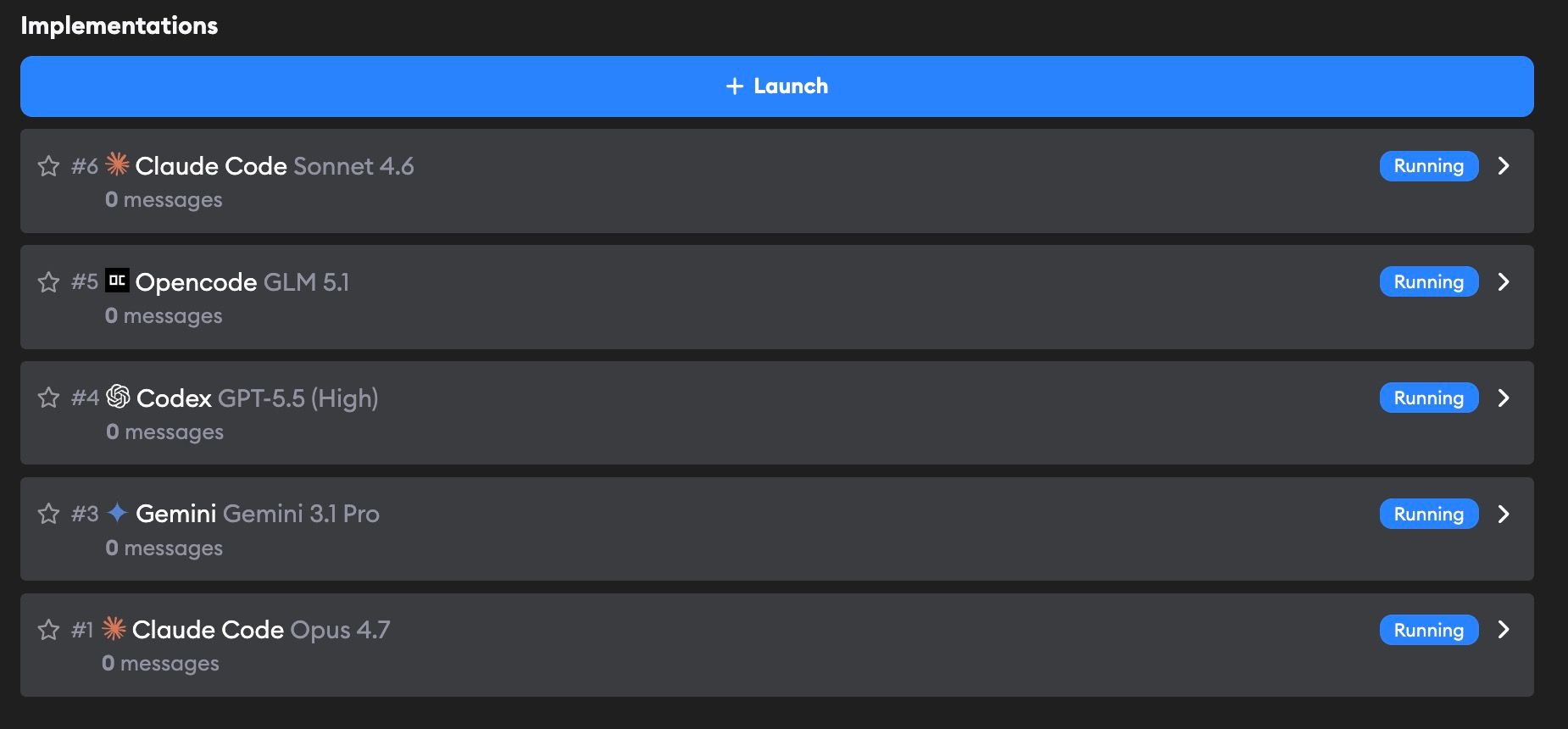
Every ticket shows a dashboard of its implementations. Each implementation card displays:
- Agent profile — The agent name and model (e.g., "Claude Code - Opus 5")
- Messages — Number of messages in the conversation
- Cost — What the implementation cost to run. Runs on an API key show the estimated API charge (e.g.,
$2.50). Runs covered by a connected plan show $0 — because your plan already covers them — followed by a faded token value in parentheses (e.g.,$0 ($2.50 token value)). The token value estimates what those tokens would have cost at API rates; it is not a charge on your plan. Use usage stats to track connected-plan usage. - Run time — How long the agent has been working
- Artifacts — Click to expand and view images and files the agent has shared (see Artifacts for details)
- Status — Current state of the implementation
Implementation statuses
| Status | What it means |
|---|---|
| Running | The agent is actively working on the task |
| Waiting | The agent is waiting for your input before continuing |
| Idle | The agent has not begun running |
| Failed | Something went wrong — please let us know if you see this |
Starring implementations
Click the star icon on any implementation to mark it as a favorite. You can star implementations from the ticket's implementation dashboard or from the implementation show page. Starred implementations help you quickly flag your favorite solutions when comparing multiple approaches.

Starring an implementation also automatically follows it, so you'll get updates in your Recent Activity sidebar.
Following implementations
To follow or unfollow an implementation, open the ⋯ overflow menu in the implementation header and click Follow or Unfollow. When you follow an implementation, you'll stay updated on its progress and it will appear in your Recent Activity sidebar.
Superconductor automatically follows implementations for you in these cases:
- When you launch an implementation
- When you send a message in an implementation's chat
- When you star an implementation
- When you're requested as a reviewer on the implementation's GitHub PR (requires a Superconductor account with a linked GitHub identity)
You can also trigger a follow by interacting with an implementation via Slack or GitHub.
To unfollow, open the overflow menu again and click Unfollow. Superconductor also automatically unfollows you from all of a ticket's implementations when the ticket is completed — for example, when all pull requests are merged.
Customizing implementation display

Within any implementation, use the toggle buttons to show or hide the three main sections: Chat, Preview, and Review.
Searching an implementation
Press Cmd+F (macOS) or Ctrl+F (Windows and Linux) on an open implementation to search its chat and code diff at once. A search bar opens in the top-right corner.
This is a built-in search, not your browser's find. It can match text anywhere in the diff — even inside large files whose lines aren't currently rendered on screen — which your browser's own find can't do. It works the same way in a web browser and in the desktop app.
- Type to highlight every match across the chat and diff.
- The counter shows your position, like
1/5. - Use the up and down arrows, or
Enter/Shift+Enter, to jump to the next or previous match. - Press
Escor click the close button to dismiss the search bar.
Keyboard shortcuts
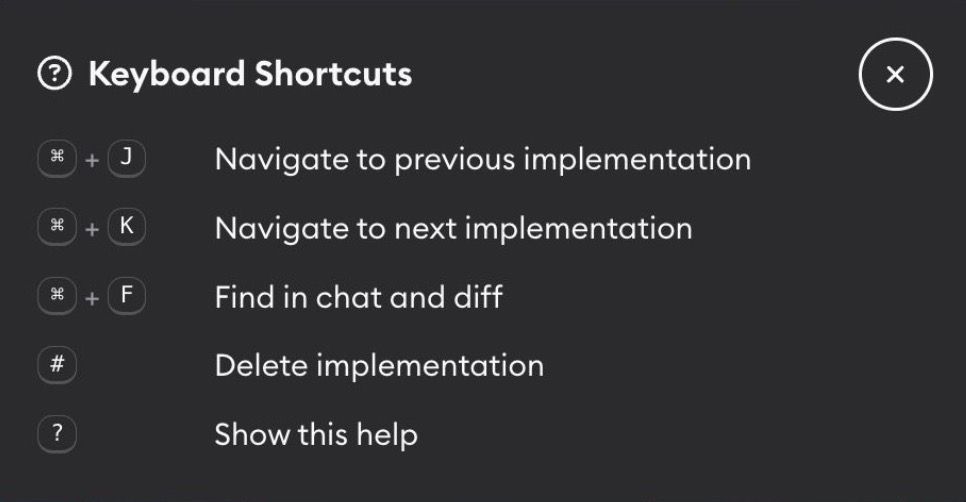
With an implementation open, press ? to bring up this list at any time.
| Shortcut | What it does |
|---|---|
Cmd/Ctrl+J | Go to the previous implementation |
Cmd/Ctrl+K | Go to the next implementation |
Cmd/Ctrl+F | Search the chat and diff at once |
# | Delete the current implementation |
? | Show keyboard shortcuts list in app |
Cmd/Ctrl+J and Cmd/Ctrl+K only do something when the ticket has more than one implementation. Because they need the modifier key, typing j or k in a message never triggers them — but they still fire while your cursor is in a text box, so Cmd/Ctrl+J navigates away even mid-message. # and ? are single keypresses, so they're ignored whenever you're typing.
See Keyboard shortcuts for the rest of the app.
Creating pull requests

Want your agents to send commits to GitHub automatically? Enable Automatically commit and push branch in your project's Git Sync settings to have agents commit and push after every response — no manual step needed.
When you're happy with an implementation, click Submit PR to create a pull request on GitHub. Superconductor commits the agent's changes and opens a PR against your base branch. To learn more about interacting with agents from your pull request, see the GitHub integration docs.
If the agent makes more changes after you've submitted the PR (for example, after you ask it to fix something in chat), click Update PR to push the new changes. Each update creates a new commit on the existing PR—your review comments and CI status stay intact.
The button shows the current state:
| Button | What it means |
|---|---|
| Submit PR | No PR exists yet. Click to create one. |
| Update PR | The agent has made changes since you last pushed. Click to add a new commit to the existing PR. |
| View PR | The PR is up to date with the agent's latest changes. Click to open it on GitHub. |
The icon on the View PR button changes color to reflect the pull request's status on GitHub:
| Open | Merged |
|---|---|
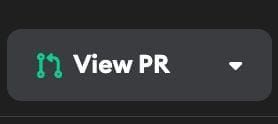 | 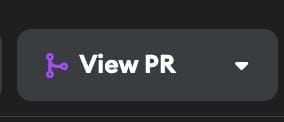 |
You can also use the dropdown menu to copy the branch name or push the branch to GitHub without creating a PR (useful if you want to open the PR manually).
Branch naming
Branch names are generated from a customizable template. You can configure the pattern in your workspace's branch naming settings.
Multi-repo projects
If your project has multiple repos and the agent makes changes across more than one, Superconductor creates a separate PR for each repo. The button labels update automatically — Submit PRs, Update PRs, and View PRs — and a dropdown lets you view each PR individually by repo name and number.
Next steps
- Chat with your agent to refine the implementation
- Review the diff to see all code changes
- Test with Live Preview to try the changes in a live environment