Atlassian Rovo MCP
Connect agents to Jira through Atlassian Rovo MCP.
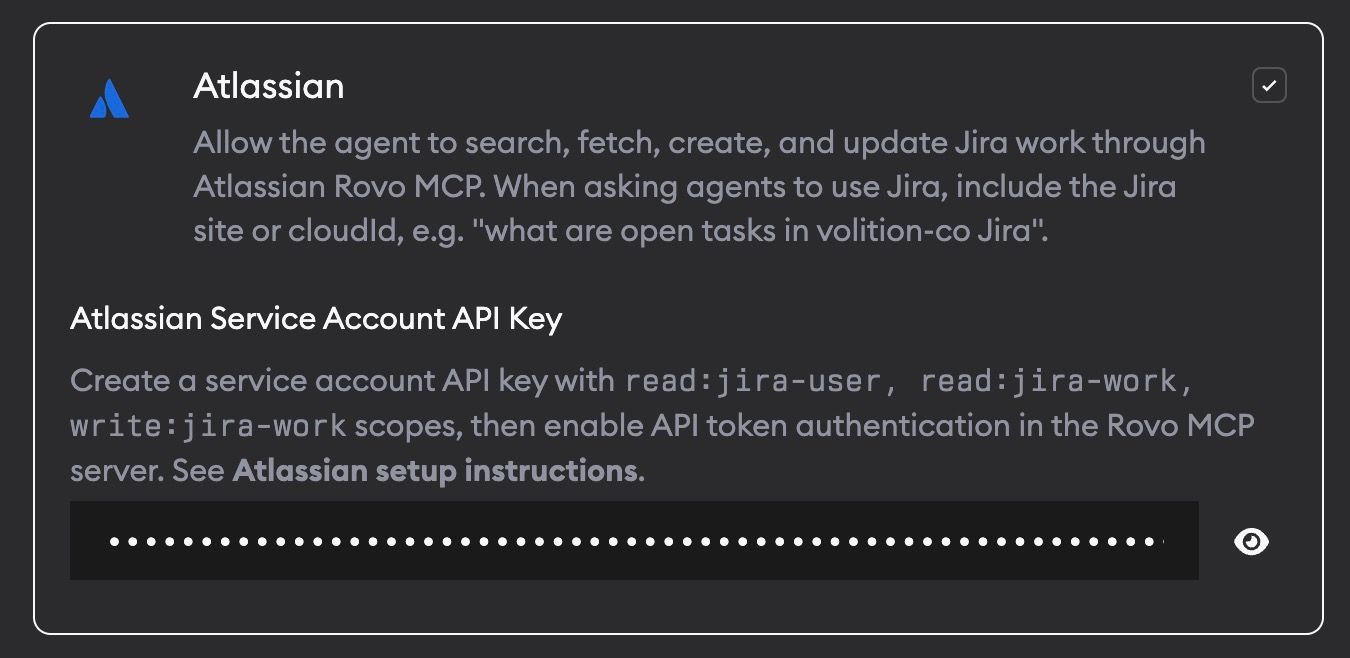
Atlassian Rovo MCP gives agents access to Jira work through Atlassian's remote MCP server. Use it when you want agents to look up Jira issues, summarize work, create follow-up issues, update fields, comment on issues, or move issues through workflow transitions.
Superconductor connects to Atlassian Rovo MCP using a service account API key. This keeps the integration available to cloud agents without an interactive browser login.
What agents can do
With Jira scopes enabled, agents can:
- Search issues with JQL
- Get issues by key or ID
- List visible Jira projects and project issue types
- Read create-field metadata for issue types
- Create and edit Jira issues
- Add comments and worklogs
- Transition Jira issues through available workflow states
- Link or inspect related Jira work
Atlassian Rovo MCP can also expose Confluence, Compass, Jira Service Management, Bitbucket, and Teamwork Graph tools when your Atlassian token has the required scopes. Superconductor's setup copy focuses on Jira because that is the common coding-agent workflow.
Setup
- In Atlassian Administration, make sure API token authentication is enabled for the Atlassian Rovo MCP server.
- Create a service account API key with these Jira scopes:
read:jira-userread:jira-workwrite:jira-work
- In Superconductor, go to Project Settings -> Skills and MCPs.
- Enable Atlassian.
- Paste the service account API key into Atlassian Service Account API Key.
Your key is stored encrypted and only passed to agents when Atlassian MCP is enabled.
Using Jira from chat
When you ask agents to use Jira, include enough site context for Atlassian to pick the right cloud site.
Good examples:
Use Jira in the volition-co site to summarize open tasks in PROJ assigned to me.Look up PROJ-123 in Jira, inspect the acceptance criteria, and update the implementation plan.Create a Jira issue in the APP project for the regression we just found. Include repro steps and link it to PROJ-123.If your organization has multiple Atlassian sites, include the site name or cloudId.
Security notes
Atlassian Rovo MCP actions use the permissions granted to the API key. Use a service account with only the scopes and project permissions agents need.
If your organization uses Atlassian IP allowlisting, Atlassian evaluates tool calls against the allowlist for the relevant product. Jira-related MCP calls must come from an IP allowed by your Jira allowlist.
Learn more in Atlassian's docs for API token authentication, supported tools, and Rovo MCP security controls.
Troubleshooting
The agent cannot find the right Jira site
Include the Atlassian site name or cloudId in your prompt. Atlassian API tokens are not bound to one cloudId, so the agent may need explicit site context.
Jira tools are missing
Check that API token authentication is enabled in Atlassian Administration and that the service account API key includes the Jira scopes listed above.
Atlassian blocks tool calls by IP
Ask your Atlassian admin to review the organization IP allowlist for Jira. If allowlisting is enabled, Superconductor agent traffic must come from an allowed IP.