Ticket
A ticket describes a feature, bug fix, or refactor to implement in your project.
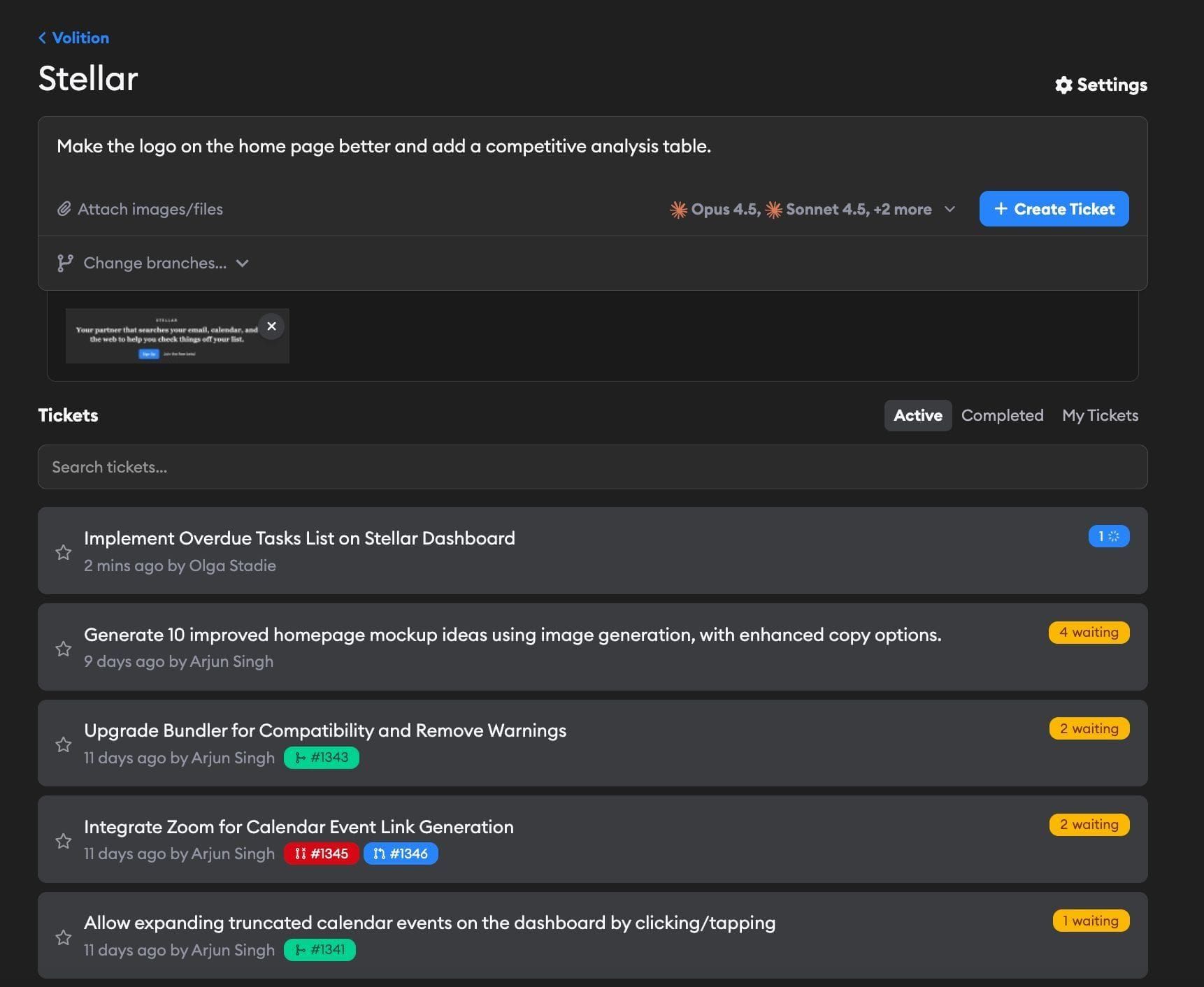
A ticket describes a feature, bug fix, or refactor to implement in your project. Each ticket has:
- Description: The task or feature to be implemented
- Title: Automatically generated from the description
- Status: Whether the ticket is completed or in progress
- Implementations: One or more agent implementations working on the ticket
Creating tickets

You can create a ticket from the app in three places:
- Project dashboard: Click Create Ticket on a project's ticket dashboard. The ticket lands in that project.
- Workspace dashboard: Use the ticket form at the top of your Projects page and pick which project the ticket belongs to. This is handy when you work across several projects.
- Sidebar: Click New Ticket in the sidebar to open the form from anywhere in the app, then pick the project. In the desktop app,
Cmd/Ctrl+Ndoes the same thing.
They all use the same form. Its fields are:
- Project: On the workspace dashboard, choose which project the ticket belongs to. On a project dashboard, the project is already set.
- Repository and branch: By default, agents start from each linked repo's default branch. Expand Change branches... to pick a different one. See Changing branches.
- Description: Describe the task or feature to build. This is the only required field — the title is generated from it.
- Agent: Pick which agent and model runs the ticket, and how many implementations to launch at once (the
1xselector). By default, the form starts with one implementation of your Default agent profile (or the best available agent if that isn't set), so you can submit a ticket without changing anything here. - Attachments and drafts: Attach images, videos, or files for context, and manage saved drafts. See Attaching images, videos, and files and Drafts.
Tickets can also be created without opening the form:
- Via Slack: Mention
@Superconductorin a Slack channel. See Slack Integration for details. - Via GitHub: Tag
@superconductorin PR comments. See GitHub Integration for details. - External PRs: Automatically create tickets from PRs opened outside Superconductor, optionally with a live preview and Guided Review. See Treatment of PRs created outside of Superconductor for details.
- Automations: Create tickets on a recurring schedule, or when a pull request is merged. See Automations for details.
- Email triage: Forward emails to your project's inbound address. See Email triage [Beta] for details.
Attaching images, videos, and files
When creating or editing a ticket, you can attach images, videos, or documents to provide additional context for the agent. There are three ways to attach files:
- Upload button: Click the "Attach images/files" button below the description field to browse and select files from your computer.
- Drag and drop: Drag files directly into the ticket creation form.
- Copy and paste: Copy an image to your clipboard and paste it into the form.
You can attach any file type — all uploads are shared with the agent. Common image formats (PNG, JPEG, GIF, SVG, WebP, and more) and video formats (MP4, MOV, WebM, AVI, MPEG, WMV, FLV, and 3GP) preview inline. PDFs, Word documents, and text-based files attach as downloadable files, and all other file types are also accepted. Images can be up to 10 MB, documents and other files up to 25 MB, and videos up to 100 MB.
Drafts

When you start writing a ticket description, Superconductor automatically saves it as a draft on your device. If you navigate away or close the page, your work isn't lost.
Click the Drafts button below the description field to open the drafts panel, where you can:
- Restore a previous draft to continue where you left off
- Delete drafts you no longer need
- Save and Start New to stash your current description and begin a fresh one
Drafts are stored locally on your device and are scoped to each project. The badge on the Drafts button shows how many saved drafts you have.
Changing branches
By default, agents working on your ticket will use the default branch (e.g., main) for each repository linked to the project. If you want agents to work from a different branch, you can change this when creating a ticket.
For projects with a single repository, a branch selector appears in the ticket creation form. For projects with multiple repositories, expand the "Change branches..." section to see a branch selector for each repository. Use the search field within the selector to find branches by name.
Stacked tickets and automatic retargeting
Picking another ticket's branch as your base is a common way to stack work — for example, start Ticket B on top of Ticket A's feature branch so B can build on changes that aren't merged yet.
When an upstream pull request merges, Superconductor automatically retargets any tickets based on that branch to the PR's target branch. For example, if Ticket A's branch merges into staging, tickets stacked on Ticket A move to staging; if an intermediate stack branch merges into another feature branch, tickets stacked on that intermediate branch move to the parent feature branch. Superconductor does not retarget tickets away from the repository's configured default branch when that branch is merged elsewhere, such as a staging to main production deploy.
Ticket dashboard
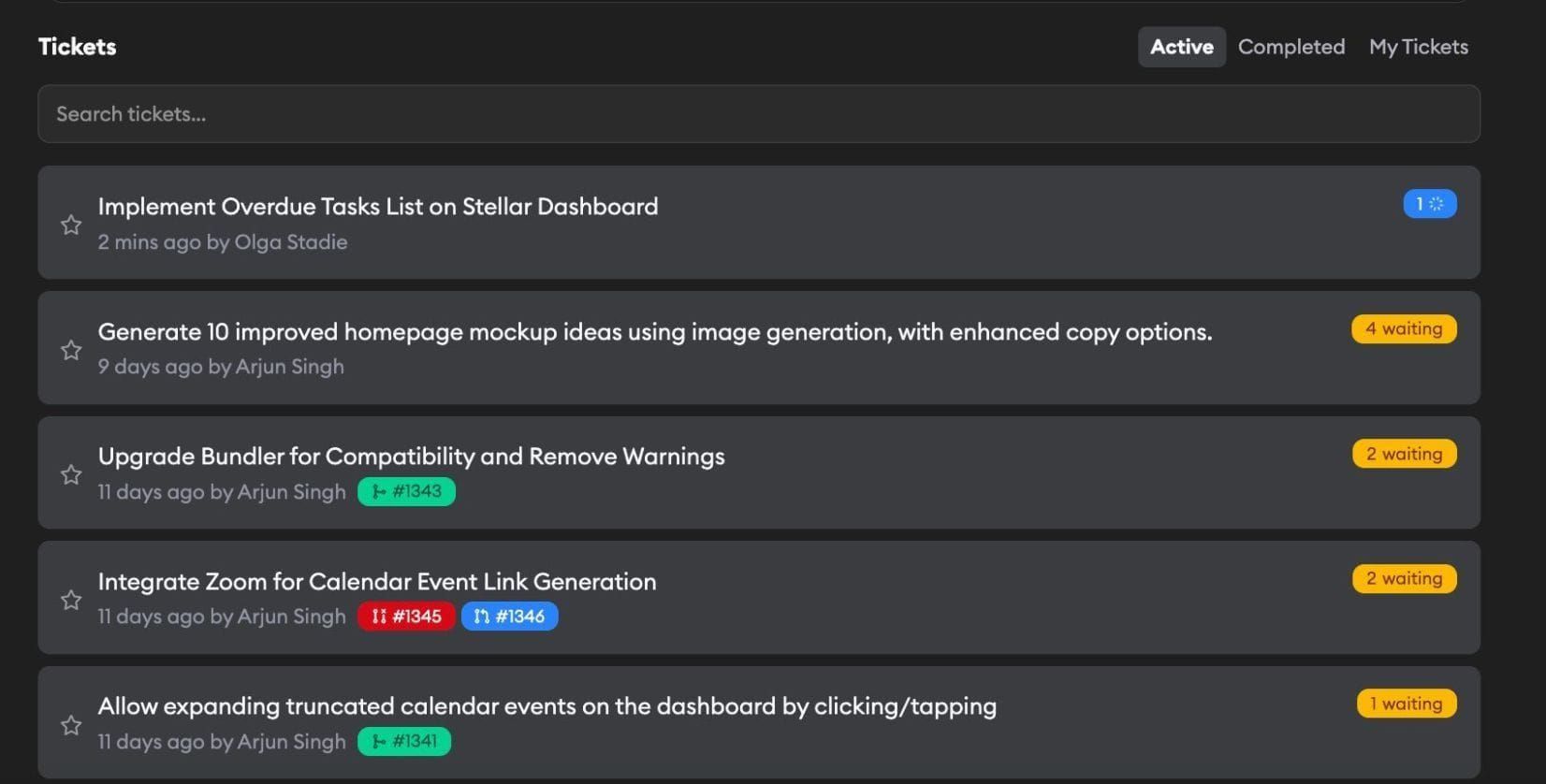
When you click into a project, you'll see your ticket dashboard — a list of all tickets in that project.
Starring tickets
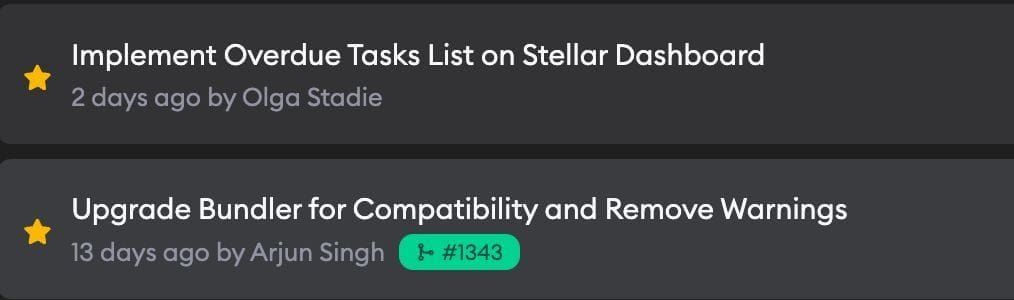
Click the star icon on any ticket to mark it as important and move it to the top of the ticket list. Starred tickets are a quick way to bookmark the ones you want to keep an eye on.
You can star a ticket from the ticket list or from the ticket title on the ticket page.
Filtering tickets

Use the tabs at the top right to filter your view:
- Active: Tickets that are still in progress
- Completed: Tickets that are done (auto-marked when all the linked PR(s) are merged)
- My Tickets: Tickets you created or that were created from a Slack or GitHub conversation you were involved in
You can also use the search bar to find tickets by title or description.
Ticket cards

Each ticket card shows:
- Status indicator: A badge showing the current state of the ticket's implementations
- Creation info: When the ticket was created and who created it
- GitHub tag: If a PR has been created, you'll see a tag linking to it
Implementation statuses
| Status | Description |
|---|---|
| Running | At least one implementation is currently running |
| X waiting | X implementations are waiting for user input |
| X running | X implementations are actively working |
GitHub tag colors
When a ticket has an associated PR, you'll see a colored GitHub tag:
| Color | Meaning |
|---|---|
| Green | PR is open |
| Purple | PR has been merged |
| Red | PR was closed without merging |
| Gray | PR is a draft |
Implementations
Each ticket can have multiple implementations running in parallel. This allows you to compare different agents or approaches side by side. You can launch up to 12 implementations at a time, and you can add more later with + Launch. When a ticket has multiple implementations, Implementation Recommendations can automatically compare them and recommend the best one. See Implementation for more details on working with implementations.