Network sandboxing
Control which external domains your coding agents can access while running.
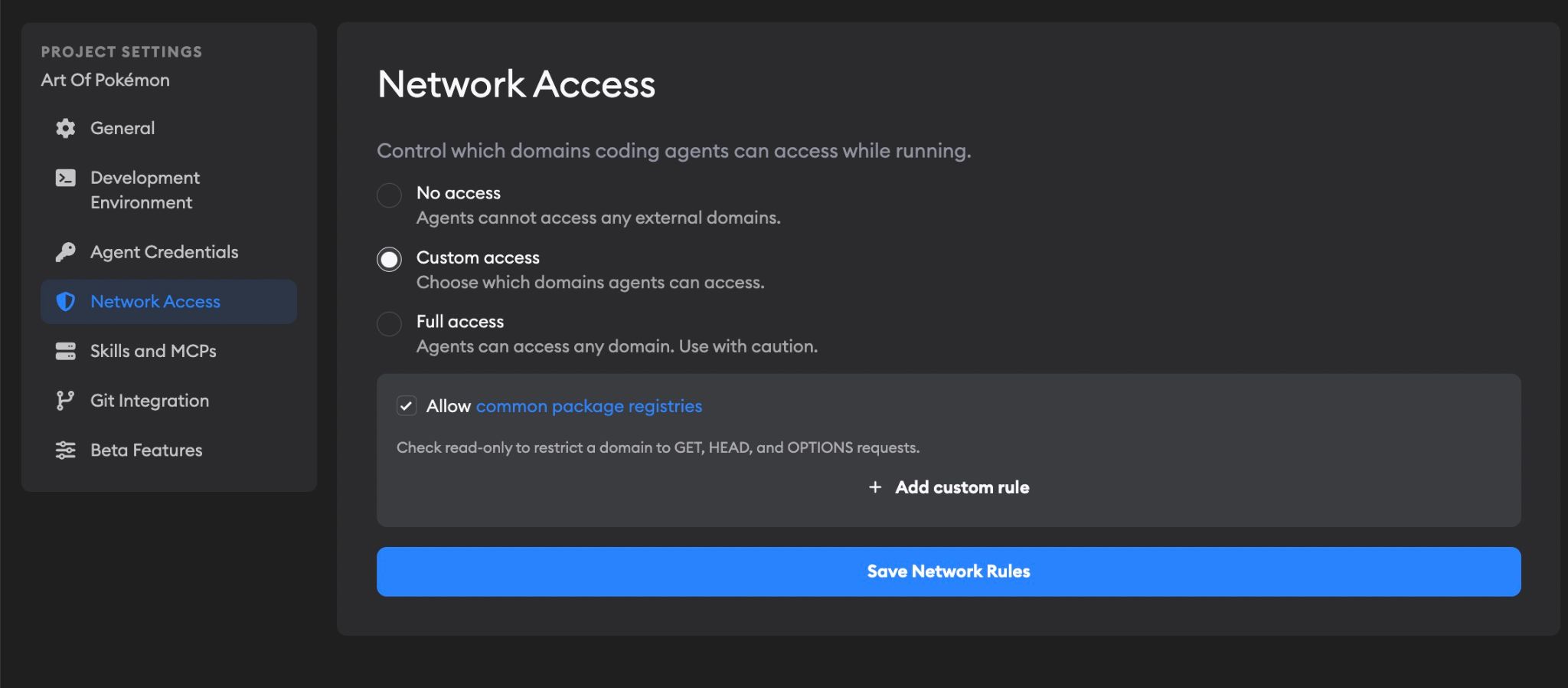
Network sandboxing lets you control which external domains coding agents can access. Every agent runs inside a sandbox that enforces your project's network rules.
Access modes
Go to Project Settings → Network Access to configure sandboxing. You'll see three modes:
- No access — Agents can't reach any external domains. Only internal Superconductor domains and the agent's own provider API are allowed.
- Custom access (default) — You pick exactly which domains agents can reach, plus an optional set of trusted package registries.
- Full access — Agents can reach any domain. Use this with caution.
Custom access
Custom access gives you fine-grained control and is the default network access setting for new projects. You can add rules for specific domains and optionally include a curated list of trusted package registries.
Adding custom rules
Click Add custom rule to allow a domain. Each rule has:
- Host — A domain like
example.com, or a wildcard like*.example.com. You can also paste a full URL likehttps://example.com/docsand the path is split out automatically. - Path (optional) — A path prefix like
/api/v1. When set, only requests whose path starts with the prefix are allowed. Leave blank to allow all paths on the host, and add another rule with the same host to allow more paths. - Read-only — Restricts the agent to GET, HEAD, and OPTIONS requests only. Useful when you want agents to read from an API but not write to it. New rules are read-only by default; uncheck this if the agent needs to write to the domain.
Add as many rules as your project needs. For example, if your agents need to hit a staging API or a private package registry, add those domains here.
Trusted package registries
Check Allow common package registries to include domains for popular package managers and development tools:
- GitHub —
github.com,*.github.com,raw.githubusercontent.com, and more - npm / Node / Yarn —
registry.npmjs.org,nodejs.org,*.yarnpkg.com, and more - PyPI —
pypi.org,files.pythonhosted.org - RubyGems —
rubygems.org,*.rubygems.org - Cargo —
crates.io,*.crates.io,sh.rustup.rs,static.rust-lang.org - Go modules —
proxy.golang.org,sum.golang.org,go.dev - Docker Hub —
registry-1.docker.io,auth.docker.io,production.cloudflare.docker.com - Ubuntu / Debian —
archive.ubuntu.com,security.ubuntu.com,ppa.launchpad.net, and more - HashiCorp —
releases.hashicorp.com,apt.releases.hashicorp.com,rpm.releases.hashicorp.com - Kubernetes —
dl.k8s.io,pkgs.k8s.io,*.k8s.io - Playwright —
cdn.playwright.dev(browser downloads)
This is enabled by default. Click the common package registries link in the settings to see the full list of domains.
MCP servers are not included in the trusted package registries list. When you enable an MCP server, Superconductor automatically adds the network rules it needs.
Automatically allowed domains
Some domains are always allowed, regardless of your access mode:
- Superconductor — The platform itself, so agents can communicate with Superconductor
- File storage — For uploading and downloading files during implementations
- Agent provider APIs — Each coding agent automatically gets access to its own provider. For example, Claude Code can reach
*.anthropic.com, Codex can reachapi.openai.com, and so on. You don't need to add these manually.
Choosing the right mode
| Mode | Best for | Trade-off |
|---|---|---|
| No access | Security-sensitive projects, air-gapped workflows | Agents can't install packages or reach external services |
| Custom access | Most projects | You control exactly what's allowed |
| Full access | Projects that need broad internet access | No network restrictions on agents |
We recommend starting with custom access (the default) and the trusted package registries enabled. If agents need access to additional services, add those domains as custom rules or enable the relevant Superconductor-provided MCP or skill.
Troubleshooting
Agent can't install packages
If an agent fails to install dependencies (npm, pip, bundler, etc.), make sure:
- You're using custom access or full access mode
- Allow common package registries is checked (in custom mode)
- If you use a private package registry, add its domain as a custom rule
Agent can't reach an external API
Add the API's domain as a custom rule. Use wildcards if the API uses subdomains (e.g., *.api.example.com).
Agent can't reach domain
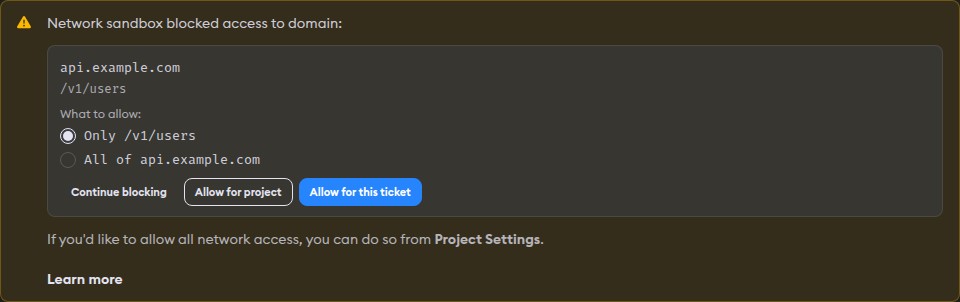
If an agent tries to access a domain that is not allowed, you'll see a warning in chat that says "Network sandbox blocked access to domain".
From that warning, you can choose:
- Continue blocking — Keep blocking that domain.
- Allow for project — Add that domain to your project's allowed network rules. It will appear in your Custom Rules.
- Allow for this ticket — Allow that domain for the current ticket. This option appears only in ticket implementations.
When the blocked requests include paths (for example, /v1/users on api.example.com), they're grouped by domain and a What to allow choice appears above the buttons:
- Only the blocked paths (default) — Allow just those path prefixes on the host.
- All of the domain — Allow the whole domain.
Pick the scope, then click Allow for project or Allow for this ticket as usual.
Use Allow for project for domains your team expects to use repeatedly (for example, your API host or private package registry). Use Allow for this ticket for one-off needs. Keep the default path-only scope when the agent only needs one endpoint.
The new access rules take effect on the agent's next run in that chat. After allowing access, send a message to start another run; the blocked agent does not resume automatically.