Workspace
Workspaces allow your team to work in a shared set of projects, with shared agent credentials and integrations.
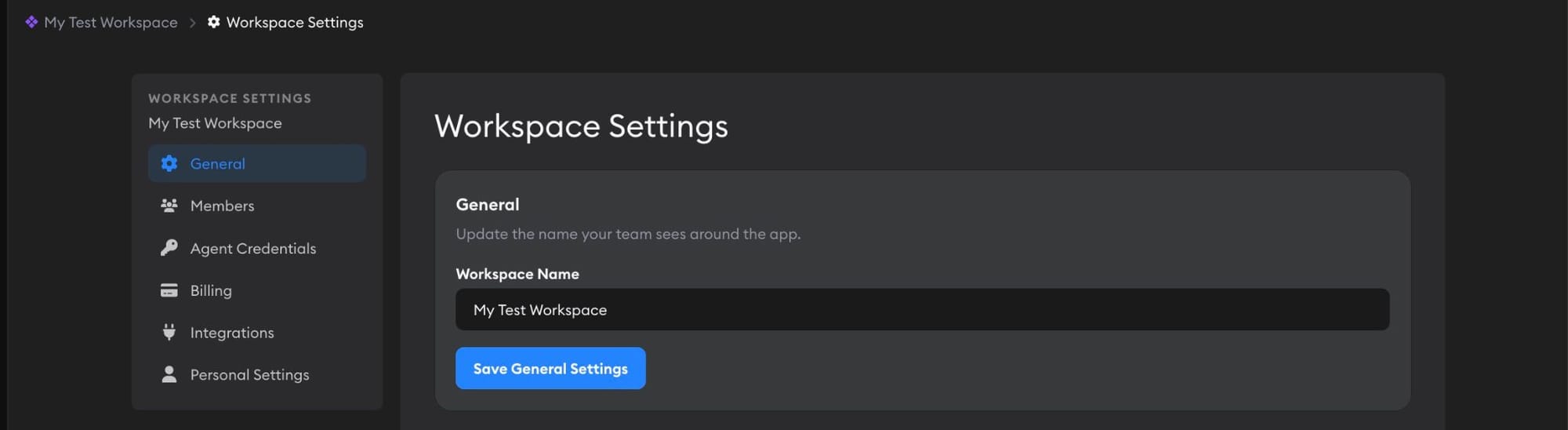
Workspaces allow your team to work in a shared set of projects, with shared agent credentials and integrations.
Switching workspaces
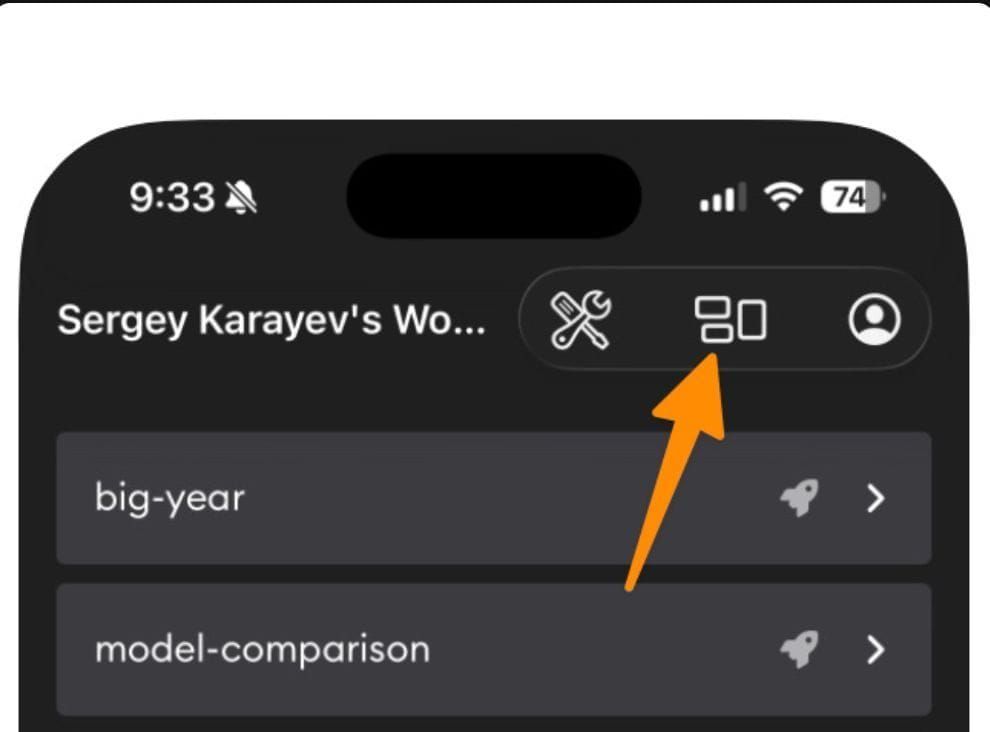
You can switch workspaces or create a new one by clicking the current workspace name in the recent activity sidebar.
On mobile, tap the workspaces icon.
Setting up a workspace
See Workspace setup in our Quick start guide.
Workspace settings
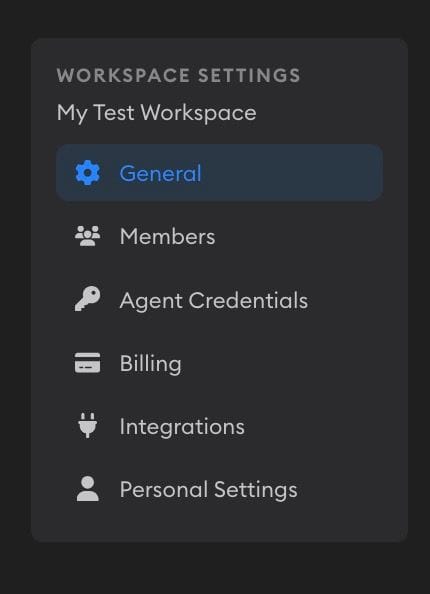
Workspace Settings is organized into several sections, accessible from the sidebar:
- General — Rename or delete your workspace and configure branch naming
- Members — Invite teammates, manage roles, and see which agent plans each member has connected
- Agent Credentials — Add API keys and connected plans for coding agents
- Billing — Track workspace credits
- Integrations — Connect GitHub and Slack
- Personal Settings — Add your own tokens that apply only to you in this workspace, like your Figma MCP token
To open Workspace Settings, click on your workspace name in the Activity Sidebar and select Settings, or click Workspace Settings from your Projects page.
Branch naming
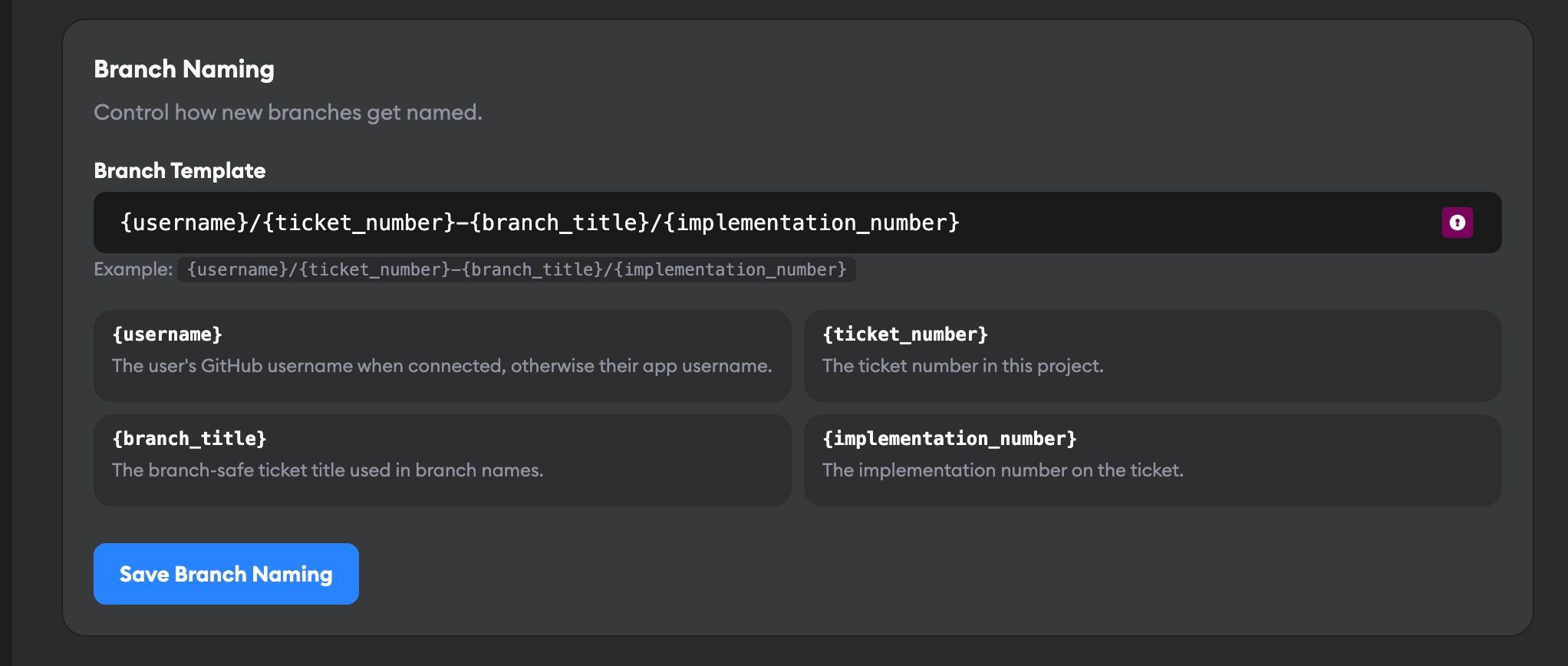
You can customize how Superconductor names the Git branches it creates for implementations. Go to Workspace Settings → General and find the Branch Naming section.
The branch template supports these variables:
| Variable | Description |
|---|---|
{username} | Your GitHub username (or app username if GitHub isn't connected) |
{ticket_number} | The ticket number in the project |
{branch_title} | A branch-safe slug of the ticket title |
{implementation_number} | The implementation number on the ticket |
The default pattern is:
{username}/{ticket_number}-{branch_title}/{implementation_number}This produces branches like jane/42-fix-mobile-login/1.
Rearrange or remove variables to match your team's conventions. The template must always include {ticket_number} and {implementation_number}.
Branch naming applies to all new implementations in the workspace. Existing branches are not renamed.
Members
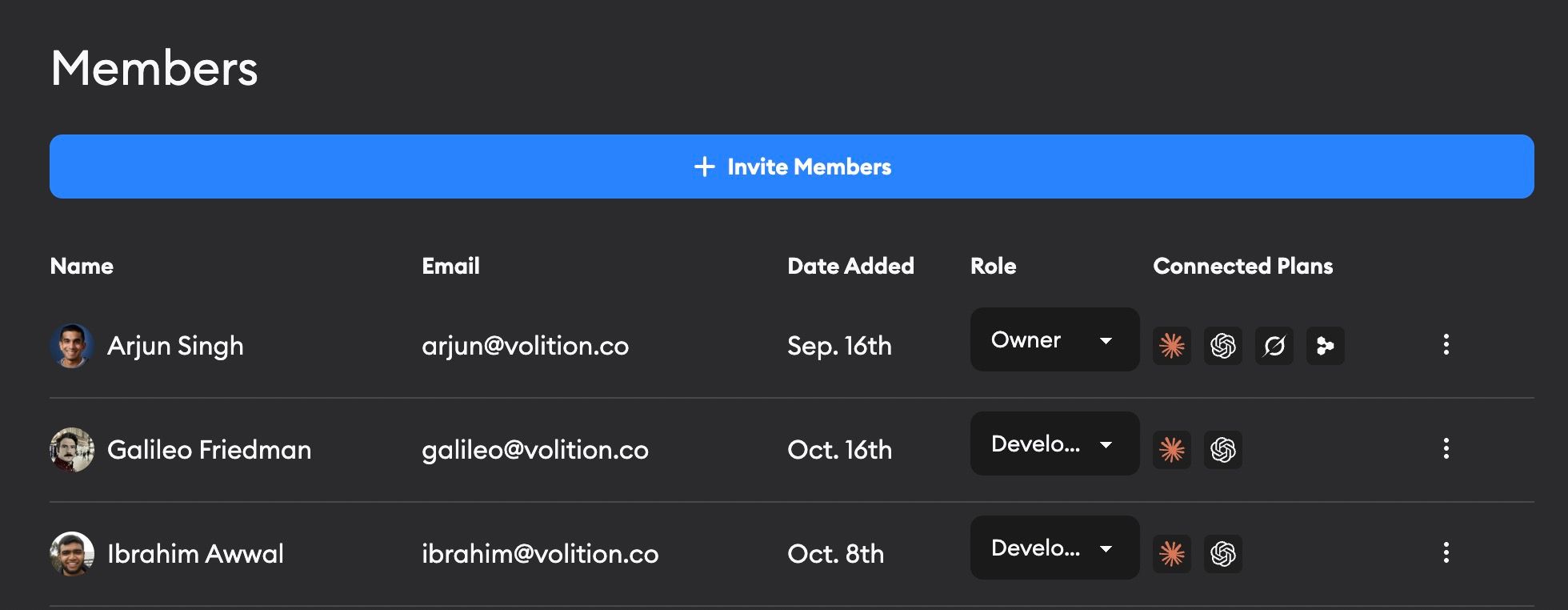
The Members page is where workspace owners and admins manage who can access the workspace. Open it with the Members link in the header of your Projects page, next to Usage and Workspace Settings, or go to Workspace Settings → Members.
From here, you can:
- Invite new teammates
- Change a member's role
- Remove members who no longer need access
- See which connected agent plans each member has available, such as Claude, Codex, and Grok
Connected plan icons are helpful when you want to understand which teammates can cover agent runs with their own plans instead of API keys or workspace credits. The Usage dashboard has more detail on team spend and connected-plan coverage.
See Collaborating with teammates for how your team can share an implementation chat, see who is viewing it, and keep up with its progress.
Inviting members
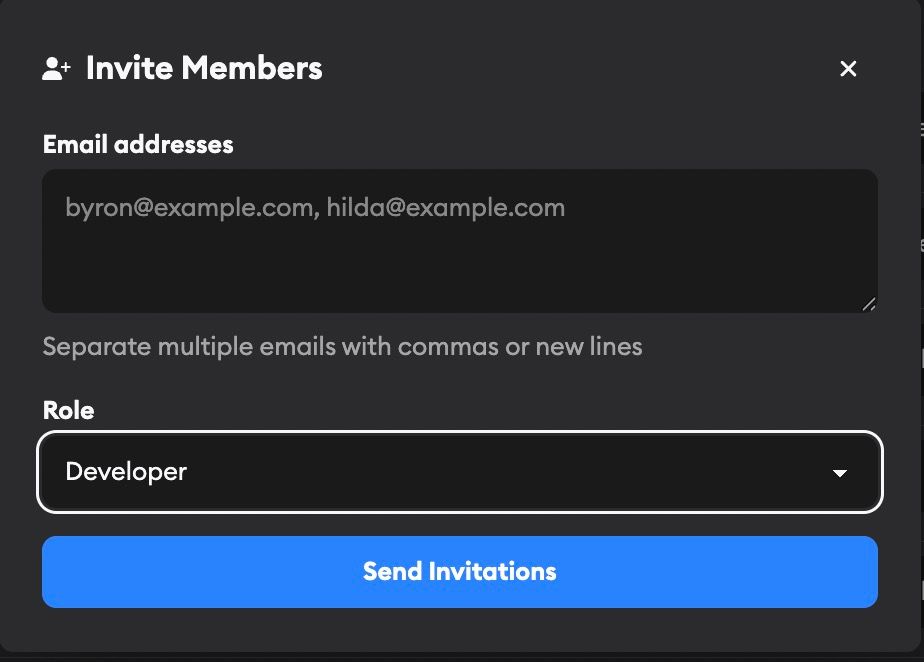
To add someone to your workspace, click Members in your Projects page header (or go to Workspace Settings → Members) and click Invite Members. Enter their email address and choose a role.

You can invite multiple people at once by entering several email addresses separated by commas or new lines (up to 50 at a time). Duplicate emails are automatically removed.
The invited person receives an email with a link to join. If they're new to Superconductor, they'll create an account first. Once they accept the invitation, they automatically see the workspace and can contribute based on their assigned role.
Members can also use the workspace's linked GitHub and Slack integrations without further authentication, as long as their Superconductor account email matches their GitHub or Slack email.
Invitations expire after 30 days. Workspace owners and admins can resend or revoke pending invitations from the Members page. Resending an invitation sends a fresh email to the invitee and resets the 30-day expiration.
Member roles
- Owner
- All privileges. Workspace must have at least one owner.
- Admin
- All privileges except creating an Owner.
- Developer
- Can create and edit all Projects, Tickets, and Implementations, and access and manage project benchmarks.
- Viewer
- Can view all Projects, Tickets, and Implementations, but cannot edit anything or access project benchmarks.
Agent credentials
See Agent credentials for details on configuring API keys and connected plans under Workspace Settings → Agent Credentials.
Billing and credits
If your workspace has credits, you can see the remaining balance under Workspace Settings → Billing.
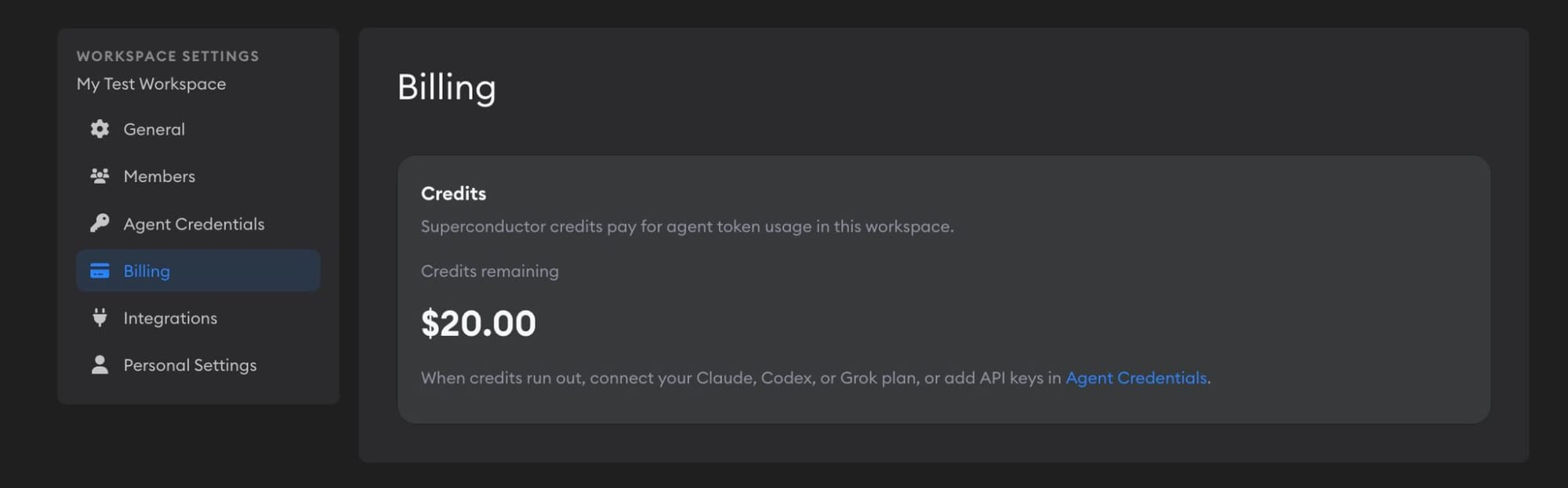
Our team is happy to grant you free credits so you can try Superconductor without connecting agent credentials.
Credits let supported agents run in Superconductor when you have not connected another credential for that agent. They make it easy to try out Superconductor before adding your own provider accounts.
If you'd like free credits for your workspace, email help@superconductor.com.
How credits work with credentials
Superconductor uses your own credentials before credits:
- Your connected plan, such as Claude, ChatGPT, or SuperGrok, when that agent supports plans
- A Project API key
- A Workspace API key
- Workspace credits, if credits are available and the selected agent supports them
If credits run out during a run, Superconductor will finish that run. You won't be able to start new runs with that agent until you add credentials for the agent in Workspace, Project, or Account settings.
Which agents can use credits?
Credits can be used with these agents:
- Claude Code
- Codex
- OpenCode
- Pi
Credits are not used for Amp, Factory Droid, Grok Build, or Cursor. Add the required plan or API key for those agents.
What actions can I use credits for?
Credits can be used by direct launches from Superconductor and by background or integration-triggered runs when the selected agent supports credits. This can include launches from Slack, GitHub, email triage, meeting assistant, guided review, QA checks, and benchmarks.
Automatic Environment Setup is the exception. Superconductor runs it on its own credentials, so it doesn't use your API key or connected plan, doesn't deduct workspace credits, and doesn't show up in the Usage dashboard.
Credits are deducted after a run completes, so the balance updates as completed runs report their cost.
Integrations
See Workspace integrations for details on connecting GitHub and Slack under Workspace Settings → Integrations.
Personal settings
Some integrations use a token that belongs to you rather than the whole workspace. You add these under Workspace Settings → Personal Settings. They're saved only to your membership in the workspace and apply just to you, even when you share projects with teammates.
This is where you add personal tokens for Figma MCP and Zapier MCP. Once a project enables one of these MCPs from Project Settings, agents working for you use your token. Each teammate adds their own tokens, so teammates cannot see or use one another's access.
Recent activity sidebar
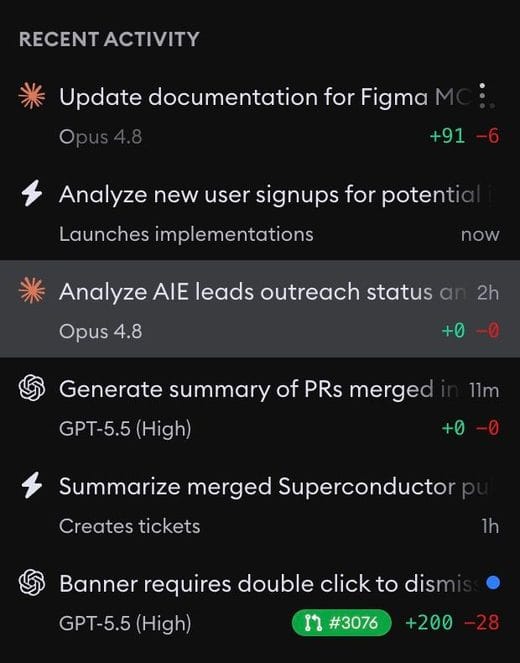
The Recent Activity sidebar shows all the implementations you're following in the current workspace, so you can keep track of everything you care about in one place. It also includes environment setups, automations, followed meetings, and email messages, so those updates appear alongside implementation activity. The most recent items you've interacted with are listed first. Switching workspaces gives you a separate activity feed.
On a desktop-width screen, you can jump straight to any of the nine most recent items with a keyboard shortcut. Holding the shortcut key reveals a number beside each item, and temporarily opens a collapsed sidebar so you can see them.
Implementation entries show:
- Ticket title
- Agent model used (e.g., "Opus 5")
- Diff stats — green and red badges showing lines added and removed
- PR status — if a pull request has been created, colored badges show the PR state: green for open, purple for merged, red for closed, and gray for draft
- Status — implementations that are currently running show an animated loading indicator so you can tell at a glance which agents are still working. Failed implementations show a warning icon, and completed ones show a relative timestamp (e.g., "5m", "2h ago"). A blue dot appears on entries with unread messages and clears when you open the implementation.
Click any entry to jump straight to that implementation. The sidebar updates in real time as agents make progress.
Hover over an implementation entry to reveal a ⋯ overflow menu. From there you can Unfollow the implementation (removing it from the sidebar) or Delete it — without opening it first. This menu is available on desktop-width screens.
Resizing and collapsing
On desktop, you can drag the sidebar edge to resize it, or double-click the edge to reset to the default width. Click the hamburger menu icon to collapse or expand the sidebar — your preference is remembered across sessions. On mobile, the sidebar is collapsed by default and can be opened from the menu.
Tracking usage
The Usage dashboard tracks ticket activity, agent spend, and plan coverage across your whole workspace. Use it to see what your team is spending and where a connected plan could save you money.