Diff & Guided Review
Review every code change your agent makes with a full diff view and AI-powered guided review.
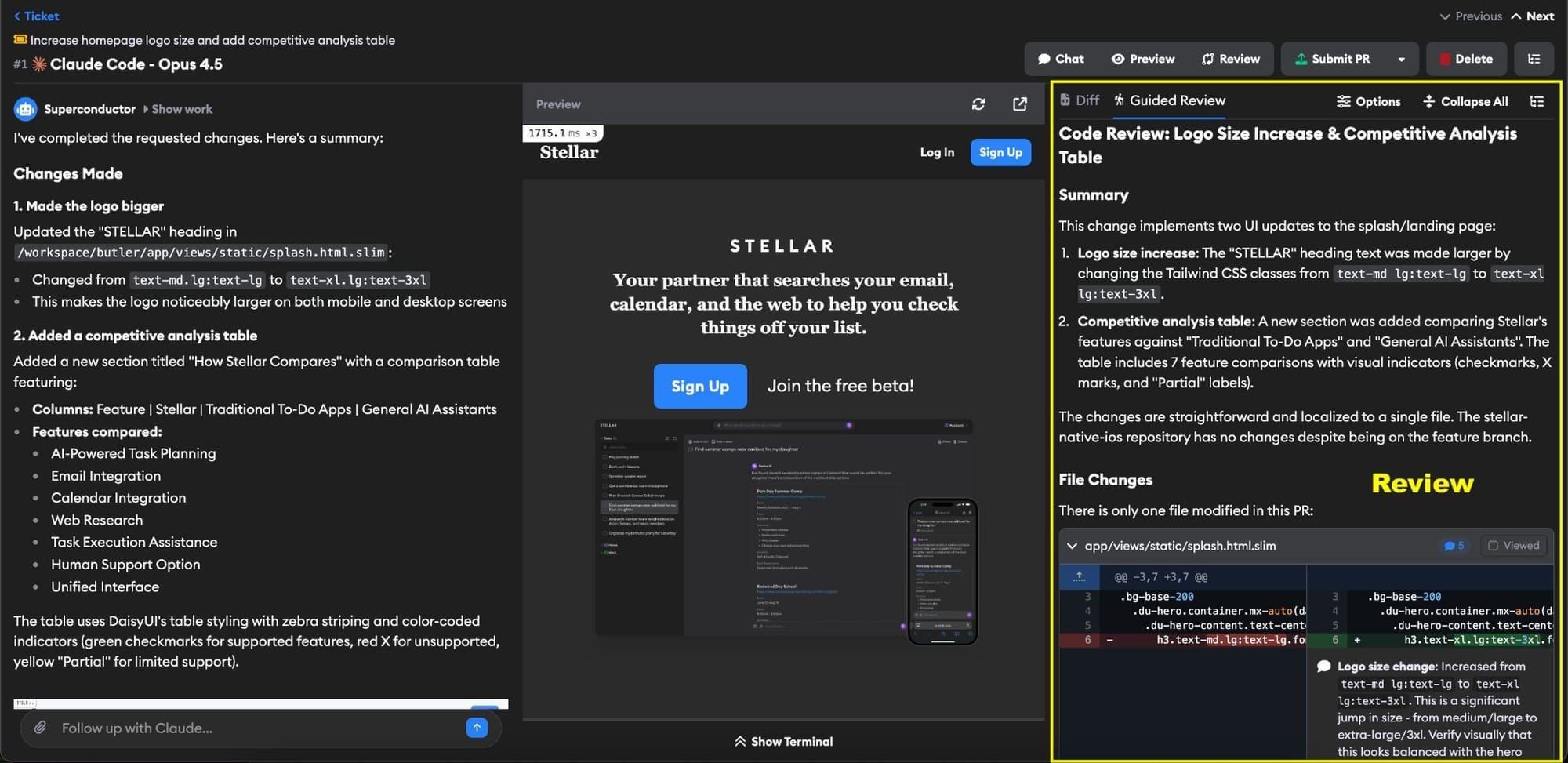
Every implementation includes a diff view showing all code changes made by the agent. You can also launch a Guided Review Agent to analyze the code changes and walk you through each changed file in logical order with in-line review comments.
The review pane is organized into tabs: Full Diff, Guided Review, and Artifacts. A QA Check tab also appears if your project has the QA Checks beta enabled. Switch between them at the top of the pane. Superconductor remembers the tab you were last on.
Raw diff
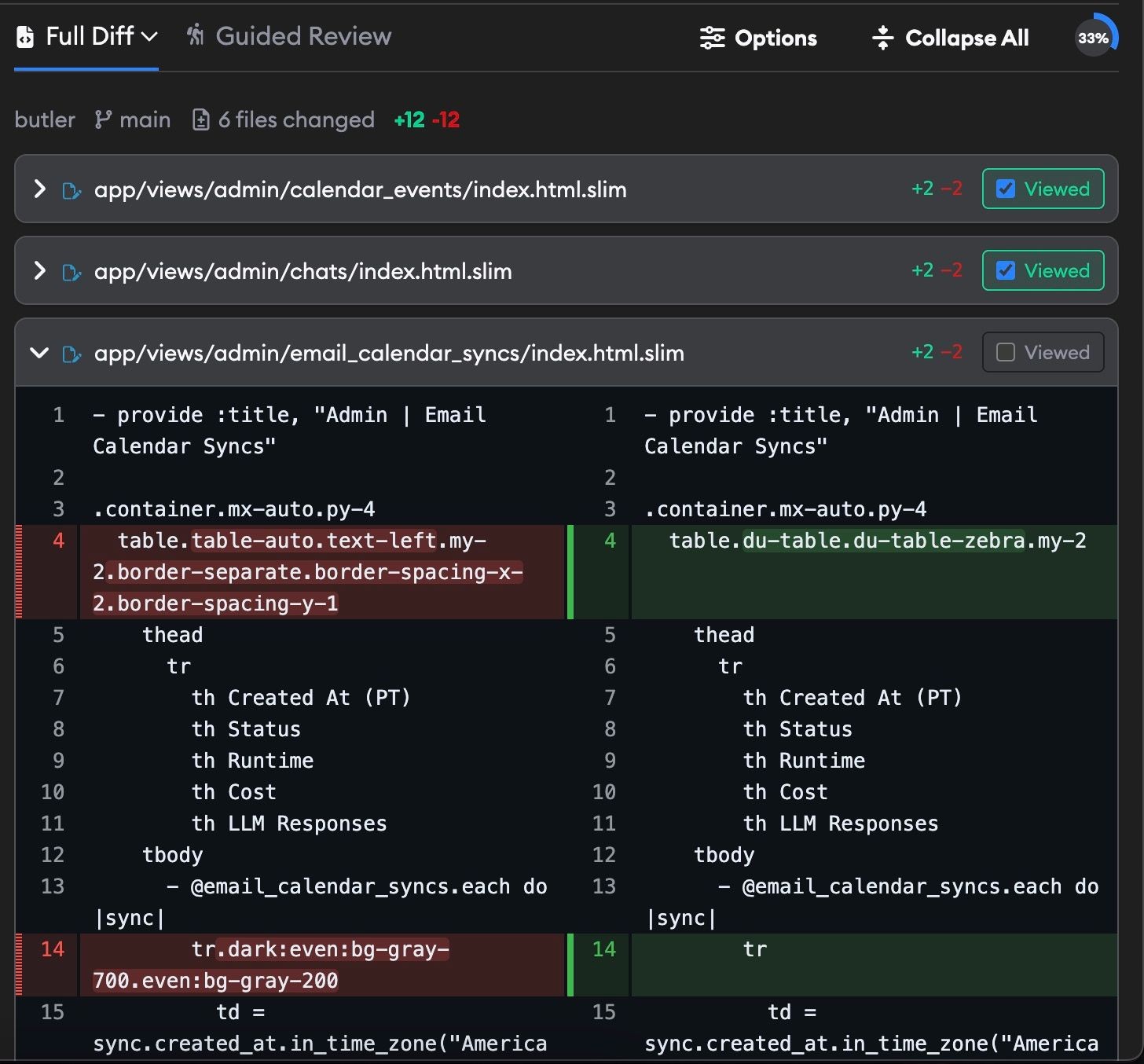
The raw diff view shows all changed files in a standard diff format. You can see additions (green) and deletions (red) at a glance, navigate between changed files, and expand or collapse individual files.
Each repository section shows a header with the repo name, base branch, total files changed, and total lines added and removed.
Full Diff vs. Uncommitted
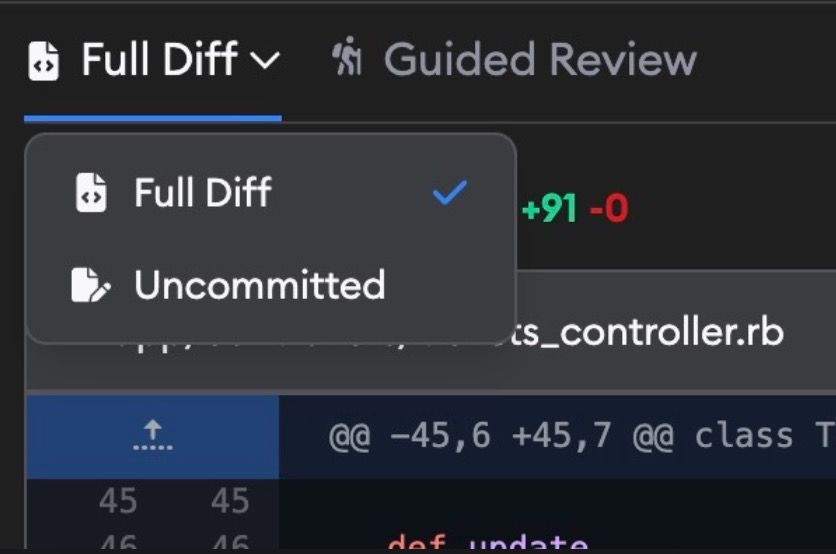
Click the Full Diff dropdown in the diff header to switch between two views:
- Full Diff — Shows all changes between the base branch and the agent's current code, including both committed and uncommitted changes. This is the default view and represents the complete set of changes that would appear in a pull request.
- Uncommitted — Shows only the changes the agent has made since its last commit. This is useful for seeing what the agent is actively working on, especially when it has already committed earlier changes.
Diff settings

Click Options in the diff header to toggle display settings:
- Unified — Shows old and new code interleaved in a single column. This is the default.
- Split — Shows old and new code side by side in two columns.
- Wrap — Wraps long lines so you can see the full content without scrolling horizontally. This is the default.
- No Wrap — Keeps lines on a single line with horizontal scrolling for long lines.
Your preferences are saved automatically and persist across sessions.
Reviewing files
Files are displayed alphabetically by file path, grouped by repository. You can manage your review progress with these controls:
- Collapse All / Expand All — Use the button in the diff header to collapse or expand every file at once.
- Mark as Viewed — Check the Viewed checkbox on any file to mark it as reviewed. Viewed files automatically collapse so you can focus on what's left. If the agent makes further changes to a viewed file, it will automatically be unmarked so you can re-review it.
- Expand or collapse individual files — Click a file's header row to toggle it open or closed.
A progress indicator in the diff header tracks your overall review progress as a percentage. It calculates the proportion of changed lines you've reviewed (based on which files you've marked as Viewed) and updates accordingly—turning green with a checkmark when you reach 100%.
Chatting with agents about diffs
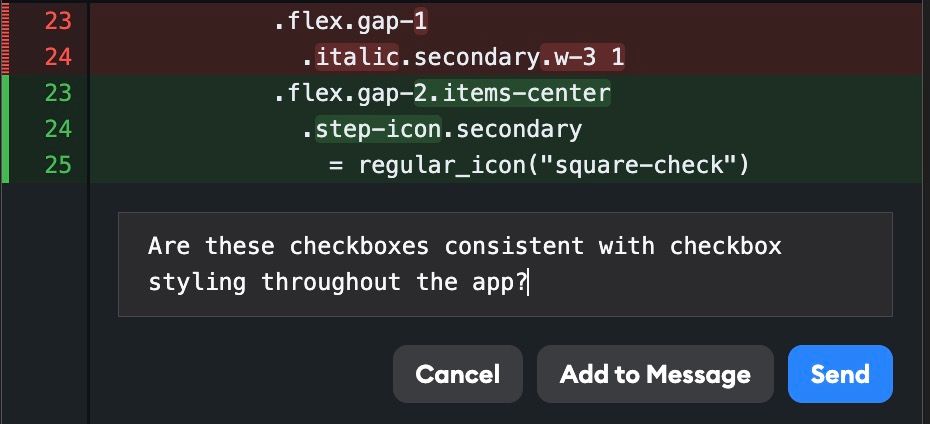
Click the + button on any line of code in the diff to open a comment box for that line. Type your feedback and click Add to Message to copy it into the agent chat, or click Send (or press Cmd/Ctrl+Enter) to send it immediately. Either way, Superconductor includes the file name, line number, and code context with your comment.
This is useful when you want the agent to make specific adjustments to specific lines of code. For example, you might comment on a line to ask the agent to rename a variable, add error handling, or change an implementation detail. The agent receives full context about which code you're referencing, so you can iterate quickly.
Large diffs
When an implementation has a large number of changes, some files may not render their full diff inline. Instead, you'll see a collapsed placeholder with links to view the raw diff or file content directly. This keeps the page responsive and avoids overloading the browser.
For very large files, Superconductor may also switch to a diff-only view instead of reconstructing the full file contents in the browser. In that mode, the diff still renders normally, but features that rely on the full file content — such as expanding large blocks of unmodified lines inline — may be unavailable.
Files are collapsed when any of these limits are exceeded:
- Per file: More than 1,000 lines changed or ~100 KB in size
- Total: More than 8,000 lines changed across all files, or more than 200 files changed
You can still mark collapsed files as Viewed to track your review progress.
Guided review
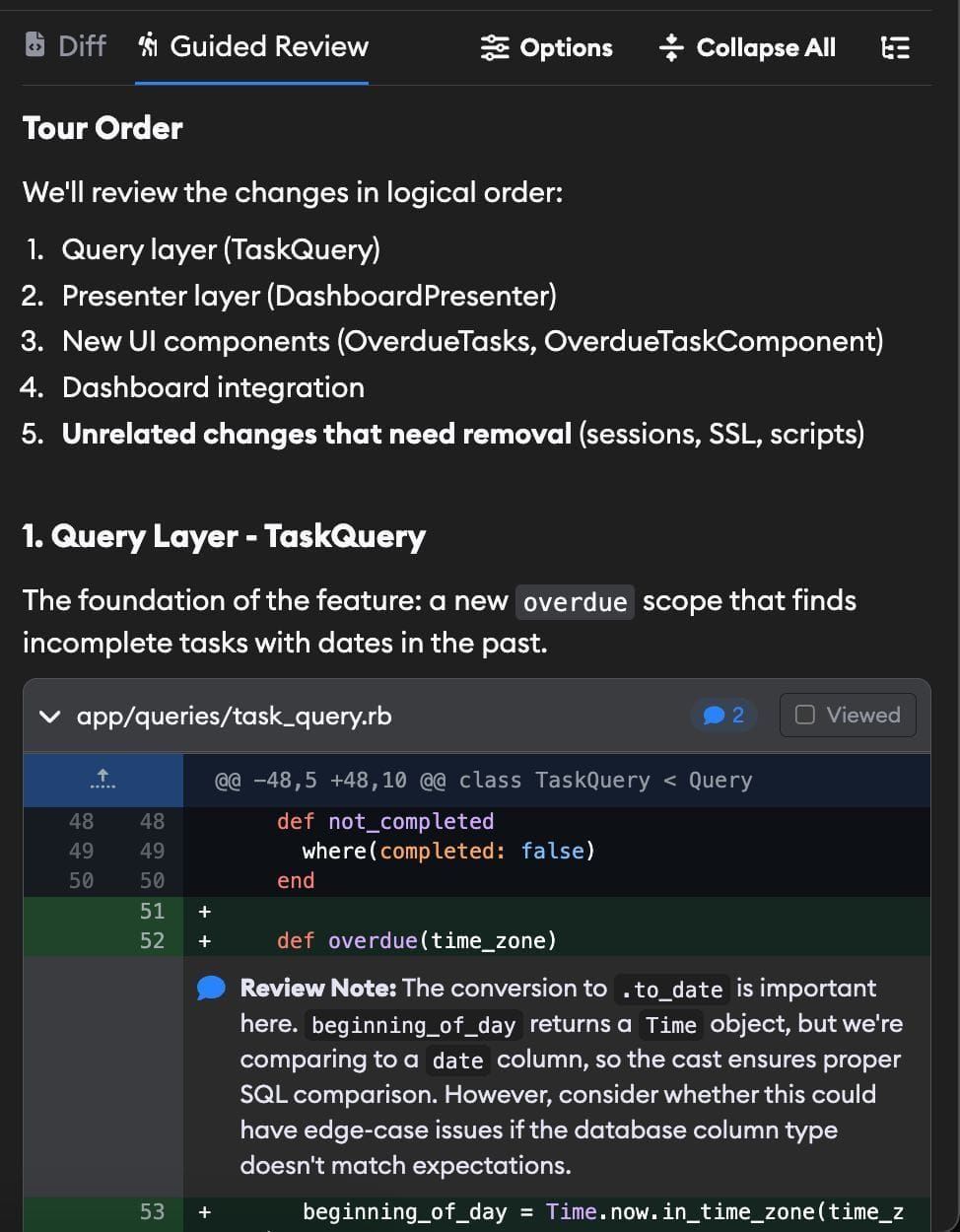
AI agents are great at writing code that is 90% perfect, but the last 10% still requires experienced humans in the loop. Guided Review uses AI to significantly reduce the review burden by:
- Organizing files in a logical review order (dependencies first, then dependents)
- Adding text summaries that explain what each group of changes accomplishes
- Placing in-line comments on specific lines to highlight important details, potential issues, or patterns that need attention
This helps you focus your review time on the parts that matter most.
Launching a guided review
To start a guided review, click the Guided Review tab in the diff panel. If no review exists yet, clicking the tab sends a request to launch the Guided Review agent. The agent analyzes all code changes in the implementation and produces a structured walkthrough.
The review typically finishes within a few minutes. You can watch its progress in real time if you'd like—a work log appears while the agent is running. You can launch Guided Review on any implementation, regardless of which coding agent did the work.
Guided Review uses the best available coding agent based on your project's configured credentials.
Navigating the guided review
Once the review is ready, the Guided Review tab shows a structured walkthrough of the code changes:
- Text sections — The agent adds narrative text summarizing the code changes, the files that were reviewed, and providing action items.
- File diffs with in-line comments — Changed files are displayed in a logical order chosen by the agent (typically dependencies first, then the files that depend on them). Each file can have in-line comments highlighting significant changes, potential issues, or things to pay attention to.
- Toggling comments — Each file header shows a comment count badge. Click it to show or hide the agent's in-line comments on that file.
- Marking files as viewed — Just like in the raw diff, you can check the Viewed checkbox on each file to track your progress. Viewed state syncs between the Diff and Guided Review tabs.
If the agent makes additional code changes after a review was generated, you'll see an outdated warning with an option to rerun the review.

For an independent beta quality score across functionality, code quality, and tests, run QA Checks after or alongside Guided Review.
Artifacts
The Artifacts tab collects every file the agent saved during the implementation — screenshots, videos, PDFs, Word documents, reports, and more — without any of it being committed to your repo. A badge on the tab shows how many there are.
Reviewing artifacts next to the diff is useful when you want to see what a change actually looks like, not just how it was written. Ask the agent for a before-and-after screenshot, then check it against the code in the same pane.
See Artifacts for the full list of supported file types and everywhere else artifacts show up.