Meeting assistant [Beta]
Invite a bot to your meetings and let an AI assistant create and link tickets from the conversation in real time.
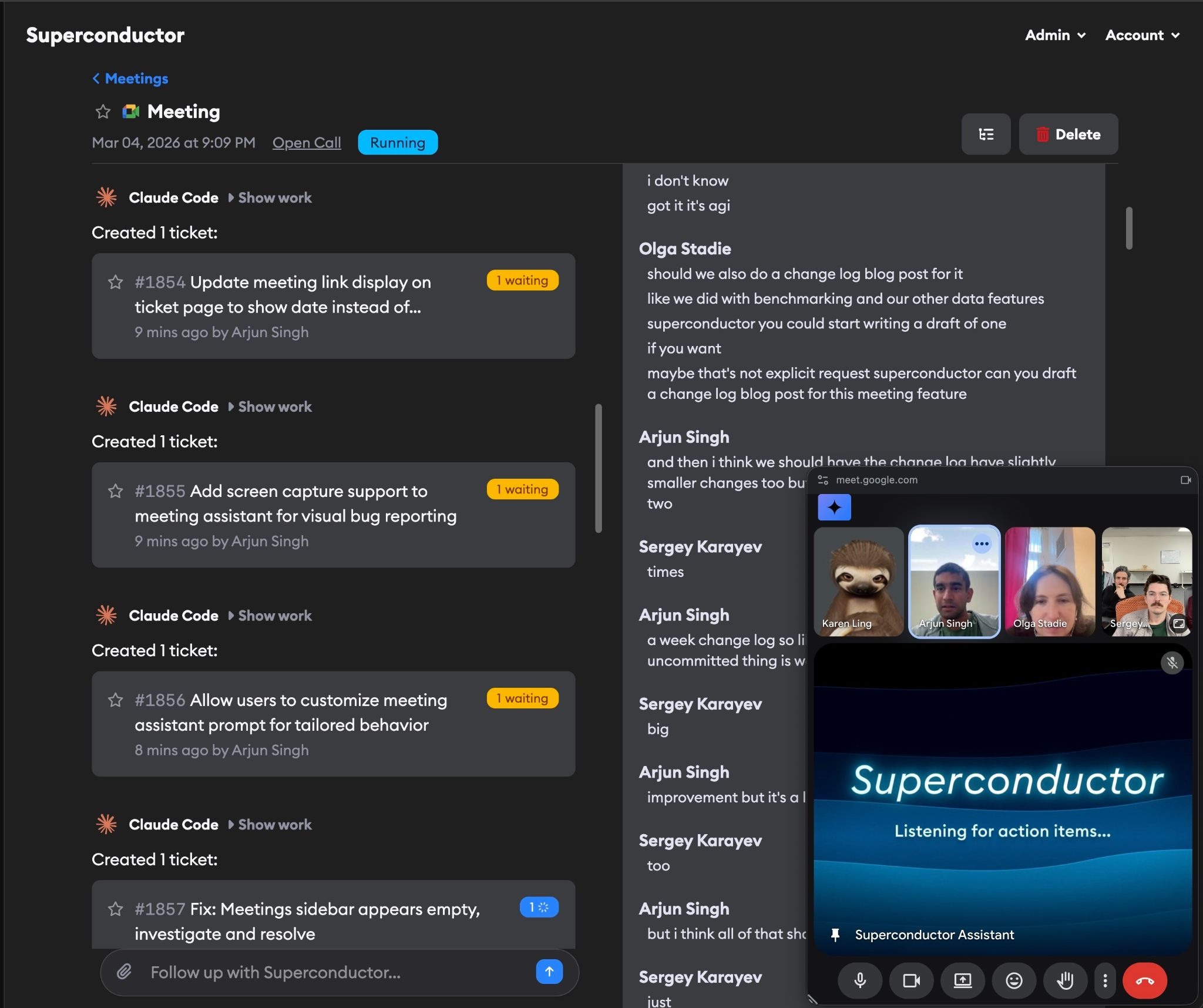
The meeting assistant joins your video calls, listens to the conversation, and turns actionable items into tickets — all in real time. It works with Zoom, Google Meet, and Microsoft Teams.
The meeting assistant supports multi-language transcription. You can use it for meetings that are not entirely in English, or that switch between languages.
When someone mentions a bug, requests a feature, or assigns a task, the assistant picks it up from the transcript. If a matching ticket already exists, the assistant links the meeting to it. If not, it creates a new one with a description based on what was said.
Once the meeting assistant is enabled for your project, a Meetings link appears in your project's navigation bar alongside Emails, Benchmark, and Settings.

All workspace members can view meetings and transcripts. Creating meetings and sending chat messages requires owner, admin, or developer permissions.
The meeting assistant uses the best available coding agent based on your project's configured credentials.
Followed meetings appear in your Recent Activity sidebar, so you can see new assistant messages and unread updates alongside your followed implementations. Creating a meeting or sending a chat message in a meeting follows it automatically.
Auto-launch implementations
In Project Settings under the Meetings section, there's an optional setting: Automatically launch an implementation on created tickets. Any workspace member with project edit permissions (owner, admin, or developer) can toggle this on. When enabled, new meetings start with the Launch implementations toggle turned on, so any ticket the meeting assistant creates will immediately kick off an implementation using your project's configured coding agent. This is useful if you want work to start right away without manual intervention.
This setting controls the default for new meetings only. Each meeting keeps its own copy of the setting when it starts, and during the meeting you can turn the Launch implementations toggle on or off independently without changing the project-wide default or other meetings already in progress.
Inviting the bot to a meeting

- Go to your project's Meetings page
- Click Invite Bot to Meeting
- Paste your meeting URL (e.g.,
https://zoom.us/j/123456789) - Click Invite
The Superconductor Assistant bot joins your call and begins capturing the transcript. You'll see the meeting appear in your meetings list with a live status indicator.
Supported platforms
| Platform | Example URL |
|---|---|
| Zoom | https://zoom.us/j/123456789 |
| Google Meet | https://meet.google.com/abc-defg-hij |
| Microsoft Teams | https://teams.microsoft.com/l/meetup-join/... |
During the meeting
While the meeting is in progress, click on it from the Meetings page to see the meeting detail view, which has two panels:
- Chat — A conversation panel where you can send messages to the assistant and see its responses. The assistant responds to direct questions and proactively reports when it creates or links tickets.
- Transcript — A live, scrolling transcript of the meeting with speaker names and timestamps.
On mobile, these are shown as separate tabs. On desktop, they appear side by side.
The assistant processes transcript chunks as they arrive. Since chunk boundaries are based on timing rather than semantics, the assistant waits for enough context before acting — so there may be a short delay between when something is said and when a ticket appears.
You can also chat with the assistant directly. Type a message in the chat panel and the assistant will respond. This is useful for asking it to clarify a ticket it created, or to manually request a ticket for something it missed.
Meeting controls
Two toggles appear in the meeting header while a meeting is in progress:
- Create tickets — Controls whether the assistant creates new tickets from the conversation. Defaults to on. Turn this off to pause ticket creation without removing the bot from the call.
- Launch implementations — Controls whether newly created tickets automatically kick off an implementation. Defaults to off, unless the project-level auto-launch setting is enabled — in which case it starts on for that meeting.
Both toggles take effect immediately. Turning them off can be useful when you want the bot to keep transcribing but hold off on creating tickets or launching implementations — for example, during a brainstorming section where you're not ready to commit to specific tasks.
After the meeting
When the meeting ends (either by the host or due to inactivity), the assistant processes any remaining transcript and finalizes its work.
If you haven't named the meeting yourself, the assistant automatically generates a title from the transcript once the meeting is over — so you don't have to name every meeting by hand. Titles you've already set are left untouched.
The full transcript, chat history, and all created or linked tickets remain accessible on the meeting's detail page — click on the meeting from your project's Meetings page to review them at any time.
To rename a meeting, open the meeting detail page and click the meeting title in the header. Enter the new name and save it.
Deleting a meeting
From the meeting's detail page, click the Delete button in the header. This removes the meeting record, its transcript, and the associated bot. Tickets that were created or linked during the meeting are not affected.
Feedback
This feature is in beta and under active development. We'd love to hear how it's working for you — reach out to us with feedback, questions, or feature requests.