Automations
Run project actions on a schedule or when a pull request is merged — create tickets, launch implementations, and send agent messages.
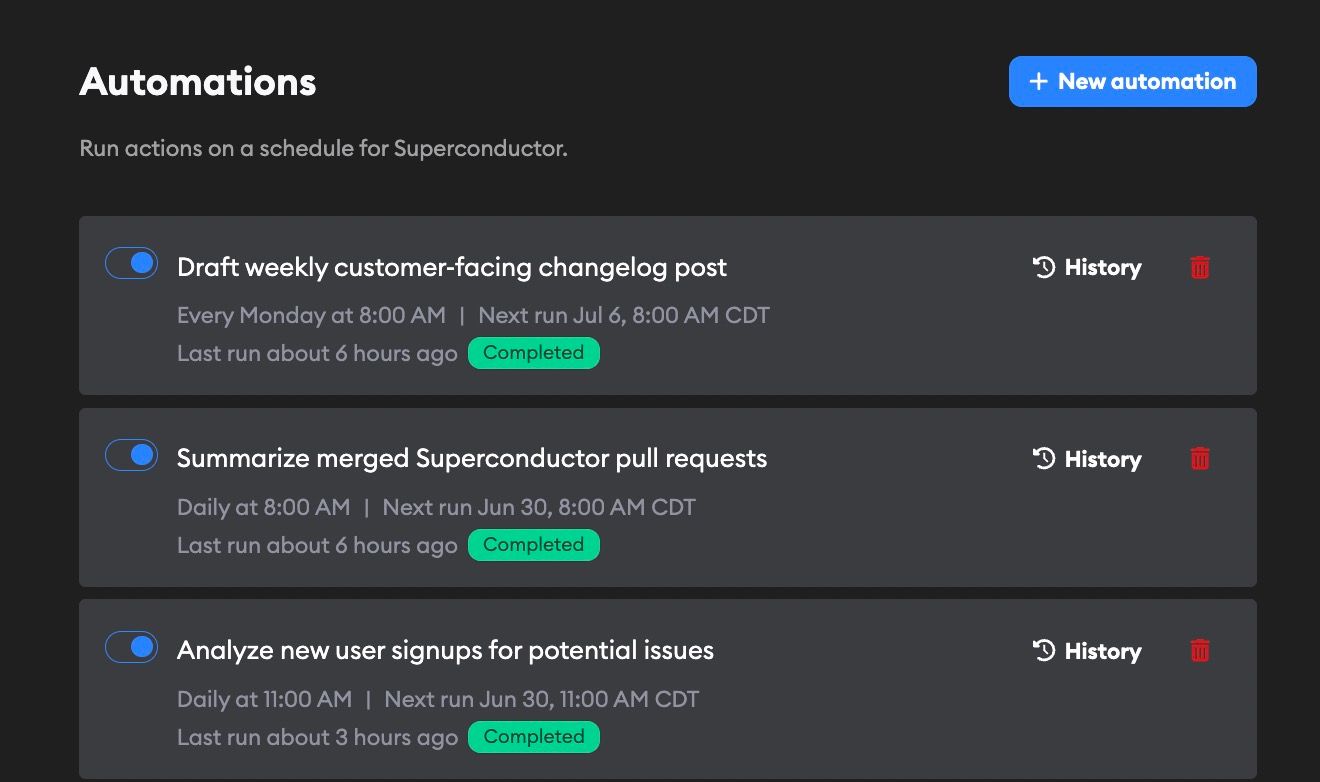
Automations let Superconductor run project actions for you, either on a recurring schedule or when a pull request is merged in one of your repositories. They can create tickets, launch implementations on starred tickets, or send messages to starred implementations.
Creating an automation
An Automations link appears in the project navigation bar.
From your project, open Automations and click New automation.
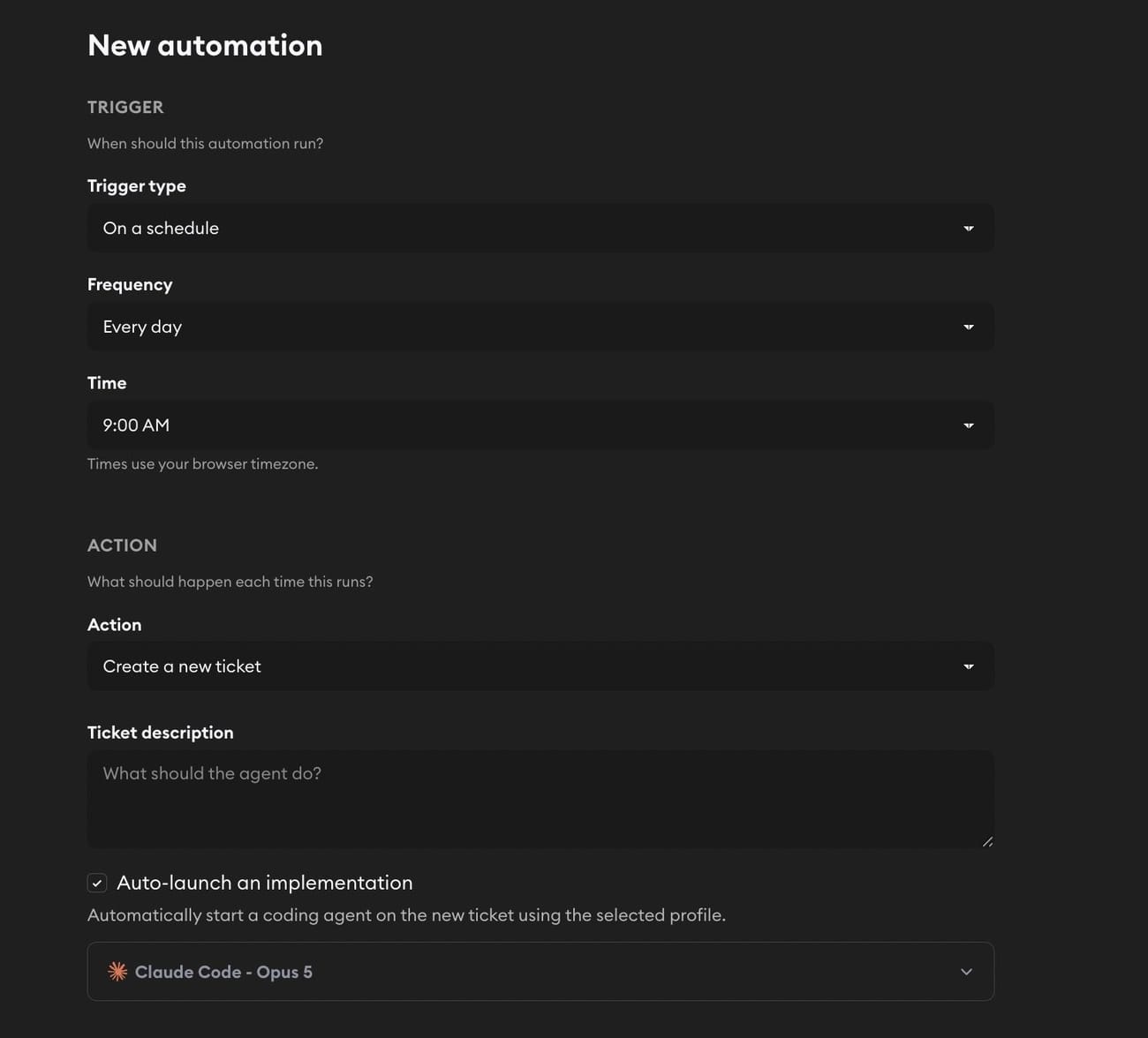
First, pick a Trigger type:
- On a schedule — runs the action at a recurring time
- On a GitHub event — runs the action when a pull request is merged in one of the project's repositories
On a schedule
Choose the Frequency:
- Every hour - runs once per hour
- Every day - runs once per day at the selected time
- Every weekday - runs Monday through Friday at the selected time
- Every week - runs on the selected day and time
For daily, weekday, and weekly schedules, choose the Time. Weekly schedules also include a Day field. New automations use your browser timezone.
On a GitHub event
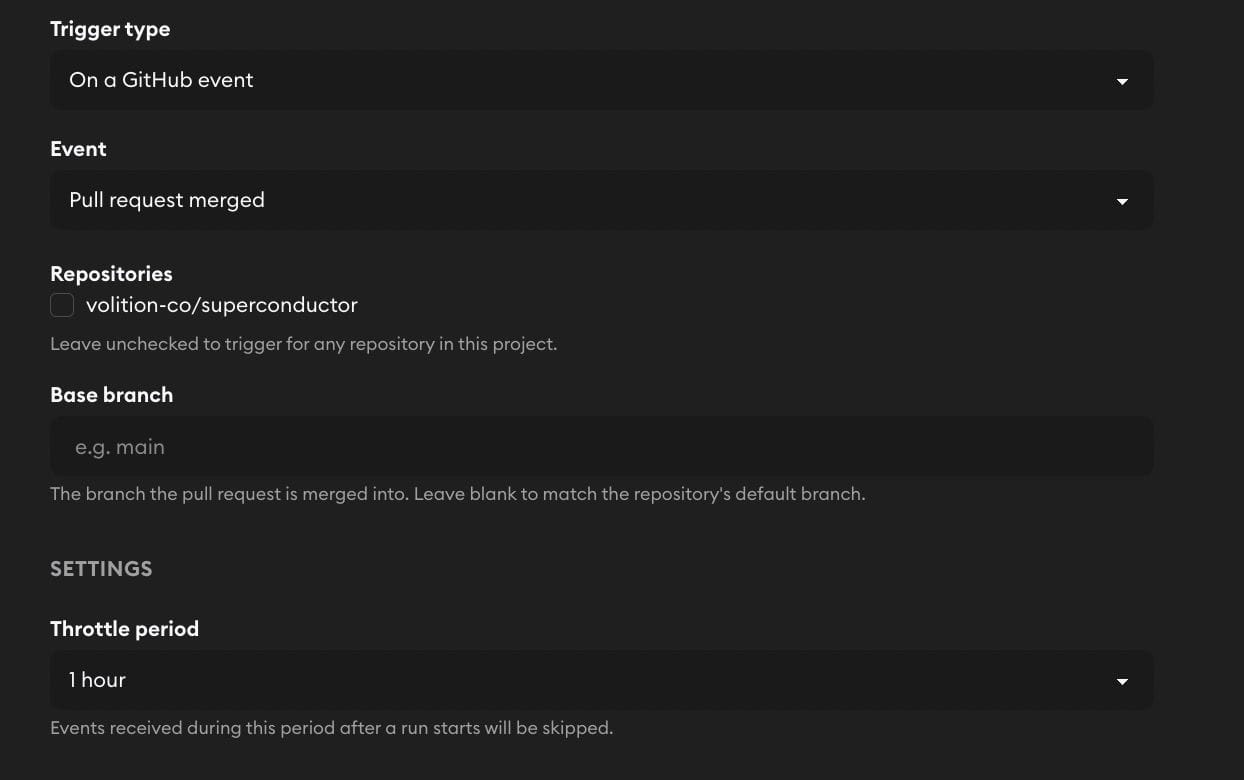
Pull request merged is the only event available today, so this trigger runs the action when a pull request is merged in one of the project's repositories. There's no fixed schedule — GitHub tells Superconductor the moment the merge happens. Your project needs the GitHub integration connected.
Pick which merges count:
- Repositories — check the repositories this automation should watch. Leave every box unchecked to run on merges in any of the project's repositories.
- Base branch — the branch the pull request is merged into, like
mainorrelease. Leave it blank to match each repository's default branch.
An automation fires at most once per merged pull request. If GitHub redelivers the same merge, Superconductor recognizes it and doesn't run the action twice.
Throttle period
Merges can come in bursts, and you usually don't want an automation to run once for every one of them. The Throttle period setting controls how long the automation waits after a run starts before it will run again. Merges that land during that window are skipped.
New automations throttle at 1 hour. You can also pick 2, 3, 6, 12, or 24 hours, or choose No throttling to run on every qualifying merge.
Throttling only applies to GitHub event triggers — scheduled automations already run on a fixed cadence, so the setting doesn't appear for them.
Choosing an action
Both trigger types run the same three action types:
- Create a new ticket - use a ticket description as the prompt. You can also enable Auto-launch an implementation and choose which agent profile should work on the new ticket.
- Launch an implementation - choose a starred ticket and an agent profile. The automation starts that agent on the selected ticket each time it runs.
- Send a message - choose a starred implementation and enter the message Superconductor should send to the agent.
For actions that target an existing ticket or implementation, star the item first so it appears in the automation form.
Click Create to save the automation. Superconductor auto-generates a title from the action.
You automatically follow automations you create, so they appear in your Recent Activity sidebar. Implementations launched by an automation are not followed automatically. You can follow an implementation yourself when you want its individual updates in Recent Activity.
Managing automations
The Automations page shows each automation's title, trigger, and latest run status. Scheduled automations also show their next run time. Pull request automations show which merges they're watching, like "When a pull request is merged into the default branch of acme/web".
From this page, you can:
- Toggle an automation on or off
- Click an automation row to edit it
- Click History to view past runs
- Delete an automation
When editing an automation, you can change the title, trigger, action type, and action settings. You can also switch an automation between a schedule and a GitHub event. Click Save when you're done.
Run history
Open History to see every run for an automation. You can also click Run now to start a manual run immediately — this works for GitHub event automations too, so you can test one without waiting for a pull request to merge.
Each run shows when it started, what it did, and its status:
| Status | Meaning |
|---|---|
| Pending | The run has been queued |
| Running | Superconductor is running the action |
| Failed | Something went wrong. Let us know if you see this |
Runs link directly to the tickets, implementations, or messages they created or updated.