Artifacts
Superconductor agents are able to share images and files with you without checking them into the repo. This is very useful for screenshots.
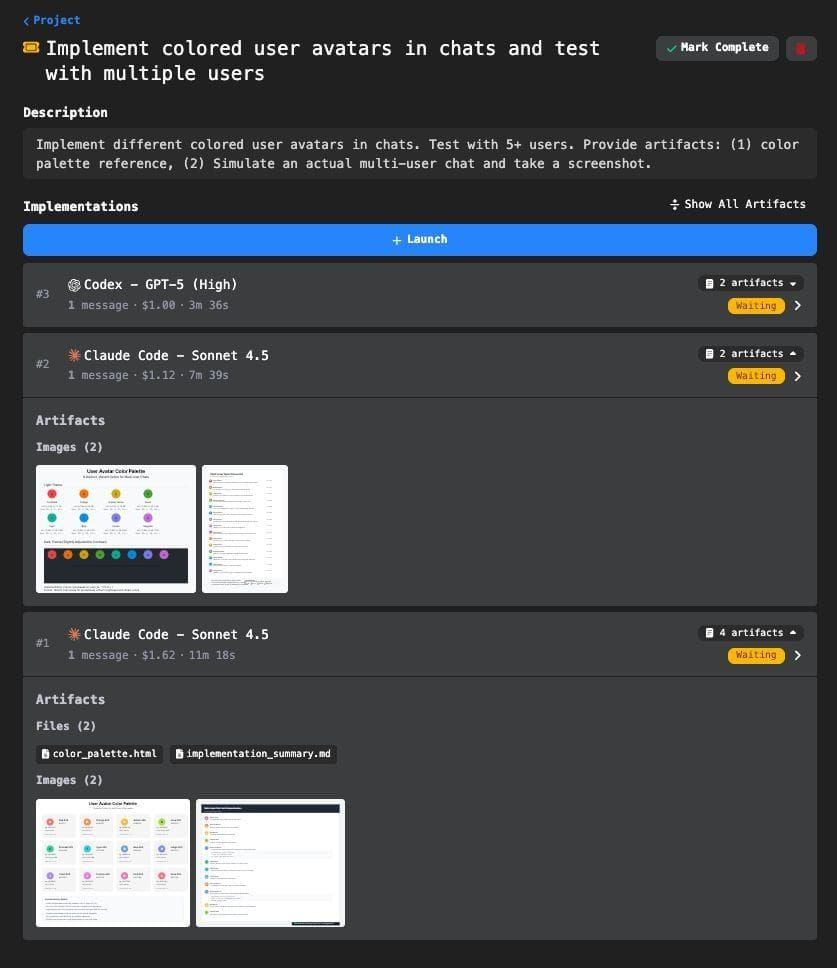
Artifacts are files and images that agents can share without checking them into the repository. They work across Superconductor's coding agents, including ticket implementations, Guided Review, Automatic Environment Setup, email triage, meeting assistants, and QA Checks.
How it works
When agents work on your code, they can capture screenshots and generate other visual outputs to document their progress. These artifacts appear inline in the chat and in other agent outputs that link to artifacts, making it easy to see what the agent is doing.
Agents sometimes create artifacts on their own — for example, taking a screenshot after making a UI change. But it's always a good idea to explicitly ask for artifacts in your ticket description or in a chat message. Ex: "Take a screenshot of the result" or "generate a diagram of the architecture."
Supported file types
Artifacts can be any of the following:
- Images: JPEG, PNG, GIF, WebP, BMP, HEIC, SVG
- Videos: MP4, MOV, WebM, AVI, MPEG, WMV, FLV, and 3GP
- Documents: PDF, Word (DOCX), HTML, Markdown, plain text
- Code files: JavaScript, TypeScript, Python, Ruby, Go, Rust, and many more
- Data files: JSON, YAML, CSV, XML
Artifacts use cases
- Before-and-after visuals: See the visual impact of code changes without running the app yourself
- Progress documentation: Track how the agent approaches a task step by step
- Design feedback: Review UI changes and provide feedback directly in the chat
- Debug assistance: Agents can share screenshots of errors or unexpected behavior
- Comparing implementations: When running multiple agents on the same ticket, artifacts let you quickly preview visual changes from each agent and decide which implementation to explore further
Where to view artifacts
In chat
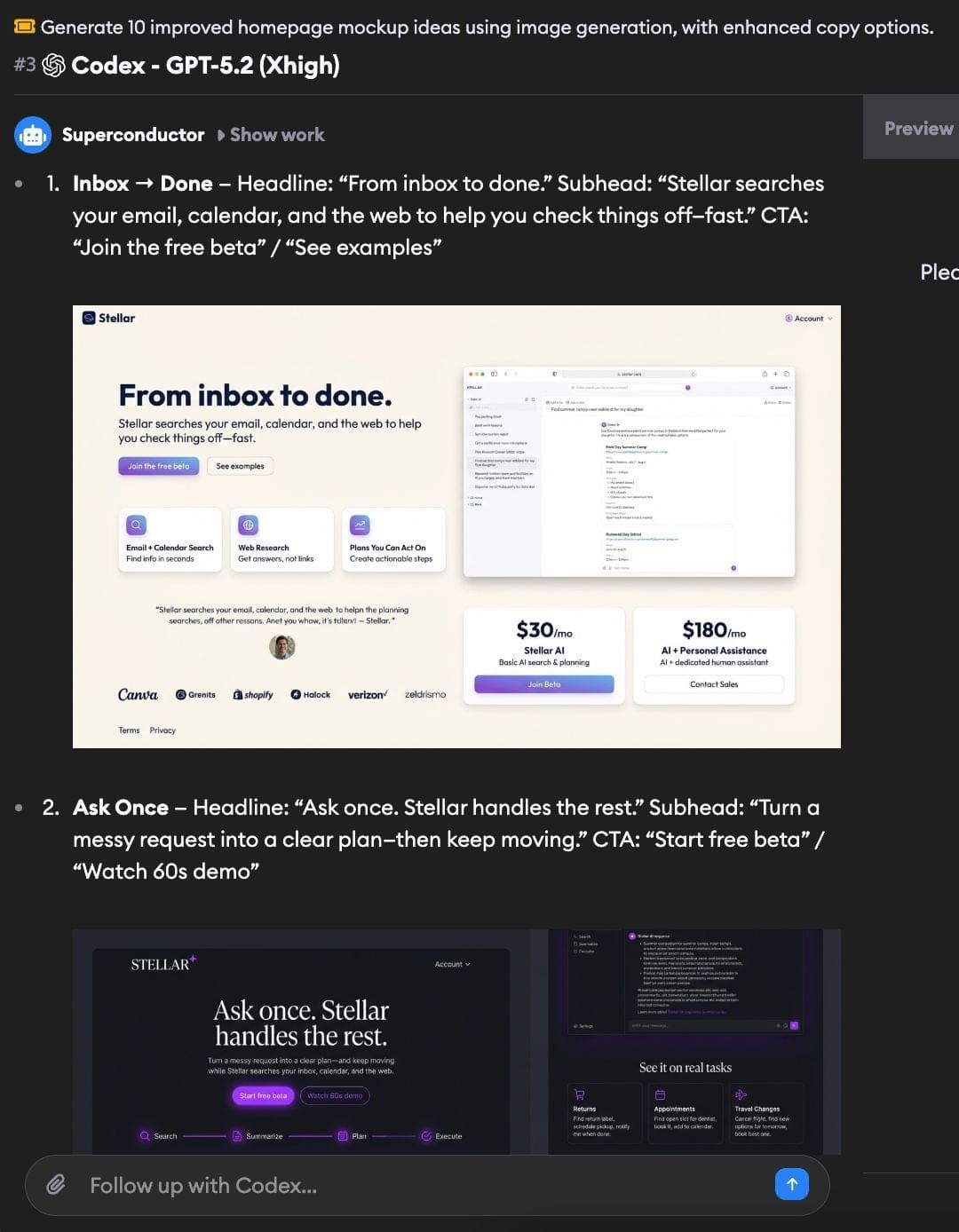
Artifacts appear inline in the chat conversation as the agent shares them. Images render directly in the message, and videos play inline with controls, so you can review visual output without leaving the conversation. Non-media artifacts like documents and code files appear as attachments with a file icon and a download button, so you can save them straight to your computer. Agents will also link the text files they generate — like a report.csv — so they show up in the conversation for you to download.
In the review pane
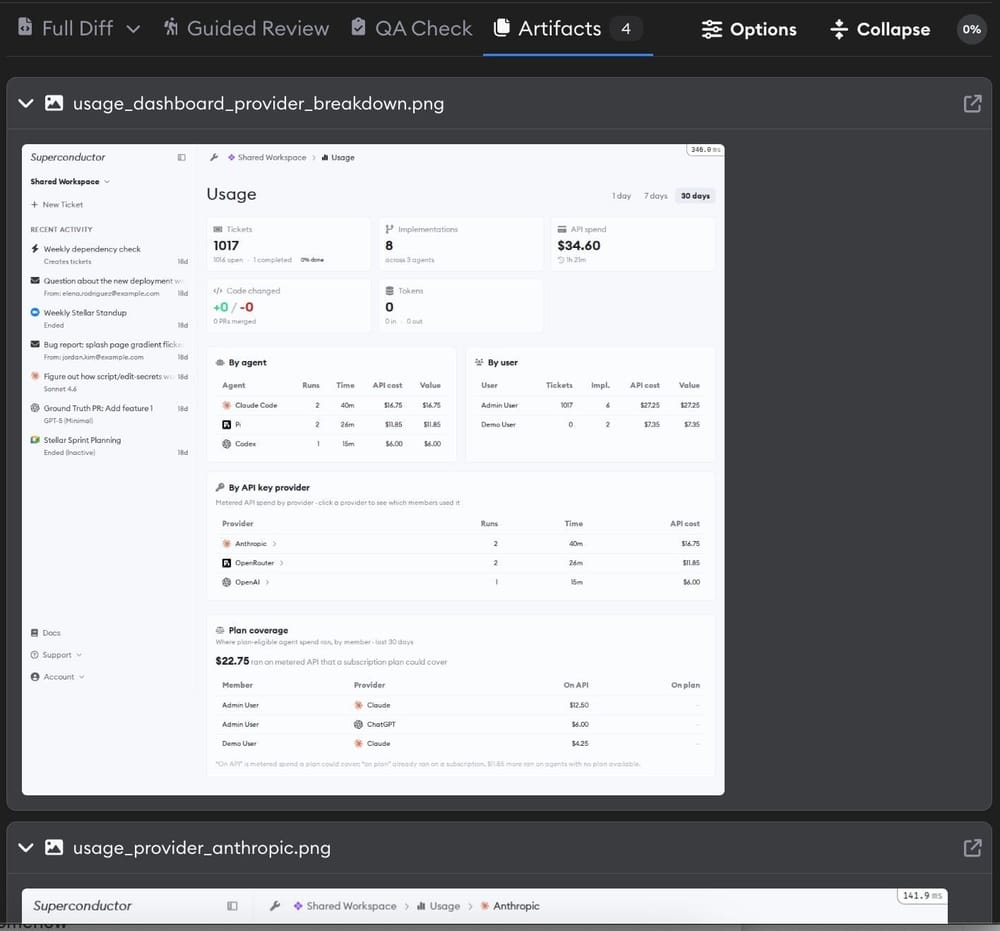
The Artifacts tab in the review pane lists every artifact from that implementation in one place, alongside the Diff and Guided Review tabs. A badge on the tab shows how many artifacts the agent has saved.
Each artifact is a card you can expand or collapse by clicking its header. The Collapse All / Expand All button in the review header works on artifact cards too, so you can fold everything down and open just the one you care about. Every card has an Open in new tab link if you'd rather see the file full size.
Cards preview their contents right in the pane:
- Images render inline
- Videos play inline with controls
- PDF and Word documents open in a built-in viewer with page navigation, zoom, and a Show all pages option
- HTML files render as a page rather than as source. Scripts don't run, so a page that builds itself with JavaScript shows only its static content — open it in a new tab to see the interactive version.
- Markdown renders as formatted text, and other text, code, and data files show their contents as-is
Anything we can't preview shows a link to open the file in a new tab instead.
On the ticket dashboard
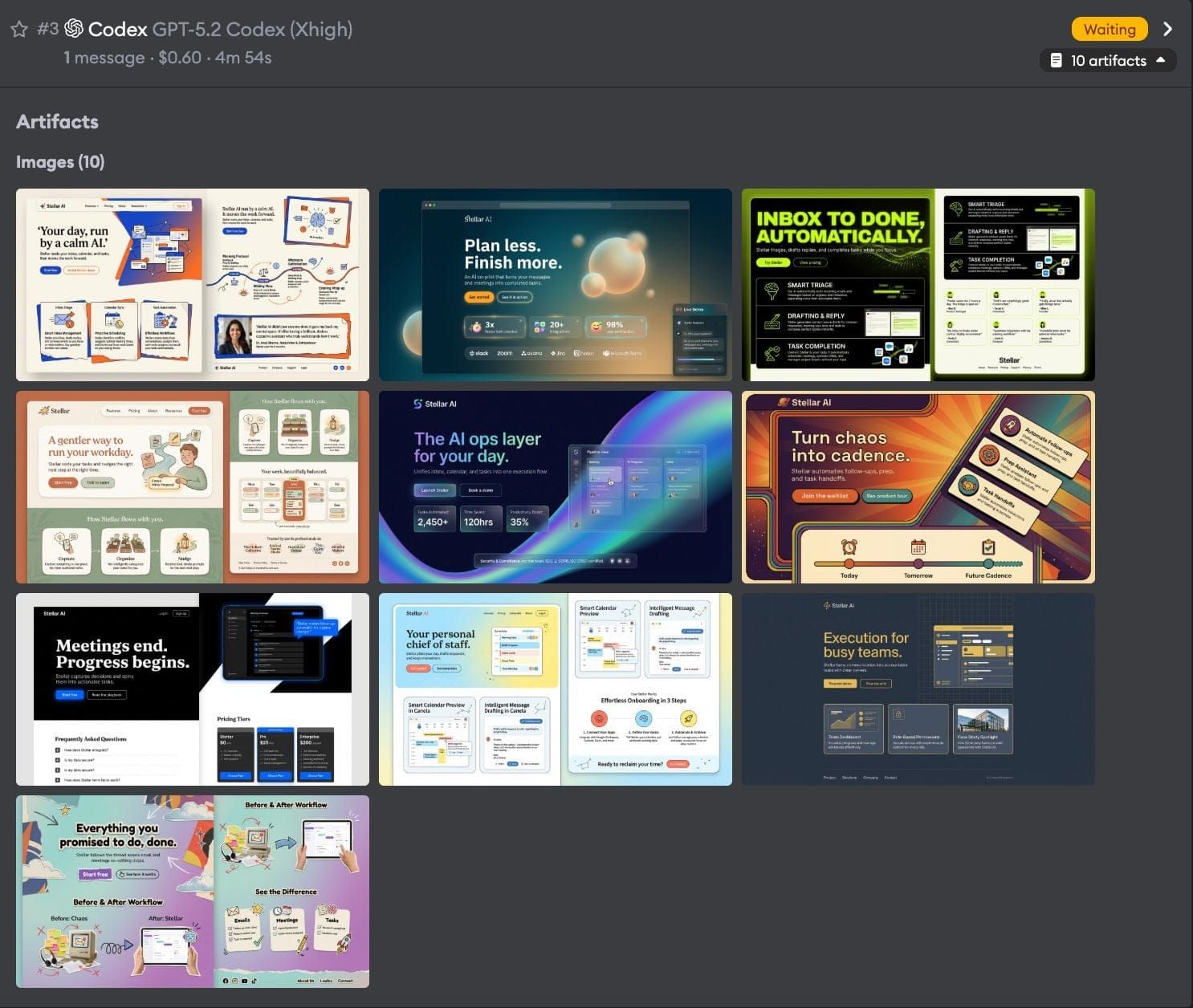
Each implementation card on the ticket dashboard shows an artifact count when the agent has shared files. Click the artifact count to expand and reveal all artifacts for that implementation. Click it again to collapse them.
If you have multiple implementations on a ticket, use the Show All Artifacts button to expand artifacts across every implementation at once. When everything is expanded, the button switches to Collapse All Artifacts to fold them all back up.
Artifact grouping
Artifacts are organized into groups by type:
- Files — documents, code, and other non-media files
- Images — all image formats
- Videos — video files
Each group shows a count (e.g., "Images (3)"), making it easy to scan what an agent has produced.
Image gallery
Click any image artifact to open it in a gallery modal. If the implementation has multiple images, use the left and right arrow buttons (or your keyboard arrow keys) to cycle through them. A counter in the footer shows your position (e.g., "2 / 5"). Click the filename at the top to open the full-resolution image in a new tab.