Live Preview & Terminal
See your app running live in the cloud as agents work on it, and access the terminal to debug or run commands.
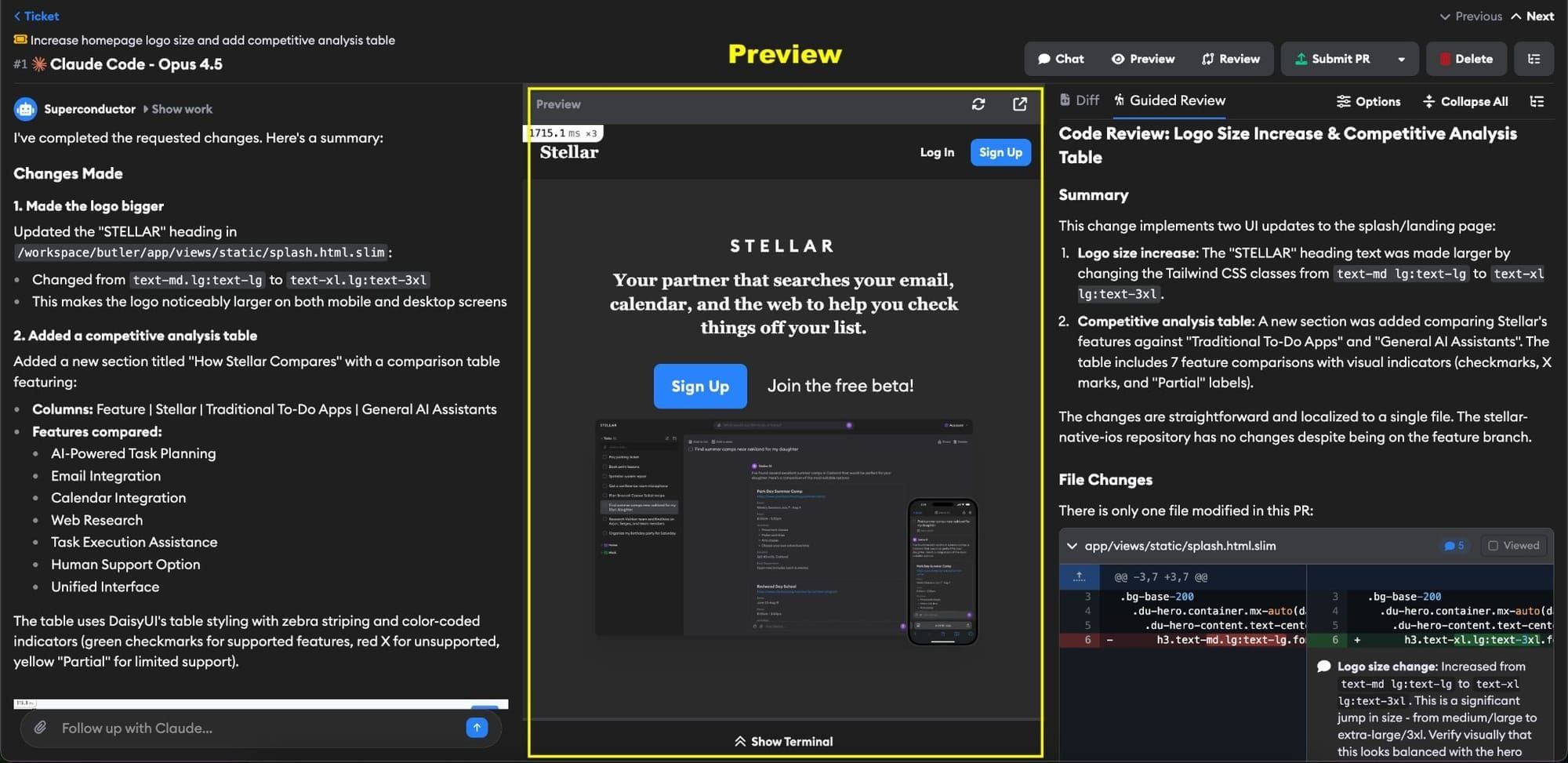
Live Previews let you see your app running in a real environment as agents make changes. The Terminal gives you direct access to the cloud instance where your code runs.
Live preview
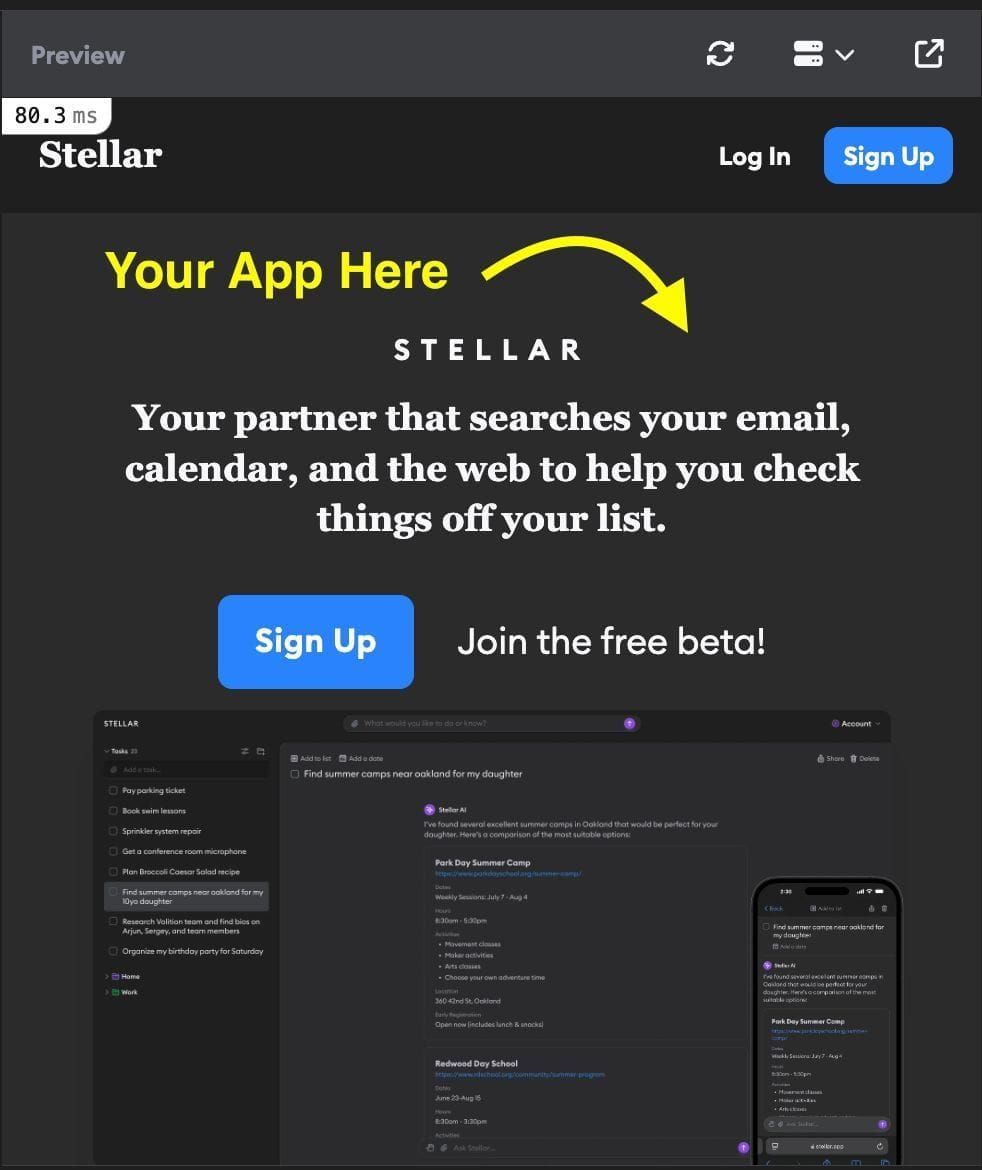
The preview pane shows your app running live in the cloud. Every implementation gets its own isolated environment, so you can compare different approaches without conflicts.
How it works
When you launch an implementation, Superconductor spins up a cloud VM with your project's development environment. Your startup commands run automatically, starting your dev server and exposing it via HTTPS. The preview pane embeds this URL in an iframe, giving you a live view of your app.
Each preview gets a unique URL, so you can also open it in a new tab using the button in the top-right corner of the preview pane.
If you have multiple HTTP services configured for your project, you can switch between them using the dropdown menu in the preview pane header. The dropdown lists all your services, including the primary one. Click any service to switch the preview, or open it in a new browser tab.
Need your app to know its preview URL? Superconductor creates environment variables like AGENT_WEB_HOST for each HTTP service. Use them in your startup commands to configure CORS, callback URLs, or absolute links. See HTTP services for details and examples.
App requirements for embedding
For the preview pane to work reliably, your app usually needs to allow two things in development:
- The Superconductor app to embed your dev server in an iframe
- The preview hostname that Superconductor assigns to your service, such as
AGENT_WEB_HOSTorAGENT_RAILS_HOST
Frameworks often block one or both by default. The most common fixes are:
- Iframe/embed policy: Remove or relax
X-Frame-Options, or set a CSPframe-ancestorsrule that allowshttps://superconductor.comandhttps://*.superconductor.com - Host allowlist: Add the service host from
AGENT_<SERVICE_NAME>_HOSTto your framework's allowed hosts / host authorization config - Login cookies inside the iframe: If you sign in through the preview, set cookies to
SameSite=NoneandSecurein development so they work in an embedded HTTPS context
If you do not make these changes, the preview may still work in a new tab, but the embedded pane can show a blank page or another frame-blocking error.
Loading status
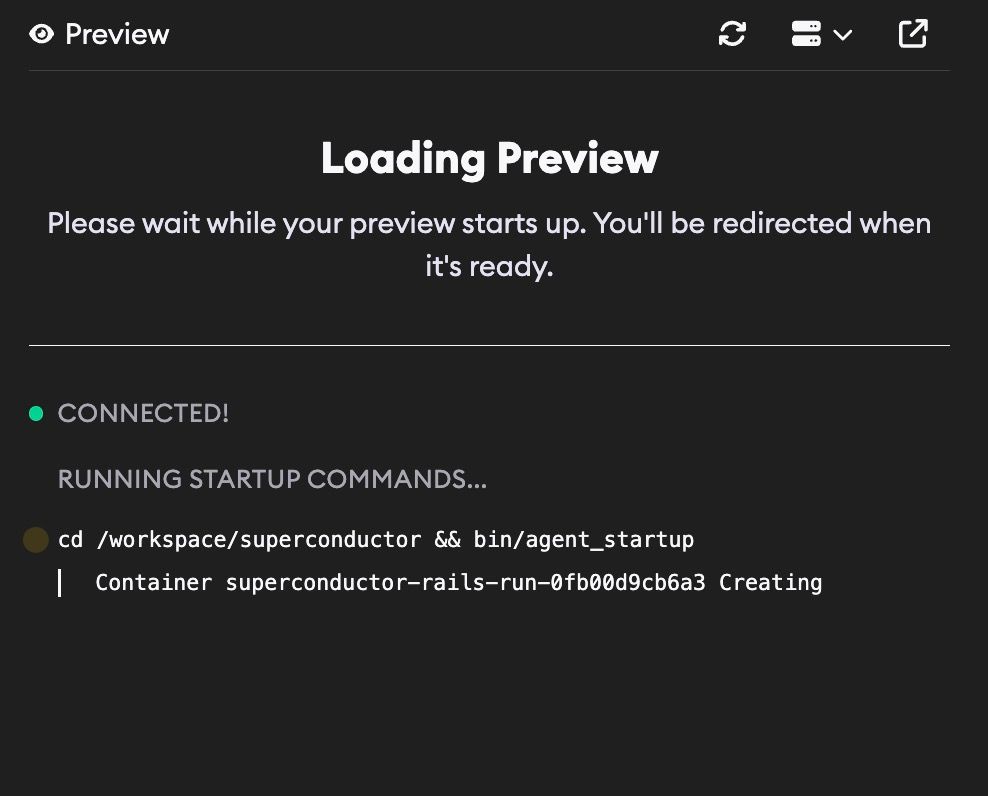
While the preview starts up, a loading screen shows the progress of your cloud instance and startup commands in real time. You'll see the instance connect, each command execute with its output, and whether commands completed or timed out.
Once your app responds, the loading screen automatically redirects to the live preview. If something goes wrong, you'll see an error with options to Retry, Configure Project, or Try Direct Link. See Preview not loading? for more help.
Preview lifespan
Previews stay active as long as you're interacting with the implementation. After 15 minutes of inactivity, the cloud instance pauses to save resources.
When you return to the implementation page, the instance automatically wakes up and your preview reloads. This usually takes a few seconds.
To manually refresh the preview, click the refresh button in the preview controls.
MCP Playwright for automated testing
Enable Playwright MCP in your project settings to let agents interact with your live preview programmatically.
With Playwright enabled, agents can:
- Navigate through your app in a headless browser
- Take screenshots of UI changes they've made
- Verify that features work correctly before telling you they're done
These screenshots appear as Artifacts in the chat, so you can see exactly what the agent sees without running the app yourself. This is especially useful for reviewing visual changes like new components, styling updates, or responsive layouts.
Preview not loading?
If your preview shows a blank page, a loading spinner that never finishes, or an error:
- Check the loading status: The loading screen shows exactly where things stalled — whether the sandbox failed to connect, a startup command timed out, or the app isn't responding.
- Ask the setup assistant: Open Automatic Environment Setup and chat with the agent about the preview problem. It can inspect your configuration, terminal output, and app startup to help troubleshoot.
- Check your startup commands: Open the terminal, run your startup command, and look for errors. Common issues include missing dependencies, wrong directory, or port conflicts.
- Verify your HTTP services: Make sure the port in your HTTP services matches what your app actually uses, and that the right service is marked as "Primary."
- Wait a moment: Some apps take a few seconds to fully start up. The preview polls automatically and loads once the app responds.
- Check your app: Does it work locally? Sometimes the issue is in the app code itself.
- Refresh the preview: Click the refresh button in the preview controls to reload the iframe.
If your app sets X-Frame-Options headers that block embedding, the browser may show a frame-blocking error. In that case, try opening the preview in a new tab instead.
If your app uses a host allowlist and the preview only fails on Superconductor, make sure you added the right environment-specific host variable such as AGENT_WEB_HOST, AGENT_RAILS_HOST, or AGENT_API_HOST. For concrete snippets, see Framework examples.
Terminal
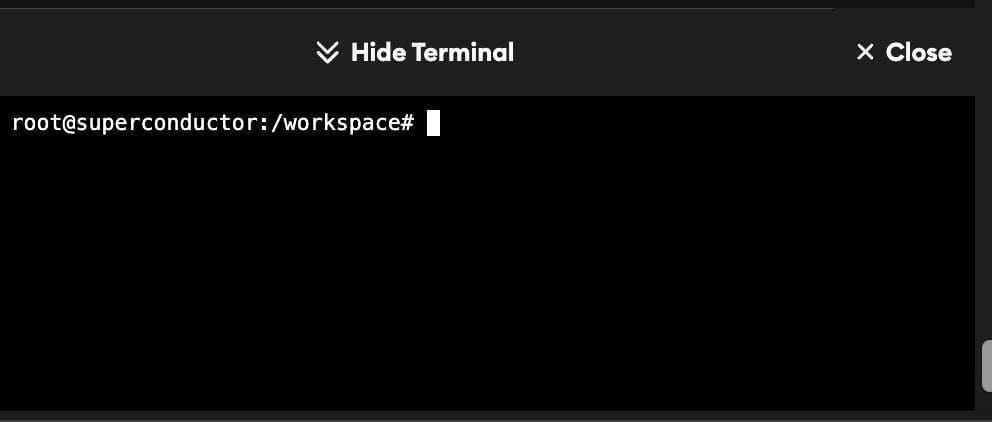
The terminal gives you direct shell access to the cloud instance where your implementation runs. It's the same environment where agents execute commands—you're literally sharing a workspace. For quick one-off commands, you can also use shell mode in chat without leaving the conversation.
Opening the terminal
Click Show Terminal at the bottom of the preview pane (or Open Terminal if the preview is collapsed). The terminal connects via WebSocket and drops you into a bash shell at /workspace. You can also open the terminal in a separate browser window using the dropdown menu in the preview pane header.
When to use the terminal
Debugging startup commands: If your preview isn't loading, the terminal shows you exactly what's happening. Run your startup command manually to see the full output and any errors.
Running tests: Execute your test suite to verify changes before merging. Agents run tests too, but you might want to run specific tests or see the full output.
Inspecting files: Check if files were created correctly, view logs, or explore the codebase from the agent's perspective.
Installing packages: Need a quick dependency? Install it directly. Just remember that changes won't persist across instance restarts unless you add them to your build commands.
Checking environment: Verify environment variables are set correctly, check which services are running, or inspect network connectivity.
Git operations: View diffs, check branch status, or investigate commit history. The agent works in a real git repo, so all the usual tools are available.
How terminal and preview interact
The terminal and preview share the same cloud instance. This means:
- Changes are instant: Edit a file in the terminal, and the preview updates (if your dev server supports hot reload).
- Same processes: You can see (and kill) processes the agent started, restart services, or check logs.
- Shared filesystem: Files the agent creates are visible in the terminal, and vice versa.
If you restart your dev server from the terminal, the preview will reload once the server is back up.
Terminal session lifecycle
Like the preview, terminal sessions are tied to the cloud instance. If the instance pauses due to inactivity, your terminal disconnects. When you reopen it, a new session starts.
The terminal automatically closes when you navigate away from the implementation page.