QA Checks [Beta]
Run a QA agent on your implementation to check functionality, code quality, and tests.
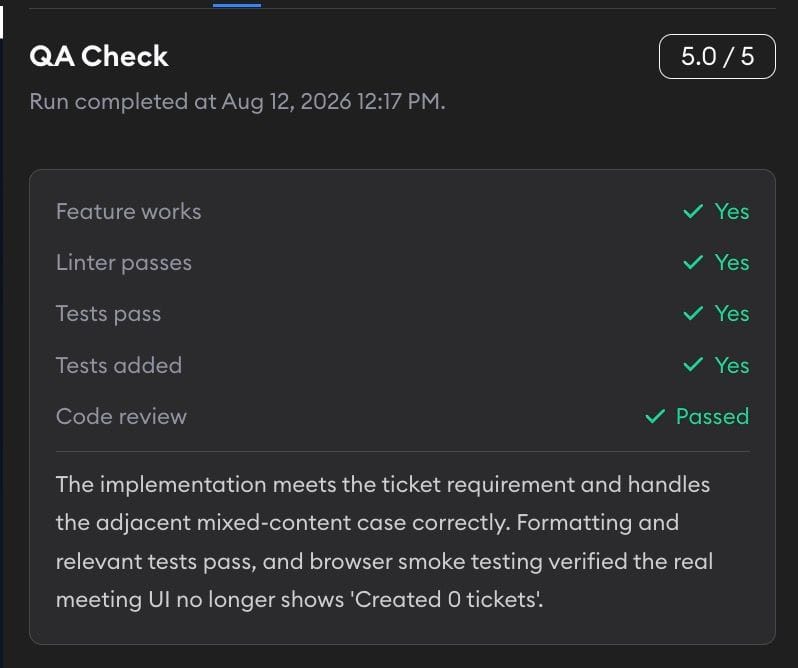
QA Checks let you run a separate QA agent against your implementation and get a short quality report. Use them when you want an independent check before you ask the coding agent for follow-up changes, open a pull request, or choose between implementations.
What is the difference between Guided Review and QA Checks? Guided Review helps you understand the diff and walks you through the code changes file-by-file in a logical order. QA Checks verify whether the agent's work satisfies the ticket requirements, passes relevant checks, and has enough test coverage to move forward. Run both when you want a readable walkthrough of the code changes and a separate quality signal for functionality, code quality, and tests.
Launching QA Checks
When the QA Checks beta is enabled, you'll see a QA Check tab in the implementation review panel, next to Full Diff and Guided Review.
If your project has Implementation Recommendations enabled, a QA check runs automatically after every new implementation finishes. This happens even when the ticket has only one implementation, so you do not need to launch the initial check yourself.
Otherwise, click the QA Check tab to launch the initial check. You can also use the tab to launch a check for an older implementation that does not have one.
The QA agent starts from the latest implementation diff. It applies the implementation's patch in a fresh QA environment, reads the original ticket and implementation conversation, then checks whether the work meets the ticket requirements.
QA checks can also run as part of a benchmark. Turn on Run QA checks in Benchmark Settings to score every benchmark implementation with a QA agent before the judges evaluate it.
QA Checks use the best available coding agent for your project.
QA Check cards in chat
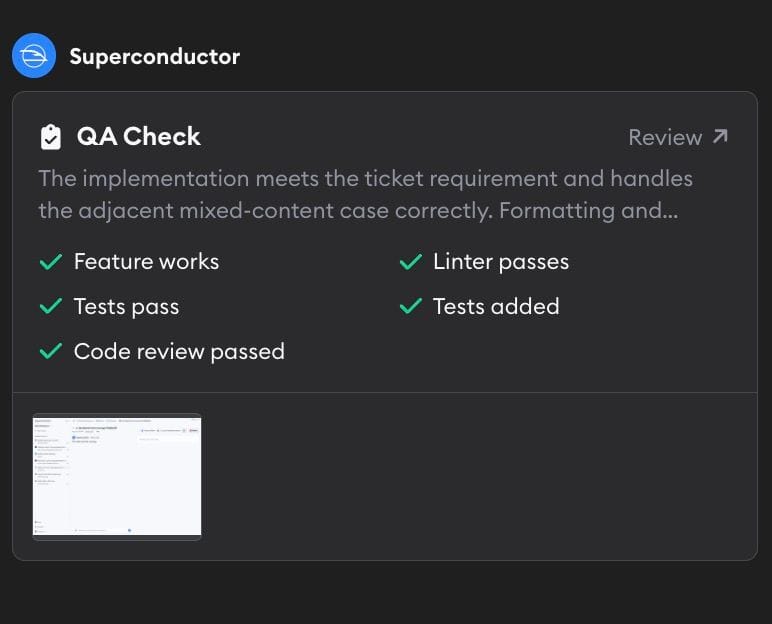
When a QA check finishes, its results appear as a card in the implementation chat. The card previews the QA agent's summary, result metrics, and any screenshots it captured.
Click Review to open that specific run in the QA Check tab. You can also click a screenshot thumbnail to view it at full size. Each completed run gets its own card, so you can return to an earlier result after rerunning the check. When you open an earlier run, Superconductor lets you know that a newer one is available.
What the QA report includes
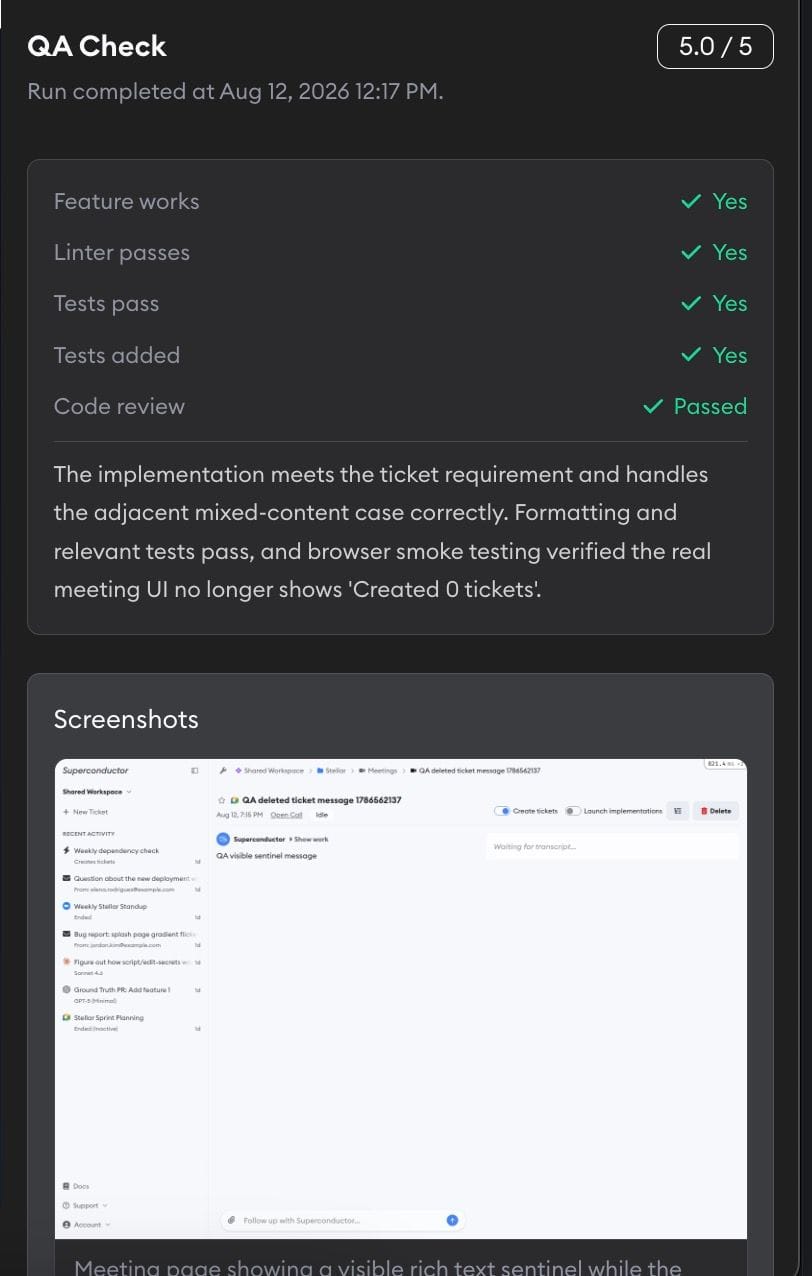
Once the run finishes, the QA Check tab shows:
- Overall score — A 0-5 score calculated as the average of the feature, code quality, and tests scores.
- Summary checks — Whether the feature works, the linter passes, tests pass, tests were added, and whether your code review skill passed.
- Screenshots — Visual evidence captured by the QA agent when it checks UI changes in a browser.
- Feature Functionality — Whether the implementation addresses the ticket requirements and works in the app when browser testing applies.
- Code Quality — Whether the code follows existing patterns, is easy to understand, passes formatting/linting, and avoids obvious maintainability issues.
- Tests — Whether tests pass, whether useful tests were added, and whether the test coverage is meaningful.
- Code review — The result of your project's own code review skill, if you have one. See Your own code review rubric.
- Improvements Needed — Specific follow-up items when the QA agent finds gaps.
The QA agent is instructed to run the relevant test suite and linter when it can. It can also use browser automation to inspect the app for UI or workflow changes.
When screenshots are available, they appear directly in the QA report. Click a screenshot to open it in a gallery view, and use Paste Into Chat to include the QA report and screenshots in your next message to the coding agent.
Your own code review rubric
If one of your repos defines a custom skill named qa-code-review, the QA agent runs it as part of every check. This is how you get your team's own review standards — naming conventions, architecture rules, testing expectations — applied on top of the built-in rubric.
Add the skill at [repo]/.agents/skills/qa-code-review/ and describe what a passing review looks like. Superconductor picks it up automatically — there's nothing to turn on. The QA report then shows a Code review result:
| Result | Meaning |
|---|---|
| Passed | The implementation meets the standards in your skill |
| Failed | The QA agent found violations. They're also listed under Improvements Needed |
| N/A | No qa-code-review skill was available in the project's repos |
Failed reviews add their findings to Improvements Needed, so Paste Into Chat hands the coding agent a concrete fix list. The result also shows on the QA Check card in chat.
How scoring works
The QA agent returns separate 0-5 scores for feature functionality, code quality, and tests, then returns an overall 0-5 score.
Use the score as a quick signal:
| Score | Meaning |
|---|---|
| 5 | Complete, working, well-tested, and clean. |
| 4 | Good implementation with minor follow-up items. |
| 3 | Partially acceptable, but has meaningful gaps in behavior, quality, or tests. |
| 2 | Significant issues that should be fixed before review or merge. |
| 1 | Barely addresses the ticket. |
| 0 | No meaningful implementation or the agent could not verify it. |
Sending QA feedback back to the agent
Click Paste Into Chat to copy the QA report into the implementation chat draft. It does not send automatically, so you can edit the message before asking the coding agent to fix the issues.
If the implementation changes after the QA check was created, Superconductor marks the QA check as outdated and shows a Rerun button at the top of the QA tab. Click it to launch a fresh QA check against the latest diff.
Feedback
This feature is in beta and under active development. We'd love to hear how it's working for you — reach out to us with feedback, questions, or feature requests.