Connect your own tools
Connect any MCP server so agents can use your own tools, or configure one in your repo.
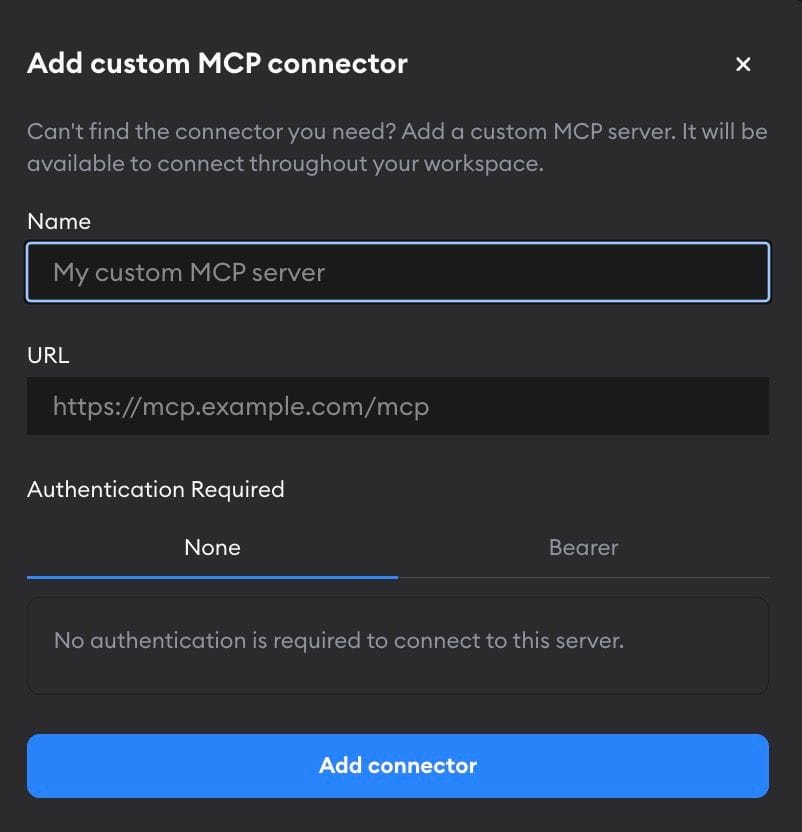
Can't find the tool you need in the connectors list? Add its MCP server yourself. Your internal search service, an in-house API, an MCP server for a vendor we don't support yet—if it's reachable over HTTP, agents can use it.
Connecting your own tool takes two steps:
- Add the server once, so it shows up in your workspace's connectors list.
- Connect it with a token and decide who can use it and where.
Prefer to keep MCP configuration in your code? Superconductor also picks up servers configured in your repos.
Why are there two steps? Adding the server puts it in the list for your whole workspace. Connecting it is where the token goes, so each teammate can connect the same server with their own tokens.
Which tools can I connect?
Any tool that runs a remote MCP server you can reach over the internet. Check two things in the tool's own docs:
- How it signs you in. Superconductor supports servers that need no login at all, and servers that take a bearer token you can paste in. Servers that make you sign in through a browser window (OAuth) aren't supported yet.
- Its address. You need the server's MCP address, such as
https://mcp.example.com/mcp. It has to start withhttps://when a bearer token is involved. Plainhttp://works only for servers with no authentication.
Add the server
Go to Workspace Settings → Connectors and click Add. You need to have an Owner or Admin role in your workspace to add new connectors.
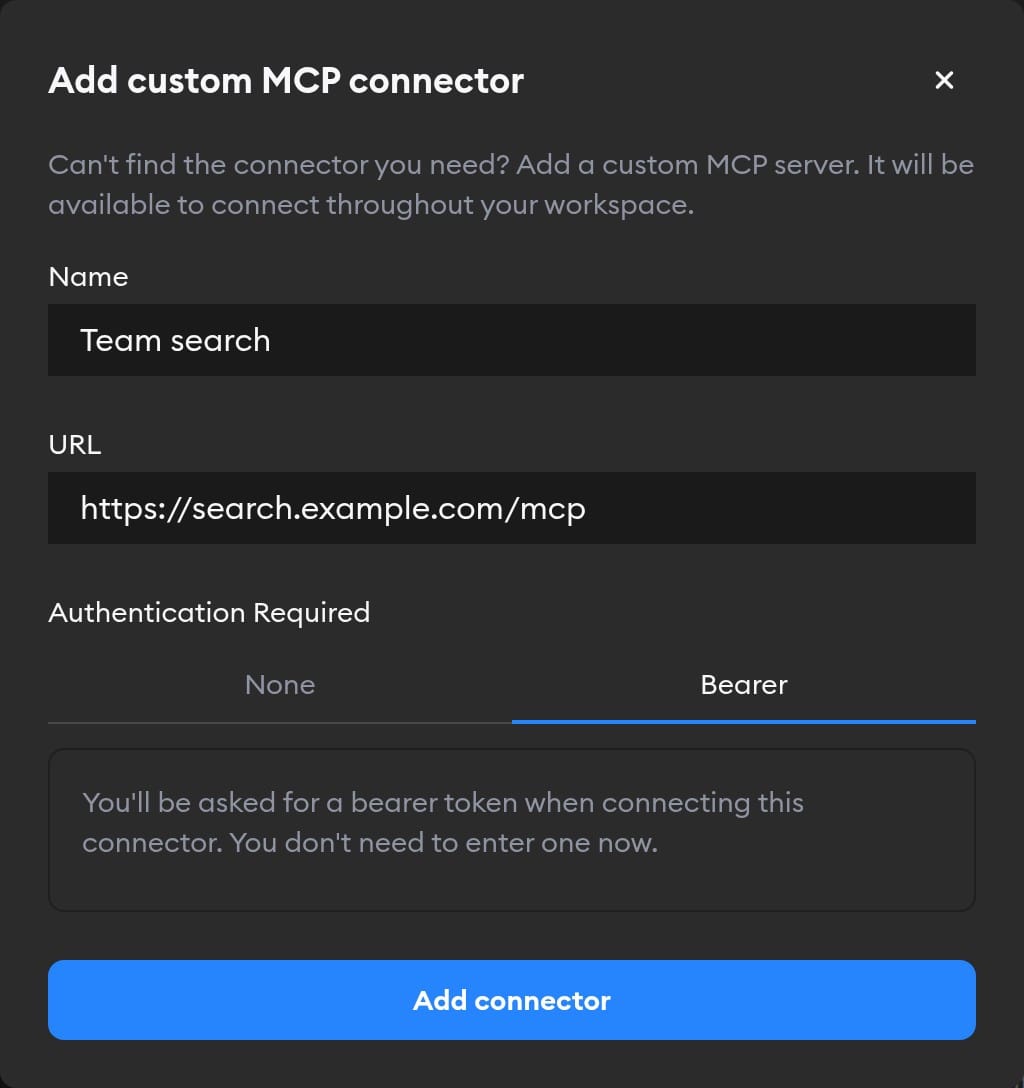
Fill in three fields:
- Name: What you and your teammates will see in the connectors list. Agents use this name too, so pick something you'd say out loud—"Team search" works better than "mcp-svc-2".
- URL: The server's MCP endpoint, such as
https://search.example.com/mcp. Check the server's own docs for the exact address. - Authentication Required: Choose None if anyone can call the server, or Bearer if it needs a token. You don't enter the token yet.
Click Add connector. The server now appears at the bottom of the connectors list, in every project in your workspace. Project Settings → Connectors has the same Add button, and a server you add there is available across the workspace too—so nobody has to add it twice.

Connect it
Click Connect next to your new server.
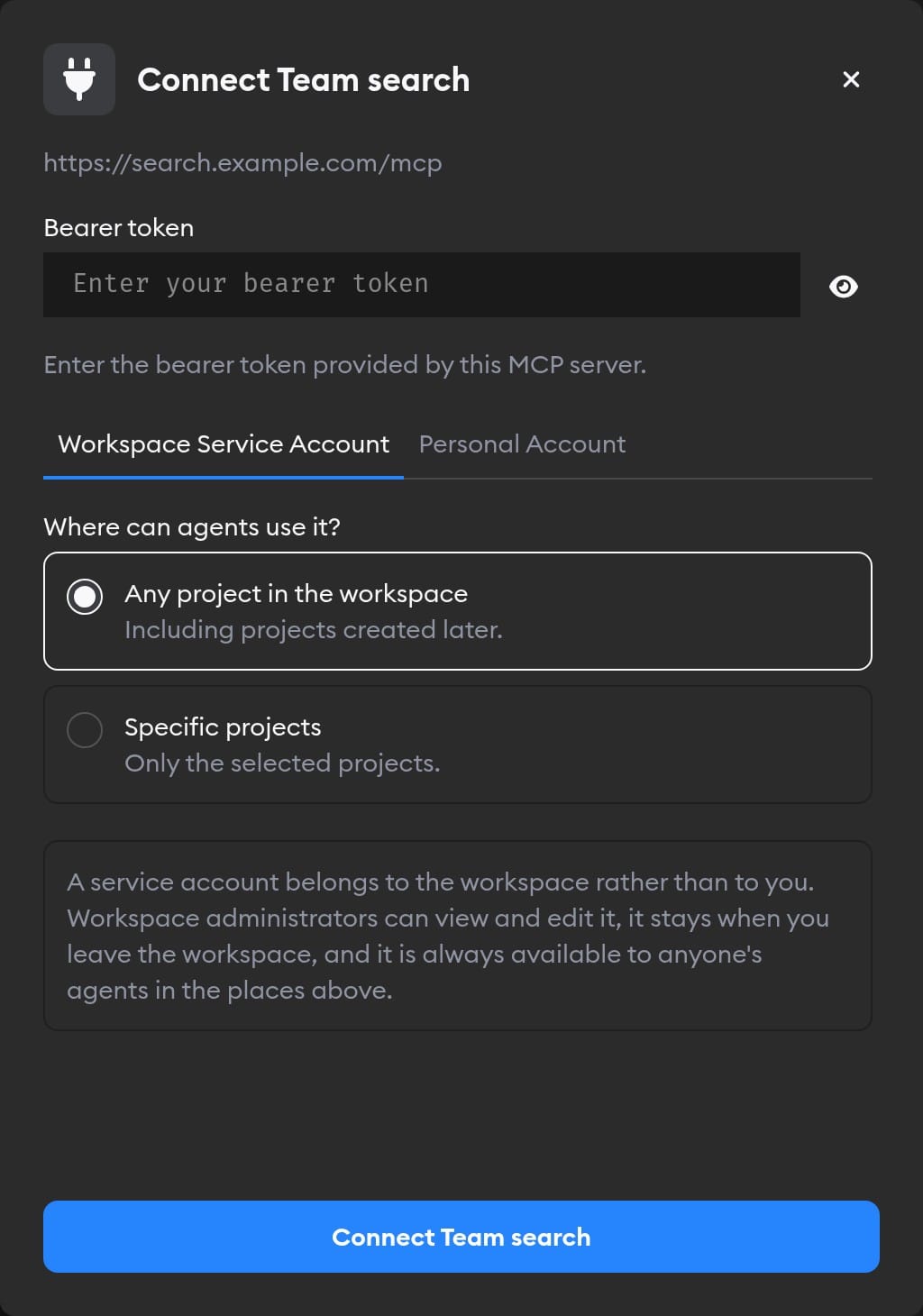
If the server uses bearer authentication, paste the token it gave you. Then choose whether the connection belongs to your team or to you, and which projects can use it. These choices work the same way as they do for every connector—the Connectors guide explains each one.
Click Connect to finish. Superconductor stores your token encrypted and opens network access to your server's host automatically, so there's nothing to add to your network rules.
Ask agents to use it
Mention the server by name in any ticket or chat, and the agent can call its tools:
Use Team search to find our refund policy, then update the copy on the billing page to match.
Agents see whatever tools your server exposes, and can only do what the token you connected allows.
Manage the connection
Your server sits alongside the built-in connectors, so everything in the Connectors guide applies: click Manage to change project access, replace the token, or disconnect. See Which connection agents use when several people have connected the same server.
The server stays in your workspace's connectors list even after you disconnect, so anyone with the right role can connect it again later.
Servers configured in your repos
If your repo has an MCP config file, Superconductor merges it into the agent's setup automatically. There's nothing to turn on, and your MCP servers stay version-controlled next to your code—so agents in Superconductor get the same tools you use locally.
Each agent reads its own config file:
| Agent | MCP config file | Other merged config |
|---|---|---|
| Claude Code | [repo]/.mcp.json | Hooks, plugins, and marketplaces from [repo]/.claude/settings.json; commands and agents from [repo]/.claude/ |
| Codex | [repo]/.codex/config.toml | - |
| Amp | [repo]/.amp/settings.json | - |
| OpenCode | [repo]/opencode.json | Commands, agents, plugins |
If your repo config and your Superconductor settings disagree, Superconductor's settings win.
Which one should you use?
Use a repo config when you want the same MCP setup locally and in Superconductor, when you need to pin a server command or config path, or when the server runs as a local command.
For a hosted server, connecting it is usually easier: Superconductor stores the token encrypted, opens network access for you, and each teammate can connect with their own credentials.
You can add custom skills from your repos the same way.