Figma
Let agents read your Figma design files while they implement UI work.

Figma MCP lets agents pull layout, styles, and other design context straight from your Figma files. Give agents a Figma link in a ticket, and they can build UI that matches the design instead of guessing.
What agents can do
Once you connect Figma, agents can:
- Read frames, components, and layers from a Figma file
- Inspect layout, spacing, colors, and typography
- Use design context to implement or update UI
Setup
First, go to Figma settings and generate a personal access token. Set these two scopes to Read-only. The other scopes aren't used, so leave them unchecked:
| Scope | Why it's needed |
|---|---|
File content (file_content:read) | Read file contents and render images from files |
Dev resources (file_dev_resources:read) | Read dev mode resources attached to a file |
Then connect it in Superconductor: find Figma on the Connectors page, click Connect, and paste your personal access token. The Connectors guide covers the sharing and project access options on that form.
If an agent can't read a file because a permission is missing, create a new Figma token with both scopes above, then click Manage next to your Figma connection and save the new token.
Link directly to your design
Figma works best when you give agents a link to the exact frame or layer they should inspect. The link must include the selected object's node ID, so don't copy a generic file link unless you want the agent to inspect the whole file.
To copy the right link:
- Open the design in Figma.
- Select the frame, component, or layer you want the agent to use.
- Press
Command + Lon macOS, orCtrl + Lon Windows/Linux, to copy a link to the selection. - Paste that link into the Superconductor ticket or chat message with the implementation request.
You can also right-click the selection and choose Copy/Paste as → Copy link to selection.
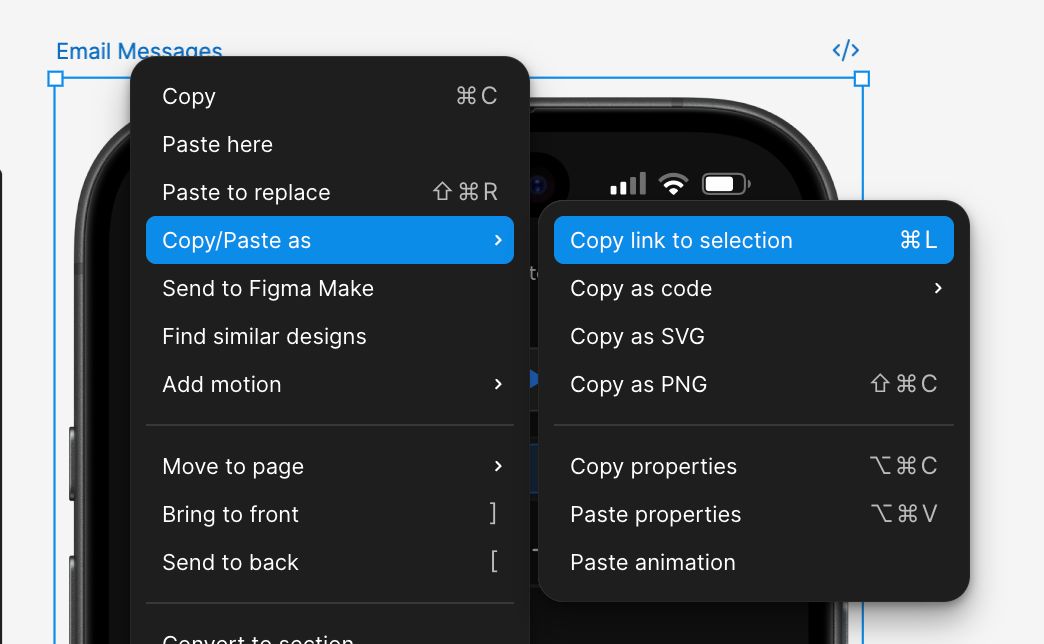
The copied URL should include a node-id parameter. For example:
https://www.figma.com/design/FILE_KEY/File-name?node-id=123-456You can also copy the URL from the browser address bar after selecting the target frame or layer, as long as the URL includes node-id.
When to use it
Ask agents to use Figma when a ticket involves building or updating UI from a design. Include the Figma file or frame link in the ticket so the agent knows what to read.
If the agent reads the wrong part of a design, send a new link copied from the specific frame or layer. A file-level link may leave the agent guessing which screen or mockup matters.